New to Telerik Test Studio Dev Edition? Start a free 30-day trial
Steps Pane Overview
Updated over 1 year ago
The Steps pane provides useful options to reorder and edit the steps. You could also set different settings for the Test Studio Dev Quick Execution.
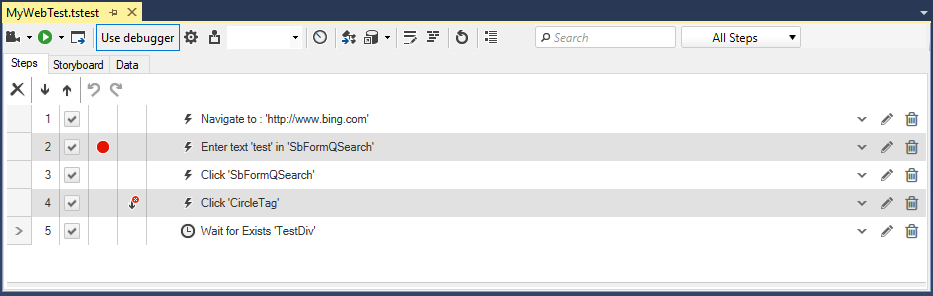
The steps are listed in the order they will be executed for the current test run. Below is a list with description for the available options to modify and reorder steps.
| Feature | What to be used for |
|---|---|
 | Move Step Down - Move the selected step(s) down one in the sequence |
 | Move Step Up - Move the selected step(s) up one in the sequence |
 | Undo - Restore a step you just deleted or changed to its previous state and location |
 | Redo - Reapply the edit that was undone with the Undo button |
 | Step Marker - Set the step marker to denote where to insert newly recorded/added steps |
 | Step Order - The step's place in the test sequence |
 | Enabled Checkbox - Whether the step will run during execution |
 | Breakpoint - Indicates whether the test will pause at that step and show Debug Options. (This is not applicable when set in a test inserted as Test as Step. Use the Execution > Pause Test Step Property instead) |
 | Continue on Failure - Indicates whether the test will stop if that step detects a failure |
 | Step Type - Represents the type of step: Action, Verification, Coded, etc. |
 | Description - The default description given to the step by Test Studio |
 | Edit Custom Description - Alter the default step description |
 | Show Inline Editor - Edit some of the step properties |
 | Delete - Removes the step from the test |
 | Step Type Filter - Filter test steps by type |
Execution Related Options in the Steps Pane
The available options related to test execution in the Step pane are listed below with short description.
| Feature | What to be used for |
|---|---|
 | Record Button - Start recording a test |
 | Execute Button - Start executing a test |
 | Configure Silverlight Out-Of-Browser - Configure the test to run against a Silverlight application |
 | Debugger - Whether to display the visual debugger during test execution |
 | Debugger Options - When the debugger to pause the test execution |
 | Use Annotations - Turn on/off the annotations during test execution and the time (in miliseconds) to show the annotation |
 | Quick Execution Options - Timeouts to set for the quick execution |
 | Generate Unit Test |
 | Data Sources - Manage the data sources for data driven testing approach |
 | Add Code Behind - Creates a code behind file for this test or opens the existing one |
 | Code Preview - Displays the code for all steps in test |
 | Recapture Storyboard - Recaptures new screenshots for the storyboard view of test |
 | Test Properties - Displays the test properties |