Attach Columns to Verifications
The verification steps also have at least one property that can be bound to a column from your data source. To bind a test step property to a project data source follow the steps below:
-
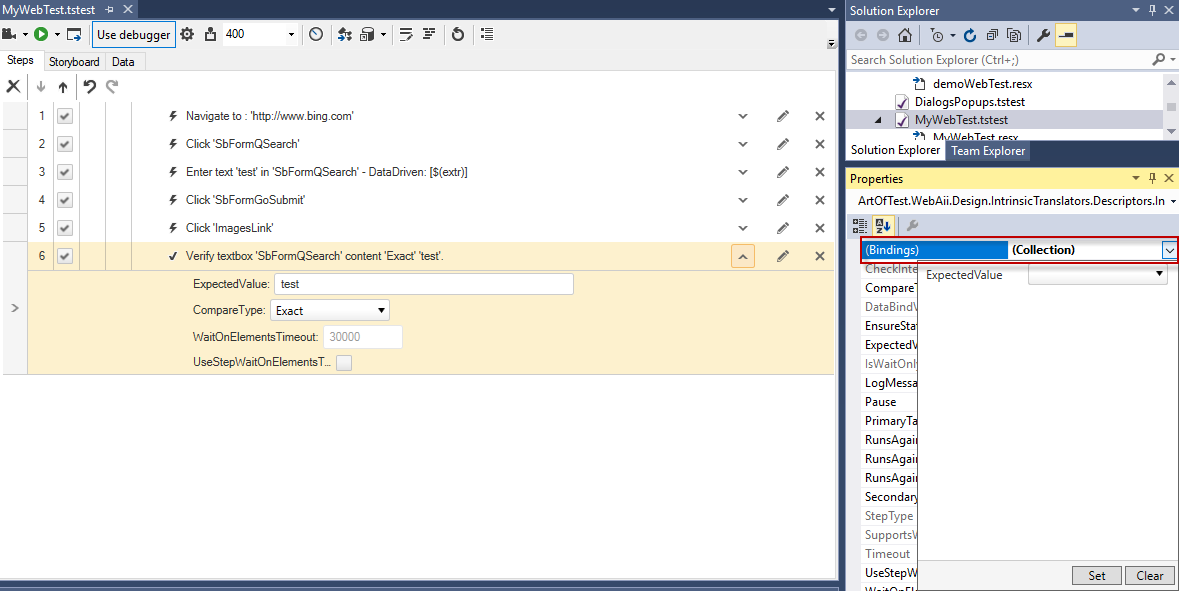
Click the step in the Test Steps pane to activate its properties in the Property pane.
-
Click the (Collection) dropdown next to the (Bindings) property to see the available properties for the selected step which could be data driven.
-
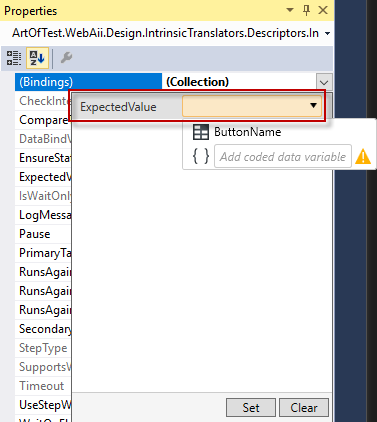
Click the dropdown menu next to the step property which will be data driven to see the available columns from the data source.
-
Select the column name which contains the respective values for that property and click the Set button.
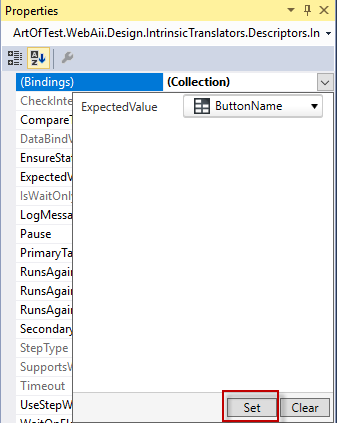
Note! If the current test is used as a test as step and inherits the parent data source or there is a variable value extracted in code the list described above will not contain these.
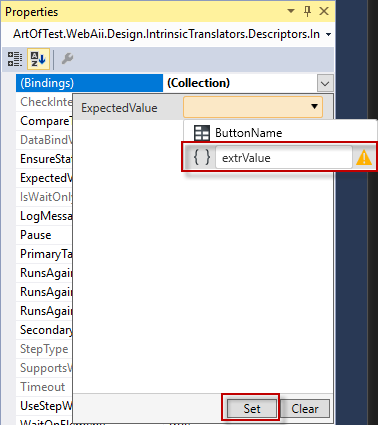
If you wish to access the data source of a parent test or the extracted variable, type the column or variable name in the text box (without the $ notation), click the brackets and Set button.