Using DayTemplateSelector
This help topic explains in details how you can customize and apply a different DataTemplate to RadCalendar’s buttons by creating a custom DataTemplateSelector.
The article will go through on how to:
- Create a custom DayButtonTemplateSelector
- Customize the CalendarButton Template
- Set the DayTemplateSelector of RadCalendar
Firstly, you need to create a DayButtonTemplateSelector class that inherits the DataTemplateSelector class:
public class DayButtonTemplateSelector : DataTemplateSelector
{

}
Next we need to define the needed DataTemplates and override the SelectTemplate method. For this concrete scenario the days on which a new Template should be set are stored in collections named "SpecialHolidays" and “BookedDays” - based on your condition, in the particular case comparison between the Days of the Calendar with the one from the collections, you return the proper DataTemplate that should be applied:
public DataTemplate DefaultTemplate { get; set; }
public DataTemplate BookedDayTemplate { get; set; }
public DataTemplate SpecialHolidayTemplate { get; set; }

public List<DateTime> BookedDays { get; set; }
public List<DateTime> SpecialHolidays { get; set; }

public override DataTemplate SelectTemplate(object item, DependencyObject container)
{
    var calendarButton = item as CalendarButtonContent;
    var currDate = calendarButton.Date;
    if (calendarButton.ButtonType == CalendarButtonType.Date)
    {
        if (this.BookedDays.Any(a => a.Date.Day == currDate.Day))
        {
            return this.BookedDayTemplate;
        }

        if (this.SpecialHolidays.Any(a => a.Date.Day == currDate.Day))
        {
            return this.SpecialHolidayTemplate;
        }
    }

    return this.DefaultTemplate;
}
As a next step you need to create a StaticResource in XAML for the DayButtonTemplateSelector and the Templates that contains:
<local:DayButtonTemplateSelector x:Key="DayButtonTemplateSelector">
    <local:DayButtonTemplateSelector.DefaultTemplate>
        <DataTemplate>
            <TextBlock Text="{Binding Text}" />
        </DataTemplate>
    </local:DayButtonTemplateSelector.DefaultTemplate>
    <local:DayButtonTemplateSelector.BookedDayTemplate>
        <DataTemplate>
            <Grid>
                <Path Data="M3.9,1.9 L3.9,4.9 L5.9,4.9 L5.9,1.9 z M4.9,0 C6.5,0 7.9,1.3 7.9,2.9 L7.9,4.9 L10,4.9 L10,12 L0,12 L0,4.9 L1.9,4.9 L1.9,2.9 C1.9,1.3 3.2,0 4.9,0 z"
    	              Fill="LightSalmon"
    	              Height="28"
    	              Stretch="Fill"
    	              UseLayoutRounding="False"
    	              Width="32"
    	              Opacity="0.4"/>
                <TextBlock Text="{Binding Text}"
    	                   Margin="0 6 0 0"
    	                   Foreground="Black"
    	                   FontWeight="Bold"
    	                   HorizontalAlignment="Center"
    	                   VerticalAlignment="Center"/>
            </Grid>
        </DataTemplate>
    </local:DayButtonTemplateSelector.BookedDayTemplate>
    <local:DayButtonTemplateSelector.SpecialHolidayTemplate>
        <DataTemplate>
            <Grid>
                <Path Data="M11.5,0 L14.2,8.3 L23.0,8.3 L16,13.5 L18.6,22 L11.5,16.7 L4.4,22 L7.1,13.5 L0,8.3 L8.7,8.3 z"
    	              Fill="#FF25A0DA"
    	              Height="34"
    	              Stretch="Fill"
    	              UseLayoutRounding="False"
    	              Width="34"
    	              Opacity="0.4"/>
                <TextBlock Text="{Binding Text}"
    	                   Margin="0 5 0 0"
    	                   Foreground="Black"
    	                   FontWeight="Bold"
    	                   HorizontalAlignment="Center"
    	                   VerticalAlignment="Center"/>
            </Grid>
        </DataTemplate>
    </local:DayButtonTemplateSelector.SpecialHolidayTemplate>
</local:DayButtonTemplateSelector>
The last step is to set the DayTemplateSelector property of the control:
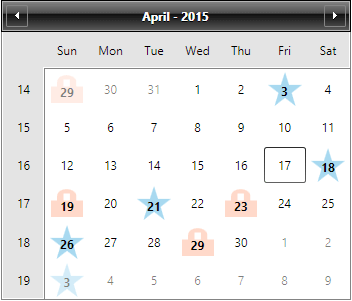
<telerik:RadCalendar DayTemplateSelector="{StaticResource DayButtonTemplateSelector}" />The following figure demonstrates the final result:
Find a runnable project of the previous example in the WPF Samples GitHub repository.