Adding Execution Line Highlighting in RadSyntaxEditor
Environment
| Product Version | Product | Author |
|---|---|---|
| 2025.1.415 | RadSyntaxEditor for WinForms | Dinko Krastev |
Description
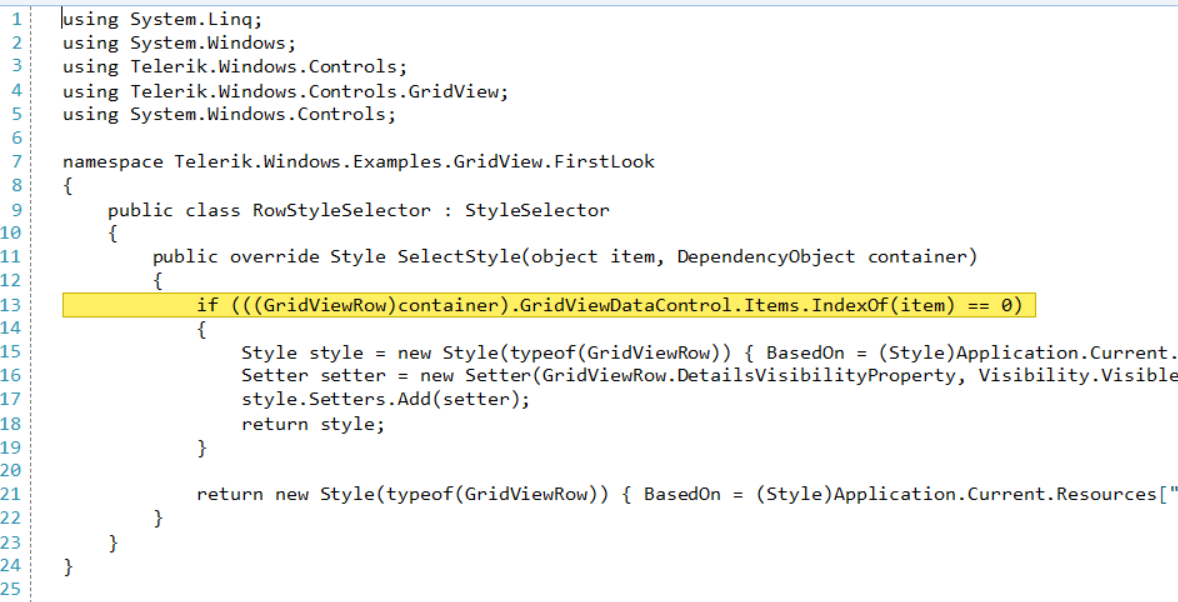
When building code editors or debugging tools, it is common to highlight the currently executing line with a distinct background color, text foreground, and a border—similar to the yellow execution indicator in Visual Studio. This article demonstrates how to create a custom execution line highlight in RadSyntaxEditor by combining a LineHighlightTagger for the background with a custom ClassificationTag tagger for the text foreground.
This approach is purely visual. It only simulates the appearance of an execution line indicator. It does not actually execute or evaluate the code on that line.
Solution
The approach uses two taggers working together:
- A LineHighlightTagger that applies a yellow background and border to the target line.
- A custom ExecutionLineTagger (inheriting TaggerBase<ClassificationTag>) that changes the text foreground color on that line.
Step 1: Create the ExecutionLineTagger class
public class ExecutionLineTagger : TaggerBase<ClassificationTag>
{
    public static readonly ClassificationType LineForegroundType =
        new ClassificationType("LineForeground");

    private IEnumerable<int> targetLines = Enumerable.Empty<int>();

    public ExecutionLineTagger(RadSyntaxEditorElement editor)
        : base(editor) { }

    public override IEnumerable<TagSpan<ClassificationTag>> GetTags(NormalizedSnapshotSpanCollection spans)
    {
        if (!targetLines.Any())
            yield break;

        TextSnapshot snapshot = this.Document.CurrentSnapshot;
        foreach (TextSnapshotSpan snapshotSpan in spans)
        {
            int lineNumber = snapshot.GetLineFromPosition(snapshotSpan.Start).LineNumber;
            if (targetLines.Contains(lineNumber))
            {
                yield return new TagSpan<ClassificationTag>(
                    snapshotSpan,
                    new ClassificationTag(LineForegroundType));
            }
        }
    }

    public void SetLines(IEnumerable<int> lines)
    {
        this.targetLines = lines;
        this.CallOnTagsChanged(this.Document.CurrentSnapshot.Span);
    }
}
Step 2: Register the text format definitions and taggers
// Register the foreground format definition for the execution line text
radSyntaxEditor1.SyntaxEditorElement.TextFormatDefinitions.AddLast(
    ExecutionLineTagger.LineForegroundType,
    new TextFormatDefinition(new SolidBrush(Color.Black)));

// Register the background and border format definition
radSyntaxEditor1.SyntaxEditorElement.TextFormatDefinitions.AddLast(
    "ExecutionLine",
    new TextFormatDefinition(
        null,
        new SolidBrush(Color.FromArgb(255, 255, 239, 98)),
        null,
        new Telerik.WinForms.Controls.SyntaxEditor.UI.Pen(
            new SolidBrush(Color.FromArgb(255, 200, 180, 0)), 1)));

// Create and register the LineHighlightTagger for the background
var highlightTagger = new LineHighlightTagger(
    radSyntaxEditor1.SyntaxEditorElement,
    new TextFormatDefinitionKey("ExecutionLine"));
highlightTagger.HighlightMode = LineHighlightMode.LineStartToTextEnd;

// Create and register the ExecutionLineTagger for the foreground
var foregroundTagger = new ExecutionLineTagger(radSyntaxEditor1.SyntaxEditorElement);

radSyntaxEditor1.SyntaxEditorElement.TaggersRegistry.RegisterTagger(highlightTagger);
radSyntaxEditor1.SyntaxEditorElement.TaggersRegistry.RegisterTagger(foregroundTagger);

// Highlight a specific line (e.g., line 12)
highlightTagger.HighlightLines(new List<int> { 12 });
foregroundTagger.SetLines(new List<int> { 12 });
Updating the Execution Line Dynamically
To move the execution line indicator as the user steps through code, call HighlightLines and SetLines with the new target line number:
int executionLine = 10; // the new execution line
highlightTagger.HighlightLines(new List<int> { executionLine });
foregroundTagger.SetLines(new List<int> { executionLine });