New to Telerik UI for WinForms? Start a free 30-day trial
How to drag a cell and copy its content in multiple cells
Updated on Aug 27, 2026
Environment
| Product Version | Product | Author |
|---|---|---|
| 2019.2.618 | RadGridView for WinForms | Desislava Yordanova |
Description
This tutorial demonstrates how to drag a single cell in RadGridView in such a way that you can copy the content of one cell into multiple cells similar to MS Excel.
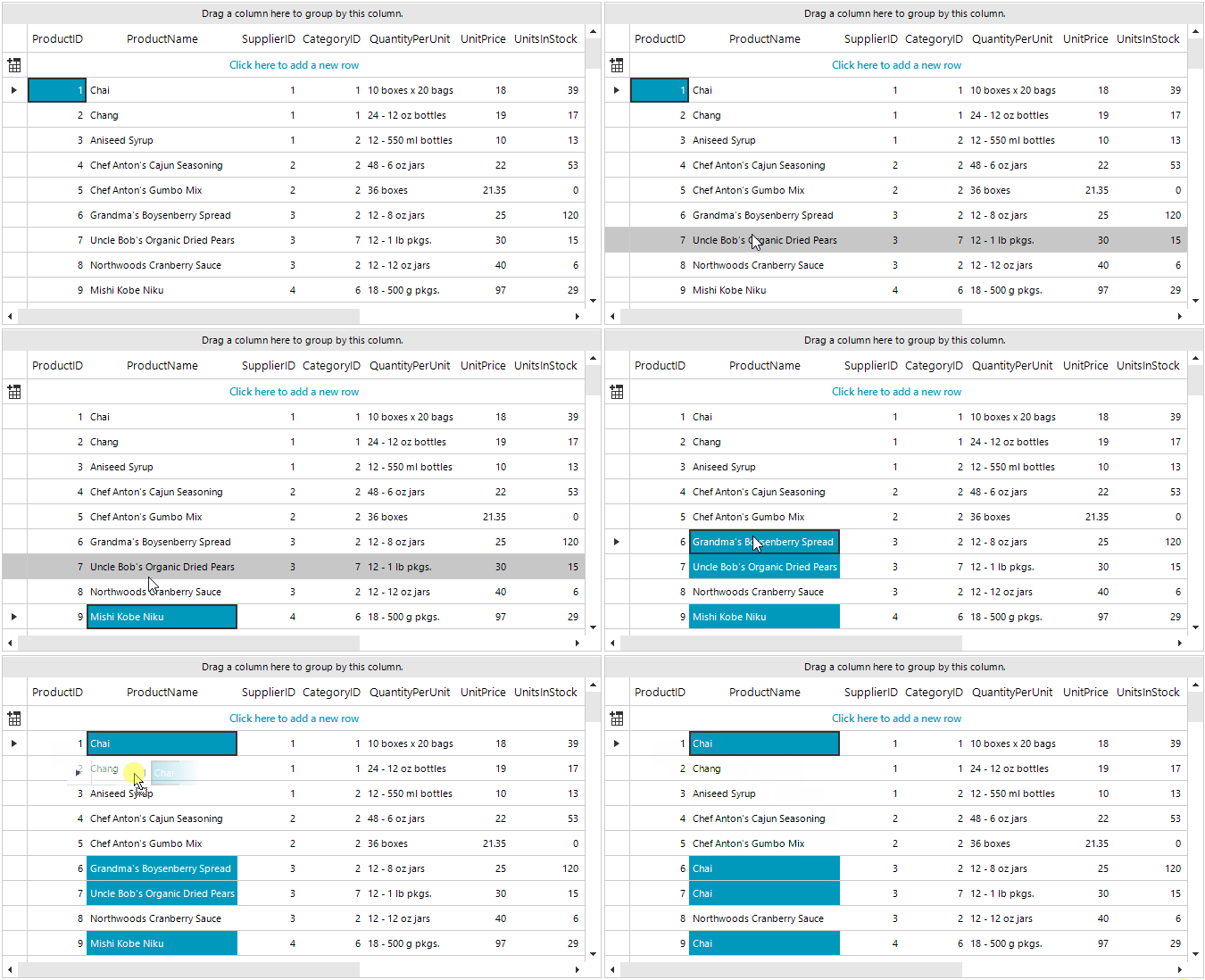
While performing the multiple selection in RadGridView and dragging and dropping the cell, it is necessary to keep the
Ctrlkey pressed. Thus, the multiple selection will be preserved.
Solution
You can enable the multiple cell selection in RadGridView by setting the MultiSelect property to true and the SelectionMode property to CellSelect. Then, in the PreviewDragDrop event of the RadDragDropService, you can adjust the value of the selected cells considering the value of the current cell.
C#
public RadForm1()
{
    InitializeComponent();

    this.radGridView1.MultiSelect = true;
    this.radGridView1.SelectionMode = GridViewSelectionMode.CellSelect;

    RadDragDropService svc =
        this.radGridView1.GridViewElement.GetService<RadDragDropService>();
    svc.PreviewDragStart += svc_PreviewDragStart;
    svc.PreviewDragDrop += svc_PreviewDragDrop;
    svc.PreviewDragOver += svc_PreviewDragOver;
    svc.PreviewDropTarget += svc_PreviewDropTarget;

    //register the custom row selection behavior
    var gridBehavior = this.radGridView1.GridBehavior as BaseGridBehavior;
    gridBehavior.UnregisterBehavior(typeof(GridViewDataRowInfo));
    gridBehavior.RegisterBehavior(typeof(GridViewDataRowInfo), new RowSelectionGridBehavior());
}

private void svc_PreviewDropTarget(object sender, PreviewDropTargetEventArgs e)
{
    e.DropTarget = e.HitTarget;
}

//initiates drag and drop service for clicked rows
public class RowSelectionGridBehavior : GridDataRowBehavior
{
    protected override bool OnMouseDownLeft(MouseEventArgs e)
    {
        GridDataRowElement row = this.GetRowAtPoint(e.Location) as GridDataRowElement;
        if (row != null)
        {
            RadGridViewDragDropService svc = this.GridViewElement.GetService<RadGridViewDragDropService>();
            svc.AllowAutoScrollColumnsWhileDragging = false;
            svc.AllowAutoScrollRowsWhileDragging = true;
            svc.Start(new SnapshotDragItem(row));
        }
        return base.OnMouseDownLeft(e);
    }
}
GridViewRowInfo draggedRow;
//required to initiate drag and drop when grid is in bound mode
private void svc_PreviewDragStart(object sender, PreviewDragStartEventArgs e)
{
    SnapshotDragItem draggedSnapShot = e.DragInstance as SnapshotDragItem;
    if (draggedSnapShot == null)
    {
        e.CanStart = false;
    }
    else
    {
        e.CanStart = true;
          GridDataRowElement dragRowElement = draggedSnapShot.Item as GridDataRowElement;
          draggedRow = dragRowElement.RowInfo;
    }
}

private void svc_PreviewDragOver(object sender, RadDragOverEventArgs e)
{
    SnapshotDragItem draggedSnapShot = e.DragInstance as SnapshotDragItem;
    if (draggedSnapShot == null)
    {
        return;
    }
    GridDataRowElement dragRowElement = draggedSnapShot.Item as GridDataRowElement;
    if (dragRowElement != null)
    {
        GridCellElement targetCell = e.HitTarget as GridCellElement;
        if (targetCell != null && draggedRow.ViewTemplate.CurrentColumn == targetCell.ColumnInfo)
        {
            e.CanDrop = true;
        }
        else
        {
            e.CanDrop = false;
        }
    }
}

private void svc_PreviewDragDrop(object sender, RadDropEventArgs e)
{
    SnapshotDragItem draggedSnapShot = e.DragInstance as SnapshotDragItem;
    if (draggedSnapShot==null)
    {
        return;
    }
    GridDataRowElement dragRowElement = draggedSnapShot.Item as GridDataRowElement;
    GridCellElement targetCell = e.HitTarget as GridCellElement;
    if (dragRowElement == null || targetCell == null)
    {
        return;
    }
    e.Handled = true;

    foreach (GridViewCellInfo cell in targetCell.GridControl.SelectedCells)
    {
        if (cell != draggedRow.ViewTemplate.MasterTemplate.CurrentRow.Cells[draggedRow.ViewTemplate.CurrentColumn.Name])
        {
             cell.Value = draggedRow.ViewTemplate.MasterTemplate.CurrentRow.Cells[draggedRow.ViewTemplate.CurrentColumn.Name].Value;
        }
    }
}