New to Telerik UI for WinForms? Start a free 30-day trial
Build Hierarchy in RadGridView from a Nested List
Updated on Aug 27, 2026
Environment
| Product Version | Product | Author |
|---|---|---|
| 2019.2.618 | RadGridView for WinForms | Desislava Yordanova |
Description
Consider that you have a class which contains a property that represents a list of records of another type:
Class Car with a nested list of Part objects
C#
          public class Car
        {
            public int Id { get; set; }

            public string Model { get; set; }

            public BindingList<Part> Parts { get; set; }

            public Car(int id, string model, BindingList<Part> parts)
            {
                this.Id = id;
                this.Model = model;
                this.Parts = parts;
            }
        }

        public class Part
        {
            public string PartId { get; set; }

            public string PartTitle { get; set; }

            public Part(string partId, string partTitle)
            {
                this.PartId = partId;
                this.PartTitle = partTitle;
            }
        }
A common requirement is to generate a hierarchy in RadGridView when setting the DataSource property to a collection of Cars.
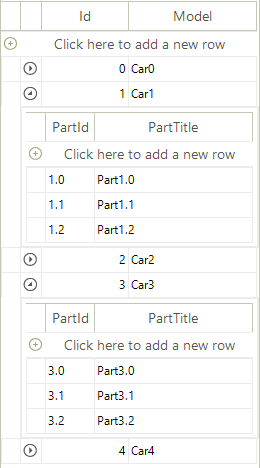
Solution
RadGridView offers the following solutions:
Autogenerate the hierarchy
Set the AutoGenerateHierarchy property to true before setting the DataSource. You can also hide the column that is automatically generated for the list property:
C#
            BindingList<Car> cars = new BindingList<Car>();

            for (int i = 0; i < 5; i++)
            {
                BindingList<Part> parts = new BindingList<Part>();
                for (int j = 0; j < 3; j++)
                {
                    parts.Add(new Part(i + "." + j, "Part" + i + "." + j));
                }
                cars.Add(new Car(i, "Car" + i, parts));
            }
            this.radGridView1.AutoGenerateHierarchy = true;
            this.radGridView1.DataSource = cars;
            this.radGridView1.MasterTemplate.Columns["Parts"].IsVisible = false;
Load the hierarchy on demand
Set the AutoGenerateHierarchy property to false. Then, use the load on demand hierarchy approach to display the nested data.
C#
           public RadForm1()
        {
            InitializeComponent();

            BindingList<Car> cars = new BindingList<Car>();
            for (int i = 0; i < 5; i++)
            {
                BindingList<Part> parts = new BindingList<Part>();
                for (int j = 0; j < 3; j++)
                {
                    parts.Add(new Part(i + "." + j, "Part" + i + "." + j));
                }
                cars.Add(new Car(i, "Car" + i, parts));
            }

            this.radGridView1.AutoGenerateHierarchy = false;
            this.radGridView1.DataSource = cars;
            this.radGridView1.MasterTemplate.Columns["Parts"].IsVisible = false;

            GridViewTemplate childTemplate = CreateChildTemplate();
            this.radGridView1.Templates.Add(childTemplate);
            childTemplate.HierarchyDataProvider =
                new GridViewEventDataProvider(childTemplate);

            this.radGridView1.RowSourceNeeded += radGridView1_RowSourceNeeded;
        }

        private void radGridView1_RowSourceNeeded(object sender, GridViewRowSourceNeededEventArgs e)
        {
            Car car = e.ParentRow.DataBoundItem as Car;
            BindingList<Part> parts = car.Parts;

            foreach (Part r in parts)
            {
                GridViewRowInfo row = e.Template.Rows.NewRow();
                row.Cells["Title"].Value = r.PartTitle;
                row.Cells["Id"].Value = r.PartId;
                e.SourceCollection.Add(row);
            }
        }

        private GridViewTemplate CreateChildTemplate()
        {
            GridViewTemplate template = new GridViewTemplate();
            template.AutoSizeColumnsMode = GridViewAutoSizeColumnsMode.Fill;

            GridViewDecimalColumn idColumn = new GridViewDecimalColumn("Id");
            template.Columns.Add(idColumn);
            GridViewTextBoxColumn descriptionColumn =
                new GridViewTextBoxColumn("Title");
            template.Columns.Add(descriptionColumn);

            return template;
        }