How to Draw Rectangles over Pdf Documents
Environment
| Product Version | Product | Author |
|---|---|---|
| 2019.3.1022 | RadPdfViewer for WinForms | Desislava Yordanova |
Description
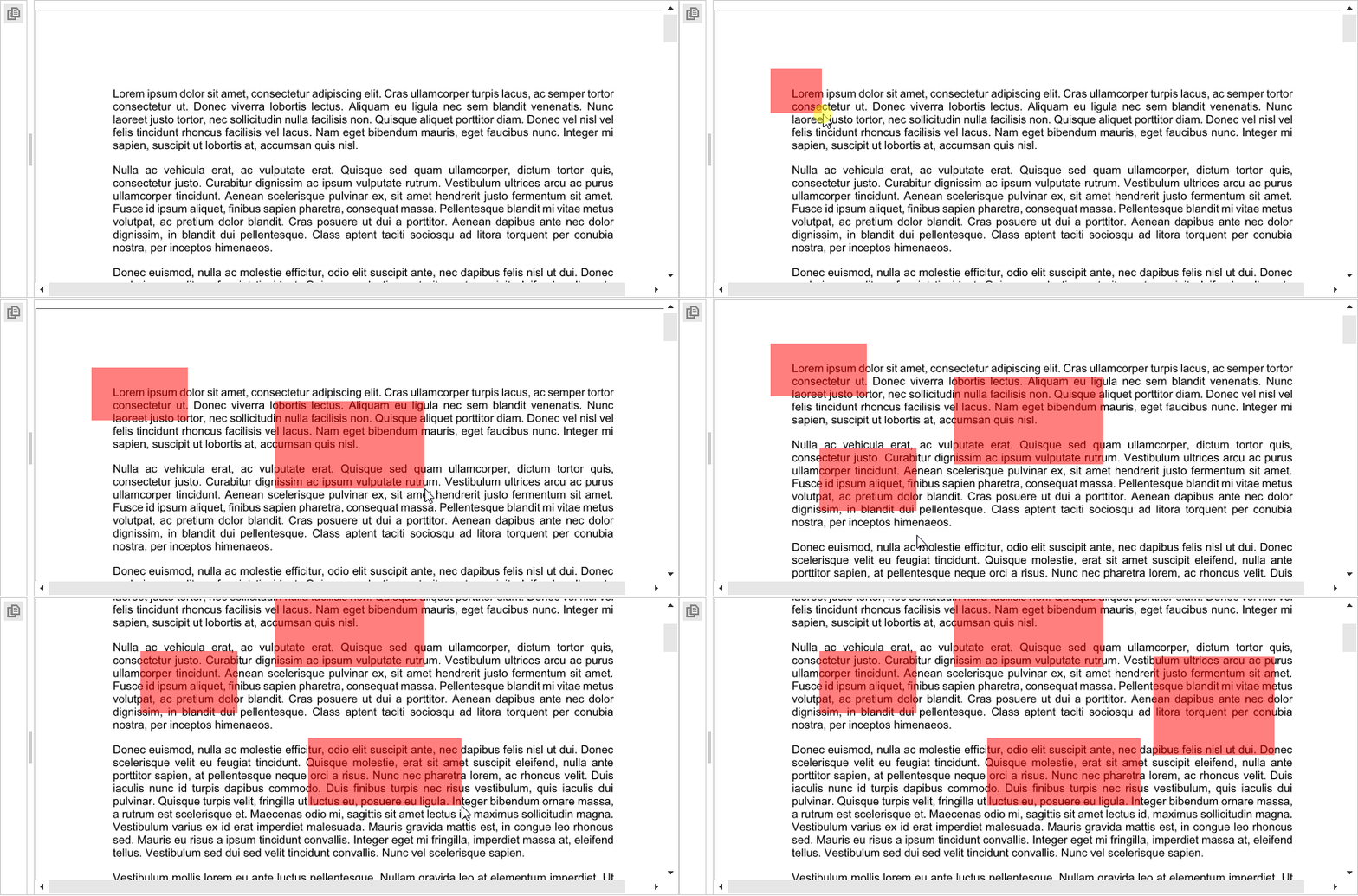
RadPdfViewer in the Telerik UI for WinForms suite is purposed to display pdf files. By default, it is not intended to offer drawing functionality over the pdf content. This article demonstrates how you can draw a rectangle using the mouse.
Solution
RadPdfViewer exposes two events indicating when a page starts and completes a rendering operation. You have access to the Graphics object in the event handler, so you can perform any rendering you need. Additional information is available here
We will use the PageElementCreating event in order to handle the PageElement.ElementPainted event and draw the rectangles. The MouseMove and MouseUp events of the PageElement will be used to store the location of the mouse for the rectangles. You can find below a sample code snippet:
public RadForm1()
{
    InitializeComponent();

    this.radPdfViewer1.LoadDocument(@"..\..\Book1.pdf");
    this.radPdfViewer1.ViewerMode = FixedDocumentViewerMode.None;
    this.radPdfViewer1.PageElementCreating += radPdfViewer1_PageElementCreating;
}

List<Rectangle> rectangles = new List<Rectangle>();

private void radPdfViewer1_PageElementCreating(object sender, RadFixedPageElementEventArgs e)
{
    e.PageElement.ElementPainted += PageElement_ElementPainted;
    e.PageElement.MouseMove += PageElement_MouseMove;
    e.PageElement.MouseUp += PageElement_MouseUp;
}

private void PageElement_MouseUp(object sender, MouseEventArgs e)
{
    RadFixedPageElement page = (sender as RadFixedPageElement);
    Rectangle pageRect = page.ControlBoundingRectangle;
    Rectangle rectInitial = new Rectangle(downLocation, new Size(Math.Abs(location.X - downLocation.X), Math.Abs(location.Y - downLocation.Y)));
    RectangleF rect = new RectangleF(new PointF(-pageRect.X + rectInitial.Location.X, -pageRect.Y + rectInitial.Location.Y), rectInitial.Size);

    rectangles.Add(Rectangle.Ceiling(rect));

    location = Point.Empty;
    downLocation = Point.Empty;

    this.radPdfViewer1.Invalidate();
}

Point location = Point.Empty;
Point downLocation = Point.Empty;
Graphics g = null;

private void PageElement_MouseMove(object sender, MouseEventArgs e)
{
    if (Control.MouseButtons == System.Windows.Forms.MouseButtons.Left)
    {
        if (downLocation == Point.Empty)
        {
            downLocation = e.Location;
        }
        location = e.Location;
        this.radPdfViewer1.Invalidate();
    }
}

private void PageElement_ElementPainted(object sender, PaintEventArgs e)
{
    RadFixedPageElement page = (sender as RadFixedPageElement);
    Rectangle rect = page.ControlBoundingRectangle;
    SolidBrush semiTransBrush = new SolidBrush(Color.FromArgb(128, 255, 0, 0));

    if (location != Point.Empty && downLocation != Point.Empty)
    {
        e.Graphics.ResetTransform();
        Rectangle r = new Rectangle(downLocation, new Size(Math.Abs(location.X - downLocation.X),
            Math.Abs(location.Y - downLocation.Y)));
        e.Graphics.FillRectangle(semiTransBrush, r);
    }

    foreach (Rectangle r in rectangles)
    {
        e.Graphics.ResetTransform();
        e.Graphics.FillRectangle(semiTransBrush, new Rectangle(new Point(rect.X + r.Location.X, rect.Y + r.Location.Y), r.Size));
    }
}
Note that this is just a sample implementation and it may not cover all possible cases. Feel free to modify and extend it in a way which suits your requirements best.