New to Telerik UI for WinForms? Start a free 30-day trial
How to Add Custom Items to RadDiagramRibbonBar
Updated on Aug 27, 2026
Environment
| Product Version | Product | Author |
|---|---|---|
| 2022.2.622 | RadDiagram for WinForms | Desislava Yordanova |
Description
This article demonstrates how to add new groups/items or customize the existing ones (e.g. change the save button with your custom one) in RadDiagramRibbonBar. Thus, you can achieve any custom design for the Ribbon UI according to the specific requirements.
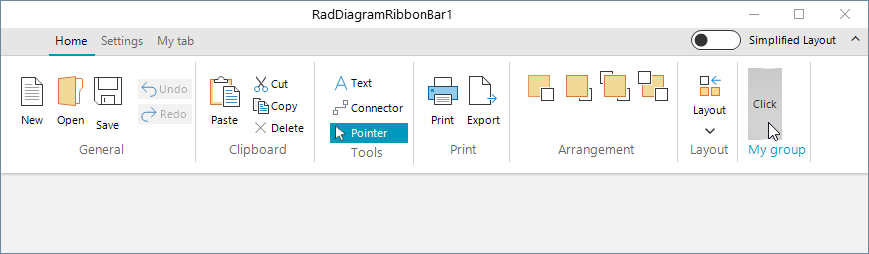
Solution
RadDiagramRibbonBar gives you public access to all of its tabs, groups and buttons/items. Thus, you can easily customize it according to your needs.
C#
private void MainForm_Load(object sender, EventArgs e)
{
	RibbonTab tab = new RibbonTab();
	tab.Text = "My tab";
	this.radDiagramRibbonBar1.CommandTabs.Add(tab);
	//then add the desired groups and buttons to the custom tab

	RibbonTab existingTab = this.radDiagramRibbonBar1.CommandTabs[0] as RibbonTab;
	RadRibbonBarGroup group = new RadRibbonBarGroup();
	group.Text = "My group";
	RadButtonElement button = new RadButtonElement();
	button.Text = "Click";
	group.Items.Add(button);
	existingTab.Items.Add(group);

	RadButtonElement mySaveButton = new RadButtonElement();
	mySaveButton.Text = this.radDiagramRibbonBar1.buttonSave.Text;
	mySaveButton.Image = this.radDiagramRibbonBar1.buttonSave.Image;
	mySaveButton.SvgImage = this.radDiagramRibbonBar1.buttonSave.SvgImage;
	mySaveButton.TextImageRelation = this.radDiagramRibbonBar1.buttonSave.TextImageRelation;
	mySaveButton.Click += MySaveButton_Click;

	this.radDiagramRibbonBar1.groupGeneral.Items.Remove(this.radDiagramRibbonBar1.buttonSave);
	this.radDiagramRibbonBar1.groupGeneral.Items.Insert(2,mySaveButton);

}

private void MySaveButton_Click(object sender, EventArgs e)
{
	RadMessageBox.Show("My save button is clicked!");
}