New to Telerik UI for WinForms? Start a free 30-day trial
Formatting Appearance
Updated on Aug 27, 2026
This article shows how you can change the appearance of specific cells.
CellFormatting
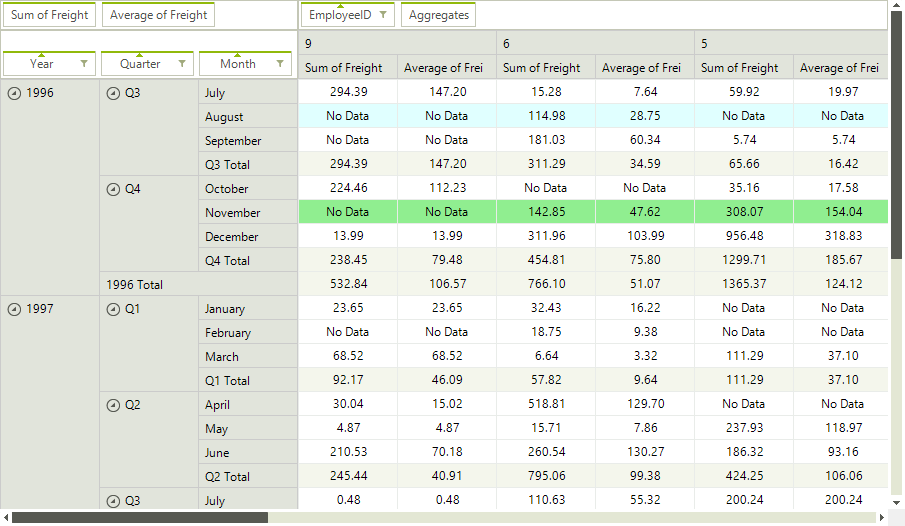
Using the CellFormatting event you can also set various properties of the PivotCellElement to modify its appearance. The following example colors the cells in August in Blue color and those in November in Green color:
Figure 1: Formatting Pivot Data Cells
CellFormatting Event
C#
void radPivotGrid1_CellFormatting(object sender, PivotCellEventArgs e)
{
    if (e.CellElement.Row.Name == "August" && !e.CellElement.IsInGrandTotalColumn)
    {
        e.CellElement.BackColor = Color.LightCyan;
        e.CellElement.GradientStyle = Telerik.WinControls.GradientStyles.Solid;
    }
    else if (e.CellElement.Row.Name == "November" && !e.CellElement.IsInGrandTotalColumn)
    {
        e.CellElement.BackColor = Color.LightGreen;
        e.CellElement.GradientStyle = Telerik.WinControls.GradientStyles.Solid;
    }
    else
    {
        e.CellElement.ResetValue(LightVisualElement.BackColorProperty, Telerik.WinControls.ValueResetFlags.Local);
        e.CellElement.ResetValue(LightVisualElement.GradientStyleProperty, Telerik.WinControls.ValueResetFlags.Local);
    }
}GroupElementFormatting
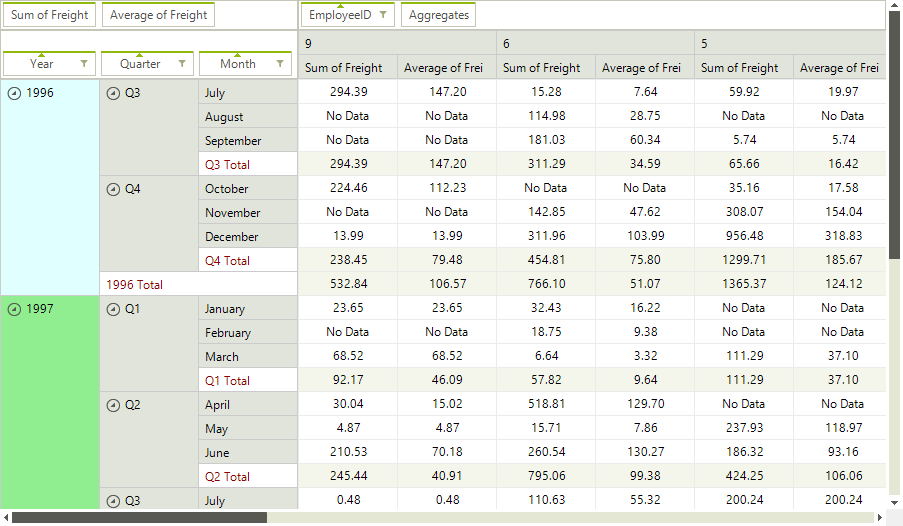
The GroupElementFormatting event can be used for styling the group cells:
Figure 2: Formatting Group Cells
GroupElementFormatting Event
C#
void PivotGridElement_GroupElementFormatting(object sender, PivotGroupElementEventArgs e)
{
    if (e.GroupElement.Data.Name == "1996")
    {
        e.GroupElement.BackColor = Color.LightCyan;
    }
    else if (e.GroupElement.Data.Name == "1997")
    {
        e.GroupElement.BackColor = Color.LightGreen;
    }
    else if (e.GroupElement.Data.Name.Contains("Total"))
    {
        e.GroupElement.ForeColor = Color.DarkRed;
        e.GroupElement.BackColor = Color.White;
    }
    else
    {
        e.GroupElement.ResetValue(LightVisualElement.ForeColorProperty, ValueResetFlags.Local);
        e.GroupElement.ResetValue(LightVisualElement.BackColorProperty, ValueResetFlags.Local);
    }
}ErrorString and EmpltyValueString
Using the ErrorString and EmpltyValueString properties of RadPivotGrid, you can set the strings that will appears correspondingly if an error occurs during the calculation of a cell value or if there is no data for a given cell. An error can occur for example if you try to sum a text column.
Error and Empty Value Strings
C#
this.radPivotGrid1.ErrorString = "Error";
this.radPivotGrid1.EmptyValueString = "No Data";