Getting Started with WinForms MultiColumnComboBox
This tutorial will help you to quickly get started using the control.
Adding Telerik Assemblies Using NuGet
To use RadMultiColumnComboBox when working with NuGet packages, install the Telerik.UI.for.WinForms.AllControls package. The package target framework version may vary.
Read more about NuGet installation in the Install using NuGet Packages article.
With the 2025 Q1 release, the Telerik UI for WinForms has a new licensing mechanism. You can learn more about it here.
Adding Assembly References Manually
When dragging and dropping a control from the Visual Studio (VS) Toolbox onto the Form Designer, VS automatically adds the necessary assemblies. However, if you're adding the control programmatically, you'll need to manually reference the following assemblies:
- Telerik.Licensing.Runtime
- Telerik.WinControls
- Telerik.WinControls.GridView
- Telerik.WinControls.UI
- TelerikCommon
The Telerik UI for WinForms assemblies can be installed by using one of the available installation approaches.
Defining the RadMultiColumnComboBox
The following tutorial demonstrates how to setup RadMultiColumnComboBox and retrieve the selected text and image.
1. Add a RadMultiColumnComboBox and a RadStatusStrip to a RadForm.
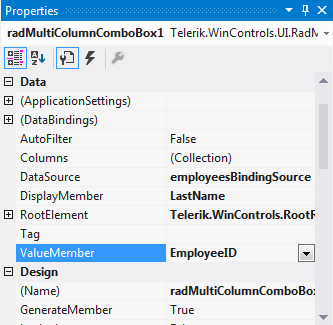
2. By using the Visual Studio Properties grid and the Data Source Configuration Wizard, set the DataSource, ValueMember and DisplayMember properties of RadMultiColumnComboBox. Thus, RadMultiColumnComboBox will be bound to the Northwind.Employees table.
3. Add a RadImageButtonElement and a RadLabelElement to the RadStatusStrip. 4. In the Visual Studio Properties grid, select the Events tab and double click the SelectedIndexChanged event in order to generate an event handler.
private void radMultiColumnComboBox1_SelectedIndexChanged(object sender, EventArgs e)
{
    if (this.radMultiColumnComboBox1.SelectedIndex > -1)
    {
        Image img = GetImageFromBytes(this.radMultiColumnComboBox1.EditorControl.CurrentRow.Cells["Photo"].Value as byte[]);
        this.radImageButtonElement1.Image = img.GetThumbnailImage(32, 32, null, IntPtr.Zero);
        this.radLabelElement1.Text = this.radMultiColumnComboBox1.Text;
    }
}

private Image GetImageFromBytes(byte[] bytes)
{
    Image result = null;
    System.IO.MemoryStream stream = null;
    try
    {
        stream = new System.IO.MemoryStream(bytes, 78, bytes.Length - 78);
        result = Image.FromStream(stream);
    }
    catch
    {
        try
        {
            stream = new System.IO.MemoryStream(bytes, 0, bytes.Length);
            result = Image.FromStream(stream);
        }
        catch
        {
            result = null;
        }
    }
    finally
    {
        if (stream != null)
            stream.Close();
    }
    return result;
}
5. Open the Property Builder by using the Smart Tag and uncheck some of the columns in order to control which columns to be visible.
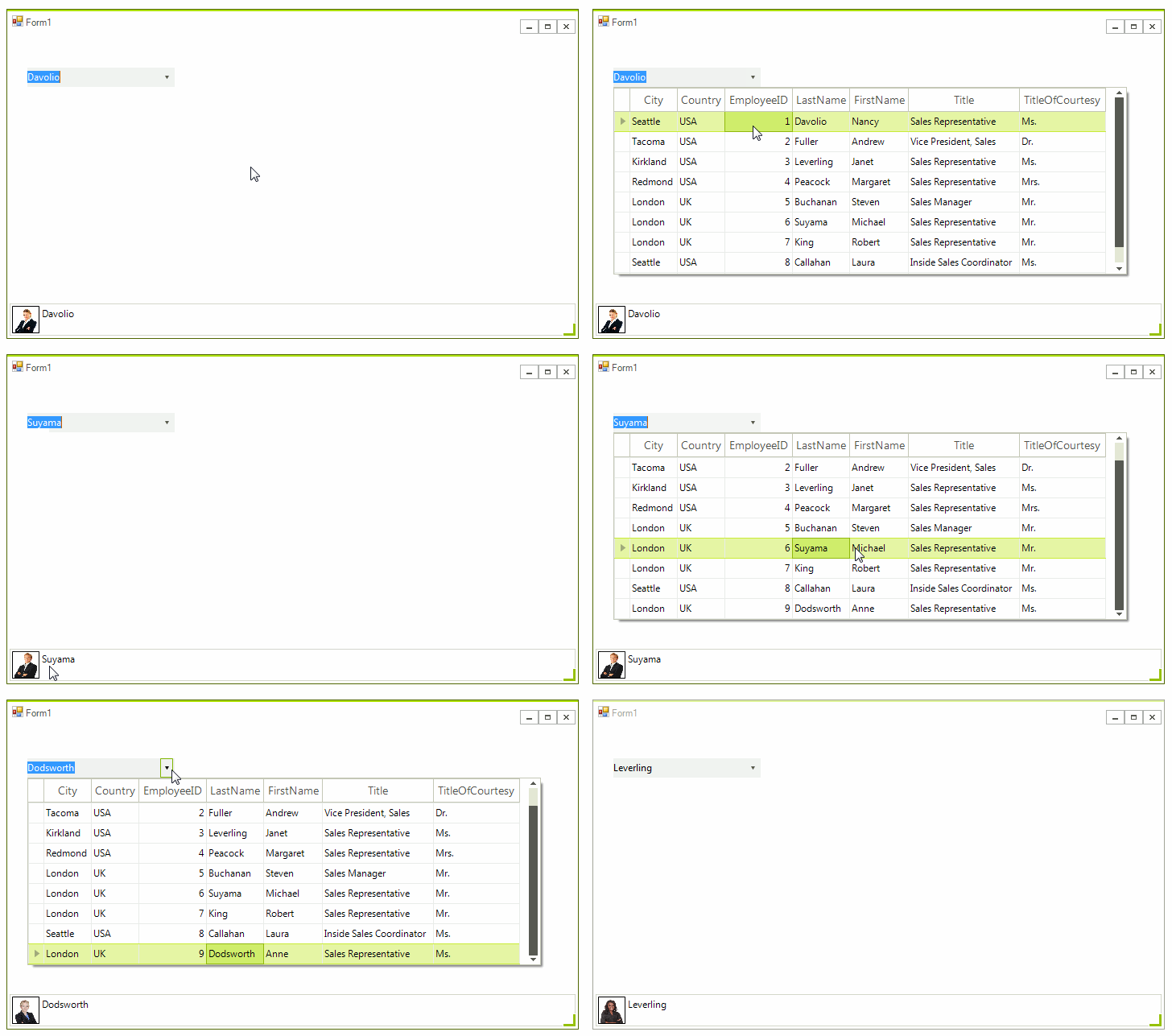
6. Press F5 to run the application and change the selection in RadMultiColumnComboBox.
See Also
Telerik UI for WinForms Learning Resources
- Telerik UI for WinForms MultiColumnComboBox Component
- Getting Started with Telerik UI for WinForms Components
- Telerik UI for WinForms Setup
- Telerik UI for WinForms Converter
- Telerik UI for WinForms Visual Studio Templates
- Deploy Telerik UI for WinForms Applications
- Telerik UI for WinForms Virtual Classroom(Training Courses for Registered Users)
- Telerik UI for WinForms License Agreement)