Working with ColumnChooser
The ColumnChooser in RadGridView is a built-in feature that allows end-users to manage column visibility at runtime. Users can hide or show columns dynamically, providing a flexible way to customize the grid layout according to their preferences without requiring developer intervention. GridViewColumnChooser class represents a dialog used to manage columns in RadGridView.
Allow ColumnChooser
The AllowColumnChooser property determines whether the ColumnChooser is available for a grid template. When set to true (default), users can access the ColumnChooser through the grid's context menu. When set to false, the ColumnChooser functionality is completely disabled for that template.
Column Chooser is enabled by default in RadGridView. To disable it, set AllowColumnChooser property to false.
radGridView1.MasterTemplate.AllowColumnChooser = false;Opening the ColumnChooser
End-users can access the Column Chooser through the grid's context menu by right-clicking on any column header and selecting "Column Chooser" from the menu. Alternatively, developers can show the Column Chooser programmatically.
Show ColumnChooser Programmatically
radGridView1.ShowColumnChooser();
Display Modes for Columns in ColumnChooser
To allow more flexibility, ColumnChooser supports two interaction modes:
-
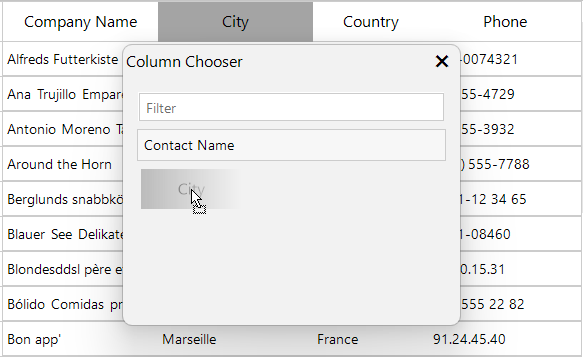
Drag and Drop - Users can drag column headers from the grid to the Column Chooser dialog in order to hide them, and drag them back to restore visibility. This is the traditional simpler interface when screen space is limited. Columns can be sorted by using the context menu.
-
Checkbox Selection - Users can toggle column visibility using checkboxes next to each column name in the Column Chooser dialog. The mode comes with sort indicators (ascending/descending). The user can easily change the sort order by clicking on the
ColumnChooserItem. This mode is suitable when users need to see all available columns, offering modern, comprehensive view by quickly manage column's visibility through a checkbox.
This flexibility allows users to focus on relevant data by temporarily hiding unnecessary columns while maintaining the ability to restore them later, when needed.
The ColumnsDisplayMode property controls the display mode which defines which columns are displayed in the Column Chooser and how users interact with them - via drag and drop or via checkboxes. ColumnChooserColumnsDisplayMode enum specifies the modes for displaying columns in a column chooser:
- All: Show all columns in the column chooser with a check box.
- Hidden: Show only columns that are hidden
Figure 1: Column Chooser dialog allows hiding and showing columns.
| Drag and Drop Selection | Checkbox Selection |
|---|---|
 | 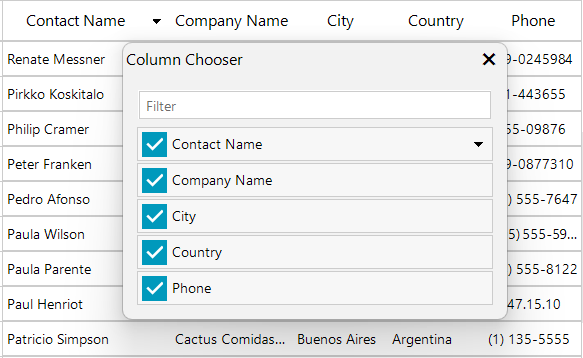 |
To use Checkboxes in Column Chooser use ColumnChooserColumnsDisplayMode.All
radGridView1.ColumnChooser.ColumnsDisplayMode = ColumnChooserColumnsDisplayMode.All;
To use drag and drop selection in Column Chooser use ColumnChooserColumnsDisplayMode.Hidden
radGridView1.ColumnChooser.ColumnsDisplayMode = ColumnChooserColumnsDisplayMode.Hidden;
ColumnChooser Properties
The following properties control the behavior of columns when used with the Column Chooser:
AllowColumnChooser: This property determines whether the Column Chooser is available in the template. By default this property is set to true for all templates
AllowHide: This property determines whether the column is allowed to be moved to the Column Chooser. By default this property is set to true for all columns
Determines if the specified column is allowed to be dragged to the column chooser dialog
radGridView1.Columns["CategoryName"].AllowHide = false;VisibleInColumnChooser: By setting this property for each column you determine whether the column will be visible in the Column Chooser when dragged to it. By default this property is set to true for all columns:
Determines if the specified column is going to be visible in the column chooser dialog
radGridView1.Columns["Picture"].VisibleInColumnChooser = false;ColumnChooserSortOrder: Gets or sets the column chooser sort order.
Accessing the column chooser instance
In order to customize the Column Chooser you can access it directly from the instance of RadGridView, as shown in the following example:
Accessing and customizing the column chooser
radGridView1.ColumnChooser.DesktopLocation = new Point(100,100);
radGridView1.ColumnChooser.Font = new Font("Segoe", 15, FontStyle.Bold);Enable the filtering functionality
If the grid contains many hidden columns it is convenient to filter them so you can easily find the desired column. This is supported out of the box and can be enabled by setting the EnableFilter property to true in the ColumnChooserCreated event handler.
Enable filtering in the Column Chooser
private void RadGridView1_ColumnChooserCreated(object sender, ColumnChooserCreatedEventArgs e)
{
    e.ColumnChooser.EnableFilter = true;
}