New to Telerik UI for WinForms? Start a free 30-day trial
Customize Elements
Updated on May 7, 2026
Customizing the Text Box
You can access the text box by using the TextBoxElement property. This allows you to change any property specific to the text box. For example the following code snippet shows how you can change the Font and the ForeColor:
Customize TextBoxElement
C#
radPopupEditor1.TextBoxElement.Font = new Font("Arial", 12, FontStyle.Regular);
radPopupEditor1.ForeColor = ColorTranslator.FromHtml("#008de7");Figure 1: Customizing the text box Font and ForeColor.

Customizing the Arrow Button
The arrow button can be accessed via the ArrowButtonElement property. The following example shows how you can access and set the BackColor of the button:
Set arrow button BackColor
C#
radPopupEditor1.PopupEditorElement.ArrowButtonElement.Fill.BackColor = ColorTranslator.FromHtml("#009de1");
radPopupEditor1.PopupEditorElement.ArrowButtonElement.Fill.GradientStyle = Telerik.WinControls.GradientStyles.Solid;Figure 2: Set Arrow Button BackColor.

Customizing the Popup
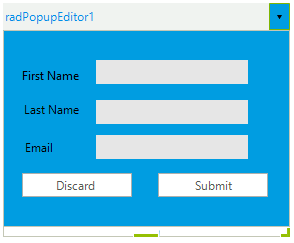
The popup can be access with the Popup property. This gives you access to all public popup properties and elements. For example you can change the BackColor of the popup like this:
Change Popup BackColor
C#
void RadForm1_Load(object sender, EventArgs e)
{
    radPopupEditor1.Popup.BackColor = ColorTranslator.FromHtml("#009de1");
}Figure 3: Change Popup BackColor.