DataBinding
Data binding provides a way to bind the display of data in a RadListControl to a data source. Three properties control data binding:
-
The DataSource property specifies the source of the data to be bound.
-
The DisplayMember property specifies the particular data to be displayed in a RadListControl.
-
The ValueMember property specifies the particular data to be returned as the value of a RadListControl.
Data binding at design time
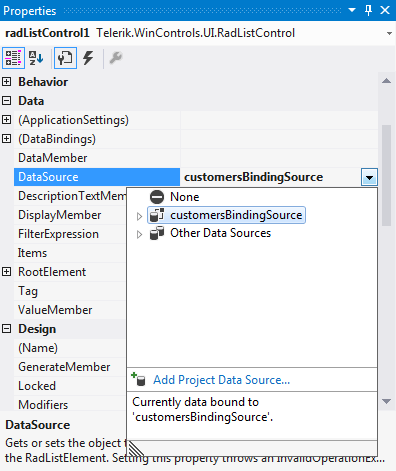
You can set the DataSource property at design time in the Properties window of Visual Studio.
-
Select the DataSource property and click the drop-down arrow to display all existing data sources on the form.
-
Click the Add Project Data Source… link and follow the instructions in the Data Source Configuration Wizard to add a data source to your project. You can use a single database table.
Figure: 1 Setting the DataSource at Design time
-
Afterwards, you need to specify the DisplayMember and ValueMember properties.
Figure: 2 Setting the DisplayMember and ValueMember properties at Design time
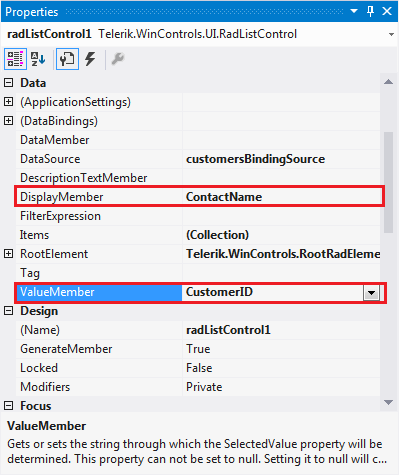
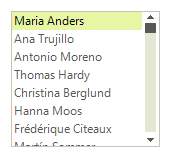
Figure: 3 RadListControl bound at Design time
Data binding at run time
public class Item
{
    public int Id { get; set; }
    public string Description { get; set; }
    public Item(int id, string description)
    {
        this.Id = id;
        this.Description = description;
    }
}
public void Bind()
{
    List<Item> items = new List<Item>();
    for (int i = 0; i < 10; i++)
    {
        items.Add(new Item(i, "Data" + i));
    }
    radListControl1.DataSource = items;
    radListControl1.DisplayMember = "Description";
    radListControl1.ValueMember = "Id";
}
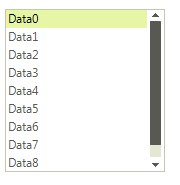
Figure: 4 RadListControl bound at Run time