Monitor Windows Phone
Configure Fiddler
-
Start Fiddler Classic on the Fiddler server (the machine that will capture the traffic).
-
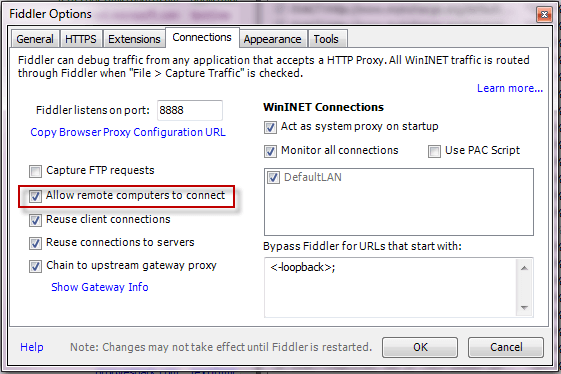
Click Tools > Options. Click Allow remote clients to connect.
-
Restart Fiddler.
-
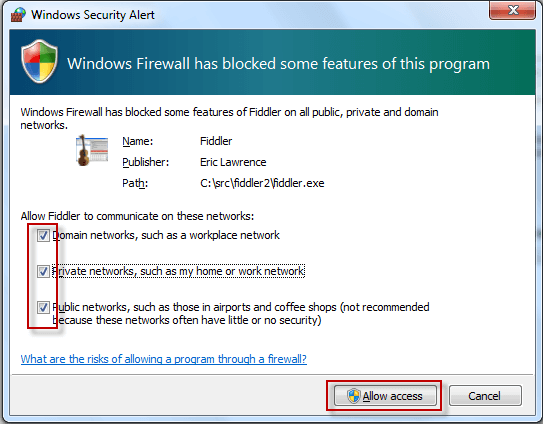
In the Windows Security Alert dialog, check all three checkboxes and click the Allow Access button.
To verify this configuration, enable your Windows Phone WiFi connection and visit http://FIDDLERSERVER:8888, where FIDDLERSERVER is the machine name for the machine running Fiddler. This should display the Fiddler Echo Service web site.
Configure Windows Phone
-
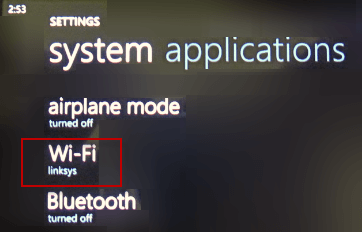
Tap Settings > WiFi.
-
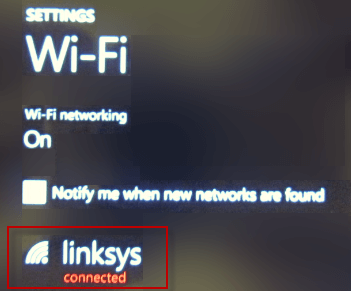
Tap the active WiFi connection.
-
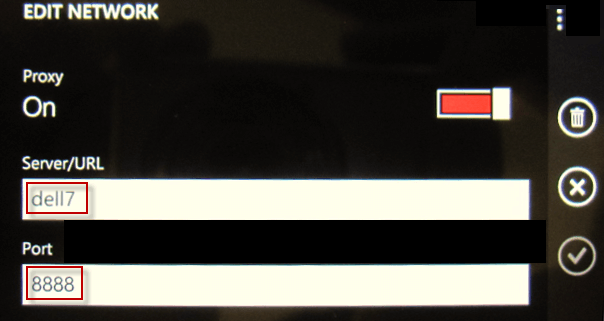
Slide the Proxy Slider to On.
-
In the Server/URL field, type the machine name for the Fiddler server.
-
In the Port field, type 8888.
-
Tap the checkmark icon.
Decrypt HTTPS Traffic
-
On the Windows Phone, use Mobile IE to request an HTTPS protocol URL.
-
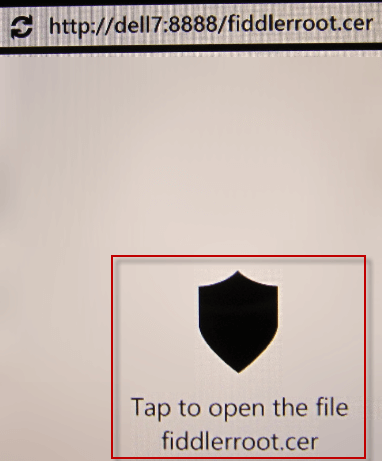
Go to
http://FIDDLERSERVER:8888/FiddlerRoot.cer. -
Tap the icon labeled Tap to open the file fiddlerroot.cer.
-
Tap install.
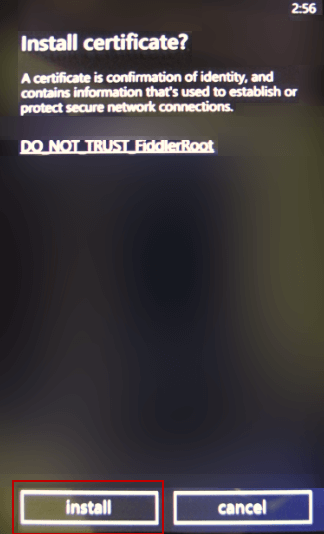
Note: There is no known resource containing steps to remove security certificates from a Windows Phone. This may prevent connecting to a different Fiddler proxy, which will use a different security certificate.
Disable Monitoring
After Fiddler Classic monitoring is complete:
- Tap Settings > WiFi.
- Tap the active WiFi connection.
- Slide the Proxy Slider to Off.