Working with Content Controls
Content controls let you add structured, reusable regions to a RadWordsProcessing document. You can use them to mark editable areas, constrain input, expose lists such as combo boxes, and prepare document templates for later automation.
This article explains how to retrieve existing content controls, update their properties, insert new controls, remove controls, and place controls at specific positions in the document.
Manipulating Existing Content Controls
Use the existing document tree when you want to inspect or update content controls that are already part of the document.
Get the Content Controls
Retrieve content controls by calling EnumerateChildrenOfType() on a document element such as the document, section, paragraph, or another container element.
Example 1: Get All Content Controls
IEnumerable<SdtRangeStart> content_controls = document.EnumerateChildrenOfType<SdtRangeStart>();
foreach (SdtRangeStart item in content_controls)
{
    Console.WriteLine("Type: {0} ID:{1}", item.SdtProperties.Type, item.SdtProperties.ID);
}
This approach is useful when you need to find all controls before applying filtering, validation, or targeted updates.
Set Content Controls Properties
After you retrieve the controls, you can inspect their type and update the matching properties. For example, a combo box or drop-down list control can be updated by adding items to its collection.
Example 2: Adding Items to a ComboBox or a DropDownList
foreach (SdtRangeStart item in content_controls)
{
    if (item.SdtProperties.Type == SdtType.ComboBox)
    {
        ComboBoxProperties properties = item.SdtProperties as ComboBoxProperties;

        ListItem newItem = new ListItem();
        newItem.DisplayText = "New Item Text";

        properties.Items.Add(newItem);
    }
}
Use the same pattern when you need to modify titles, tags, locking behavior, placeholder content, or other settings exposed by a specific content control type.
Insert or Remove Content Controls
Insert new content controls through the InsertStructuredDocumentTag() method of RadFlowDocumentEditor. The available overloads let you insert a control by type, by properties, or by targeting specific document elements.
If you call
InsertStructuredDocumentTag(SdtType)without specifying content, the resulting document contains only the annotation range start and end for the control. Add the intended content after you create the control.
How to Insert a Content Control by Type
Example 3: Inserting a Content Control Using Content Control Type
RadFlowDocument document = new RadFlowDocument();
RadFlowDocumentEditor editor = new RadFlowDocumentEditor(document);
var dateContentControl = editor.InsertStructuredDocumentTag(SdtType.Date);

editor.MoveToInlineStart(dateContentControl.End);
editor.InsertText(DateTime.Now.ToString()); // Insert content
Use this overload when you know the control type and want to populate its content in a later step.
How to Insert a Content Control by Properties
Example 4: Inserting a Rich Text content control using content control properties
SdtProperties sdtProperties = new SdtProperties(SdtType.RichText)
{
    Alias = "AliasName",
    Lock = Lock.SdtContentLocked,
};

RadFlowDocument document = new RadFlowDocument();
RadFlowDocumentEditor editor = new RadFlowDocumentEditor(document);
editor.InsertStructuredDocumentTag(sdtProperties);
editor.MoveToInlineStart(control.End);
Run span = editor.InsertText("Rich Text Content Control"); // Insert content inside the content control
span.FontWeight = FontWeights.Bold; // Style the content
Example 5: Inserting a CheckBox Content Control Using Content Control Properties
RadFlowDocumentEditor editor = new RadFlowDocumentEditor(document);
CheckBoxProperties checkBoxProperties = new CheckBoxProperties();
SdtRangeStart sdt = editor.InsertStructuredDocumentTag(checkBoxProperties);
editor.MoveToInlineEnd(sdt);
char text = (char)checkBoxProperties.UncheckedState.CharacterCode;
editor.InsertText(text.ToString());
editor.MoveToInlineEnd(sdt.End);
Use the overloads that accept properties when you want to configure the control during insertion instead of modifying it afterwards.
How to Remove a Content Control
Example 6: Remove a content control
RadFlowDocumentEditor editor = new RadFlowDocumentEditor(document);
editor.RemoveStructuredDocumentTag(contentControl); //this will delete the entire content control along with the value
                                                    //or
editor.RemoveStructuredDocumentTag(contentControl, false); //this will preserve the value
Removing a content control is useful when you need to clean up document templates or replace one control type with another.
How to Insert a Content Control at a Specific Position
Example 7: Insert a content control to a specific position
When you use
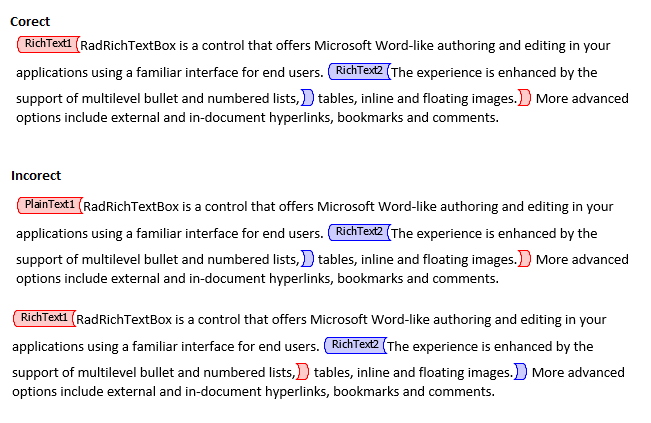
InsertStructuredDocumentTag()and pass start and end elements, make sure those elements are not already part of another content control. The exception is rich text and repeating section content controls, which can fully contain other controls as long as their ranges do not intersect.
Figure 1: Examples of correct and incorrect content control placement
RadFlowDocument document = new RadFlowDocument();
RadFlowDocumentEditor editor = new RadFlowDocumentEditor(document);

var paragrpah1 = editor.InsertParagraph();
editor.InsertText("Content Control");
var paragraph2 = editor.InsertParagraph();

SdtProperties sdtProperties = new SdtProperties(SdtType.RichText)
{
    Alias = "AliasName",
    Lock = Lock.SdtContentLocked,
};

editor.InsertStructuredDocumentTag(sdtProperties, paragrpah1, paragraph2);
Use element-based insertion when you need exact placement in a document template or when you wrap an existing content range with a new control.
Common Guidance for Working with Content Controls
Keep these rules in mind when you build document-editing workflows with content controls:
- Retrieve controls from the document tree before you update them, especially when the document can contain multiple control types.
- Choose the insertion overload based on how much configuration you need at creation time.
- Add content after insertion when you create a control only by type.
- Avoid overlapping control ranges unless you use a supported container type such as rich text or repeating section content controls.
- Remove unused controls when you convert a template into a finalized document.