Get, Set and Clear Cell Properties
Cells are the atomic parts of a worksheet and its basic data units. Each cell can be assigned a value, borders, fill, format, style, and much more. The following sections describe the properties offered by cells and demonstrate how to retrieve and change them.
Get, Set and Clear Methods
To access cell properties, create a CellSelection object that contains the region of cells you want to change. For more information about retrieving CellSelection instances, see the Accessing Cells of a Worksheet article.
Example 1 creates a selection for cells in the range A1:F6.
Example 1: Create a CellSelection for the range A1:F6
Workbook workbook = new Workbook();
Worksheet worksheet = workbook.Worksheets.Add();
CellSelection selection = worksheet.Cells[0, 0, 5, 5];
Once you have a CellSelection instance, you can set and retrieve the properties of its cells. Each property is manipulated through three methods that get, set, and clear the value of the property, respectively. Typically, the set methods take a single argument, which indicates the value to be set. Similarly, the clear methods have no parameters and reset the properties to their default values. The get methods, however, require more attention.
With one minor exception, the get methods of all cell properties return an object of type RangePropertyValue<T>. The class exposes two properties that indicate the value of the property for the cell range:
-
IsIndeterminate: Indicates whether the value of the retrieved property is consistent among all cells in the specifiedCellSelection. If the property has one and the same value for all cells,IsIndeterminateis set to false. However, if the value of the retrieved property varies throughout the cells in theCellSelection, theIsIndeterminateproperty is set to true and theValueproperty of theRangePropertyValue<T>class is set to its default value. -
Value: Contains the value of the retrieved property. If theIsIndeterminateproperty is set to false,Valuecontains the value of the retrieved property for the wholeCellSelectionregion. If theIsIndeterminateproperty is set to true, theValueproperty is set to its default value.
Cell Properties
Cells in RadSpreadProcessing offer several properties that allow you to change their content and appearance. The following list outlines all cell properties:
-
Value
-
Border
-
Fill
-
FontFamily
-
FontSize
-
ForeColor
-
Format
-
HorizontalAlignment
-
Indent
-
IsBold
-
IsItalic
-
IsWrapped
-
IsStrikethrough
-
VerticalTextAlignment ((none, superscript, or subscript))
-
StyleName
-
Underline
-
VerticalAlignment
-
IsLocked
-
TextRotation
As already mentioned, the CellSelection class exposes methods that get, set, and clear each of the properties listed previously. The names of the methods are constructed through the concatenation of the action the method executes (Get, Set, Clear) and the name of the property. For example, the methods that get, set, and clear the IsBold property are GetIsBold(), SetIsBold(), and ClearIsBold().
Example 2 illustrates how to use these methods on the region A1:F6.
Example 2: Set bold formatting, read it back, and clear it for the selected range
Workbook workbook = new Workbook();
Worksheet worksheet = workbook.Worksheets.Add();
CellSelection selection = worksheet.Cells[0, 0, 5, 5];

selection.SetIsBold(true);
bool isBold = selection.GetIsBold().Value;
selection.ClearIsBold();
Using the previous approach you can set the value of almost all cell properties. There are a few exceptions to the general get, set, and clear rule, and each of them is described in one of the following sections.
When using
GetFontSize()andSetFontSize()methods, keep in mind that the measurement units used inRadSpreadProcessingare Device Independent Pixels (DIPs). You can convert them to points or other units using the Unit class. For more information, go to the Measurement Units help topic.
Example 3 demonstrates how to apply basic text formatting to worksheet cells. The first cell applies a strikethrough effect, while the following cells illustrate vertical text alignment by rendering text as superscript and subscript respectively.
Example 3: Apply strikethrough, superscript, and subscript text formatting to three cells
Workbook workbook = new Workbook();
Worksheet worksheet = workbook.Worksheets.Add();

CellSelection cell = worksheet.Cells[0, 0];
cell.SetValue("This text is strikethrough");
cell.SetIsStrikethrough(true);

cell = worksheet.Cells[1, 0];
cell.SetValue("This text is superscript");
cell.SetVerticalTextAlignment(VerticalTextAlignment.Superscript);

cell = worksheet.Cells[2, 0];
cell.SetValue("This text is subscript");
cell.SetVerticalTextAlignment(VerticalTextAlignment.Subscript);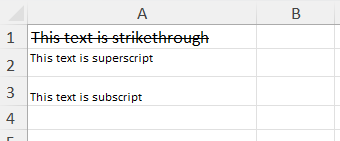
Value Property
The Value property uses an instance of ICellValue to retrieve and change its value. The property supports the following types of cell values, all of which conform to the ICellValue interface: EmptyCellValue, NumberCellValue, BooleanCellValue, TextCellValue, FormulaCellValue. Similarly to the other properties, Value has three methods that control the property: GetValue(), SetValue(), and ClearValue(). For more information about different value types, see the Cell Value Types article.
The GetValue() method retrieves the value of the property and returns an instance of RangePropertyValue<ICellValue>. The Value property of the RangePropertyValue instance returns the actual value of the selected region.
Example 4 illustrates how to retrieve the value of cell B2.
Example 4: Read the ICellValue stored in cell B2
Workbook workbook = new Workbook();
Worksheet worksheet = workbook.Worksheets.Add();
CellSelection selection = worksheet.Cells[1, 1];

ICellValue cellValue = selection.GetValue().Value;
As the document model supports different types of cell values, the CellSelection class offers multiple overloads of the SetValue() method that allow you to produce different types of values. For example, if you choose the method that accepts a double instance, the Value of the cell is an instance of NumberCellValue. The SetValue() method has three more overloads that take DateTime, string, and ICellValue, respectively.
Example 5 demonstrates how to set the value of a given selection.
Example 5: Set the selected cell to DateTime, number, copied value, text, and formula inputs
//set DateTime value
selection.SetValue(DateTime.Now);

//set double value
selection.SetValue(51.345);

//set ICellValue
ICellValue value = worksheet.Cells[5, 5].GetValue().Value;
selection.SetValue(value);

//set string value
selection.SetValue("Total");

//set formula value
selection.SetValue("=C1+C10");
Borders Property
The Borders property uses a CellBorders object for getting and setting its property value. The CellBorders class contains eight instances of type CellBorder that describe respectively the left, top, right, bottom, inside horizontal, inside vertical, diagonal up, and diagonal down borders. In turn, the CellBorder object holds information about the style and color of the border. The GetBorders() method returns an instance of RangePropertyValue<CellBorders>.
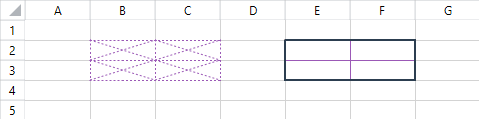
Example 6 demonstrates how to set the value of the Borders of the regions B2:C4 and E2:F4.
Example 6: Apply dotted purple borders to one region and multi-edge blue and purple borders to another
Workbook workbook = new Workbook();
Worksheet worksheet = workbook.Worksheets.Add();
ThemableColor purple = new ThemableColor(Color.FromArgb(255, 155, 89, 182));
ThemableColor darkBlue = new ThemableColor(Color.FromArgb(255, 44, 62, 80));

CellBorders purpleBorders = new CellBorders(new CellBorder(CellBorderStyle.Dotted, purple));
worksheet.Cells[1, 1, 2, 2].SetBorders(purpleBorders);

CellBorders darkBlueBorders = new CellBorders(
	new CellBorder(CellBorderStyle.Medium, darkBlue),   // Left border
	new CellBorder(CellBorderStyle.Medium, darkBlue),   // Top border
	new CellBorder(CellBorderStyle.Medium, darkBlue),   // Right border
	new CellBorder(CellBorderStyle.Medium, darkBlue),   // Bottom border
	new CellBorder(CellBorderStyle.Thin, purple),       // Inside horizontal border
	new CellBorder(CellBorderStyle.Thin, purple),       // Inside vertical border
	new CellBorder(CellBorderStyle.None, darkBlue),     // Diagonal up border
	new CellBorder(CellBorderStyle.None, darkBlue));    // Diagonal down border

worksheet.Cells[1, 4, 2, 5].SetBorders(darkBlueBorders);
The result of Example 6 is demonstrated in the following figure.
Figure 1: Resulting Borders
Fill Property
The Fill property uses an IFill object for getting and setting its property value. The document model supports two types of fills represented through the PatternFill and GradientFill classes, both of which conform to the IFill interface.
As its name suggests, the PatternFill object fills the background of a region of cells using a repeated pattern of shapes. To create a PatternFill instance, specify the type of the pattern, the background color, and the pattern color of the fill. You can choose between eighteen types of patterns, such as HorizontalStripe, DiagonalCrossHatch, Gray75Percent, and many more. The PatternFill object also allows you to set the background of a cell to a solid color.
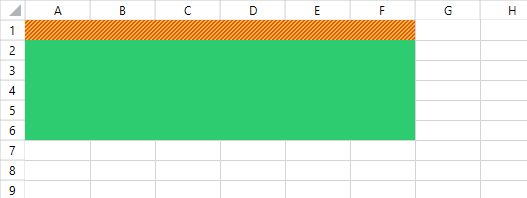
Example 7 creates two PatternFill objects with a DiagonalStripe and Solid PatternType respectively.
Example 7: Apply a diagonal stripe fill to the first row and a solid green fill below it
Workbook workbook = new Workbook();
Worksheet worksheet = workbook.Worksheets.Add();

PatternFill diagonalStripePatternFill = new PatternFill(PatternType.DiagonalStripe, Color.FromArgb(255, 231, 76, 60), Color.FromArgb(255, 241, 196, 15));
worksheet.Cells[0, 0, 0, 5].SetFill(diagonalStripePatternFill);

PatternFill solidPatternFill = new PatternFill(PatternType.Solid, Color.FromArgb(255, 46, 204, 113), Colors.Transparent);
worksheet.Cells[1, 0, 5, 5].SetFill(solidPatternFill);
The result of Example 7 is illustrated in the following figure.
Figure 2: Applied PatternFill
The GradientFill sets the background of a region of cells to a gradual blending of two colors. To create a GradientFill, specify a GradientType and the two colors that blend.
Example 8 assigns the region A1:F1 a smooth horizontal green gradient.
Example 8: Apply a horizontal green gradient fill to the range A1:F1
Workbook workbook = new Workbook();
Worksheet worksheet = workbook.Worksheets.Add();
worksheet.Rows[0].SetHeight(new RowHeight(50, true));

GradientFill greenGradientFill = new GradientFill(GradientType.Horizontal, Color.FromArgb(255, 46, 204, 113), Color.FromArgb(255, 0, 134, 56));
worksheet.Cells[0, 0, 0, 5].SetFill(greenGradientFill);
The result of Example 8 is illustrated in the following figure.
Figure 3: Applied GradientFill

Indent Property
In addition to the GetIndent(), SetIndent(), and ClearIndent() methods, CellSelection offers two more methods that increase and decrease the value of the Indent property. Those methods are IncreaseIndent() and DecreaseIndent() and neither of them takes arguments. Example 9 shows how to use the methods.
Example 9: Increase and then decrease the indentation for the selected range
Workbook workbook = new Workbook();
Worksheet worksheet = workbook.Worksheets.Add();
CellSelection selection = worksheet.Cells[0, 0, 5, 5];

selection.IncreaseIndent();
selection.DecreaseIndent();
FontFamily Property
The FontFamily property uses an instance of ThemableFontFamily to retrieve and change the font of worksheet cells. ThemableFontFamily allows you to set either a static, explicit font family or a dynamic font family that adapts when the workbook theme changes.
In cross-platform applications (such as .NET Core, .NET 6+, and Blazor),
ThemableFontFamilyresides in theTelerik.Documents.Common.Modelnamespace (included in theTelerik.Documents.Corepackage). In .NET Framework applications, it is inTelerik.Documents.Spreadsheet.Model.
You can initialize ThemableFontFamily using:
- A
stringcontaining the font name (for example,"Arial","Calibri"). - A
FontFamilyinstance (Telerik.Documents.Core.Fonts.FontFamilyin cross-platform, orSystem.Windows.Media.FontFamilyin WPF). - A
ThemeFontTypeenum value (ThemeFontType.MajororThemeFontType.Minor) to bind the font to the current document theme.
The following example demonstrates how to set and retrieve cell font families:
// Static font family by name
worksheet.Cells[0, 0].SetFontFamily(new ThemableFontFamily("Calibri"));

// Theme-dependent font family (updates automatically if workbook theme changes)
worksheet.Cells[1, 0].SetFontFamily(new ThemableFontFamily(ThemeFontType.Major));

// Retrieve the font family
RangePropertyValue<ThemableFontFamily> fontProperty = worksheet.Cells[0, 0].GetFontFamily();
if (!fontProperty.IsIndeterminate)
{
    ThemableFontFamily themableFont = fontProperty.Value;
    // Inspect whether the font comes from a theme or is static
    bool isFromTheme = themableFont.IsFromTheme;
}