Use a SignaturePad Signature with PDF
Environment
| Version | Product | Author |
|---|---|---|
| R1 2022 | RadPdfProcessing | Lance McCarthy |
Description
This article shows how to use PdfProcessing to replace a SignatureWidget with a written signature. The signature is captured by the UI for Xamarin SignaturePad as a JPG or PNG image.
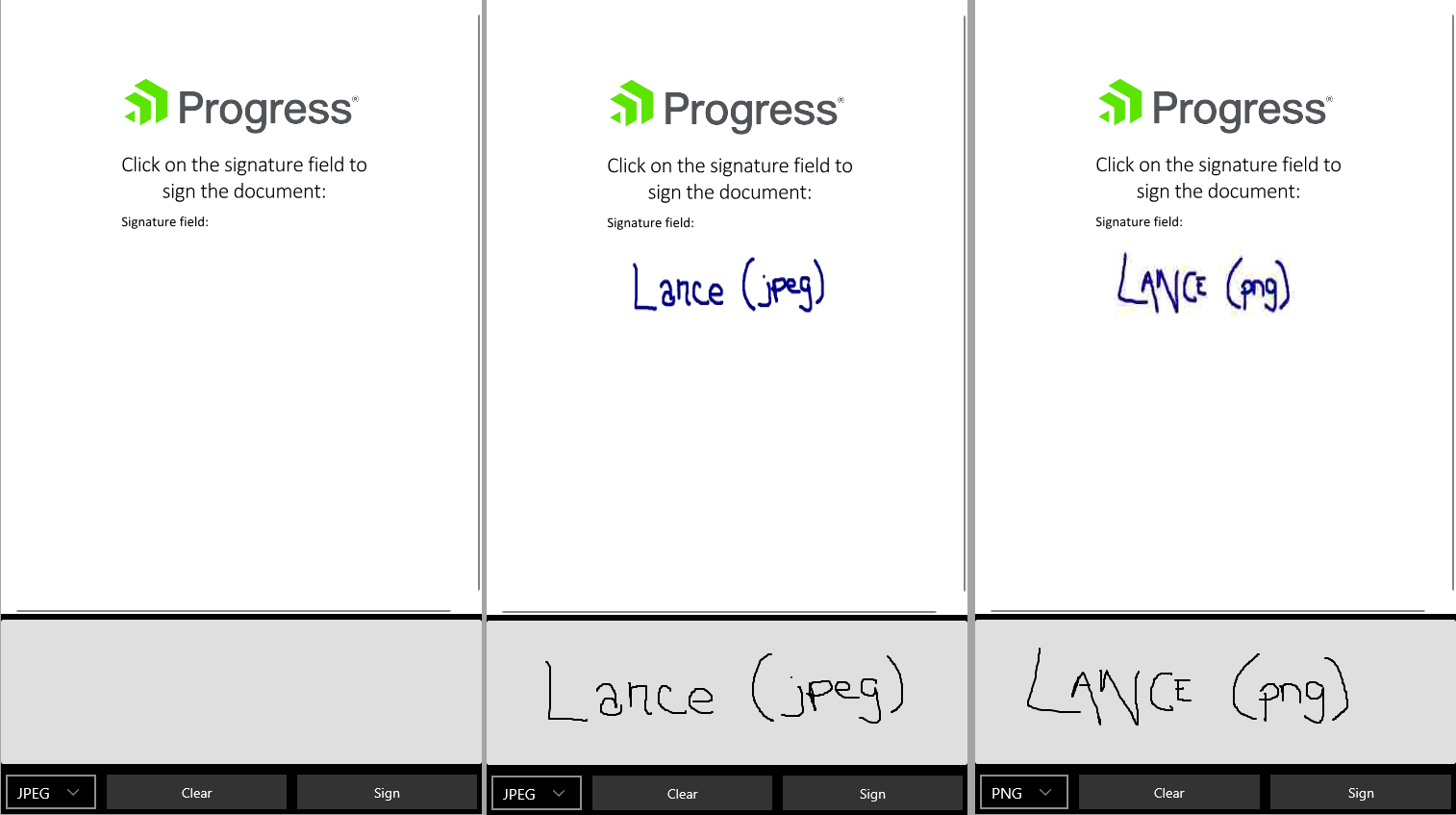
The following screenshot shows the document in the UI for Xamarin PdfViewer, before and after modification:
Solution
This approach uses four phases to achieve the result:
- Import the original PDF file into a
RadFixedDocument, then load it in theRadPdfViewer. - Use a
RadSignaturePadto capture the user's written signature as a JPEG or PNG image. - Use
PdfProcessingto locate theSignatureWidgetin theFixedDocument, then use theFixedContentEditorto insert the user's signature at the same location and remove theSignatureWidgetwhen done. - Export the modified
RadFixedDocumentas a new PDF file, then show the new version in theRadPdfViewer.
The RadPdfViewer is not required. It is only present to view the document before and after the operation.
XAML
The UI in this example contains a Grid with three rows: RadPdfViewer, RadSignaturePad, RadComboBox, and two RadButton elements.
<ContentPage xmlns="http://xamarin.com/schemas/2014/forms"
             xmlns:x="http://schemas.microsoft.com/winfx/2009/xaml"
             xmlns:pdfViewer="clr-namespace:Telerik.XamarinForms.PdfViewer;assembly=Telerik.XamarinForms.PdfViewer"
             xmlns:input="clr-namespace:Telerik.XamarinForms.Input;assembly=Telerik.XamarinForms.Input"
             x:Class="YourAppNamespace.MainPage">

    <Grid RowDefinitions="3*, Auto, Auto">
        <pdfViewer:RadPdfViewer x:Name="PdfViewer1"
                                Grid.Row="0"/>

        <input:RadSignaturePad x:Name="SignaturePad1"
                               HeightRequest="150"
                               Grid.Row="1"/>

        <Grid ColumnDefinitions="Auto,*, *"
              Grid.Row="2">
            <input:RadComboBox x:Name="FormatComboBox"
                               SelectionChanged="FormatComboBox_OnSelectionChanged"
                               Margin="5"/>

            <input:RadButton x:Name="ClearButton"
                             Text="Clear"
                             Clicked="ClearButton_OnClicked"
                             HorizontalOptions="Fill"
                             Margin="0,5,5,5"
                             Grid.Column="1" />

            <input:RadButton x:Name="SignAndSaveButton"
                             Text="Sign"
                             Clicked="SignAndSaveButton_OnClicked"
                             HorizontalOptions="Fill"
                             Margin="0,5,5,5"
                             Grid.Column="2" />
        </Grid>
    </Grid>
</ContentPage>
Code-behind
In the code-behind, the logic flow is:
- In
OnAppearing, the code callsImportPdfFileToFixedDocument, which loads the PDF file into aRadFixedDocumentand shows the document in thePdfViewer. - In the
SignAndSaveButton_OnClickedevent handler, the code:- Checks what image format the user wants and then saves the signature image as a file in the
SaveSignatureImageAsyncmethod. - Passes the image file path to
AddSignatureToDocument. This method uses PdfProcessing to locate theSignatureWidgetin the document, replace it with the signature image, and return a new, modifiedRadFixedDocument. - Saves the modified document as a new PDF file, then loads it into the
PdfViewer.
- Checks what image format the user wants and then saves the signature image as a file in the
- The other event handlers and objects support the demo supplementary features. For example, the list of image formats to show in the
RadComboBoxor a button to clear the signature.
This demo can handle both JPEG (the default) and PNG. JPEG is much easier to use. If you want to use PNG, there is an extra step to take. The code comments explain in more detail.
using System;
using System.Collections.Generic;
using System.IO;
using System.Linq;
using System.Reflection;
using System.Threading.Tasks;
using Telerik.Windows.Documents.Extensibility;
using Telerik.Windows.Documents.Fixed.FormatProviders.Pdf;
using Telerik.Windows.Documents.Fixed.FormatProviders.Pdf.Export;
using Telerik.Windows.Documents.Fixed.Model;
using Telerik.Windows.Documents.Fixed.Model.Annotations;
using Telerik.Windows.Documents.Fixed.Model.Editing;
using Telerik.XamarinForms.Input;
using Telerik.XamarinForms.PdfViewer;
using Xamarin.Forms;

namespace YourAppNamespace
{
    public partial class MainPage : ContentPage
    {
        private RadFixedDocument originalDocument;
        private readonly List<string> formats = new List<string> { "JPEG", "PNG" };
        private ImageFormat selectedFormat = ImageFormat.Jpeg;

        public MainPage()
        {
            InitializeComponent();
        }

        protected override void OnAppearing()
        {
            base.OnAppearing();

            FormatComboBox.ItemsSource = formats;
            FormatComboBox.SelectedItem = formats[0];

            originalDocument = ImportPdfFileToFixedDocument("Original.pdf");
            PdfViewer1.Source = new FixedDocumentSource(originalDocument);
        }

        private void FormatComboBox_OnSelectionChanged(object sender, ComboBoxSelectionChangedEventArgs e)
        {
            if (e.AddedItems.Any() && e.AddedItems.First() is string selectedValue)
            {
                selectedFormat = selectedValue == "JPEG" ? ImageFormat.Jpeg : ImageFormat.Png;
            }
        }

        private async void SignAndSaveButton_OnClicked(object sender, EventArgs e)
        {
            // Prevent possible reference clash to the current document
            PdfViewer1.Source = null;

            var localFolder = Environment.GetFolderPath(Environment.SpecialFolder.LocalApplicationData);

            // Option 1 - using filepath for signature image source
            var fileExt = selectedFormat == ImageFormat.Jpeg ? "jpg" : "png";
            var signatureImageFilePath = Path.Combine(localFolder, $"Signature.{fileExt}");

            await SaveSignatureImageAsync(SignaturePad1, selectedFormat, signatureImageFilePath);
            var signedDocument = AddSignatureToDocument(originalDocument, signatureImageFilePath, selectedFormat);

            // Save the updated document
            if (signedDocument != null)
            {
                // 1.Export the completed FixedDocument to a PDF
                byte[] exportedPdfFileData = new PdfFormatProvider().Export(signedDocument);

                // 2. Save the PDF as a file
                var updatedPdfFilePath = Path.Combine(localFolder, "OriginalDocument_SIGNED.pdf");
                File.WriteAllBytes(updatedPdfFilePath, exportedPdfFileData);

                // 3. as a final step, you can show the signed PDF in the PdfViewer
                PdfViewer1.Source = null;
                PdfViewer1.Source = new FileDocumentSource(updatedPdfFilePath);

                await DisplayAlert("Signing Complete", $"The document has been saved to {updatedPdfFilePath}", "OK");
            }
            else
            {
                await DisplayAlert("No Signature Field", "There was no signature field detected in the document, signing incomplete.", "OK");
            }
        }

        public static RadFixedDocument ImportPdfFileToFixedDocument(string pathOrResourceName, bool isEmbeddedResource = true)
        {
            if (isEmbeddedResource)
            {
                Assembly assembly = typeof(MainPage).Assembly;
                string fileName = assembly.GetManifestResourceNames().FirstOrDefault(n => n.Contains(pathOrResourceName));

                using (var stream = assembly.GetManifestResourceStream(fileName))
                {
                    var provider = new Telerik.Windows.Documents.Fixed.FormatProviders.Pdf.PdfFormatProvider();
                    return provider.Import(stream);
                }
            }
            else
            {
                using (var stream = File.OpenRead(pathOrResourceName))
                {
                    var provider = new Telerik.Windows.Documents.Fixed.FormatProviders.Pdf.PdfFormatProvider();
                    return provider.Import(stream);
                }
            }
        }

        public static async Task SaveSignatureImageAsync(RadSignaturePad pad, ImageFormat imgFormat, string filePath)
        {
            // Create a MemoryStream to load the image into
            using (var imgStream = new MemoryStream())
            {
                // Grab the user's signature image from the SignaturePad
                var saveSettings = new SaveImageSettings()
                {
                    ImageFormat = imgFormat,
                    ScaleFactor = 0.7,
                    ImageQuality = 1,
                    BackgroundColor = Color.White,
                    StrokeColor = Color.DarkBlue,
                    StrokeThickness = 5
                };

                // Save the written signature as an image
                await pad.SaveImageAsync(imgStream, saveSettings);

                if (imgStream.CanSeek)
                {
                    imgStream.Seek(0, SeekOrigin.Begin);
                }
                else
                {
                    imgStream.Position = 0;
                }

                var imgBytes = imgStream.ToArray();

                File.WriteAllBytes(filePath, imgBytes);
            }
        }

        public static RadFixedDocument AddSignatureToDocument(RadFixedDocument originalDocument, string imageFilePath, ImageFormat imgFormat)
        {
            // We'll use a clone of the original document to perform editing operations with (just in case something goes wrong)
            RadFixedDocument workingDocument = originalDocument.Clone();

            var formFieldsCount = workingDocument.AcroForm.FormFields.Count;

            if (formFieldsCount == 0)
            {
                return null;
            }

            foreach (var formField in workingDocument.AcroForm.FormFields)
            {
                foreach (var widget in formField.Widgets)
                {
                    if (widget.WidgetContentType == WidgetContentType.SignatureContent)
                    {
                        // We've discovered a SignatureWidget in the document.
                        var signatureWidget = widget;

                        // WARNING - this demo has the signature on the first page, if yours is on a different page, you'll need to update this
                        var currentPage = workingDocument.Pages.First();

                        // An easy way to edit the document is to use a FixedContentEditor. See https://docs.telerik.com/devtools/document-processing/libraries/radpdfprocessing/editing/fixedcontenteditor
                        FixedContentEditor editor = new FixedContentEditor(currentPage);

                        // Move the Editor to the same location on the page that the SignatureWidget was. See https://docs.telerik.com/devtools/document-processing/libraries/radpdfprocessing/concepts/position
                        editor.Position.Translate(signatureWidget.Rect.X, signatureWidget.Rect.Y);

                        // Get the dimensions of the widget to use for the size of the image
                        var imageHeight = Convert.ToInt32(signatureWidget.Rect.Height);
                        var imageWidth = Convert.ToInt32(signatureWidget.Rect.Width);

                        // Load the image file into a byte[]
                        var fileImageBytes = File.ReadAllBytes(imageFilePath);

                        Telerik.Windows.Documents.Fixed.Model.Resources.ImageSource imageSource = null;

                        // Because we have a JPEG image already, we can pass it to the new ImageSource object
                        if (imgFormat == ImageFormat.Jpeg)
                        {
                            imageSource = new Telerik.Windows.Documents.Fixed.Model.Resources.ImageSource(new MemoryStream(fileImageBytes));
                        }

                        // However, if we have a PNG image, we need to convert it to JPEG first.
                        if (imgFormat == ImageFormat.Png)
                        {
                            // IMPORTANT: You need to define a PNG to JPEG converter in a .NET Standard 2.0 project
                            // See https://docs.telerik.com/devtools/document-processing/libraries/radpdfprocessing/cross-platform#limitations-in-net-standard
                            FixedExtensibilityManager.JpegImageConverter = new CustomJpegImageConverter();

                            // onvert the PNG data to JPEG data
                            FixedExtensibilityManager.JpegImageConverter.TryConvertToJpegImageData(fileImageBytes, ImageQuality.Low, out byte[] convertedImageBytes);

                            // Create the ImageSource object
                            imageSource = new Telerik.Windows.Documents.Fixed.Model.Resources.ImageSource(new MemoryStream(convertedImageBytes));
                        }

                        if (imageSource == null)
                            return null;

                        // Draw the image on the document. See https://docs.telerik.com/devtools/document-processing/libraries/radpdfprocessing/editing/fixedcontenteditor#inserting-image
                        editor.DrawImage(imageSource, imageWidth, imageHeight);

                        // Finally, remove the SignatureWidget
                        currentPage.Annotations.Remove(signatureWidget);

                        return workingDocument;
                    }
                }
            }

            return null;
        }
    }
}
JpegImageConverter
As mentioned above, if you want to use the PNG option, you need a JPG to PNG converter for the FixedExtensibilityManager. This demo uses ImageSharp from SixLabors for the JPEG converter, but you can use any option that fits your needs. To learn more about the converter, see Create Custom JpegImageConverter. To learn more about ImageSharp, see SixLabors ImageSharp Introduction.
public class CustomJpegImageConverter : JpegImageConverterBase
{
    public override bool TryConvertToJpegImageData(byte[] imageData, ImageQuality imageQuality, out byte[] jpegImageData)
    {
        var imageSharpImageFormats = new []{ "jpeg", "bmp", "png", "gif" };

        if (this.TryGetImageFormat(imageData, out var imageFormat) && imageSharpImageFormats.Contains(imageFormat.ToLower()))
        {
            // Install the SixLabors.ImageSharp to the class library, see https://docs.sixlabors.com/articles/imagesharp/index.html
            using (SixLabors.ImageSharp.Image imageSharp = SixLabors.ImageSharp.Image.Load(imageData))
            {
                imageSharp.Mutate(x => x.BackgroundColor(SixLabors.ImageSharp.Color.White));

                using (var ms = new MemoryStream())
                {
                    SixLabors.ImageSharp.ImageExtensions.SaveAsJpeg(imageSharp, ms, new JpegEncoder
                    {
                        Quality = (int)imageQuality,
                    });

                    jpegImageData = ms.ToArray();
                }
            }

            return true;
        }

        jpegImageData = null;

        return false;
    }
}
See Also
The following links provide documentation for the components used in this article:
- Telerik UI for Xamarin - PdfViewer
- Telerik UI for Xamarin - SignaturePad
- Telerik Document Processing - PdfProcessing