New to Telerik Test Studio Dev Edition? Start a free 30-day trial
Specific location
-
Start recording a test.
-
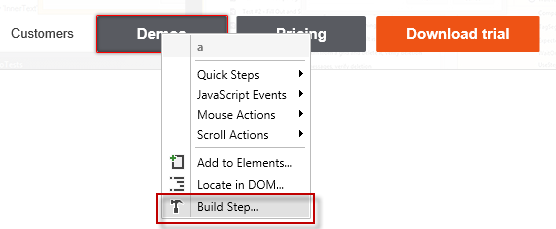
Enable Hover Over Highlighting from the Recording Toolbar. When the mouse pauses over a highlighted element in the recording surface the context menu with multiple options.
-
Highlight an element and click Build Step.
-
Select the mouse click you want to perform.
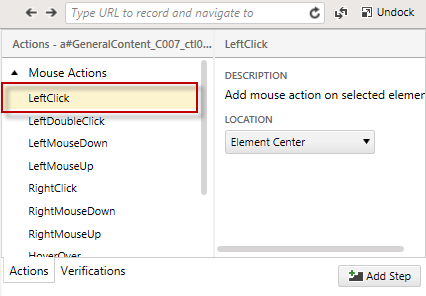
Note: If you leave Element Center option the click will be performed in the center of the element.
-
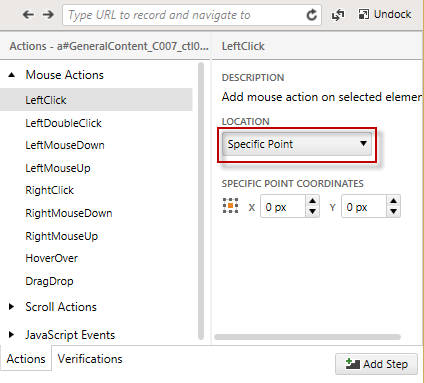
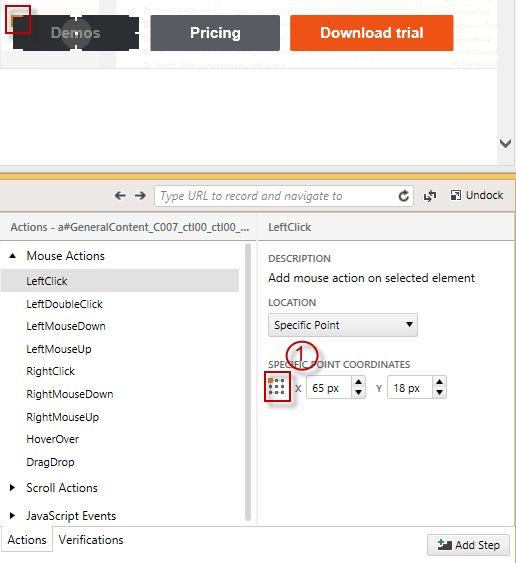
Choose Specific Point from the Location drop down.
-
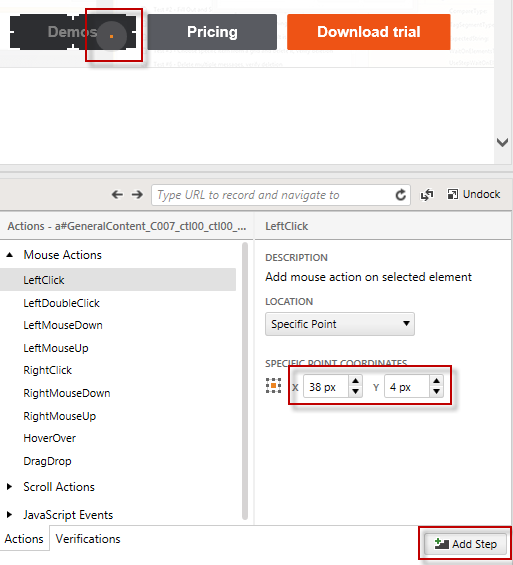
Select against which part of the element will be the specific point calculated from the grid (1).
-
Drag the circle to the point where you want to click (the coordinates will be calculated automatically) or type the coordinates manually and click Add Step.