Configure Browsers
Clear Cache
To ensure all requests are sent and captured, clear your browser's cache before beginning a capture.
Chrome, Edge, and Brave
- To capture traffic from most browsers, enable File > Capture Traffic.
- Record traffic sent to http://localhost or htp://127.0.0.1 from the targeted browser.
Firefox
- To capture HTTP traffic from Firefox 4+, either:
- Click Tools > Monitor with Fiddler > Use Fiddler automatically to configure with [FiddlerHook][8], or
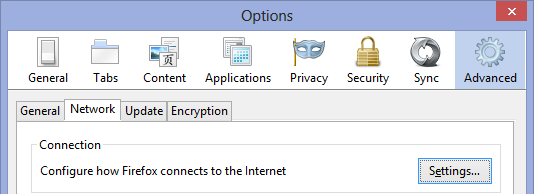
- Click Tools > Options > Advanced > Network > Settings > Use System Proxy Settings.
- Capture HTTPS traffic from Firefox
Manual Configuration
To manually configure any browser to send traffic to Fiddler, set the browser to connect to a proxy server. This setting is usually in the Options or Preferences menu. Use these settings:
Address: 127.0.0.1
Port: 8888
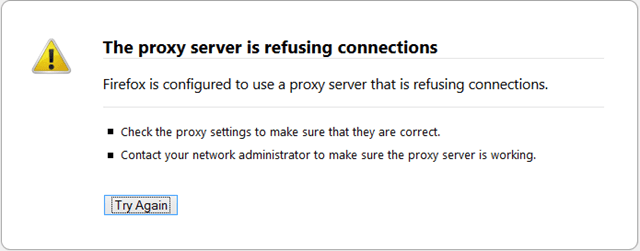
Note: If a browser uses these settings, revert these settings after you close Fiddler, or the browser will not load pages. For example, Firefox will show the following error message:
To instead allow Fiddler Classic to automatically enable and disable the proxy, use Proxy Auto-configuration with a URL pointing to %userprofile%\Documents\Fiddler2\Scripts\BrowserPAC.js.
For example, in Firefox, click Tools > Options > Advanced > Network > Settings, and input the URL of the BrowserPAC.js.
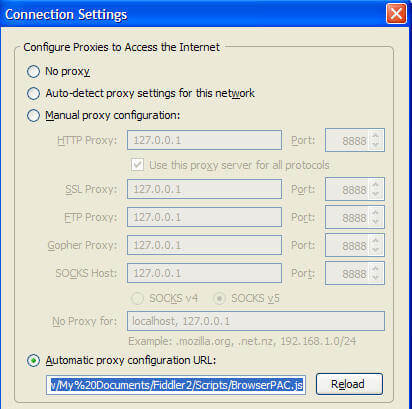
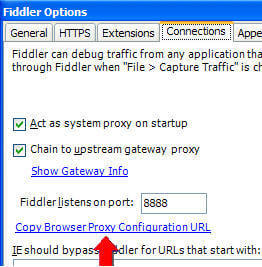
To find the correct auto-configuration URL from Fiddler:
-
Click Tools > Options > Connections.
-
Clicking the Copy Browser Proxy Configuration URL link.