Headers and Footers
Headers and Footers functionality allows you to add rich text content in the page margins when exporting a worksheet to pages. This feature is useful in scenarios like exporting to PDF, printing with RadSpreadsheet control or import/export to XLSX.
The following subsections describe the Headers and Footers API in RadSpreadProcessing:
HeaderFooterSettings
HeaderFooterSettings is the class that defines how the headers and footers of a worksheet look. An instance of this class can be obtained through the properties of WorksheetPageSetup.
Example 1: Get the worksheet HeaderFooterSettings
HeaderFooterSettings settings = worksheet.WorksheetPageSetup.HeaderFooterSettings;The HeaderFooterSettings class has the following properties:
| Property | Description |
|---|---|
DifferentOddAndEvenPages | A bool value indicating whether there should be different headers and footers for odd and even pages. |
DifferentFirstPage | A bool value indicating whether there should be a different header and footer on the first page. |
ScaleWithDocument | A bool value indicating whether headers and footers should be scaled using the ScaleFactor property of WorksheetPageSetup. When false, headers and footers are always rendered at 100% scale. |
AlignWithPageMargins | A bool value indicating whether headers and footers should align with left and right margins per the Margins property of WorksheetPageSetup. When false, alignment uses NormalMargins. |
Header | The default header content. When DifferentOddAndEvenPages is true, represents the header of odd pages only. Of type HeaderFooterContent. |
Footer | The default footer content. When DifferentOddAndEvenPages is true, represents the footer of odd pages only. Of type HeaderFooterContent. |
FirstPageHeader | The header content of the first page. Used only when DifferentFirstPage is true. Of type HeaderFooterContent. |
FirstPageFooter | The footer content of the first page. Used only when DifferentFirstPage is true. Of type HeaderFooterContent. |
EvenPageHeader | The header content of even pages. Used only when DifferentOddAndEvenPages is true. Of type HeaderFooterContent. |
EvenPageFooter | The footer content of even pages. Used only when DifferentOddAndEvenPages is true. Of type HeaderFooterContent. |
HeaderFooterContent
The HeaderFooterContent class defines the content of a header or a footer. This class exposes the following properties:
| Property | Description |
|---|---|
LeftSection | The content of the left header/footer section, flowing from the left to right margin with left alignment. Of type HeaderFooterSection. |
CenterSection | The content of the center header/footer section, flowing from the left to right margin with center alignment. Of type HeaderFooterSection. |
RightSection | The content of the right header/footer section, flowing from the left to right margin with right alignment. Of type HeaderFooterSection. |
HasValidLength | A bool value indicating whether the total length of the three sections is within the allowed limit. When false, content may be trimmed when exporting to XLSX/PDF or printing. |
HeaderFooterSection
The HeaderFooterSection class defines the content of a particular header/footer section. Using the Text property, you can set a string that defines the content in the section. Within the text content you can use special escaped sequences that allow you to achieve rich text content and insert fields that are evaluated when creating the worksheet pages.
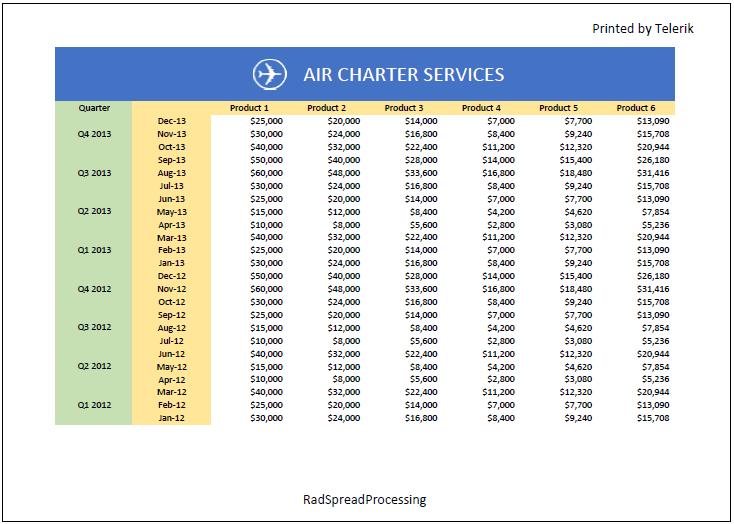
Example 2 shows how to set sample content to header and footer sections. The code demonstrates how to insert a "Date" field in the right section of the header and a "Page" and a "Number of pages" fields in the center section of the footer.
Example 2: Set content for header and footer sections
HeaderFooterSettings settings = worksheet.WorksheetPageSetup.HeaderFooterSettings;
settings.Header.RightSection.Text = "Printed by Telerik";
settings.Footer.CenterSection.Text = "RadSpreadProcessing";
The header and footer of the first page in the worksheet from the snippet will be evaluated and rendered as shown in Figure 1.
Figure 1: Printed worksheet with custom header text and footer text
Header/Footer Escaping Sequences and Fields
The ampersand symbol (‘&’) has a special meaning in the context of headers and footers section text. Depending on what follows after this symbol, the text formatting may be changed or some special field may be inserted.
The following table describes all valid uses of the ampersand symbol sequences. If none of the below cases is fulfilled, then the ampersand symbol is skipped.
| Sequence | Description |
|---|---|
&& | Evaluated as a single ampersand symbol. Escapes the ampersand so it is inserted literally. |
&B | Changes the bold state. Text after this sequence has a different FontWeight compared to text before it. |
&I | Changes the italic state. Text after this sequence has a different FontStyle compared to text before it. |
&U | Changes the underline state. Text after gets single underline unless it was already single-underlined, in which case underline is removed. |
&E | Changes underline to double underline (or removes it). Note: double underline is supported only in XLSX import/export, not in PDF export. |
&S | Changes the strikethrough state. Supported in XLSX import/export; not supported in PDF export. |
&Y | Changes baseline alignment to subscript (or restores default if already subscript). |
&X | Changes baseline alignment to superscript (or restores default if already superscript). |
&"<FontFamily>,<FontStyle>" | Changes the font family and font style. Use '-' for the normal font family from the workbook theme. <FontStyle> must be one of Regular, Bold, Italic, or Bold Italic. Example: &"-,Regular" or &"Arial,Bold Italic". |
&K<ColorValue> | Changes the text color. <ColorValue> is a 6-character string — either a hex RGB value (e.g. &KFF0000 for red) or a themable color with tint/shade (e.g. &K05+039). |
&<FontSize> | Changes the font size (in points). Example: &14 sets 14pt. |
&P | Inserts a page number field (evaluated per page). |
&N | Inserts a number of pages field. |
&D | Inserts a date field (evaluated as the date when printing/PDF export started). |
&T | Inserts a time field (evaluated as the time when printing/PDF export started). |
&Z | Inserts the file folder field (full folder path of the opened file; empty string when exporting a Workbook not tied to a file). |
&F | Inserts a Workbook name field (value of Workbook.Name). |
&A | Inserts a sheet name field (value of the sheet's Name property). |
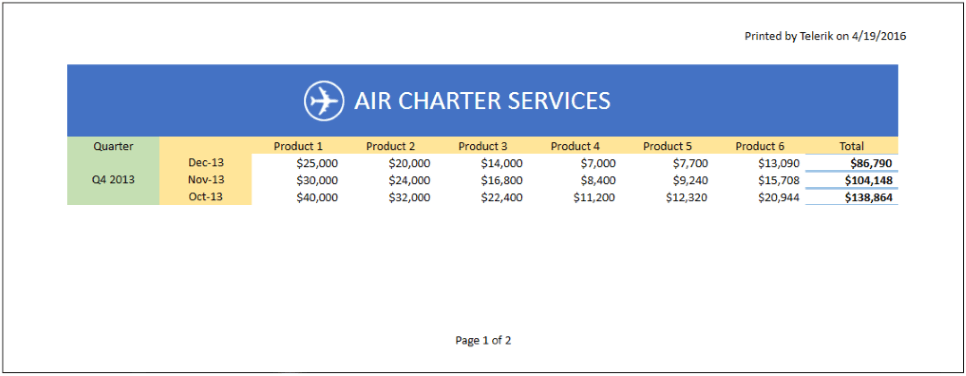
Example 3 demonstrates how to insert a date field in the header and a page number field combined with a number of pages field in the footer of a worksheet.
Example 3: Insert dynamic fields in the header and footer
HeaderFooterSettings settings = worksheet.WorksheetPageSetup.HeaderFooterSettings;
settings.Header.RightSection.Text = "Printed by Telerik on &D";
settings.Footer.CenterSection.Text = "Page &P of &N";
Figure 2 shows how the document looks after applying the settings demonstrated in Example 3.
Figure 2: Printed worksheet with evaluated date and page number fields
Header/Footer Margins
To control the vertical positioning of the headers and footers on the page, use the Margins property of WorksheetPageSetup. The PageMargins class exposes the following properties that define header and footer positioning:
| Property | Description |
|---|---|
Header | Defines the distance between the header and the top page edge. Default value is 0.3 inches. |
Footer | Defines the distance between the footer and the bottom page edge. Default value is 0.3 inches. |
Example 4 shows how to set the margins of a worksheet using the predefined NormalMargins of PageMargins for the page margins, 0 inches for the footer margin, and 1 inch for the header.
Example 4: Set header and footer margins
PageMargins normalMargins = PageMargins.NormalMargins;
worksheet.WorksheetPageSetup.Margins = new PageMargins(normalMargins.Left, normalMargins.Top, normalMargins.Right, normalMargins.Bottom, Unit.DipToInch(0), Unit.DipToInch(1));
The Unit class, used in Example 4, provides convenient methods that help you convert a value between different measurement units.