Getting Started with the Blazor Inline AI Prompt Component

Summarize with AI:
Explore the Blazor Inline AI Prompt component, which allows for easy querying of AI models without interrupting user workflows.
The idea of equipping our Blazor applications with artificial intelligence is tempting; however, we must consider ways to prevent the user from interrupting their workflow.
Fortunately, Progress Telerik UI for Blazor includes the Inline AI Prompt component in its suite of Blazor components, allowing users to get responses from AI models without having to jump between tabs or applications. Let’s see how it works below.
Initial Project Setup
Let’s start from the premise that we want to create a scientific article reader, which is very likely to contain terms we don’t know, paragraphs or information from which we want to obtain additional information or other types of data, all without the user having to leave the reader. This is an excellent use case for the new AI Prompt Component.
To use the AI Prompt Component from Telerik in your Blazor project, you first need to perform a proper installation and setup as shown in the installation guides.
Next, I’ve created a new page type component that simulates the scientific article reader, as I show you below:
<div style="background-color: #f5f5f5; min-height: 100vh; padding: 40px 20px;">
    <div style="max-width: 850px; margin: 0 auto; background-color: white; padding: 60px 80px; box-shadow: 0 2px 8px rgba(0,0,0,0.1);">

        <h1 style="text-align: center; margin-bottom: 40px;">Quantum Entanglement and Its Implications for Future Computing</h1>

        <h2 style="margin-top: 30px; margin-bottom: 15px;">Abstract</h2>
        <p style="text-align: justify; line-height: 1.6; margin-bottom: 15px;">
            This groundbreaking study explores the fundamental principles of quantum entanglement and its potential
            applications in developing next-generation quantum computers. Through extensive experimental analysis and
            theoretical modeling, we demonstrate novel approaches to maintaining quantum coherence at room temperature.
        </p>

        <h2 style="margin-top: 30px; margin-bottom: 15px;">Introduction</h2>
        <p style="text-align: justify; line-height: 1.6; margin-bottom: 15px;">
            Quantum entanglement, first described by Einstein, Podolsky, and Rosen in their famous 1935 paper,
            remains one of the most fascinating and counterintuitive phenomena in quantum mechanics. When particles
            become entangled, they form a unified quantum system where the quantum state of each particle cannot be
            described independently, regardless of the distance separating them.
        </p>
        <p style="text-align: justify; line-height: 1.6; margin-bottom: 15px;">
            Recent advances in quantum technology have brought us closer to harnessing this phenomenon for practical
            applications, particularly in the field of quantum computing. However, significant challenges remain in
            maintaining quantum states long enough to perform useful computations.
        </p>

        <h2 style="margin-top: 30px; margin-bottom: 15px;">Theoretical Background</h2>
        <p style="text-align: justify; line-height: 1.6; margin-bottom: 15px;">
            The mathematical framework underlying quantum entanglement is rooted in the superposition principle and
            the concept of quantum correlations. Unlike classical systems, where correlations arise from shared
            initial conditions, quantum correlations emerge from the inherent non-local nature of quantum mechanics.
        </p>
        <p style="text-align: justify; line-height: 1.6; margin-bottom: 15px;">
            Our research builds upon the pioneering work of John Bell, whose inequalities provided a testable
            distinction between quantum mechanical predictions and those of local hidden variable theories. Through
            careful experimental design, we have achieved violation of Bell inequalities with unprecedented statistical
            significance, confirming the quantum nature of our entangled systems.
        </p>

        <h2 style="margin-top: 30px; margin-bottom: 15px;">Experimental Methods</h2>
        <p style="text-align: justify; line-height: 1.6; margin-bottom: 15px;">
            Our experimental setup utilizes spontaneous parametric down-conversion (SPDC) to generate pairs of
            entangled photons. The source crystal, a periodically poled potassium titanyl phosphate (PPKTP), is
            pumped by a continuous-wave laser at 405 nm, producing entangled photon pairs at 810 nm.
        </p>
        <p style="text-align: justify; line-height: 1.6; margin-bottom: 15px;">
            Temperature stabilization proved crucial to our success. By implementing a novel active feedback system,
            we maintained the crystal temperature within 10 millikelvins of the target temperature, significantly
            reducing thermal decoherence effects.
        </p>

        <h2 style="margin-top: 30px; margin-bottom: 15px;">Results and Discussion</h2>
        <p style="text-align: justify; line-height: 1.6; margin-bottom: 15px;">
            Our measurements revealed entanglement fidelities exceeding 99.2%, representing a significant improvement
            over previous room-temperature implementations. The coherence times achieved in our system reached
            450 nanoseconds, sufficient for executing multiple quantum gate operations.
        </p>
        <p style="text-align: justify; line-height: 1.6; margin-bottom: 15px;">
            These results demonstrate the viability of room-temperature quantum computing platforms for specific
            applications, particularly in quantum communication and quantum sensing. While universal quantum computing
            may still require cryogenic cooling, our findings open new possibilities for practical quantum devices.
        </p>

        <h2 style="margin-top: 30px; margin-bottom: 15px;">Conclusions</h2>
        <p style="text-align: justify; line-height: 1.6; margin-bottom: 15px;">
            This research establishes new benchmarks for room-temperature quantum entanglement and provides a roadmap
            for developing practical quantum computing devices. Future work will focus on scaling these techniques to
            multi-qubit systems and exploring novel error correction strategies.
        </p>
    </div>
</div>
The result of executing the component is as follows:

With this new component ready, we can start testing the Blazor AI Prompt component.
Integrating the AI Prompt Component into the Project
You should know that the Inline AI Prompt component is not a visual component that appears all the time in the graphical interface, so we need to configure some of its parameters to work with it correctly.
What you need to do is define the control through the TelerikInlineAIPrompt tag with some properties:
@ref: To obtain the instance of the component and display it at will@bind-Prompt: The bound property where the prompt written by the user will be storedOnPromptRequest: Event callback that is triggered when the user makes the request.PromptContext: Additional context that is passed with the prompt
An implementation example with the previous properties is the following code:
@page "/"

<div ...>
</div>

<TelerikInlineAIPrompt @ref="@InlinePromptRef"
                       @bind-Prompt="@UserPrompt"
                       OnPromptRequest="@OnPromptRequest"
                       PromptContext="@PromptContext">
</TelerikInlineAIPrompt>

@code {
    private string UserPrompt { get; set; } = string.Empty;
    private string PromptContext { get; set; } = string.Empty;
    private TelerikInlineAIPrompt? InlinePromptRef { get; set; }
    private void OnPromptRequest(InlineAIPromptPromptRequestEventArgs args)
    {
        args.Output = $"AI response for: {PromptContext}";
    }
}
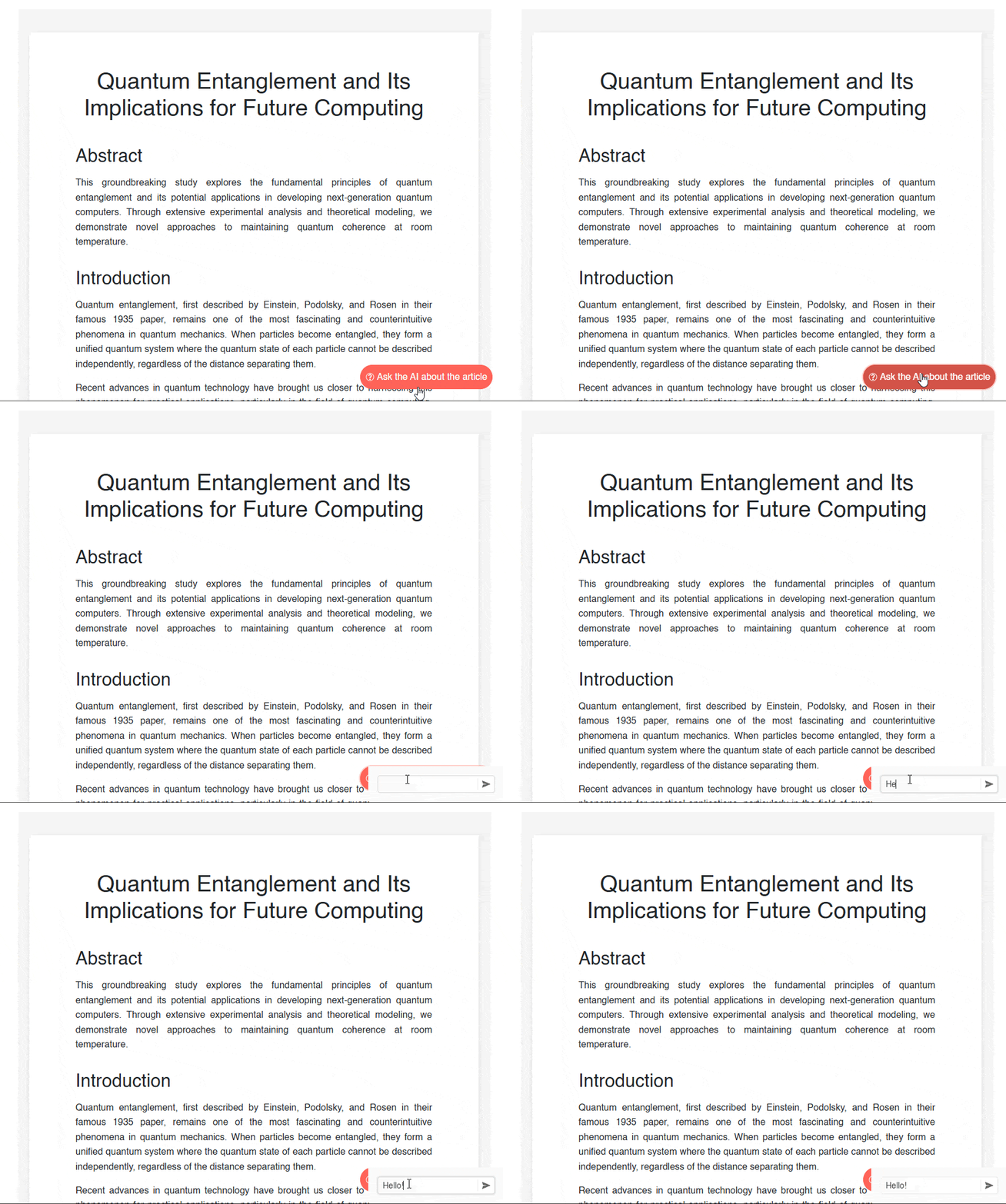
As I mentioned earlier, this component does not appear all the time in the graphical interface, so we must have some trigger in the graphical interface to show it. In this example, I will use a TelerikButton floating at the bottom that is displayed all the time, so the user can quickly ask questions:
<div ...>
</div>

<div style="position: fixed; bottom: 20px; right: 20px; z-index: 1000;">
    <TelerikButton Icon="@SvgIcon.QuestionCircle"
                   FillMode="@ThemeConstants.Button.FillMode.Solid"
                   ThemeColor="@ThemeConstants.Button.ThemeColor.Primary"
                   Size="@ThemeConstants.Button.Size.Large"
                   Rounded="@ThemeConstants.Button.Rounded.Full"
                   OnClick="@((MouseEventArgs e) => ShowPromptAsync(e))">
        Ask the AI about the article
    </TelerikButton>
</div>

<TelerikInlineAIPrompt ...>
</TelerikInlineAIPrompt>
In the preceding code, you can see that I defined the OnClick event that provides an argument of type MouseEventArgs, which we will use to show the Inline AI Prompt at the location of the button. Additionally, it also refers to the event handler called ShowPromptAsync(e), to which we pass the mouse event arguments and which is defined as follows:
private async Task ShowPromptAsync(MouseEventArgs e)
{
    await InlinePromptRef!.ShowAsync(e.ClientX, e.ClientY);
}
You can see that in the previous code we use the reference of the component, along with the method ShowAsync, which expects the coordinates where the component will be shown and which we obtain thanks to the parameter of type MouseEventArgs. The execution gives us the following result:
Improving the Appearance of the Inline AI Prompt Component
The Blazor Inline Prompt Component has a tag called InlineAIPromptSettings, within which we can specify another tag InlineAIPromptPopupSettings that contains various configuration properties for the popup. Some of these properties are:
AnimationDuration: Defines the duration of the animation when the popup appears.WidthandHeight: Allow configuring the width and height of the popup.MaxWidthandMaxHeight: Define a maximum width and height for the popup.AnimationType: Specifies the type of animation for the appearance of the popup.HorizontalCollisionandVerticalCollision: Specify what happens when the popup does not fit in the viewport. For example, withFlipthe popup flips to the opposite side, while withFitthe popup moves until it is completely visible.VerticalOffsetandHorizontalOffset: Specify a space between the popup and the anchor.
The following code is an example of the implementation of some of the aforementioned properties:
<TelerikInlineAIPrompt ...>
    <InlineAIPromptSettings>
        <InlineAIPromptPopupSettings AnimationDuration="300"
                                     Width="650px"
                                     AnimationType="@AnimationType.PushLeft"
                                     HorizontalCollision="@PopupCollision.Fit"
                                     VerticalCollision="@PopupCollision.Fit"
                                     VerticalOffset="5" />
    </InlineAIPromptSettings>
</TelerikInlineAIPrompt>
The result of the component’s configuration can be seen in the following image:

Defining Commands for Processing Predefined Prompts
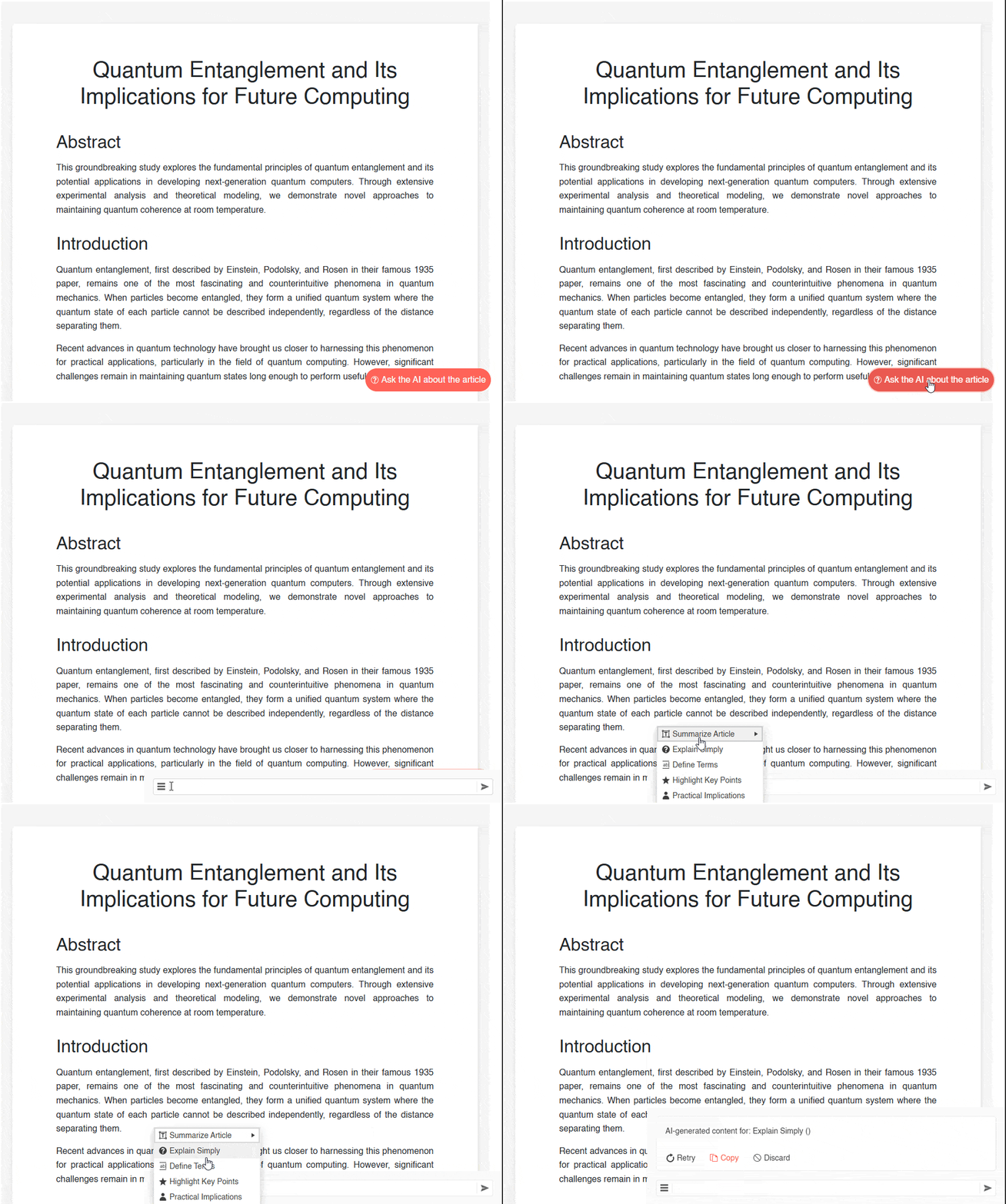
Another feature of the Inline AI Prompt component is that we can configure predefined commands, which are a series of prompts that will be processed immediately. These commands will form a sort of menu in the popup, which even allows for nested commands. To configure them, we must link the Commands parameter to a list of InlineAIPromptCommandDescriptor elements, each having the following configurable parameters:
Id: Identifier of the commandTitle: Title that will appear in the commands menuIcon: Icon that will appear in the commands menuPrompt: Predefined prompt that will be used with the AI model when the item is pressedChildren: In the case of nested commands, we can use this property to create them
You can see an example of creating and using commands in the following code:
@page "/"

<div ...>
</div>

<TelerikInlineAIPrompt ...
                       Commands="@Commands"
                       OnCommandExecute="@OnCommandExecute">
    <InlineAIPromptSettings>
        ...
    </InlineAIPromptSettings>
</TelerikInlineAIPrompt>

@code {
    ...

    private List<InlineAIPromptCommandDescriptor> Commands { get; set; } = new()
    {
        new InlineAIPromptCommandDescriptor()
        {
            Id = "summarize",
            Title = "Summarize Article",
            Icon = SvgIcon.FreeText,
            Prompt = "Provide a clear summary of this scientific article, highlighting the main findings and relevance.",
            Children = new List<InlineAIPromptCommandDescriptor>
            {
                new InlineAIPromptCommandDescriptor()
                {
                    Id = "summarize-methods",
                    Title = "Summarize Methods",
                    Icon = SvgIcon.ListOrdered,
                    Prompt = "Explain the methods used in this article in a simple way."
                },
                new InlineAIPromptCommandDescriptor()
                {
                    Id = "summarize-results",
                    Title = "Summarize Results",
                    Icon = SvgIcon.ChartBarRange,
                    Prompt = "Describe the main results and conclusions of the study in an accessible way."
                }
            }
        },
        new InlineAIPromptCommandDescriptor()
        {
            Id = "explainSimply",
            Title = "Explain Simply",
            Icon = SvgIcon.QuestionSolid,
            Prompt = "Explain the content of this scientific text in simple words, as if you were telling it to a high school student."
        },
        new InlineAIPromptCommandDescriptor()
        {
            Id = "defineTerms",
            Title = "Define Terms",
            Icon = SvgIcon.WholeWord,
            Prompt = "Identify technical or complex terms and provide simple definitions."
        },
        new InlineAIPromptCommandDescriptor()
        {
            Id = "highlightKeyPoints",
            Title = "Highlight Key Points",
            Icon = SvgIcon.Star,
            Prompt = "List the most important points of this scientific text in easy-to-read bullet points."
        },
        new InlineAIPromptCommandDescriptor()
        {
            Id = "practicalImplications",
            Title = "Practical Implications",
            Icon = SvgIcon.User,
            Prompt = "Explain how the findings of this article can be applied in real life or in the professional field."
        }
    };

    private async Task OnCommandExecute(InlineAIPromptCommandExecuteEventArgs args)
    {
        await Task.Delay(500);
        args.Output = $"AI-generated content for: {args.Command.Title} ({PromptContext})";
    }
}
When running the application with the added commands, you can see them in action in the following image:
Integrating AI Services for Use with the Inline AI Prompt
So far, we have analyzed different options of the Inline AI Prompt control without using any AI model. You should know that you can use any model from any provider that interests you in your application. In my case, I will use Microsoft.Extensions.AI, in addition to Azure OpenAI, carrying out its respective configuration.
Once this is done, in the component, I will create a method that allows me to easily obtain a response from the AI model:
@page "/"
@using Microsoft.Extensions.AI
@inject IChatClient ChatClient
...
private async Task<string> CallOpenAIApi(string message, string context = "")
{
    var options = new ChatOptions
    {
        Instructions = $"The following is the context: {context}"
    };

    var answer = await ChatClient.GetResponseAsync(message, options);

    return answer.Text;
}
In the previous method, I define the parameter to receive a message and an optional parameter to receive context. Now, I will modify the OnPromptRequest method to process any user request:
private async Task OnPromptRequest(InlineAIPromptPromptRequestEventArgs args)
{
    var answer = await CallOpenAIApi(UserPrompt);
    args.Output = $"{answer}";
}
Once the above modifications are made, we can make queries to the AI model, as seen in the following example:

Although the component is already functional, the truth is that it is not very useful at the moment since we cannot quickly add article context to ask questions or execute a command.
To solve this, as part of our application, I will implement a feature so that the selected text from the article is copied to the component’s context. I will do this by creating within wwwroot a file called site.js, which looks like this:
window.getSelectedText = function () {
    const selection = window.getSelection();
    return selection ? selection.toString() : '';
};
This new file needs to be registered in App.razor as follows:
<body>
    ...
    <script src="_framework/blazor.web.js"></script>
    <script src="site.js"></script>
</body>
With these changes, we can use JS interoperability to obtain the selected text and quickly add it as context using PromptContext, which we will do every time we open the popup, in the ShowPromptAsync method:
@inject IJSRuntime JS
...
private async Task ShowPromptAsync(MouseEventArgs e)
{
    string selectedText = string.Empty;
    try
    {
        selectedText = await JS.InvokeAsync<string>("getSelectedText");
    }
    catch (Exception ex)
    {
        Console.WriteLine($"Error copying to clipboard: {ex.Message}");
    }
    PromptContext = $"{selectedText}";
    await InlinePromptRef!.ShowAsync(e.ClientX, e.ClientY);
}
With the above code implemented, we will pass the newly assigned context to the OnPromptRequest method as follows:
private async Task OnPromptRequest(InlineAIPromptPromptRequestEventArgs args)
{
    var answer = await CallOpenAIApi(UserPrompt, PromptContext);
    args.Output = $"{answer}";
}
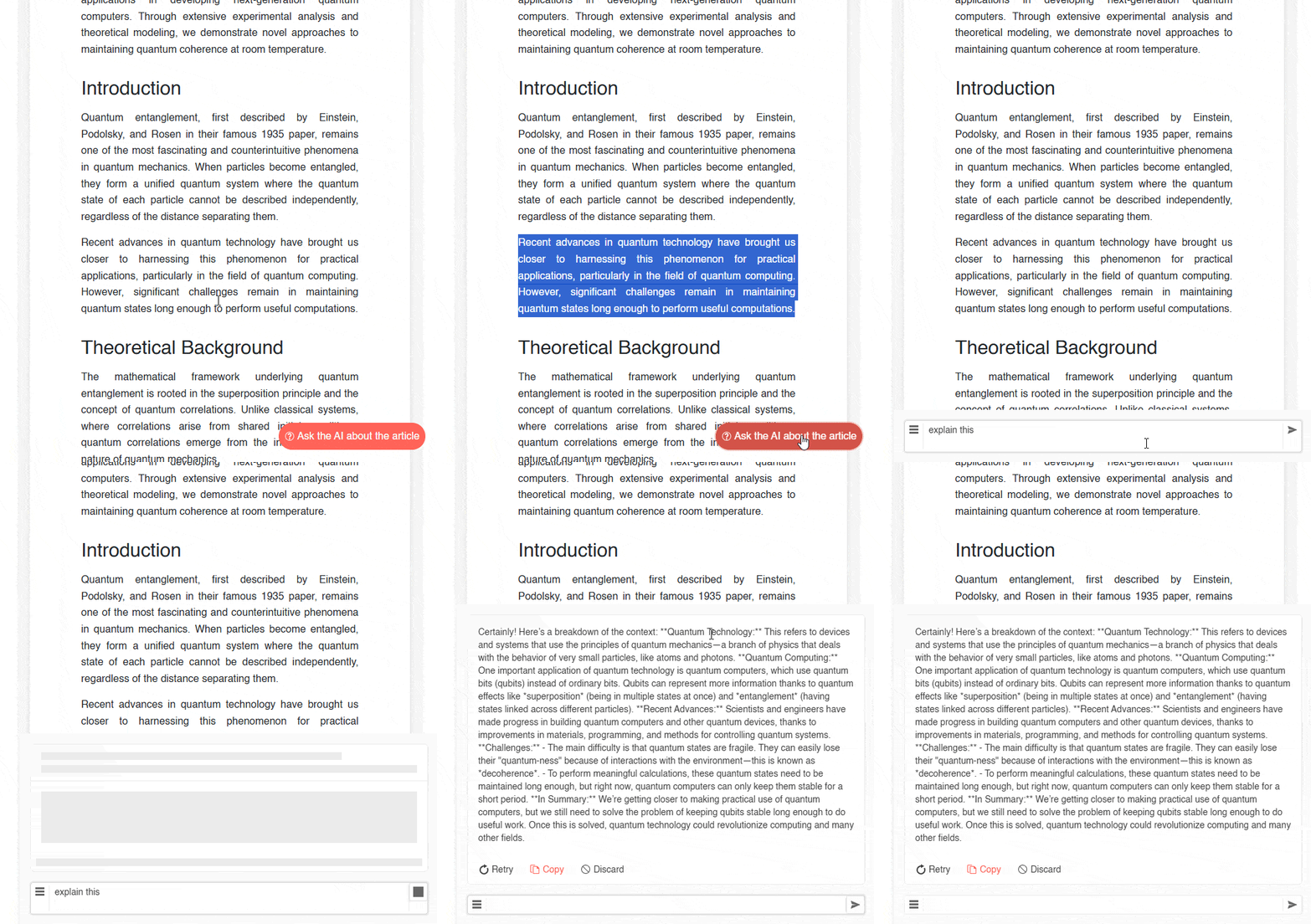
With the previous changes, we can see that after making a selection, it is possible to ask the AI model about the selected text easily:
Finally, we can carry out a similar approach for when a command is executed, except in this case, we will not use UserPrompt but the command prompt:
private async Task OnCommandExecute(InlineAIPromptCommandExecuteEventArgs args)
{
    var answer = await CallOpenAIApi(args.Command.Prompt, PromptContext);
    args.Output = $"{answer}";
}
The result is that we can quickly select a section of text and execute a command, as seen below:
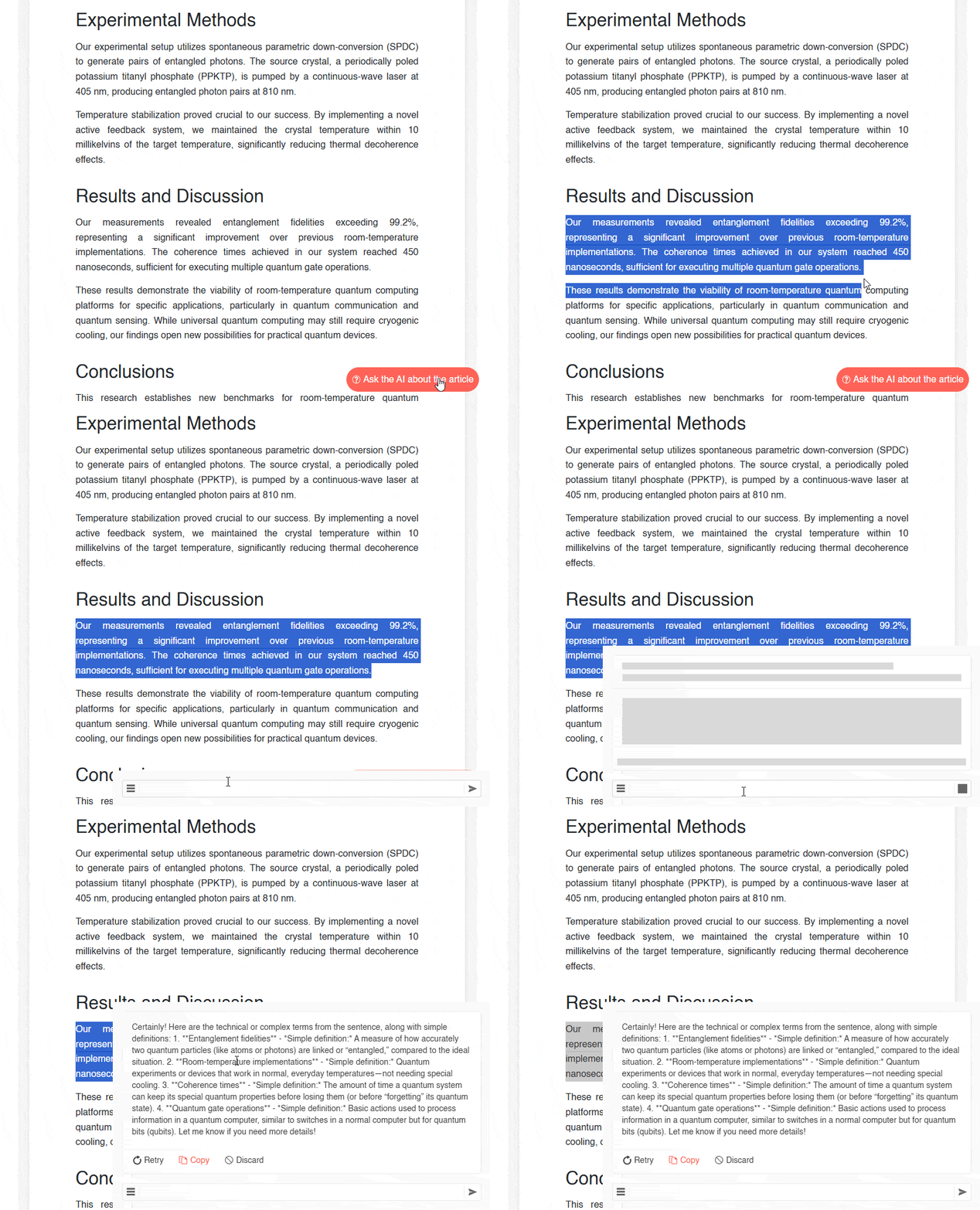
And there you have it, with this we have implemented an easy and quick way for users to make queries in a complex article, thanks to the Telerik Blazor Inline AI Prompt component.
Conclusion
Throughout this article, we have explored the Telerik Inline AI Prompt component, which enables seamless querying of AI models without interrupting users’ workflows, helping them become more efficient in their tasks. Definitely a component worth exploring if you plan to create AI-based applications.
Ready to try it for yourself? Telerik UI for Blazor offers a free 30-day trial!

Héctor Pérez
Héctor Pérez is a Microsoft MVP with more than 10 years of experience in software development. He is an independent consultant, working with business and government clients to achieve their goals. Additionally, he is an author of books and an instructor at El Camino Dev and Devs School.
Related Posts
Comments
All articles
Topics
Web MobileMobile
Desktop
Design
Productivity
People