Customizing Validation Messages in Blazor Forms

Summarize with AI:
These Blazor components can help you create custom form experiences, so users feel right at home inside your app.
Having forms in web applications is something that is essential in any application. Whether to enable a way to contact or to edit information, the correct display of errors will define a good or bad user experience.
That is why today I will talk to you about how to customize validation messages in forms within your Blazor applications, thanks to the Validation Tools available in the Progress Telerik UI for Blazor library.
Implementing Validation in a Blazor Application
In case you are not yet experienced in Blazor form validation, you should know that as part of the framework there are ways to validate forms natively. To do this, you need the following parts:
- A model with Data Annotations that specify the validation rules for each property of the model, like the following:
[Required(ErrorMessage = "First name is required")]
[StringLength(50, MinimumLength = 2, ErrorMessage = "First name must be between 2 and 50 characters")]
public string FirstName { get; set; } = string.Empty;
- An
EditFormwith theModelparameter bound to an instance of the model, as follows:
<EditForm Model="@userModel" OnValidSubmit="@HandleValidSubmit" FormName="userRegistrationForm">
- A set of form components, such as an
InputText,InputNumber,InputCheckBox, etc., as in the following code:
<InputText id="firstName" @bind-Value="userModel.FirstName" class="form-control" />
With the above structure ready, the next step is to use the pre-built components for validation. First, the DataAnnotationsValidator component allows you to activate validation through DataAnnotations in the form, so it is essential to add it to perform validations.
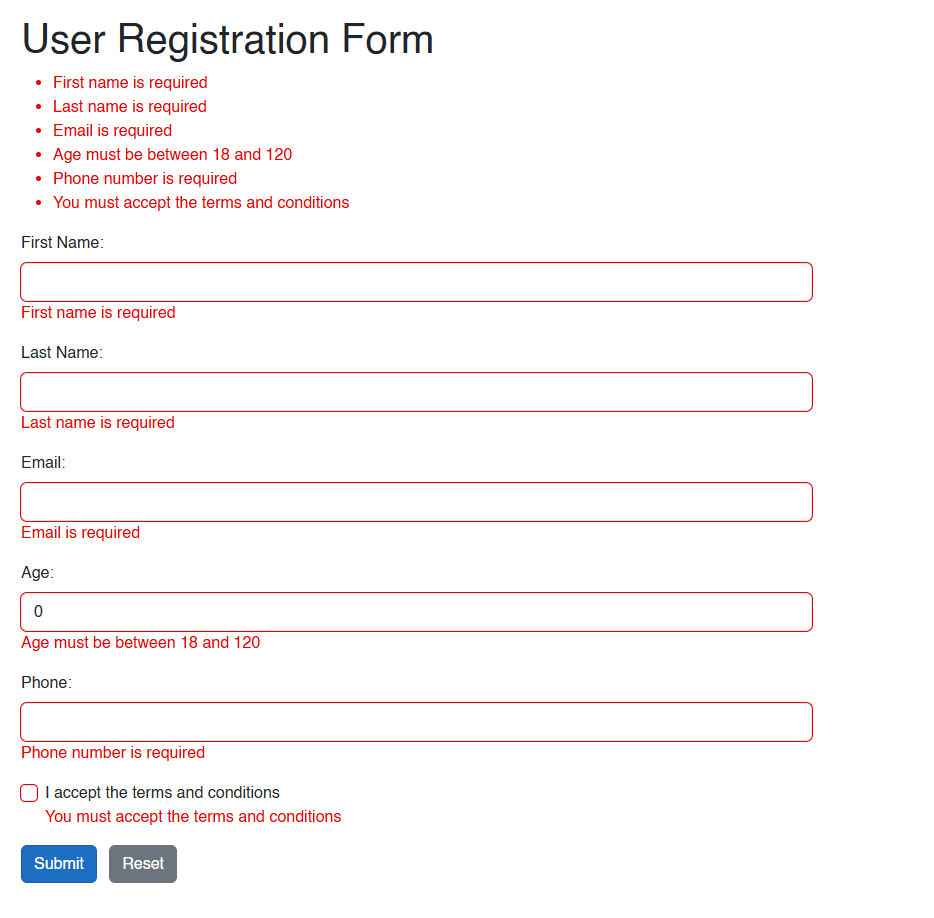
Next, we can use the component called ValidationSummary, which shows a summary of all validation errors in the form of a list.
The other component you can use is ValidationMessage, which allows you to be more specific and display an error message for each validated data, according to the Data Annotations of the model property, as in the following example:
<div class="mb-3">
    <label for="firstName" class="form-label">First Name:</label>
    <InputText id="firstName" @bind-Value="userModel.FirstName" class="form-control" />
    <ValidationMessage For="@(() => userModel.FirstName)" />
</div>
The form validation looks as follows:
The complete initial code would look like this:
@page "/form-example"
@using System.ComponentModel.DataAnnotations

<PageTitle>Form Example</PageTitle>

<h1>User Registration Form</h1>

<div class="row">
    <div class="col-md-6">
        <EditForm Model="@userModel" OnValidSubmit="@HandleValidSubmit" FormName="userRegistrationForm">
            <DataAnnotationsValidator />
            <ValidationSummary />

            <div class="mb-3">
                <label for="firstName" class="form-label">First Name:</label>
                <InputText id="firstName" @bind-Value="userModel.FirstName" class="form-control" />
                <ValidationMessage For="@(() => userModel.FirstName)" />
            </div>

            <div class="mb-3">
                <label for="lastName" class="form-label">Last Name:</label>
                <InputText id="lastName" @bind-Value="userModel.LastName" class="form-control" />
                <ValidationMessage For="@(() => userModel.LastName)" />
            </div>

            <div class="mb-3">
                <label for="email" class="form-label">Email:</label>
                <InputText id="email" type="email" @bind-Value="userModel.Email" class="form-control" />
                <ValidationMessage For="@(() => userModel.Email)" />
            </div>

            <div class="mb-3">
                <label for="age" class="form-label">Age:</label>
                <InputNumber id="age" @bind-Value="userModel.Age" class="form-control" />
                <ValidationMessage For="@(() => userModel.Age)" />
            </div>

            <div class="mb-3">
                <label for="phone" class="form-label">Phone:</label>
                <InputText id="phone" @bind-Value="userModel.PhoneNumber" class="form-control" />
                <ValidationMessage For="@(() => userModel.PhoneNumber)" />
            </div>

            <div class="mb-3 form-check">
                <InputCheckbox id="terms" @bind-Value="userModel.AcceptTerms" class="form-check-input" />
                <label for="terms" class="form-check-label">I accept the terms and conditions</label>
                <ValidationMessage For="@(() => userModel.AcceptTerms)" />
            </div>

            <button type="submit" class="btn btn-primary">Submit</button>
            <button type="button" class="btn btn-secondary ms-2" @onclick="ResetForm">Reset</button>
        </EditForm>

        @if (submitted)
        {
            <div class="alert alert-success mt-3" role="alert">
                <h4 class="alert-heading">Form submitted successfully!</h4>
                <p><strong>Name:</strong> @userModel.FirstName @userModel.LastName</p>
                <p><strong>Email:</strong> @userModel.Email</p>
                <p><strong>Age:</strong> @userModel.Age</p>
                <p><strong>Phone:</strong> @userModel.PhoneNumber</p>
            </div>
        }
    </div>
</div>

@code {
    [SupplyParameterFromForm]
    private UserModel userModel = new();
    private bool submitted = false;

    private void HandleValidSubmit()
    {
        submitted = true;
    }

    private void ResetForm()
    {
        userModel = new UserModel();
        submitted = false;
    }

    public class UserModel
    {
        [Required(ErrorMessage = "First name is required")]
        [StringLength(50, MinimumLength = 2, ErrorMessage = "First name must be between 2 and 50 characters")]
        public string FirstName { get; set; } = string.Empty;

        [Required(ErrorMessage = "Last name is required")]
        [StringLength(50, MinimumLength = 2, ErrorMessage = "Last name must be between 2 and 50 characters")]
        public string LastName { get; set; } = string.Empty;

        [Required(ErrorMessage = "Email is required")]
        [EmailAddress(ErrorMessage = "Invalid email address")]
        public string Email { get; set; } = string.Empty;

        [Required(ErrorMessage = "Age is required")]
        [Range(18, 120, ErrorMessage = "Age must be between 18 and 120")]
        public int Age { get; set; }

        [Required(ErrorMessage = "Phone number is required")]
        [Phone(ErrorMessage = "Invalid phone number")]
        public string PhoneNumber { get; set; } = string.Empty;

        [Range(typeof(bool), "true", "true", ErrorMessage = "You must accept the terms and conditions")]
        public bool AcceptTerms { get; set; }
    }
}
Now let’s see how to customize each of these error messages.
Customizing Validation Messages in Blazor
The native Blazor validation components are fine for small, quick applications that do not require customization. However, they lack parameters that can be modified for customization.
Although there are ways to achieve some customization, these can increase the complexity of the project and limit us when trying to adapt the style to our own, so it is better to look for alternatives.
One of the best options can be found in the Telerik validation components for Blazor, which allow for customization in various ways, which we will explore below.
The Telerik Validation Summary Component for Blazor
Let’s start by analyzing the enhanced component for displaying the error summary, which we must use via the TelerikValidationSummary tag either along with a TelerikForm or with a standard EditForm from Blazor. To utilize this component in our example, I will simply replace the ValidationSummary tag with TelerikValidationSummary as follows:
<EditForm Model="@userModel" OnValidSubmit="@HandleValidSubmit" FormName="userRegistrationForm">
    <DataAnnotationsValidator />
    <TelerikValidationSummary />
    ...
</EditForm>
Since we made the change, we can notice a more elaborate visual change:
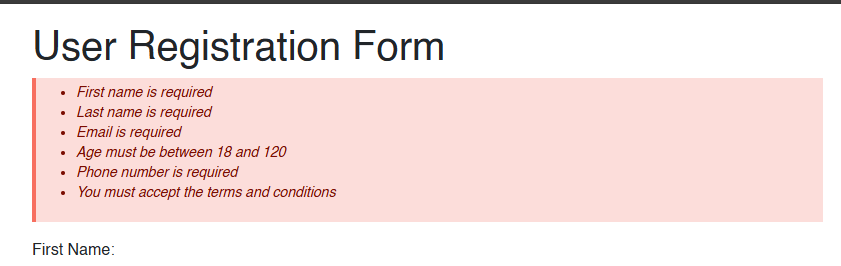
Apart from the default professional design, we can also further customize its appearance through the Template parameter, within which we can add HTML code to customize the error messages.
This is possible thanks to the Context property, which is a collection of the type IEnumerable<string> containing all the messages from the validated model.
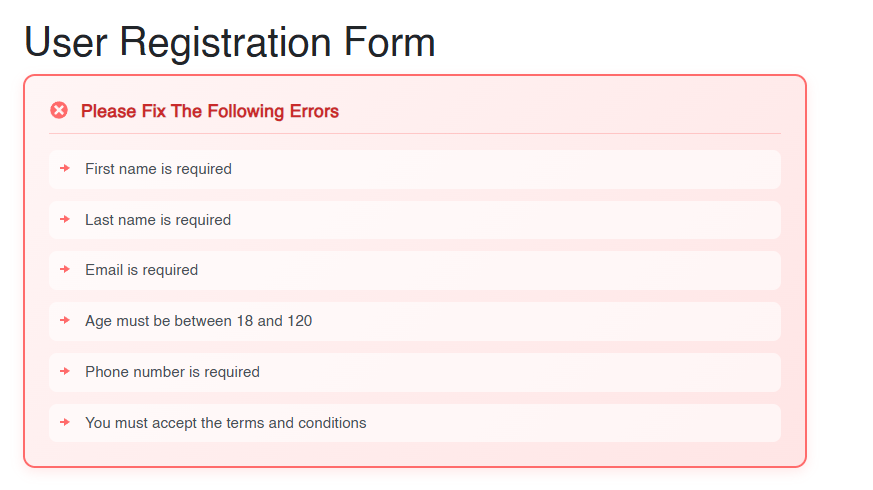
This means you could make the message section as complex as you want, creating your own design from scratch and personalized as shown below:
...
<style>
    .validation-alert-modern {
        background: linear-gradient(135deg, #fff5f5 0%, #ffe5e5 100%);
        border: 2px solid #ff6b6b;
        border-radius: 12px;
        padding: 1.5rem;
        margin-bottom: 2rem;
        box-shadow: 0 4px 12px rgba(255, 107, 107, 0.15);
        animation: slideIn 0.3s ease-out;
    }

    .validation-header {
        display: flex;
        align-items: center;
        gap: 0.75rem;
        margin-bottom: 1rem;
        padding-bottom: 0.75rem;
        border-bottom: 1px solid rgba(255, 107, 107, 0.3);
    }

    .validation-header .k-svg-icon {
        color: #ff6b6b;
        flex-shrink: 0;
    }

    .validation-title {
        margin: 0;
        font-size: 1.1rem;
        font-weight: 600;
        color: #c92a2a;
        letter-spacing: 0.3px;
    }

    .validation-body {
        display: flex;
        flex-direction: column;
        gap: 0.75rem;
    }

    .validation-item {
        display: flex;
        align-items: flex-start;
        gap: 0.75rem;
        padding: 0.5rem;
        background: rgba(255, 255, 255, 0.6);
        border-radius: 8px;
        transition: all 0.2s ease;
    }

    .validation-item:hover {
        background: rgba(255, 255, 255, 0.9);
        transform: translateX(4px);
    }

    .validation-icon {
        color: #ff6b6b;
        flex-shrink: 0;
        margin-top: 2px;
    }

    .validation-text {
        color: #495057;
        font-size: 0.95rem;
        line-height: 1.5;
        font-weight: 500;
    }

    @@keyframes slideIn {
        from {
            opacity: 0;
            transform: translateY(-10px);
        }
        to {
            opacity: 1;
            transform: translateY(0);
        }
    }
</style>

...

<TelerikValidationSummary>
    <Template Context="validationMessages">
        @if (validationMessages.Any())
        {
            <div class="validation-alert-modern" role="alert">
                <div class="validation-header">
                    <TelerikSvgIcon Icon="@SvgIcon.XCircle" Size="@ThemeConstants.SvgIcon.Size.Large" />
                    <h5 class="validation-title">Please Fix The Following Errors</h5>
                </div>
                <div class="validation-body">
                    @foreach (string message in validationMessages)
                    {
                        <div @key="@message" class="validation-item">
                            <TelerikSvgIcon Icon="@SvgIcon.ArrowRight" Class="validation-icon" />
                            <span class="validation-text">@message</span>
                        </div>
                    }
                </div>
            </div>
        }
    </Template>
</TelerikValidationSummary>
The result of using the Template parameter with the custom code is as follows:
In case the customizations you wish to make are minor, you can also use the CSS parameter, in which case you should create a custom CSS class for the div.k-validation-summary container as in the following example:
<TelerikValidationSummary Class="bold-blue" />

<style>
    div.bold-blue.k-validation-summary {
        font-weight: bold;
        color: blue;
    }
</style>
Now let’s see how to customize error messages for each form element.
The Telerik Validation Message Component for Blazor
If you need to customize the messages for each item in the form, the ideal option is to use the TelerikValidationMessage component. To use it, you should replace the ValidationMessage tag with TelerikValidationMessage, as in the following example:
<div class="mb-3">
    <label for="firstName" class="form-label">First Name:</label>
    <InputText id="firstName" @bind-Value="userModel.FirstName" class="form-control" />
    <TelerikValidationMessage For="@(() => userModel.FirstName)" />
</div>
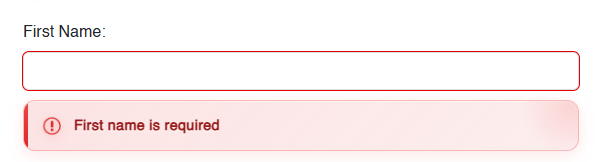
If you want to customize the error messages of the form for each input control, you can use the Template parameter along with the Context property that contains the collection of validation messages for the model property you are validating. An example of this customization is the following code:
...
<style>
    .field-validation-error {
        position: relative;
        display: flex;
        align-items: center;
        gap: 0.75rem;
        background: linear-gradient(135deg, rgba(239, 68, 68, 0.15) 0%, rgba(220, 38, 38, 0.08) 100%);
        backdrop-filter: blur(10px);
        border: 1px solid rgba(239, 68, 68, 0.3);
        padding: 0.875rem 1.125rem;
        margin-top: 0.625rem;
        border-radius: 12px;
        box-shadow: 0 4px 16px rgba(239, 68, 68, 0.12), inset 0 1px 0 rgba(255, 255, 255, 0.5);
        animation: errorSlideIn 0.4s cubic-bezier(0.68, -0.55, 0.265, 1.55);
        overflow: hidden;
    }

        .field-validation-error::before {
            content: '';
            position: absolute;
            left: 0;
            top: 0;
            width: 4px;
            height: 100%;
            background: linear-gradient(180deg, #ef4444 0%, #dc2626 100%);
            animation: pulseBar 2s ease-in-out infinite;
        }

        .field-validation-error::after {
            content: '';
            position: absolute;
            right: -50px;
            top: -50px;
            width: 100px;
            height: 100px;
            background: radial-gradient(circle, rgba(239, 68, 68, 0.15) 0%, transparent 70%);
            border-radius: 50%;
            animation: floatCircle 3s ease-in-out infinite;
        }

    .field-validation-icon {
        color: #dc2626;
        flex-shrink: 0;
        filter: drop-shadow(0 2px 4px rgba(220, 38, 38, 0.3));
        animation: iconPulse 2s ease-in-out infinite;
        z-index: 1;
    }

    .field-validation-text {
        color: #991b1b;
        font-size: 0.9rem;
        font-weight: 600;
        margin: 0;
        letter-spacing: 0.3px;
        line-height: 1.4;
        z-index: 1;
        text-shadow: 0 1px 2px rgba(255, 255, 255, 0.8);
    }

    @@keyframes errorSlideIn {
        0% {
            opacity: 0;
            transform: translateY(-10px) scale(0.95);
        }
        50% {
            transform: translateY(2px) scale(1.02);
        }
        100% {
            opacity: 1;
            transform: translateY(0) scale(1);
        }
    }

    @@keyframes pulseBar {
        0%, 100% {
            opacity: 1;
            transform: scaleY(1);
        }
        50% {
            opacity: 0.7;
            transform: scaleY(0.95);
        }
    }

    @@keyframes iconPulse {
        0%, 100% {
            transform: scale(1);
        }
        50% {
            transform: scale(1.1);
        }
    }

    @@keyframes floatCircle {
        0%, 100% {
            transform: translate(0, 0);
        }
        50% {
            transform: translate(-10px, 10px);
        }
    }
</style>
<div class="row">
    <div class="col-md-6">
        <EditForm Model="@userModel" OnValidSubmit="@HandleValidSubmit" FormName="userRegistrationForm">
        ...
            <div class="mb-3">
                <label for="firstName" class="form-label">First Name:</label>
                <InputText id="firstName" @bind-Value="userModel.FirstName" class="form-control" />
                <TelerikValidationMessage For="@(() => userModel.FirstName)">
                    <Template Context="validationMessages">
                        @foreach (var message in validationMessages)
                        {
                            <div class="field-validation-error">
                                <TelerikSvgIcon Icon="@SvgIcon.ExclamationCircle" Size="@ThemeConstants.SvgIcon.Size.Large" Class="field-validation-icon" />
                                <p class="field-validation-text">@message</p>
                            </div>
                        }
                    </Template>
                </TelerikValidationMessage>
            </div>
            ...
        </EditForm>
    </div>

</div>
...
After compiling and running the application, we can see a customization of the error message:
Now, to avoid repeatedly writing the same HTML error code, you could create a new component to define the layout and behavior as follows:
@using System.Linq.Expressions
@typeparam TProperty

<TelerikValidationMessage For="For">
    <Template Context="validationMessages">
        @foreach (var message in validationMessages)
        {
            <div class="field-validation-error">
                <TelerikSvgIcon Icon="@SvgIcon.ExclamationCircle"
                                Size="@ThemeConstants.SvgIcon.Size.Large"
                                Class="field-validation-icon" />
                <p class="field-validation-text">@message</p>
            </div>
        }
    </Template>
</TelerikValidationMessage>

@code {
    [Parameter, EditorRequired]
    public Expression<Func<TProperty>> For { get; set; }
}
Finally, you could reuse the component, which in my case I have named CustomError, wherever needed, as in other parts of the form:
<div class="mb-3 form-check">
    <InputCheckbox id="terms" @bind-Value="userModel.AcceptTerms" class="form-check-input" />
    <label for="terms" class="form-check-label">I accept the terms and conditions</label>
    @* <ValidationMessage For="@(() => userModel.AcceptTerms)" /> *@
    <CustomError For="@(() => userModel.AcceptTerms)" />
</div>
With this, we achieve a centralized place to modify the appearance of the error template if we need to.
The Telerik Validation Tooltip Component for Blazor
The last component we will discuss is the Validation Tooltip for Blazor, which serves the same purpose as the Validation Message component but differs in that it does not take up space on the page. Instead, it appears as a tooltip on the form element that requires attention.
To use it, you should add a tag TelerikValidationTooltip replacing any ValidationMessage or TelerikValidationMessage component, specifying through the For parameter the property to validate, the Position parameter the tooltip location (Top, Bottom, Right or Left), and the TargetSelector parameter that points to the desired element in the Form, as shown below:
<div class="mb-3">
    <label for="firstName" class="form-label">First Name:</label>
    <InputText id="firstName" @bind-Value="userModel.FirstName" class="form-control" />
    <TelerikValidationTooltip For="@(() => userModel.FirstName)"
                                TargetSelector="#firstName" />
</div>
Once again, this component has a parameter called Template that allows you to customize its appearance, as in the following example:
...
<style>
...
    .validation-tooltip-modern {
        display: flex;
        flex-direction: column;
        gap: 0.5rem;
        min-width: 220px;
        max-width: 320px;
        padding: 1rem 1.25rem;
        background: linear-gradient(145deg, #1e1e2e 0%, #2d2d44 100%);
        border-radius: 14px;
        border: 1px solid rgba(255, 100, 100, 0.4);
        box-shadow: 0 10px 40px rgba(0, 0, 0, 0.4), 0 0 20px rgba(255, 100, 100, 0.15), inset 0 1px 0 rgba(255, 255, 255, 0.05);
        animation: tooltipBounceIn 0.35s cubic-bezier(0.68, -0.55, 0.265, 1.55);
        position: relative;
        overflow: hidden;
    }

        .validation-tooltip-modern::before {
            content: '';
            position: absolute;
            top: 0;
            left: 0;
            right: 0;
            height: 3px;
            background: linear-gradient(90deg, #ff6b6b, #ff8e8e, #ff6b6b);
            background-size: 200% 100%;
            animation: shimmer 2s linear infinite;
        }

    .tooltip-header {
        display: flex;
        align-items: center;
        gap: 0.625rem;
        padding-bottom: 0.625rem;
        border-bottom: 1px solid rgba(255, 255, 255, 0.1);
    }

    .tooltip-icon-wrapper {
        display: flex;
        align-items: center;
        justify-content: center;
        width: 28px;
        height: 28px;
        background: linear-gradient(135deg, #ff6b6b 0%, #ee5a5a 100%);
        border-radius: 8px;
        box-shadow: 0 2px 8px rgba(255, 107, 107, 0.4);
        animation: iconGlow 2s ease-in-out infinite;
    }

        .tooltip-icon-wrapper .k-svg-icon {
            color: #fff;
        }

    .tooltip-title {
        color: #ff8a8a;
        font-size: 0.75rem;
        font-weight: 700;
        text-transform: uppercase;
        letter-spacing: 1px;
        margin: 0;
    }

    .tooltip-message-item {
        display: flex;
        align-items: flex-start;
        gap: 0.5rem;
        padding: 0.5rem 0;
    }

    .tooltip-bullet {
        width: 6px;
        height: 6px;
        background: #ff6b6b;
        border-radius: 50%;
        margin-top: 6px;
        flex-shrink: 0;
        box-shadow: 0 0 8px rgba(255, 107, 107, 0.6);
        animation: bulletPulse 1.5s ease-in-out infinite;
    }

    .tooltip-message-text {
        color: #e4e4e7;
        font-size: 0.875rem;
        font-weight: 500;
        line-height: 1.5;
        margin: 0;
    }

    @@keyframes tooltipBounceIn {
        0% {
            opacity: 0;
            transform: scale(0.8) translateY(10px);
        }

        50% {
            transform: scale(1.02) translateY(-2px);
        }

        100% {
            opacity: 1;
            transform: scale(1) translateY(0);
        }
    }

    @@keyframes shimmer {
        0% {
            background-position: -200% 0;
        }

        100% {
            background-position: 200% 0;
        }
    }

    @@keyframes iconGlow {
        0%, 100% {
            box-shadow: 0 2px 8px rgba(255, 107, 107, 0.4);
        }

        50% {
            box-shadow: 0 2px 16px rgba(255, 107, 107, 0.7);
        }
    }

    @@keyframes bulletPulse {
        0%, 100% {
            transform: scale(1);
            opacity: 1;
        }

        50% {
            transform: scale(1.3);
            opacity: 0.7;
        }
    }
</style>
...
<TelerikValidationTooltip For="@(() => userModel.FirstName)"
                            TargetSelector="#firstName">
    <Template Context="validationMessages">
        @if (validationMessages.Any())
        {
            <div class="validation-tooltip-modern">
                <div class="tooltip-header">
                    <div class="tooltip-icon-wrapper">
                        <TelerikSvgIcon Icon="@SvgIcon.ExclamationCircle" />
                    </div>
                    <span class="tooltip-title">Validation Error</span>
                </div>
                @foreach (var message in validationMessages)
                {
                    <div class="tooltip-message-item">
                        <span class="tooltip-bullet"></span>
                        <p class="tooltip-message-text">@message</p>
                    </div>
                }
            </div>
        }
    </Template>
</TelerikValidationTooltip>
The above code shows a tooltip that looks quite elaborate as shown below:
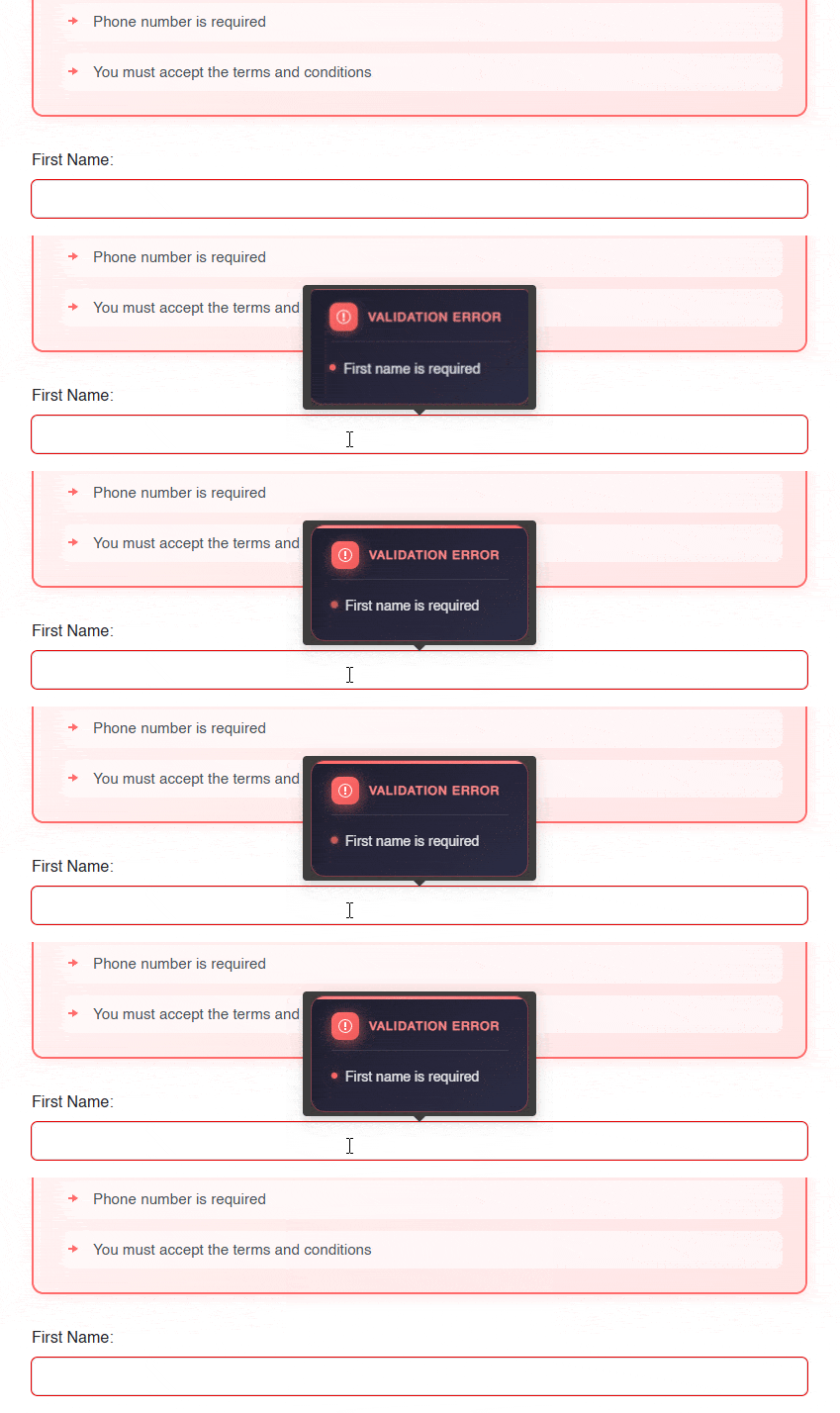
Certainly, the previous design gives us an idea of the customization power we have thanks to the use of this component.
Conclusion
Throughout this article, we have explored various Blazor components that will allow you to enhance your users’ experience by displaying customized layouts as complex as you need. This will enable the look and feel of these messages to adapt to the colors and theme of your project without using tricks or code that can increase the project’s complexity.
Finally, in the examples of this article, I have used forms of type EditForm to keep the examples general, but it is also possible to combine them with Blazor Form components, which have a greater number of features and flexibility for displaying forms.
Explore the Form, Validation and Tooltip components, plus about 120 others available in the Telerik UI for Blazor library, all with a free 30-day trial.

Héctor Pérez
Héctor Pérez is a Microsoft MVP with more than 10 years of experience in software development. He is an independent consultant, working with business and government clients to achieve their goals. Additionally, he is an author of books and an instructor at El Camino Dev and Devs School.
Related Posts
Comments
All articles
Topics
Web MobileMobile
Desktop
Design
Productivity
People