Building an AI-Powered Form Assistant with Blazor

Summarize with AI:
An in-depth guide to creating a conversational AI assistant that guides users through completing Return Merchandise Authorization (RMA) forms using natural language, function calling, JSON schema validation and real-time form binding in Blazor.
Note: This article is part of the 2025 C# Advent Calendar, so after you’re done reading this, keep an eye out for the other cool articles coming out this month!
Introduction
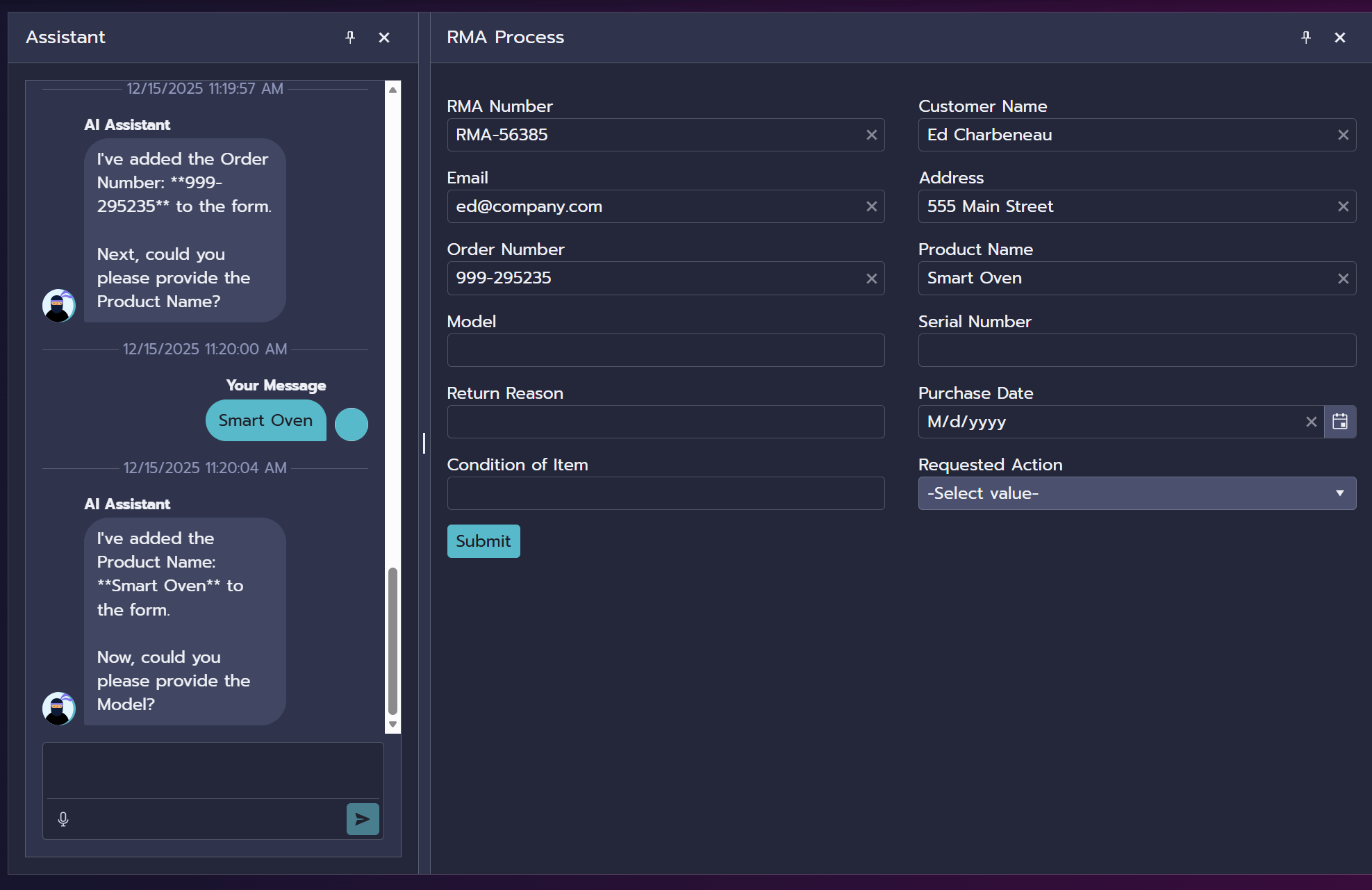
Modern applications benefit from interfaces that adapt to the way users naturally communicate. Instead of forcing people through rigid form fields, we can guide them through a conversational experience that feels intuitive while still producing structured, validated data. This article explores how to build an AI‑powered Return Merchandise Authorization (RMA) assistant in Blazor—an experience that blends natural language, JSON‑schema‑driven guidance and real‑time form binding.
With Microsoft.Extensions.AI and a function‑driven design, the RMA Assistant demonstrates how conversational UX aligns with established .NET patterns. The result is an application that simplifies a traditionally tedious workflow while leveraging skills familiar to any Blazor developer.
Architecture Overview
The assistant integrates three coordinated layers: the user interface, component logic and AI services. Blazor manages UI interactions, while Microsoft.Extensions.AI enables the AI model to behave as part of the application’s workflow.
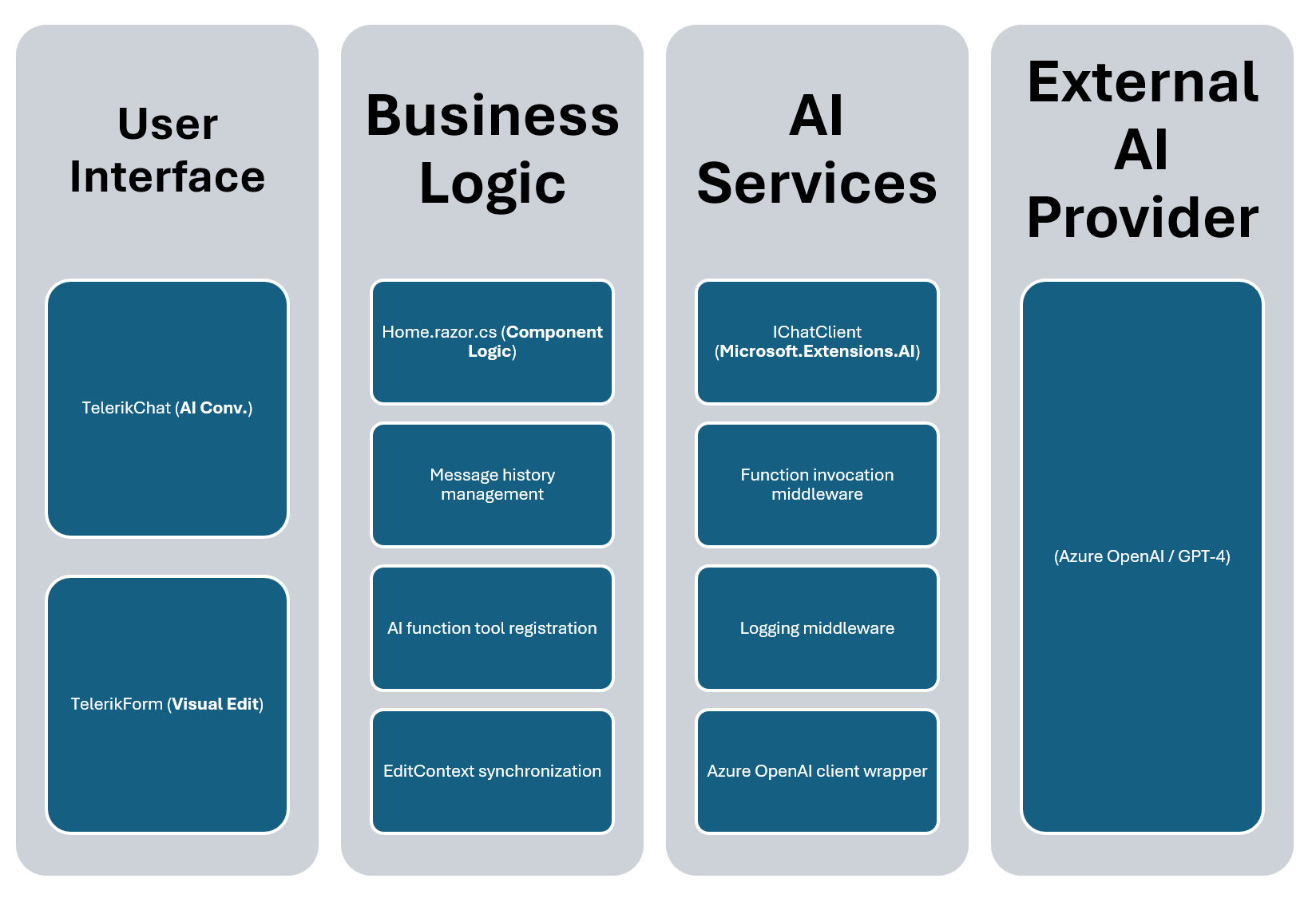
At the UI layer, a chat interface and form work together. As users describe their situation, the assistant extracts structured data and updates the underlying EditContext. The component logic orchestrates message flow, function calls and state synchronization.
Connecting to Microsoft.Extensions.AI
This article assumes you already have an IChatClient instance configured using the Microsoft.Extensions.AI libraries and your preferred provider (for example, Azure OpenAI or OpenAI).
To set up the chat client, follow the official Microsoft.Extensions.AI documentation, which covers package selection, dependency injection, and provider configuration in detail: Microsoft.Extensions.AI libraries.
Once you have an IChatClient registered in the DI container, the rest of this guide focuses on how to use that client inside a Blazor app to:
- Orchestrate conversations and function calls for RMA processing.
- Bind AI-driven updates into a Blazor
EditContext. - Coordinate chat UX, forms and validation.
Designing the System Prompt with JSON Schema
The system prompt is the foundation of the AI assistant’s behavior. A well‑structured system prompt enables the model to understand the form, the validation rules and the workflow. By supplying a JSON schema, we communicate exactly what fields the assistant should collect.
1. Define the Form Model
For the example in this article, we’ll be using a return merchandise authorization (RMA) form. However, this approach will work a wide range of form types. An RMA form was chosen for this example because it requires a variety of input types including: date and time, email and dropdown selection.
The RMA form uses a strongly typed class with standard data annotation attributes. These attributes enable UI generation and Blazor validation.
using System.ComponentModel.DataAnnotations;

public class RefundProcessForm
{
    [Required]
    [Display(Name = "RMA Number", Description = "A unique identifier for the return request.")]
    public string? RmaNumber { get; set; }

    [Required]
    [Display(Name = "Customer Name", Description = "Full name of the customer.")]
    public string? CustomerName { get; set; }

    [Required]
    [EmailAddress]
    [Display(Name = "Email", Description = "Customer's contact email.")]
    public string? Email { get; set; }

    // more properties omitted for brevity

    public enum RequestedActionType
    {
        Replacement,
        Repair,
        Refund,
        StoreCredit,
        Exchange
    }
}
2. Generate JSON Schema Dynamically
By generating a schema at runtime, the model receives an accurate representation of the form. For this we’ll use System.Text.Json.Schema to generate the schema dynamically.
using System.Text.Json;
using System.Text.Json.Schema;

const string modelDescription = "An RMA return materials form";

string jsonSchema = JsonSerializer.Serialize(
    JsonSerializerOptions.Default.GetJsonSchemaAsNode(
        typeof(RefundProcessForm),
        new() { TreatNullObliviousAsNonNullable = true }
    )
);
3. Craft the System Prompt
The system prompt combines the schema, the current form state, and behavioral rules into a single set of instructions. The assistant gains context about how to ask questions, infer values, validate data and manage updates.
With JSON schema support, the assistant can reason about field types, date formats and required values. This approach grounds the conversation in the structure of the form.
We’ll unpack the full details of the prompt later when Prompt Engineering Techniques are covered.
Implementing AI Function Tools
AI function calling (also called tool use) allows the LLM to invoke C# methods directly. This creates a bidirectional interaction where the AI can read and modify application state. Function calling connects the conversational model to application behavior. The assistant doesn’t simply suggest updates—it invokes typed C# methods that modify component state.
1. Register Tools with AIFunctionFactory
Tools are registered inside the component constructor using AIFunctionFactory. Each tool maps to a method capable of updating, clearing or submitting the form.
public Home(IChatClient client)
{
    ai = client;
    editContext = new EditContext(refundProcessForm);

    // Register functions as AI tools
    tools = [
        AIFunctionFactory.Create(UpdateForm),
        AIFunctionFactory.Create(ClearFormField),
        AIFunctionFactory.Create(OnSubmitHandler)
    ];
}
2. Implement the UpdateForm Tool
The UpdateForm tool receives the entire form payload and merges it into the active model. This keeps the application in sync with the model’s understanding of the state.
[Description("Updates the form you are assisting the customer with. " +
    "Please provide all fields in JSON format with the provided schema, " +
    "even if they are not changed. " +
    "If you want to clear a field, use the tool ClearFormField with the field name as the parameter.")]
public string UpdateForm(RefundProcessForm updatedForm)
{
    if (updatedForm is null)
    {
        return "Incorrect data provided, please provide all fields in JSON format.";
    }

    InvokeAsync(() =>
    {
        if (UpdateModelProperties(refundProcessForm, updatedForm))
        {
            StateHasChanged(); // Trigger UI refresh
        }
    });

    return "Form updated successfully.";
}
Why return a string? The return value is sent back to the AI as a function result, confirming success or describing errors. Using a void method would seem ambiguous to the model, as it wouldn’t know the result of invoking the tool.
3. Implement the ClearFormField Tool
If the user wants to correct or remove information, the assistant calls ClearFormField, which safely resets the chosen property and notifies the EditContext.
[Description("Clears a field in the form you are assisting the customer with.")]
public void ClearFormField(string fieldName)
{
    InvokeAsync(() =>
    {
        if (ClearModelProperty(fieldName))
        {
            StateHasChanged();
        }
    });
}

private bool ClearModelProperty(string fieldName)
{
    // Case-insensitive property lookup
    var prop = editContext!.Model.GetType()
        .GetProperties()
        .FirstOrDefault(p =>
            string.Equals(p.Name, fieldName, StringComparison.OrdinalIgnoreCase) ||
            string.Equals(JsonNamingPolicy.CamelCase.ConvertName(p.Name),
                         fieldName,
                         StringComparison.Ordinal)
        );

    if (prop is not null)
    {
        prop.SetValue(editContext.Model, default);
        editContext.NotifyFieldChanged(new FieldIdentifier(editContext.Model, prop.Name));
        return true;
    }
    return false;
}
Without a dedicated clear form tool and instructions for how and when to use it, the model can inadvertently cause errors. When the model encounters a problem with data, invalid state or validation issues, it has the tendency to clear the entire form resulting in data loss. Giving the model a means to clear a desired field and proper instructions help prevent data from being accidentally deleted.
4. Implement the OnSubmitHandler Tool
OnSubmitHandler validates the form and triggers UI notifications. When validation fails, the assistant receives the validation messages and shifts the conversation toward resolving errors.
[Description("Submits the form you are assisting the customer with.")]
private string OnSubmitHandler()
{
    bool isFormValid = editContext!.Validate();
    StateHasChanged();

    if (isFormValid)
    {
        notification?.Show(new NotificationModel
        {
            CloseAfter = 0,
            Text = "RMA form submitted successfully.",
            ThemeColor = "success"
        });
        return "Your form has been submitted successfully.";
    }
    else
    {
        return "The form could not be submitted. Ask the user if they would like " +
               "assistance fixing the errors. Validation failed for " +
               string.Join(", ", editContext.GetValidationMessages());
    }
}
5. Provide Tools to Chat Client
The tools are enabled with when GetResponseAsync is invoked by passing the tools array when making AI requests.
var response = await ai.GetResponseAsync(
    messages,
    new ChatOptions { Tools = tools }
);
Together, these tools allow conversational intent to map directly to application behavior.
Function Calling Flow:
- User sends message → AI decides which tool to call
- Framework serializes arguments and invokes C# method
- Method executes and returns result string
- Result sent back to AI as function result message
- AI generates natural language response incorporating the result
Binding AI Responses to Blazor EditContext
Blazor’s EditContext plays a central role in validation and UI synchronization. As the assistant populates fields, the component updates the model through a reflection‑based utility that compares old and new values.
By notifying the EditContext on every update, validation messages appear immediately and UI components refresh automatically. The assistant can then guide users with accurate knowledge of which fields remain incomplete or invalid.
1. Update Model Properties with Reflection
This method recursively updates properties while notifying EditContext of changes. The method is generic enough to use with most form objects.
private bool UpdateModelProperties(object oldModel, object newModel)
{
    var foundChange = false;

    foreach (var prop in oldModel.GetType().GetProperties())
    {
        var oldValue = prop.GetValue(oldModel);
        var newValue = prop.GetValue(newModel);

        // Skip null/default values from AI
        if (newValue == default)
            continue;

        // Handle nested complex types
        if (prop.PropertyType.GetCustomAttributes<ValidateComplexTypeAttribute>().Any())
        {
            foundChange |= UpdateModelProperties(oldValue!, newValue!);
        }
        // Update changed simple properties
        else if (oldValue != newValue)
        {
            prop.SetValue(oldModel, newValue);
            editContext!.NotifyFieldChanged(new FieldIdentifier(oldModel, prop.Name));
            foundChange = true;
        }
    }

    return foundChange;
}
Key Techniques:
- Reflection – Dynamically access properties without hard-coding field names
- EditContext.NotifyFieldChanged – Triggers validation and UI updates
- Recursive traversal – Supports nested complex types with
[ValidateComplexType] - Change detection – Only update and notify when values actually change
2. Synchronize with InvokeAsync
Since AI function calls may occur on background threads, we’ll use InvokeAsync to marshal updates to the UI thread.
InvokeAsync(() =>
{
    if (UpdateModelProperties(refundProcessForm, updatedForm))
    {
        StateHasChanged(); // Force component re-render
    }
});
3. Two-Way Binding Benefits
This architecture creates seamless bidirectional data flow:
- AI → Form: Function calls update form fields immediately.
- Form → AI: User manual edits are captured in next AI request via
USER_DATA. - Validation: EditContext tracks all changes and runs validation.
- Consistency: Single source of truth (
refundProcessForm) shared by both interfaces.
Building the Dual-Interface UI
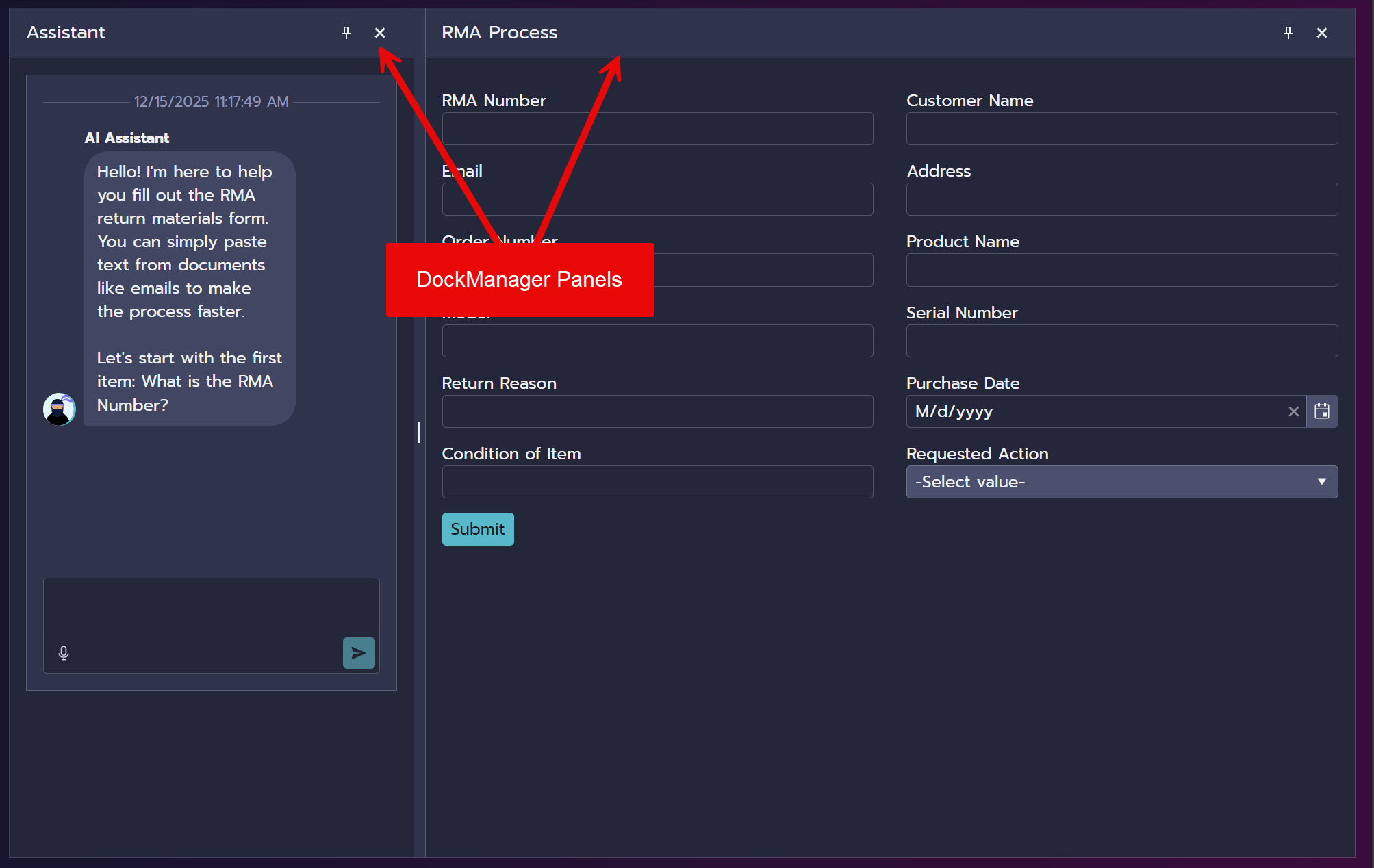
A conversational interface is most effective when paired with a traditional visual form. Telerik UI for Blazor makes this hybrid layout straightforward. The UI consists of two panels using TelerikDockManager.
Components from the Progress Telerik UI for Blazor library are used for their robust core features. This greatly reduces the amount of UI markup necessary to implement the features needed for this type of interface. Learn more about Telerik UI for Blazor with a free trial of more than 110 components.
1. Layout Structure
<TelerikNotification @ref="notification"
    HorizontalPosition="@NotificationHorizontalPosition.Center"
    VerticalPosition="@NotificationVerticalPosition.Top" />

<TelerikDockManager Height="calc(100vh - 160px)">
    <DockManagerPanes>
        <DockManagerSplitPane>
            <Panes>
                <!-- Chat Interface -->
                <DockManagerContentPane Id="assistant" Size="30%">
                    <!-- Chat Component -->
                </DockManagerContentPane>

                <!-- Form Interface -->
                <DockManagerSplitPane Id="details" Orientation="@DockManagerPaneOrientation.Vertical">
                    <Panes>
                        <DockManagerContentPane Id="form">
                            <!-- Form Component -->
                        </DockManagerContentPane>
                    </Panes>
                </DockManagerSplitPane>

            </Panes>
        </DockManagerSplitPane>
    </DockManagerPanes>
</TelerikDockManager>
2. Chat Interface with Speech-to-Text
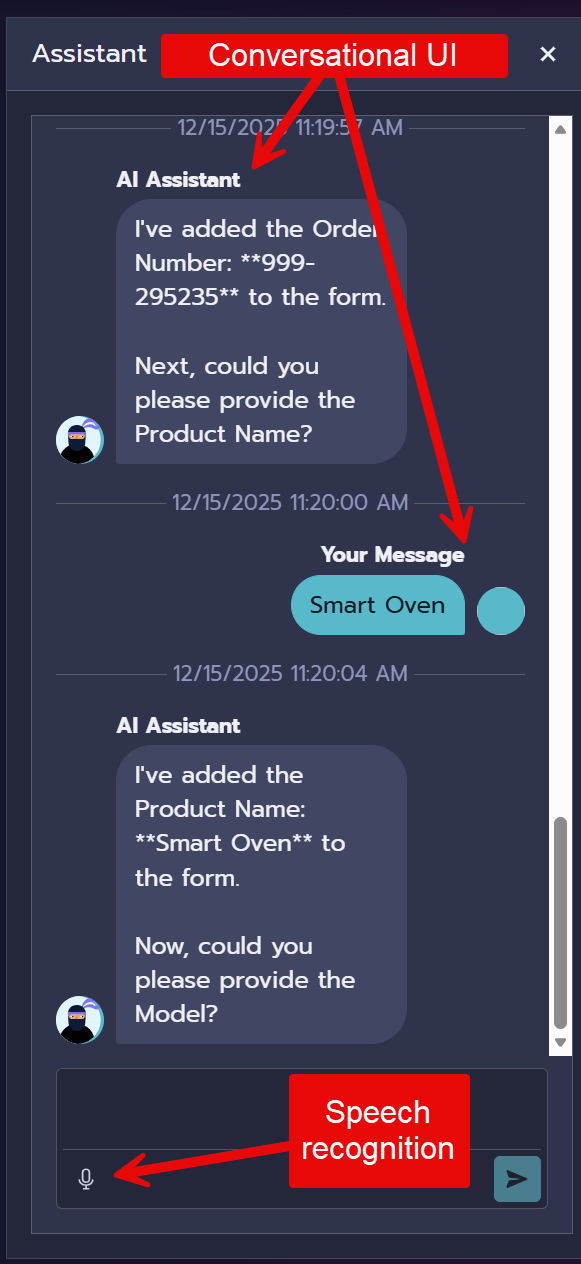
The chat component captures user messages, renders assistant responses and supports speech‑to‑text for hands‑free interaction.
<DockManagerContentPane Id="assistant" HeaderText="Assistant" Size="30%">
    <Content>
        <TelerikChat Data="uiChatHistory"
            TextField="@nameof(UIChatMessage.Content)"
            AuthorId="user"
            OnSendMessage="@(async (args) => await HandlePromptRequest(args))">
            <ChatSettings>
                <AIPromptSpeechToTextButtonSettings Lang="en-US" />
            </ChatSettings>
        </TelerikChat>
    </Content>
</DockManagerContentPane>
The core functionality is supplied out-of-the-box with the TelerikChat component.
TelerikChat Features:
- Built-in message rendering with author avatars
- Speech-to-text button for voice input
- Automatic scrolling and message threading
- Event handlers and templates for customization
3. Auto-Generated Form Interface
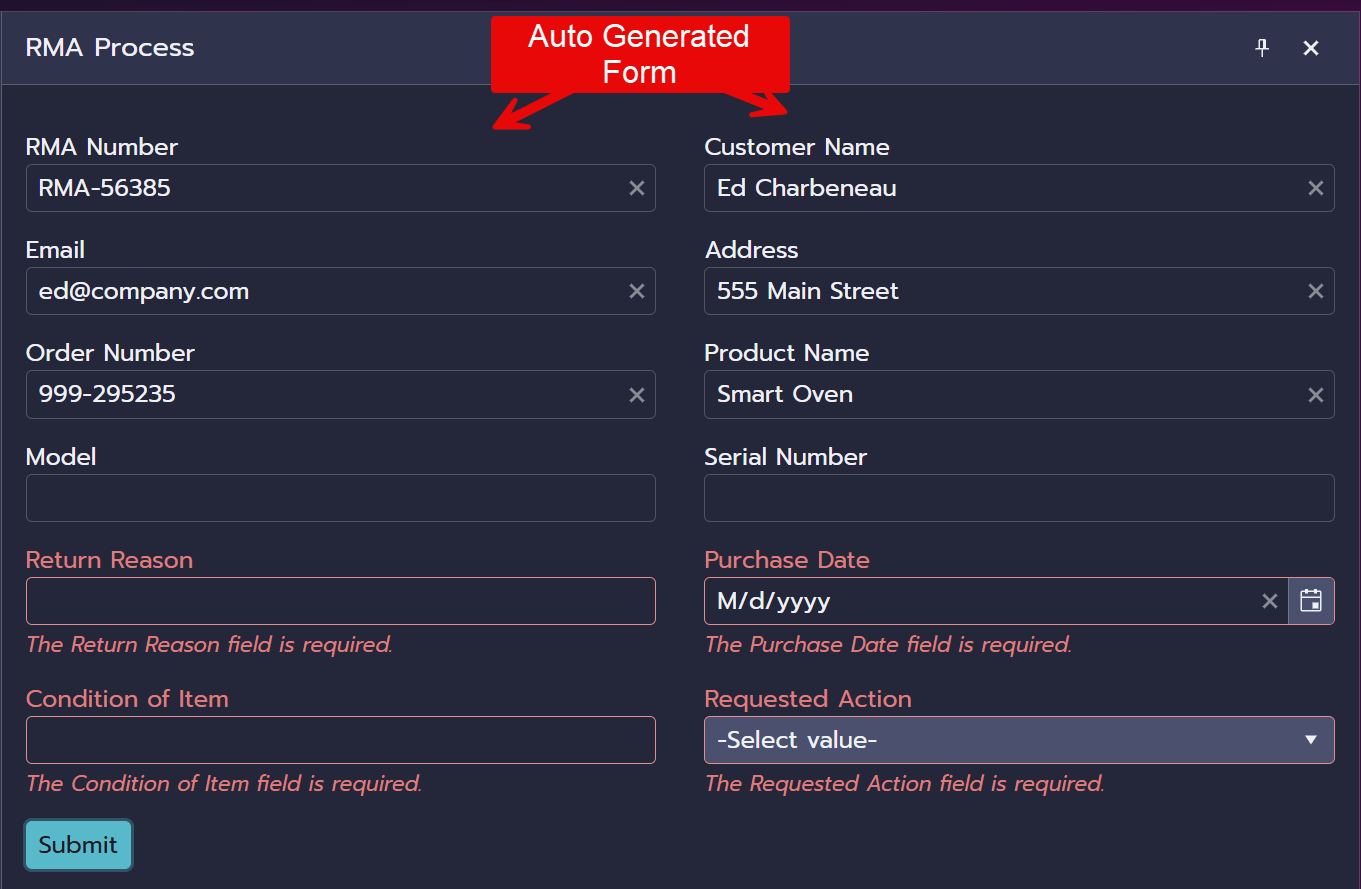
The form renders directly from the model using <FormAutoGeneratedItems />. This feature is part of the TelerikForm component. Because the UI markup is optional, this technique reduces development time and maintenance.
<DockManagerContentPane Id="form" HeaderText="RMA Process">
    <Content>
        <TelerikForm
            Columns="2"
            EditContext="editContext"
            OnValidSubmit="HumanSubmit">
            <FormItems>
                <FormAutoGeneratedItems />
                <DataAnnotationsValidator />
            </FormItems>
        </TelerikForm>
    </Content>
</DockManagerContentPane>
TelerikForm Features:
- Auto-generates fields from model using reflection
- Respects
[Display]attributes for labels and descriptions - Integrates with EditContext for validation
- Enum fields render as dropdowns automatically
- Date fields render with calendar picker
- Uses a built-in column layout option for larger forms
Managing Chat Flow and Message History
Proper message history management is crucial for maintaining context. By default, the assistant has no memory capabilities. In order to keep a conversation flowing, we’ll need to store the state of the conversation in memory.
1. Initialize Conversation
Generate the first AI message on component initialization:
protected override async Task OnInitializedAsync()
{
    var response = await ai.GetResponseAsync(messages);
    messages.Add(new ChatMessage(ChatRole.Assistant, response.Text));
    uiChatHistory.Add(UIChatMessage.AssistantMessage(response.Text));
}
2. Dual Message Lists
A successful conversational workflow depends on accurate message management. The assistant processes two histories: the full internal message log and a user‑facing message list.
Each time the user sends a message, the component injects the current form state as a prompt placeholder named USER_DATA. This pattern strengthens the assistant’s understanding of context, with every turn reflecting up‑to‑date data.
By structuring message processing consistently, the assistant remains predictable and coherent across multi‑turn conversations.
// Complete AI conversation history (includes system prompts, function calls, etc.)
private List<ChatMessage> messages = [];

// User-visible chat history (only user and assistant text messages)
private List<UIChatMessage> uiChatHistory { get; set; } = new List<UIChatMessage>();
3. UIChatMessage Model
Create a display-friendly message model:
public class UIChatMessage
{
    public string? Id { get; set; } = Guid.NewGuid().ToString();
    public string? AuthorId { get; set; }
    public string? AuthorName { get; set; }
    public string? AuthorImageUrl { get; set; }
    public string? Content { get; set; }
    public string Status { get; set; } = "Sent";
    public DateTime Timestamp { get; set; } = DateTime.Now;

    public static UIChatMessage AssistantMessage(string content) => new()
    {
        AuthorId = "ai",
        AuthorName = "AI Assistant",
        AuthorImageUrl = "https://demos.telerik.com/blazor-ui/images/devcraft-ninja-small.svg",
        Content = content,
    };

    public static UIChatMessage UserMessage(string content) => new()
    {
        AuthorId = "user",
        AuthorName = "Your Message",
        Content = content,
    };
}
4. Handle User Input
The process flows when the user sends a message using the TelerikChat invoking the HandlePromptRequest method. This method commits the user message to history, completes the request and adds the results to the message stack.
private async Task HandlePromptRequest(ChatSendMessageEventArgs args)
{
    // Add user message to both histories
    messages.Add(new ChatMessage(ChatRole.User, args.Message));
    uiChatHistory.Add(UIChatMessage.UserMessage(args.Message));

    // Inject current form state with user request
    var userData = $"USER_DATA: {JsonSerializer.Serialize(refundProcessForm, JsonSerializerOptions.Web)}" +
                   $"USER_REQUEST: {args.Message}";

    // Get AI response with function calling enabled
    var response = await ai.GetResponseAsync(
        [.. messages, new ChatMessage(ChatRole.User, userData)],
        new ChatOptions { Tools = tools }
    );

    // Add all response messages (may include function calls)
    messages.AddMessages(response);

    // Add only the text response to UI
    uiChatHistory.Add(UIChatMessage.AssistantMessage(response.Text));
}
Message Flow Best Practices:
- Always include USER_DATA – Send current form state with every request so AI knows context.
- Separate display from logic – UI shows clean conversation, full history includes system messages.
- Add response messages – Use
AddMessages()to capture all assistant responses including function calls. - Maintain order – Keep message chronology accurate for proper AI context.
Prompt Engineering Techniques
Prompt engineering guides the assistant’s behavior, so that it operates within the expected workflow. Several techniques improve stability and accuracy: Here are the techniques used:
1. Contextual Awareness
Inject current date:
string systemPrompt = $@"**Current date**: {DateTime.Today.ToString("D", CultureInfo.InvariantCulture)}";
This helps the AI understand relative dates like “I bought it last week” or “two months ago.”
Inject current form state:
var userData = $"USER_DATA: {JsonSerializer.Serialize(refundProcessForm, JsonSerializerOptions.Web)}" +
               $"USER_REQUEST: {args.Message}";
The AI can see what fields are already filled and avoid asking redundant questions.
2. Schema-Driven Understanding
Provide JSON schema:
string jsonSchema = JsonSerializer.Serialize(
    JsonSerializerOptions.Default.GetJsonSchemaAsNode(typeof(RefundProcessForm))
);
The schema gives the AI:
- Field names and types
- Required vs. optional fields
- Enum values for dropdown fields
- Validation constraints
3. Behavioral Constraints
Conversational guardrails:
- “Help guide the user by asking questions about missing data without revealing they are filling out a form”
- “Only ask about one item at a time”
- “Summarize the previous actions taken in plain text”
These constraints create a natural conversation flow rather than a robotic form-filling experience.
4. Tool Usage Instructions
Explicit tool guidance:
- Each time they provide information, call the tool UpdateForm to save the updated object
- If you need to clear a field use the tool ClearFormField
- Use the tool OnSubmitHandler to submit the form at the user's request
Without these instructions, the AI might:
- Generate JSON but forget to call the function
- Try to update fields by setting them to null instead of using ClearFormField
- Announce submission without actually invoking the handler
5. Error Recovery Patterns
Handle validation failures:
If the submission fails, ask the user if they would like assistance fixing the errors.
Provide validation context:
return "The form could not be submitted. Validation failed for " +
       string.Join(", ", editContext.GetValidationMessages());
This allows the AI to help users fix specific validation errors conversationally.
6. Format Normalization
Standardize date formats:
- Convert any dates given by the user to: yyyy-MM-dd format
This prevents parsing errors and enables consistent data storage.
7. Progressive Disclosure
Guide data collection pace:
- Start with greeting and first required field
- Ask one question at a time
- Summarize progress periodically
- Only offer submission when complete
This reduces cognitive load and improves completion rates.
With these elements combined, the assistant transforms natural language into validated, structured data.
Error Handling and Validation
Blazor’s validation system prevents the assistant from submitting incomplete or invalid forms. When validation fails, the assistant receives the exact messages the user sees. This creates a collaborative feedback loop where the assistant guides users toward corrections.
By pairing conversational guidance with standard .NET validation, the workflow stays accurate, predictable and easy to maintain.
1. Data Annotations Validation
Use standard .NET validation attributes:
[Required]
[EmailAddress]
[Display(Name = "Email", Description = "Customer's contact email.")]
public string? Email { get; set; }

[Required]
[DataType(DataType.Date)]
[Display(Name = "Purchase Date")]
public DateTime? PurchaseDate { get; set; }
2. EditContext Validation
Validate the entire form before submission:
private string OnSubmitHandler()
{
    bool isFormValid = editContext!.Validate();
    StateHasChanged(); // Show validation messages in UI

    if (isFormValid)
    {
        // Success path
        notification?.Show(new NotificationModel
        {
            CloseAfter = 0,
            Text = "RMA form submitted successfully.",
            ThemeColor = "success"
        });
        return "Your form has been submitted successfully.";
    }
    else
    {
        // Error path - return messages to AI
        return "The form could not be submitted. Ask the user if they would like " +
               "assistance fixing the errors. Validation failed for " +
               string.Join(", ", editContext.GetValidationMessages());
    }
}
3. Visual Error Feedback
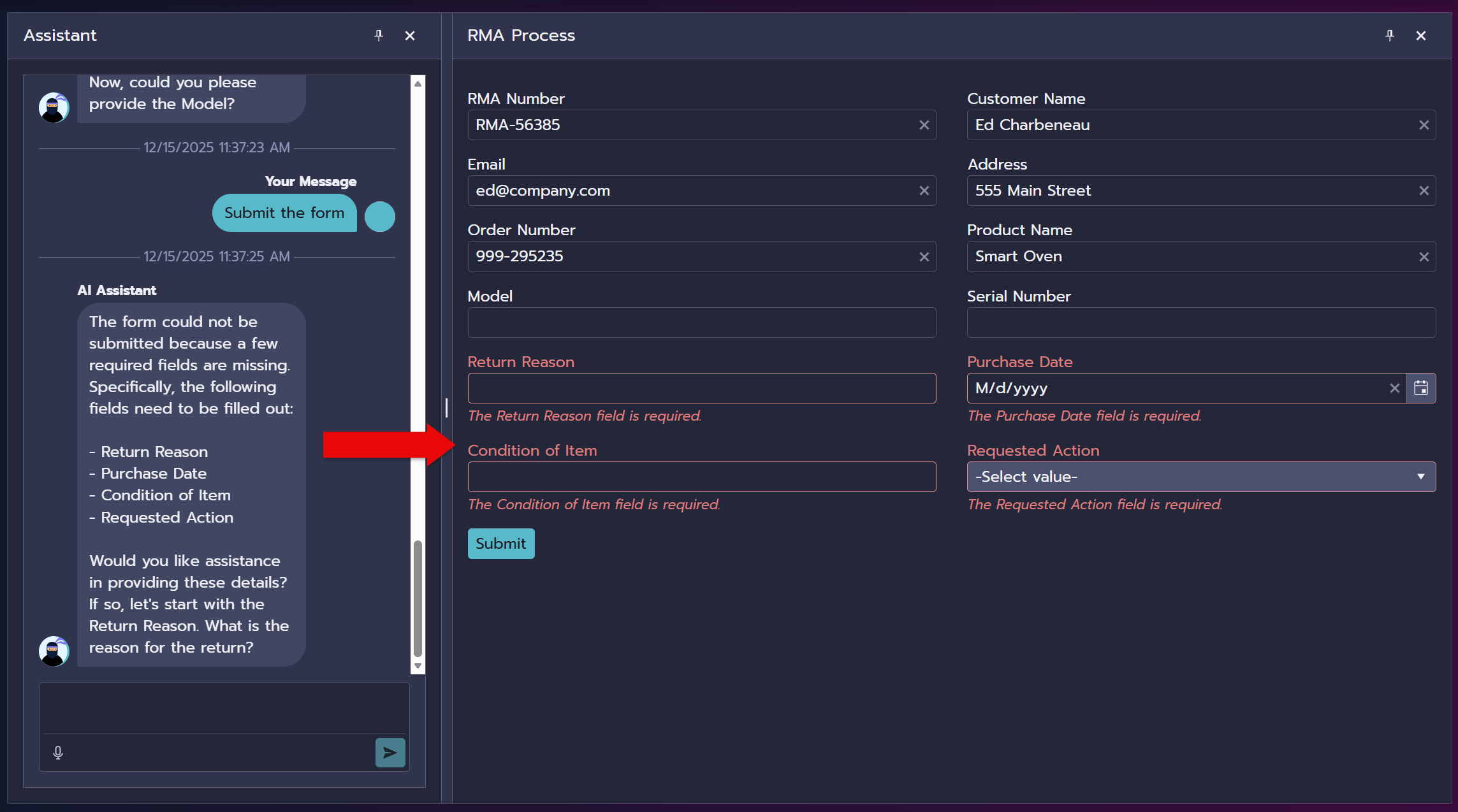
TelerikForm automatically displays validation errors with invalid fields show with a red border styling, error messages below corresponding fields, and the submit button is disabled until valid.
<TelerikForm EditContext="editContext" OnValidSubmit="HumanSubmit">
    <FormItems>
        <FormAutoGeneratedItems />
        <DataAnnotationsValidator />
    </FormItems>
</TelerikForm>
4. AI-Assisted Error Resolution
When validation fails, the AI can help fix issues conversationally:
User: “Submit the form”
AI: "I tried to submit the form, but there are some issues:
- Email field is required
- Purchase Date must be a valid date
Would you like help providing this information?"
Conclusion
This RMA Assistant demonstrates how modern AI capabilities can transform traditional form-filling experiences into natural conversations. By combining:
- Microsoft.Extensions.AI for provider-agnostic AI integration
- Function calling for bidirectional data flow between AI and application
- Blazor EditContext for robust validation and state management
- Telerik UI components for polished, accessible user interfaces
- Thoughtful prompt engineering for reliable AI behavior
This article demonstrates production-ready patterns for building AI-powered assistants in .NET applications. The techniques shown here can be adapted to any form-filling, data entry or guided workflow scenario.

Ed Charbeneau
Ed
Related Posts
Comments
All articles
Topics
Web MobileMobile
Desktop
Design
Productivity
People