Build Agentic Apps with Angular, Genkit and Kendo UI: Part 1
 by Dany Paredes

Summarize with AI:
Get started on an agentic Angular app with Genkit and Gemini. We’ll build out the ability for users to ask about the status of their order.
Chatbots and AI are in practically every sentence that comes out of our mouths. Most websites come with a chatbot providing answers to customers connected with an LLM that answers questions using its vast knowledge base.
For example, we created a nice Chatbot using Gemini that can recommend which Progress Kendo UI for Angular components to use to build a webpage based on an image input. This chatbot works fine, because Gemini uses its trained data to answer, but what happens when we want a chatbot that answers something not related to its training data?
If you ask something like “check my order status”? It hits a wall. The LLM doesn’t have that knowledge, and this is the moment where an agent can help us, and when we need to move on to talk about agentic apps.
An agentic app is like a smart assistant that not only answers questions but can also utilize tools to complete tasks. It can reason, plan and interact with other systems.
This sounds a bit complex, but don’t worry: this is when Genkit comes to the game, to help us create agentic apps with ease.
Today we’ll build a complete, working application from scratch. Starting with Genkit, we’ll create an agent that can check an order status using the power of Gemini and Genkit.
Let’s move on!
What Is Genkit? Flows and Tools? 🤯
Before we start typing code, let’s take a step back. We need to understand what Genkit is, plus its flows and tools. By using a real-world example we all know, Amazon customer support, this will make everything super clear.
What Is Genkit?
Think of Genkit as the “brain” behind the Amazon customer support system. It’s like Angular for us, allowing us to build apps; Genkit is the entire framework that allows a developer to build the complete system. It’s not the agent itself; it’s the infrastructure that lets you create and manage all the processes and tools the agent will use.
In short, Genkit is the toolbox that helps us to build powerful AI applications.
What Are Genkit Flows?
Imagine you need help with a lost package. You open the chat, and a new support session starts.
That entire process, from the moment you ask “Where’s my order?” to the final resolution where you get a new tracking number or a refund, is a flow.
A flow is the main task or conversation you want to handle. It has the TypeScript functions like checkOrderStatusFlow or processRefundFlow and orchestrates the entire experience.
OK, we know Genkit and flows, but what is a tool ?
What Are Genkit Tools? 🛠️
If we go back to thinking about how the Amazon support agent works, it doesn’t just magically know your order details. It uses tools internal to Amazon.
For example, we can provide an action called “Look Up Order in Database” or “Send a New Tracking Number.” Each of these is a tool.
A tool is a specific action the AI can perform. When a user asks about their order, the AI sees that its checkOrderStatus tool is perfect for the job. It understands what the tool does by reading its description, and then it knows when to use it to solve the problem.
How Do They Work Together?
Let’s connect the dots. First, the flow is the entire conversation, the big picture. The tools are the small, powerful actions the AI can use to complete that conversation. And Genkit is the framework that lets you build and connect all of this together.
So, when you build a new Genkit app, you first create the flow (the main objective), and then you give it a set of tools (the specific capabilities) it can use to get the job done.
Now that we know about each part, let’s build our first agent using Genkit!
Setting Up the Project
Let’s start by building our backend. This will be a Node.js server that exposes an API.
First, make sure you have Node.js (v20+) installed, open your terminal and install the Genkit CLI.
npm install -g genkit-cli
Now, let’s create our project folder for the whole project my-agentic-app and create the backend folder and navigate into it
mkdir my-agentic-app
cd my-agentic-app
mkdir backend
cd backend
Next, we’ll install the Genkit packages we need, but first initialize the project by running npm init -y and install the genkit, google-ai and zod packages.
npm install genkit @genkit-ai/google-genai
Let’s give a small overview about them:
genkit: The core Genkit framework for building agentic apps@google-genkit/google-ai: The plugin for connecting to Gemini modelszod: A library for defining data schemas, which Genkit uses for tools
Last but not least, we use our favorite language, TypeScript, so let’s install TypeScript and tsx npm install -D typescript tsx and create the configuration running npx tsc --init
npm install -D typescript tsx
npx tsc --init
Ok, it’s time to write code!
Setting Up Our Agent’s Brain 🧠
Now with our project ready and the full picture of Genkit, Flows and Tools, let’s bring it to life! Remember our Amazon chatbot? It’s time to build the agentic app.
First things first, let’s create our project structure. Open your terminal and run these two simple commands to create a folder and index.ts file.
mkdir src
touch src/index.ts
Now, open src/index.ts. This is where all the magic starts. We will set up our Genkit instance, telling it which AI model to use. It’s like the main engine that will power our entire application.
First import the genkit, z from the Genkit package and import googleAI from @genkit-ai/google-genai.
import { genkit, z } from 'genkit';
import { googleAI } from '@genkit-ai/google-genai';
Next, register the Google AI plugin googleAI() and tell the agent which specific brain (model) to use. We will be using the ‘gemini-2.5-flash’ model and the temperature to the model.
The temperature in models with a higher value means more creative, a lower value is more direct. Learn more.
const ai = genkit({
  plugins: [googleAI()],
  model: googleAI.model('gemini-2.5-flash', {
    temperature: 0.8,
  }),
});
The final index.ts looks like:
import { genkit, z } from 'genkit';
import { googleAI } from '@genkit-ai/google-genai';

const ai = genkit({
  plugins: [googleAI()],
  model: googleAI.model('gemini-2.5-flash', {
    temperature: 0.8,
  }),
});
Ok, let’s move to the tool!
Building the Tool 🛠️
What can our smart agent do? This is where a tool comes in! It’s a specific, controlled action. Our agent will read the description of this tool and decide if it’s the right one to use based on the user’s question.
In this case, we’re giving our agent the ability to check the status of an order. We tell it exactly what information it needs (for example the orderId) and what kind of information it will return (like status or estimatedDelivery).
Note: The description is super important! The AI model uses this to know when to call the tool.
Let’s create a tool using the ai.defineTool function to define what information the tool needs to run and what kind of data the tool returns using zod (z).
For example, we’ll create getOrderStatusTool. This is the actual function that runs when the tool is called. For our demo, we just check for a hardcoded ID to keep it simple, and if the ID isn’t found, we return a clear status.
Check out the code:
export const getOrderStatusTool = ai.defineTool(
  {
    name: 'getOrderStatus',

    description: "Get the status of a user's order by their order ID.",

    inputSchema: z.object({
      orderId: z.string().describe("The unique ID of the customer's order"),
    }),

    outputSchema: z.object({
      status: z.string(),
      estimatedDelivery: z.string(),
    }),
  },
   async (input) => {
    if (input.orderId === '123-456') {
      return { status: 'Shipped', estimatedDelivery: 'October 9, 2025' };
    }

    return { status: 'Not Found', estimatedDelivery: 'N/A' };
  }
);
Learn more about define tools with Genkit.
Creating the Workflow
The flow is the final piece. It is the main process that takes the user’s prompt (the question) and hands it off to the AI model.
But here’s where the magic happens: we pass a list of tools that the model is allowed to use.
The model (Gemini or wherever) is smart enough to read the user’s prompt and decide if our getOrderStatusTool is the best way to answer. If it is, Genkit will automatically call that function for us!
This keeps our agent safe and predictable, because we can control exactly what actions it can perform.
Let’s make this work in our project!
export const orderSupportFlow = ai.defineFlow(
  {
    name: 'orderSupportFlow',
    inputSchema: z.string(),
    outputSchema: z.string(),
  },
  async (prompt) => {
    const llmResponse = await ai.generate({
      prompt: prompt,
      tools: [getOrderStatusTool],
    });
    return llmResponse.text;
  }
);
The final code looks like:
import { genkit, z } from "genkit";
import { googleAI } from "@genkit-ai/google-genai";

const ai = genkit({
 plugins: [googleAI()],
 model: googleAI.model("gemini-2.5-flash", {
   temperature: 0.8,
 }),
});

export const getOrderStatusTool = ai.defineTool(
 {
   name: "getOrderStatus",

   description: "Get the status of a user's order by their order ID.",

   inputSchema: z.object({
     orderId: z.string().describe("The unique ID of the customer's order"),
   }),

   outputSchema: z.object({
     status: z.string(),
     estimatedDelivery: z.string(),
   }),
 },
 async (input) => {
   if (input.orderId === "123-456") {
     return { status: "Shipped", estimatedDelivery: "October 9, 2025" };
   }

   return { status: "Not Found", estimatedDelivery: "N/A" };
 },
);
export const orderSupportFlow = ai.defineFlow(
 {
   name: "orderSupportFlow",
   inputSchema: z.string(),
   outputSchema: z.string(),
 },
 async (prompt) => {
   const llmResponse = await ai.generate({
     prompt: prompt,
     tools: [getOrderStatusTool],
   });
   return llmResponse.text;
 },
);
We have a final step to connect Genkit with our favorite AI tool, Gemini.
Create a file named .env in the genkit-app/backend, next get a free API key from Google AI Studio and add it to the .env file.
GEMINI_API_KEY="YOUR_API_KEY_HERE"
To make our index.ts have access to the .env file, we are going to use the dotenv package. Open the terminal and run npm install dotenv. After it finishes, import dotenv and initialize it.
import * as dotenv from "dotenv";

dotenv.config();
Because we are using CommonJS, add the field "type: module" to the package.json:
{
 "name": "backend",
 "version": "1.0.0",
 "type": "module",
 "description": "",
 "main": "index.js",
 "scripts": {
   "test": "echo \"Error: no test specified\" && exit 1"
 },
....
Ok, everything is ready! Let’s run our agentic app with the command:
genkit start -- npx tsx --watch src/index.ts
If you want to set a custom port, use the --port flag to set a specific port to run genkit like: genkit start --port 4001 -- npx tsx --watch src/index.ts

Yes, our agent is running … but hold on a second. How can we can test the agent if we don’t have an app?
Genkit provides the Developer UI, a local web app that lets us work with models, flows, prompts and other elements in our Genkit projects.
The Developer UI is running in http://localhost:4001 and allows us to use models and call our tools and functions to debug our project.
In the browser showing the Genkit Developer UI, we’re going to focus on testing our code. First, click into Models. It provides a system prompt to ask for the model config and tools.
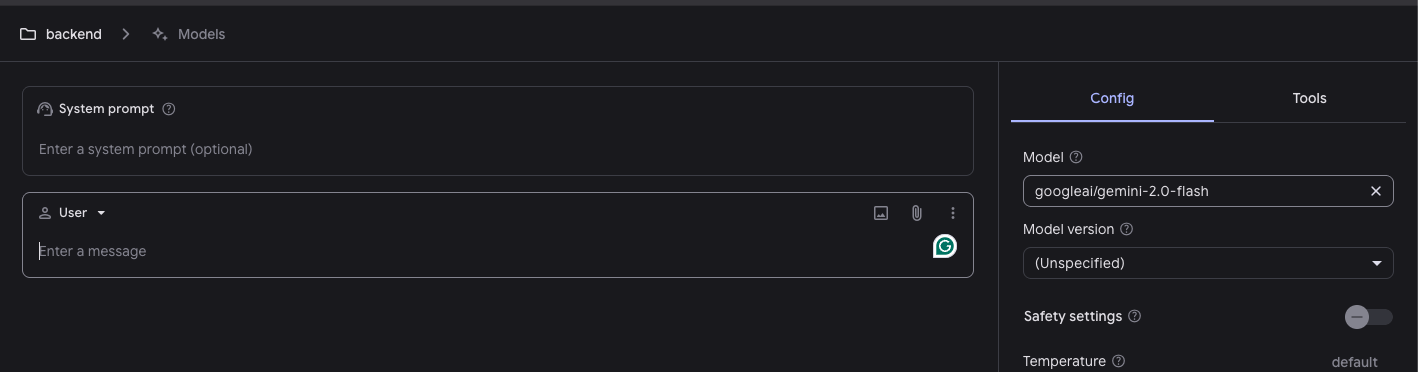
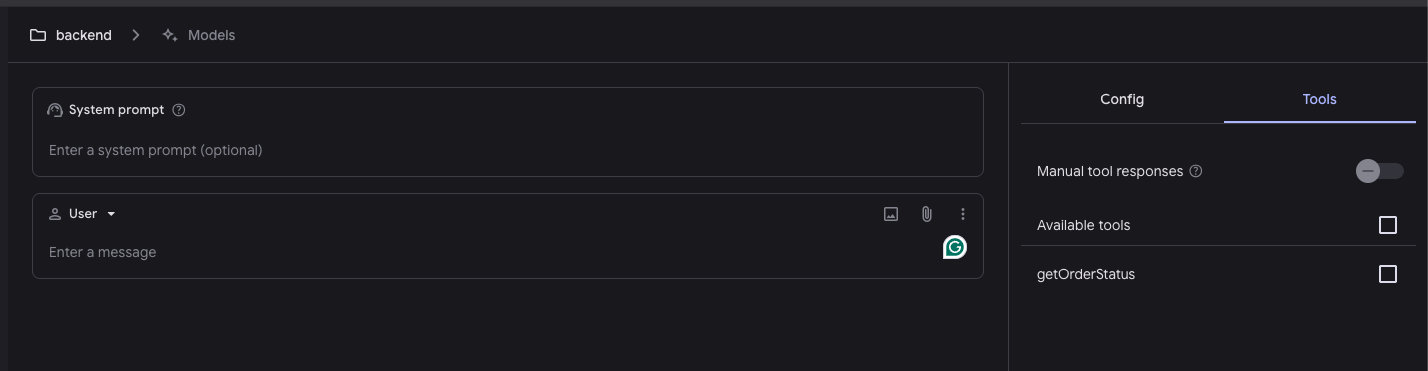
The config allows us to configure the model, but the key point is in the Tools tab. Click on it and we see our function getOrderStatus.
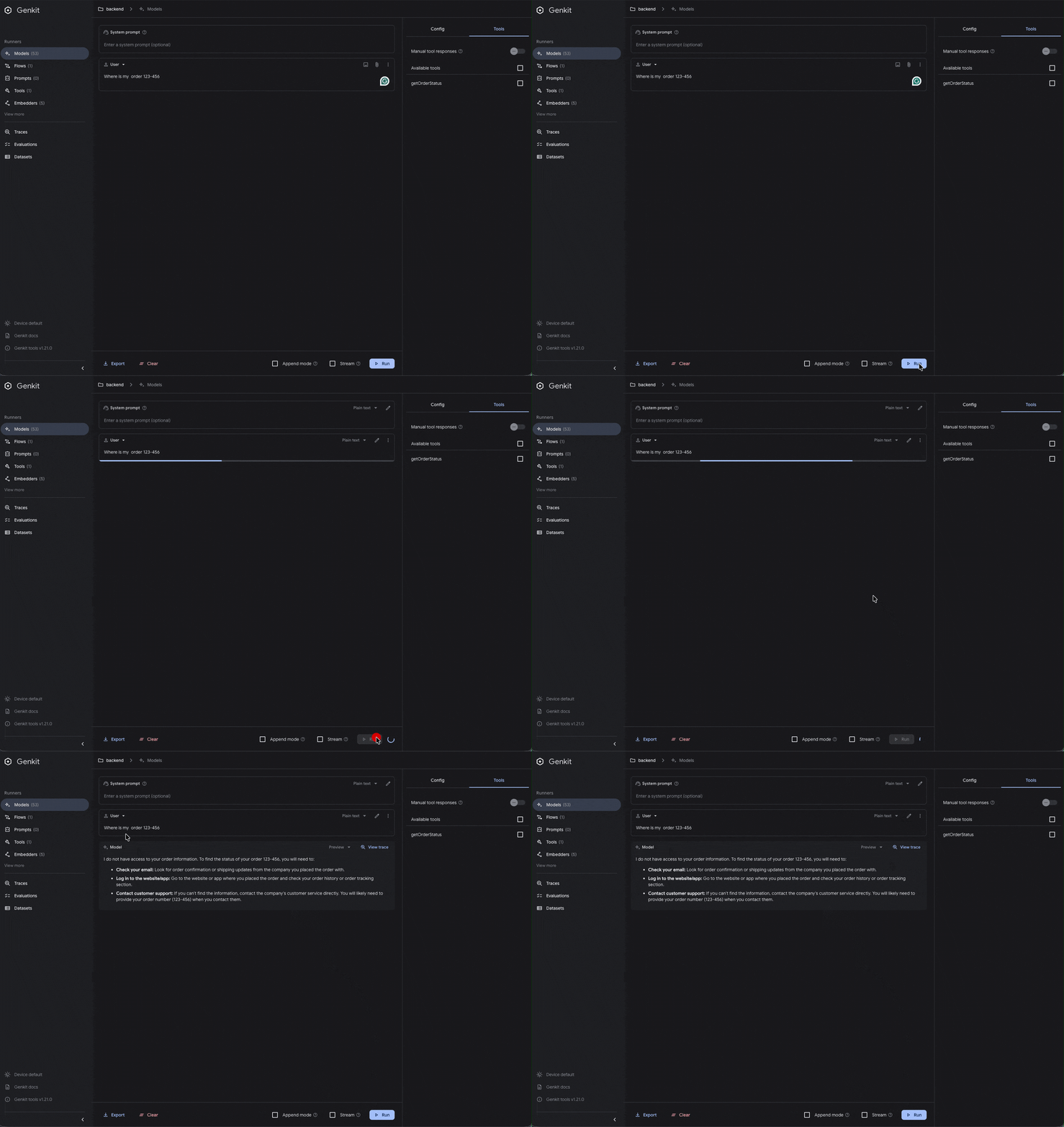
Before activating our tool, we’re going to write a prompt Where is my order 123-456, and click the Run button. The model doesn’t have any idea about it.
Finally, click in the tools and select available tools getOrderStatus and run the same question.
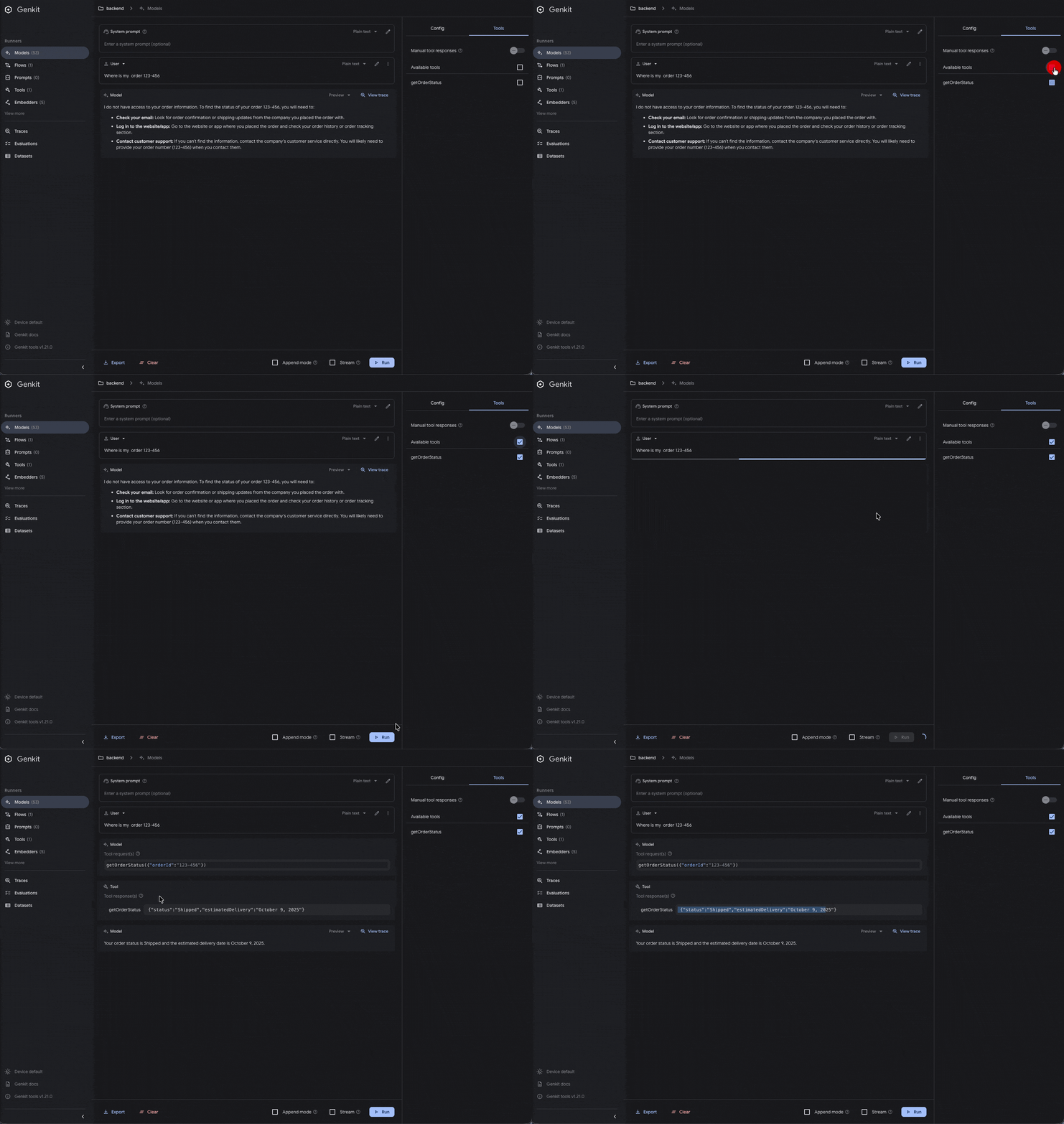
Tada!! The model gets the tools and executes our code!! And answers our mock response!
We built our first agentic app with flows and tools easily with Genkit and brought power to the models!
Recap
We learned about how Genkit helps us to build agentic apps by creating our flows, and how it processes requests and uses tools to make an AI agent smart, combined with Genkit Developer UI to debug, test and play with our flows and tools.
It helps us to turn on models like Gemini or others to access our data to answer any question.
It was so nice to use the Genkit Developer UI to test our flow and tools. However, in the real world, we want to connect its power with a real chatbot. So, in the next chapter, we’re going to connect Genkit with Angular and build a fast chatbot using the power of Kendo UI!
Go to the next post: Build Agentic Apps with Angular, Genkit and Kendo UI: Part 2
Dany Paredes
Dany Paredes is a Google Developer Expert on Angular and Progress Champion. He loves sharing content and writing articles about Angular, TypeScript and testing on his blog and on Twitter (@danywalls).
Related Posts
Comments
All articles
Topics
Web MobileMobile
Desktop
Design
Productivity
People