The KendoReact SpeechToTextButton Component

Summarize with AI:
The KendoReact SpeechToTextButton component streamlines bringing voice recognition capabilities to React applications. Learn how to implement it and configure it for different languages, plus integrate it into other components like forms.
Voice interaction can sometimes be a crucial part of modern web applications, offering users a more natural and accessible way to input data. From virtual assistants to dictation tools, speech recognition technology often helps improve our interaction with digital interfaces.
In this article, we’ll take a look at the React SpeechToTextButton component from the Progress KendoReact library, which brings speech-to-text functionality directly to React applications.
The KendoReact SpeechToTextButton component is part of KendoReact premium, an enterprise-grade UI library with more than 120 components for building polished applications.
The KendoReact SpeechToTextButton Component
The KendoReact SpeechToTextButton component utilizes the Web Speech API to incorporate speech recognition functionality into React applications. It acts as a bridge between user speech and your application’s text processing, handling the complexities of speech recognition while providing a clean, customizable interface.
The KendoReact SpeechToTextButton component is distributed through the @progress/kendo-react-buttons npm package and can be imported directly:
import { SpeechToTextButton } from '@progress/kendo-react-buttons';
Here’s a basic example of how we can use the <SpeechToTextButton /> component:
import * as React from 'react';
import { SpeechToTextButton } from '@progress/kendo-react-buttons';

const App = () => {
  const [transcript, setTranscript] = React.useState('');
  const [isListening, setIsListening] = React.useState(false);

  const handleStart = () => {
    setIsListening(true);
    console.log('Speech recognition started');
  };

  const handleEnd = () => {
    setIsListening(false);
    console.log('Speech recognition ended');
  };

  const handleResult = (event) => {
    const { isFinal, alternatives } = event;

    if (isFinal && alternatives.length > 0) {
      setTranscript(alternatives[0].transcript);
    }
  };

  const handleError = (event) => {
    setIsListening(false);
    console.error('Speech recognition error:', event);
  };

  return (
    <div style={{ padding: '20px' }}>
      <h3>Voice Input Demo</h3>
      <div style={{ marginBottom: '20px' }}>
        <SpeechToTextButton
          onStart={handleStart}
          onEnd={handleEnd}
          onResult={handleResult}
          onError={handleError}
        />
        <span style={{ marginLeft: '10px', color: isListening ? 'green' : 'gray' }}>
          {isListening ? 'Listening...' : 'Click to speak'}
        </span>
      </div>

      {transcript && (
        <div style={{ padding: '10px', background: '#f5f5f5', borderRadius: '4px' }}>
          <strong>You said:</strong> "{transcript}"
        </div>
      )}
    </div>
  );
};

export default App;
This example creates a simple speech-to-text interface that allows users to click the microphone button to initiate voice recognition. The component provides visual feedback about the listening state and displays the recognized text once speech processing is complete.
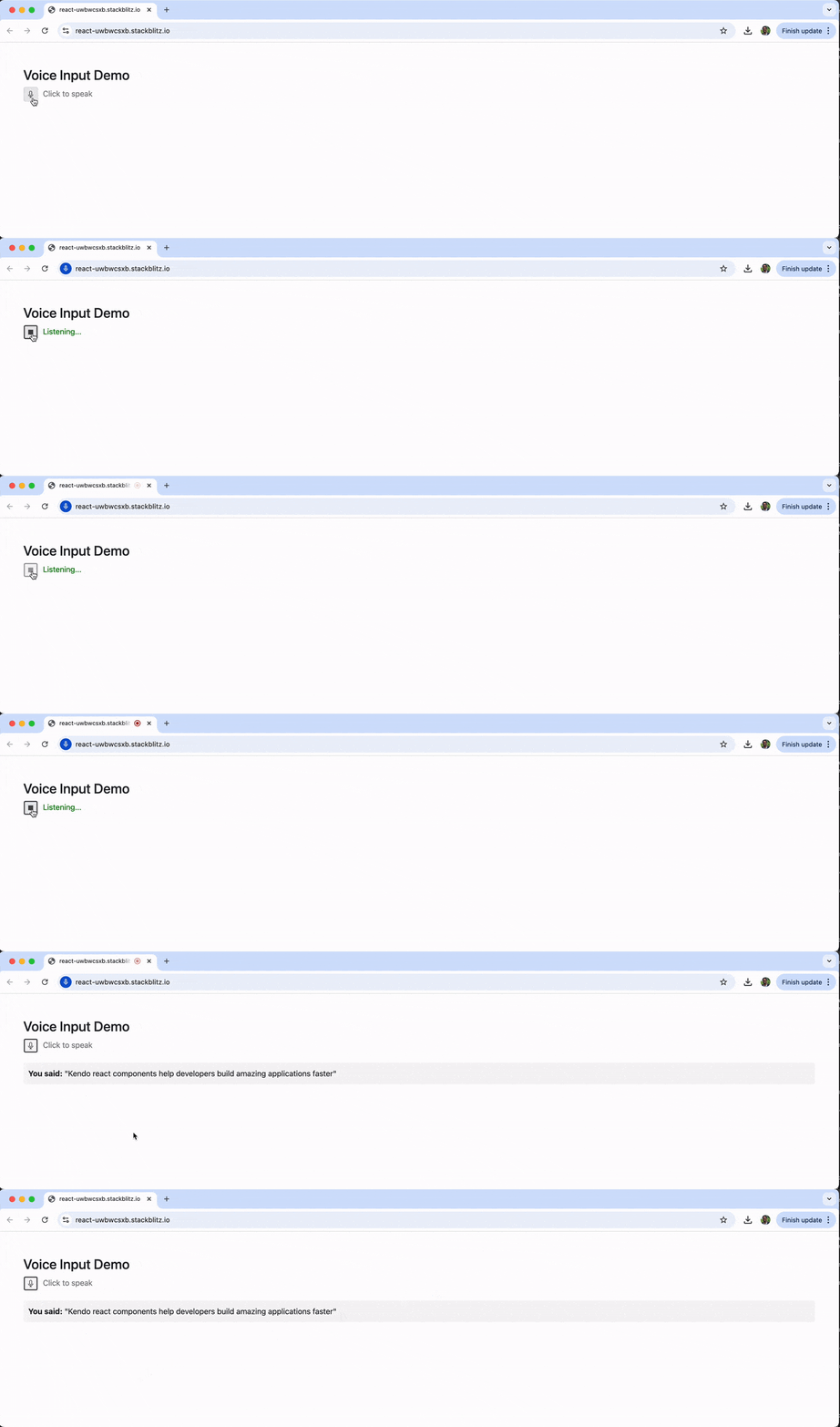
You’ll notice the SpeechToTextButton automatically handles some of the complexities of speech recognition, including microphone access permissions, audio processing and result formatting.
Speech Recognition Configuration
A key strength of the SpeechToTextButton component is its configurable options, which allow us to tailor speech recognition behavior to our application’s specific needs.
Language Configuration
The component supports multiple languages through the lang property, enabling applications to serve international users:
import * as React from 'react';
import { SpeechToTextButton } from '@progress/kendo-react-buttons';
import { DropDownList } from '@progress/kendo-react-dropdowns';

const LanguageDemo = () => {
  const [selectedLanguage, setSelectedLanguage] = React.useState('en-US');
  const [recognition, setRecognition] = React.useState('');

  const languages = [
    { text: 'English (US)', value: 'en-US' },
    { text: 'English (UK)', value: 'en-GB' },
    { text: 'Spanish (Spain)', value: 'es-ES' },
    { text: 'French (France)', value: 'fr-FR' },
    { text: 'German (Germany)', value: 'de-DE' },
    { text: 'Japanese (Japan)', value: 'ja-JP' },
  ];

  const handleResult = (event) => {
    const { isFinal, alternatives } = event;
    if (isFinal && alternatives.length > 0) {
      setRecognition(alternatives[0].transcript);
    }
  };

  return (
    <div style={{ padding: '20px' }}>
      <h3>Multi-Language Speech Recognition</h3>

      <div style={{ marginBottom: '20px' }}>
        <label style={{ display: 'block', marginBottom: '8px' }}>
          Select Language:
        </label>
        <DropDownList
          data={languages}
          textField="text"
          dataItemKey="value"
          value={languages.find(lang => lang.value === selectedLanguage)}
          onChange={(e) => setSelectedLanguage(e.value.value)}
          style={{ width: '200px' }}
        />
      </div>

      <div style={{ marginBottom: '20px' }}>
        <SpeechToTextButton
          lang={selectedLanguage}
          onResult={handleResult}
        />
        <span style={{ marginLeft: '10px', fontStyle: 'italic' }}>
          Speak in {languages.find(lang => lang.value === selectedLanguage)?.text}
        </span>
      </div>

      {recognition && (
        <div style={{ padding: '15px', background: '#e8f5e8', borderRadius: '4px' }}>
          <strong>Recognized ({selectedLanguage}):</strong> "{recognition}"
        </div>
      )}
    </div>
  );
};

export default LanguageDemo;
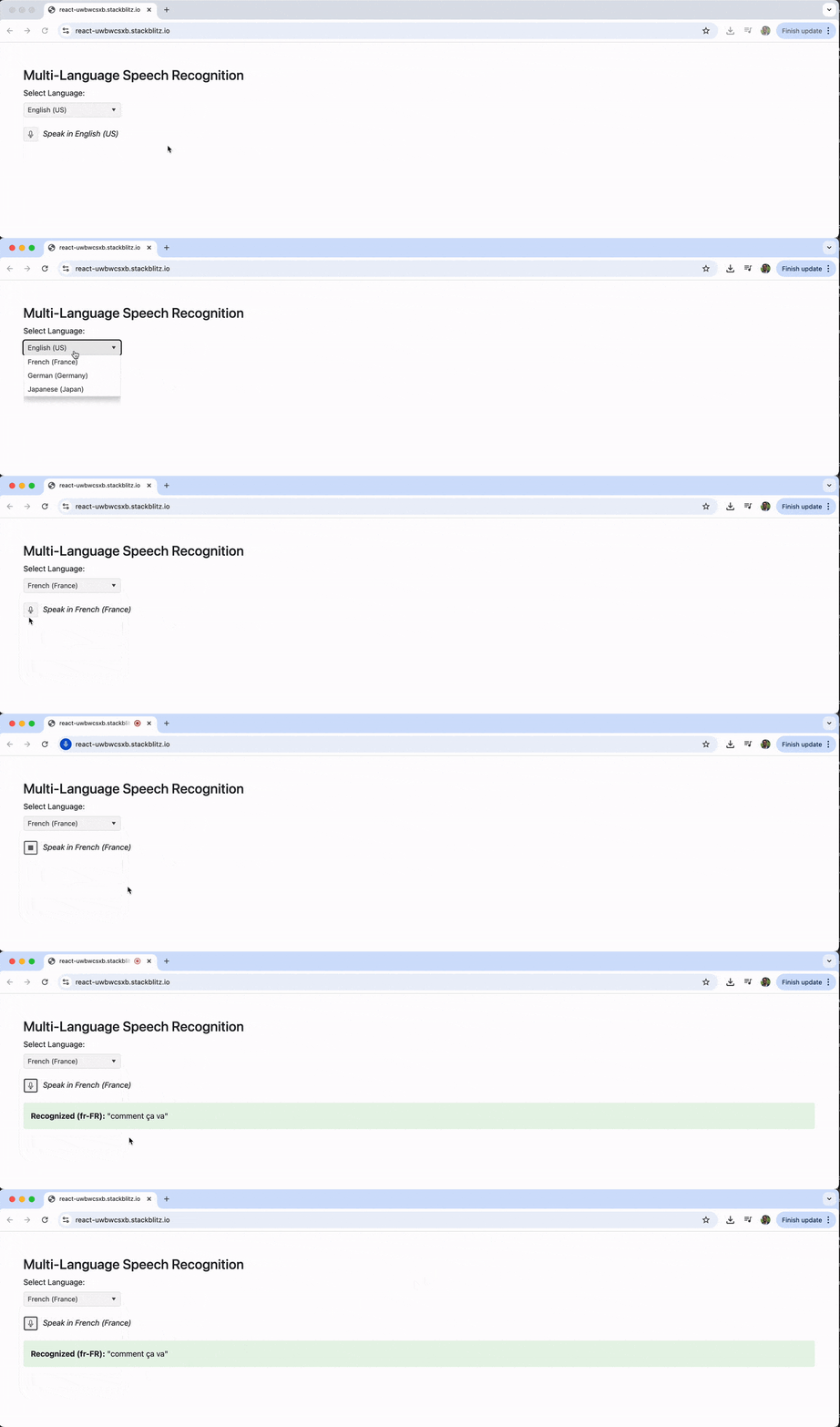
In this example, we maintain the currently selected language in a React state variable, selectedLanguage, which is updated by a DropDownList component. This state is then passed directly to the lang prop of the SpeechToTextButton. The handleResult function captures the final transcript and stores it in the recognition state to be displayed to the user.
The above example demonstrates how language configuration enables applications to support users speaking different languages, automatically adjusting the speech recognition engine accordingly.
Continuous Recognition and Interim Results
For more sophisticated applications, the component offers continuous recognition and interim results capabilities:
import * as React from 'react';
import { SpeechToTextButton } from '@progress/kendo-react-buttons';
import { Checkbox } from '@progress/kendo-react-inputs';

const AdvancedRecognitionDemo = () => {
  const [continuous, setContinuous] = React.useState(true);
  const [interimResults, setInterimResults] = React.useState(true);
  const [finalText, setFinalText] = React.useState('');
  const [interimText, setInterimText] = React.useState('');
  const [sessionResults, setSessionResults] = React.useState([]);

  const handleResult = (event) => {
    const { isFinal, alternatives } = event;

    if (alternatives.length > 0) {
      const transcript = alternatives[0].transcript;

      if (isFinal) {
        setFinalText(transcript);
        setInterimText('');
        setSessionResults(prev => [...prev, transcript]);
      } else if (interimResults) {
        setInterimText(transcript);
      }
    }
  };

  const clearSession = () => {
    setSessionResults([]);
    setFinalText('');
    setInterimText('');
  };

  return (
    <div style={{ padding: '20px', maxWidth: '600px' }}>
      <h3>Advanced Speech Recognition</h3>

      <div style={{ marginBottom: '20px' }}>
        <div style={{ marginBottom: '10px' }}>
          <Checkbox
            label="Continuous Recognition"
            checked={continuous}
            onChange={(e) => setContinuous(e.value)}
          />
        </div>
        <div style={{ marginBottom: '10px' }}>
          <Checkbox
            label="Show Interim Results"
            checked={interimResults}
            onChange={(e) => setInterimResults(e.value)}
          />
        </div>
      </div>

      <div style={{ marginBottom: '20px' }}>
        <SpeechToTextButton
          continuous={continuous}
          interimResults={interimResults}
          onResult={handleResult}
        />
        <button
          onClick={clearSession}
          style={{ marginLeft: '10px', padding: '8px 16px' }}
        >
          Clear Session
        </button>
      </div>

      {interimResults && interimText && (
        <div style={{
          padding: '10px',
          background: '#fff3cd',
          border: '1px solid #ffeaa7',
          borderRadius: '4px',
          marginBottom: '10px'
        }}>
          <em>Interim: {interimText}</em>
        </div>
      )}

      <div style={{
        padding: '15px',
        background: '#f8f9fa',
        borderRadius: '4px',
        minHeight: '100px'
      }}>
        <strong>Session Results:</strong>
        {sessionResults.length > 0 ? (
          <ol style={{ marginTop: '10px' }}>
            {sessionResults.map((result, index) => (
              <li key={index} style={{ marginBottom: '5px' }}>{result}</li>
            ))}
          </ol>
        ) : (
          <p style={{ color: '#6c757d', fontStyle: 'italic', marginTop: '10px' }}>
            Start speaking to see results...
          </p>
        )}
      </div>
    </div>
  );
};

export default AdvancedRecognitionDemo;
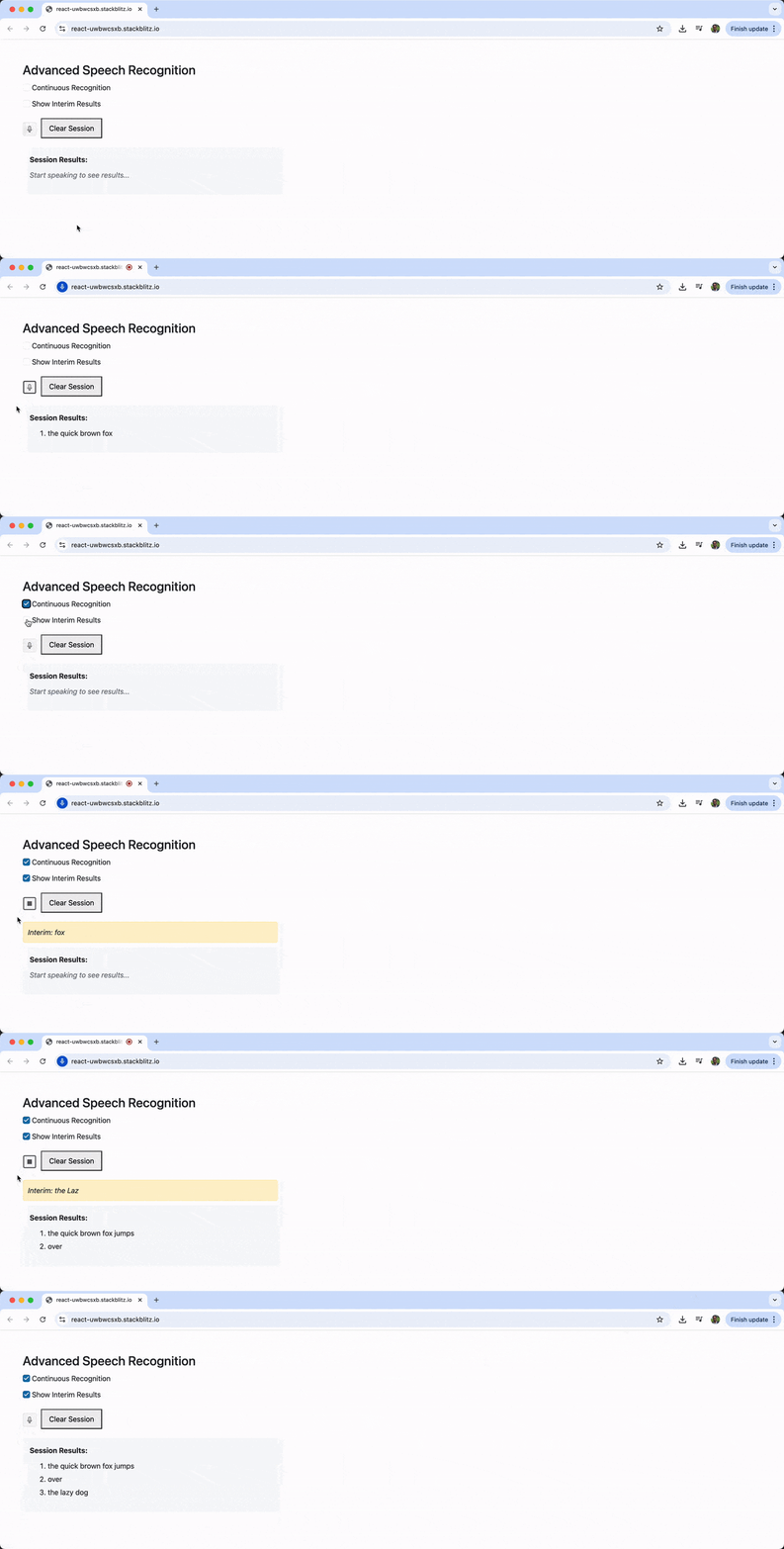
This snippet uses two state variables, continuous and interimResults, which are controlled by checkboxes and passed as props to the React SpeechToTextButton component.
The handleResult callback checks the isFinal property of the event. If the result is final, the transcript is added to the sessionResults array. Otherwise, if interim results are enabled, the transcript is displayed as a real-time preview. A “Clear Session” button is also included to reset the captured text.
This example showcases how continuous recognition enables longer dictation sessions, while interim results provide real-time feedback that makes the interface feel more responsive and natural.
Integration with Form Components
One of the most practical applications of the SpeechToTextButton is its integration with form components, notably text inputs and text areas. This enables users to dictate content directly into forms, thereby enhancing accessibility and the overall user experience.
import * as React from 'react';
import { SpeechToTextButton } from '@progress/kendo-react-buttons';
import { TextArea, InputSuffix } from '@progress/kendo-react-inputs';
import { Button } from '@progress/kendo-react-buttons';

const VoiceEnabledForm = () => {
  const [message, setMessage] = React.useState('');
  const [isListening, setIsListening] = React.useState(false);
  const [appendMode, setAppendMode] = React.useState(true);

  const handleStart = () => {
    setIsListening(true);
  };

  const handleEnd = () => {
    setIsListening(false);
  };

  const handleResult = (event) => {
    const { isFinal, alternatives } = event;

    if (isFinal && alternatives.length > 0) {
      const transcript = alternatives[0].transcript;

      setMessage(prev => {
        if (appendMode && prev) {
          // Add space if needed
          const needsSpace = !prev.endsWith(' ') && !prev.endsWith('\n');
          return prev + (needsSpace ? ' ' : '') + transcript;
        } else {
          return transcript;
        }
      });
    }
  };

  const handleError = (event) => {
    setIsListening(false);
    console.error('Speech recognition error:', event);
  };

  const SpeechSuffix = () => (
    <InputSuffix orientation="vertical">
      <div style={{
        display: 'flex',
        flexDirection: 'column',
        alignItems: 'center',
        padding: '5px'
      }}>
        <SpeechToTextButton
          size="small"
          fillMode="flat"
          themeColor="primary"
          onStart={handleStart}
          onEnd={handleEnd}
          onResult={handleResult}
          onError={handleError}
        />
        {isListening && (
          <span style={{
            fontSize: '10px',
            color: '#28a745',
            marginTop: '2px'
          }}>
            Listening...
          </span>
        )}
      </div>
    </InputSuffix>
  );

  return (
    <div style={{ padding: '20px', maxWidth: '500px' }}>
      <h3>Voice-Enabled Contact Form</h3>

      <div style={{ marginBottom: '20px' }}>
        <label style={{ display: 'block', marginBottom: '8px', fontWeight: 'bold' }}>
          Your Message:
        </label>
        <TextArea
          value={message}
          onChange={(e) => setMessage(e.value)}
          rows={4}
          placeholder="Type your message or use the microphone to dictate..."
          suffix={<SpeechSuffix />}
          style={{ width: '100%' }}
        />
      </div>

      <div style={{
        display: 'flex',
        justifyContent: 'space-between',
        alignItems: 'center',
        marginBottom: '20px'
      }}>
        <div>
          <label style={{ fontSize: '14px' }}>
            <input
              type="checkbox"
              checked={appendMode}
              onChange={(e) => setAppendMode(e.target.checked)}
              style={{ marginRight: '5px' }}
            />
            Append to existing text
          </label>
        </div>
        <Button
          onClick={() => setMessage('')}
          fillMode="outline"
          themeColor="secondary"
          size="small"
        >
          Clear
        </Button>
      </div>

      <div style={{
        padding: '10px',
        background: '#f8f9fa',
        borderRadius: '4px',
        fontSize: '14px'
      }}>
        <strong>Tips:</strong>
        <ul style={{ margin: '5px 0', paddingLeft: '20px' }}>
          <li>Click the microphone and speak clearly</li>
          <li>Use "append mode" to add to existing text</li>
          <li>Punctuation works best with clear pauses</li>
        </ul>
      </div>
    </div>
  );
};

export default VoiceEnabledForm;
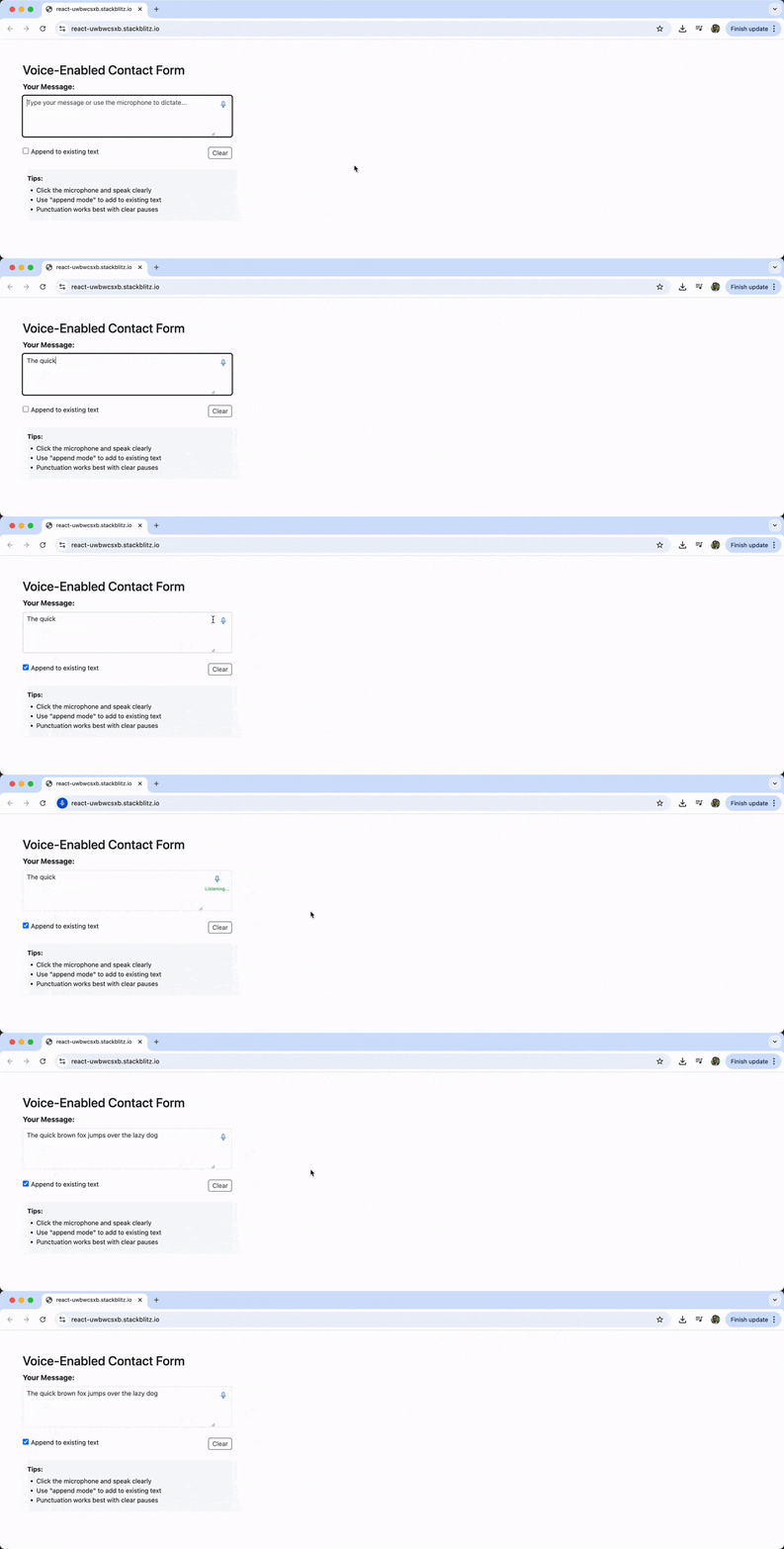
In this implementation, the SpeechToTextButton is rendered as a suffix inside a KendoReact TextArea component. The handleResult function is set up to update the message state, which is bound to the TextArea's value. It also features an appendMode state, controlled by a checkbox, which allows the user to either append the recognized text to the existing content or replace it entirely.
Wrap-up
The KendoReact SpeechToTextButton component makes it easy to bring voice recognition capabilities to our React applications. We’ve seen how easy it is to get started with a basic implementation, configure it for different languages, enable continuous recognition with interim results, and seamlessly integrate it into form components, such as the KendoReact TextArea component.
For more details on the KendoReact SpeechToTextButton component, including its full range of configuration options and API references, be sure to check out the official documentation.
And try out this handy component, plus 120 others, with the free trial of the KendoReact library.

Hassan Djirdeh
Hassan is a senior frontend engineer and has helped build large production applications at-scale at organizations like Doordash, Instacart and Shopify. Hassan is also a published author and course instructor where he’s helped thousands of students learn in-depth frontend engineering skills like React, Vue, TypeScript and GraphQL.
Related Posts
Comments
All articles
Topics
Web MobileMobile
Desktop
Design
Productivity
People