Exploring the Blazor Chat Component

Summarize with AI:
Need to integrate chat functionality into a Blazor-based application? The Telerik UI for Blazor Chat may be the right component for you!
In this era where providing the best web experience through immediate attention using chat conversations, whether using AI agents or similar technologies is essential, it becomes indispensable to have robust and reliable components that allow the creation of chat-based applications. This is the goal of the Progress Telerik UI for Blazor Chat component, which we will explore throughout this post.
Getting Started with the Blazor Chat Component
To use the Chat component for Blazor, you must follow the installation and setup guide for Telerik UI for Blazor components in your project to use it without any issues.
Next, you need to have a model that represents a chat message in your application. If you don’t have a chat model in your application yet, you can use the following model as a base:
public class ChatMessage
{
    public string Id { get; set; }
    public string AuthorId { get; set; }
    public string AuthorName { get; set; }
    public string AuthorImageUrl { get; set; }
    public string Text { get; set; }
    public string MessageToReplyId { get; set; }
    public string Status { get; set; }
    public bool IsDeleted { get; set; }
    public bool IsPinned { get; set; }
    public DateTime Timestamp { get; set; }
    public List<string> SuggestedActions { get; set; }
    public IEnumerable<FileSelectFileInfo> Attachments { get; set; } = new List<FileSelectFileInfo>();
}
The names of the previous properties are the default values for mapping to the component’s parameters, which means that if you do not modify them, the component will automatically bind the value of each property to its corresponding parameter.
With the chat message model ready, the next step is to define the TelerikChat component by minimally assigning the following parameters:
Data: List of chat messages that will allow tracking of the message historyAuthorId: The ID of the current chat authorOnSendMessage: Callback triggered when a message is sent
Now that you know the above, it’s time to use the TelerikChat component, which we will do as follows:
<TelerikChat Data="@Msgs"
             OnSendMessage="@OnSend"
             AuthorId="u1"/>

@code {
    private string Me = "u1";
    private List<ChatMessage> Msgs = new()
    {
        new()
        {
            Id="1",
            AuthorId = "bot",
            Content="Hi! How can I help you?",
            Timestamp=DateTime.Now
        }
    };

    private void OnSend(ChatSendMessageEventArgs e)
    {
        Msgs.Add(new ChatMessage
            {
                Id = Guid.NewGuid().ToString(),
                AuthorId = Me,
                Content = e.Message,
                Timestamp = DateTime.Now
            });
    }
}
In the above code, a generic list of type ChatMessage is created, to which a default message is added to represent the initial greeting. Additionally, the method OnSend has been created, which will be triggered every time a chat message is sent, adding that message to the chat message list, resulting in the following:
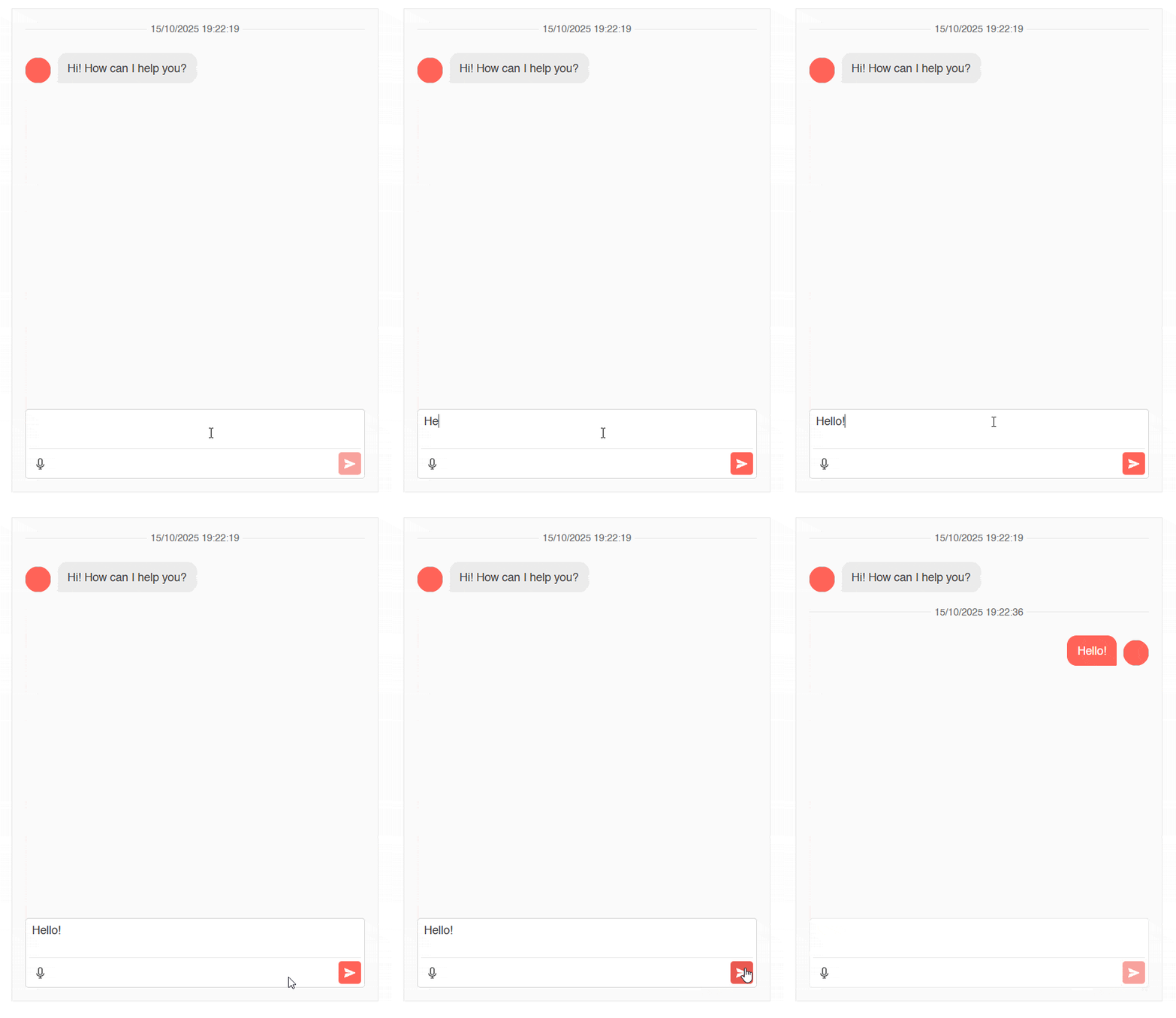
Now, perhaps in your application you already have a model with similar properties but with different names than the defaults; for example, one named Content that represents the text in the chat message. In that case, it would suffice to assign the value of your alternate property to the parameter of interest, as shown in the following example:
<TelerikChat Data="@Msgs"
             OnSendMessage="@OnSend"
             TextField="Content"
             AuthorId="User1"/>
Adding Quick Actions
Something that can be very useful for users is to provide them with some message ideas with which they can start or continue a conversation, in addition to using them to execute tasks quickly.
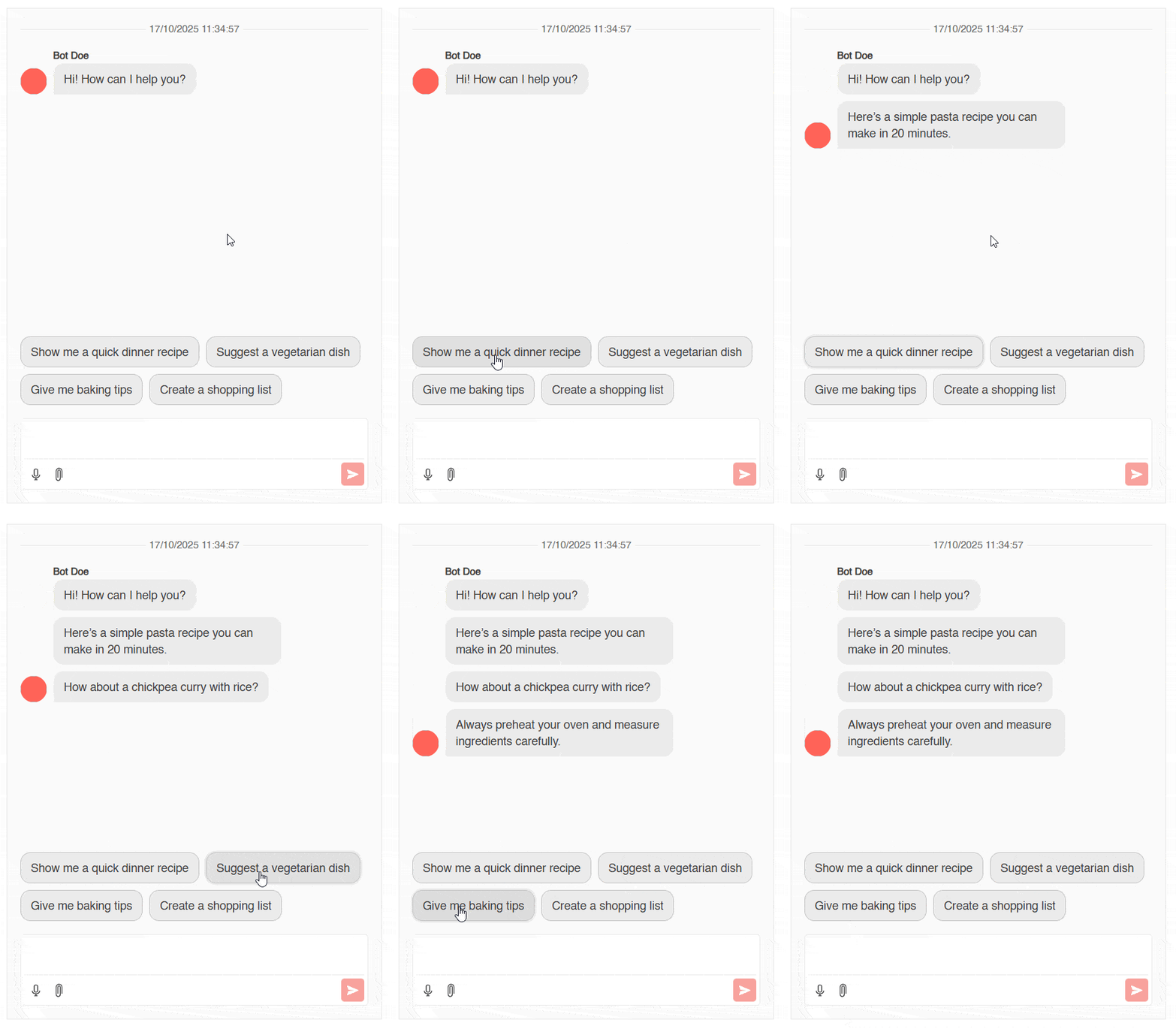
This is easy to implement thanks to the Suggestions parameter, to which you can bind a list with a generic string that includes the recommended suggestions. Similarly, the component has the OnSuggestionClick parameter, which allows handling when a user selects one of the suggestions. Below is an example of adding suggestions:
<TelerikChat Suggestions="@Suggestions"
             OnSuggestionClick="HandleSuggestionClick".../>

@code {
    private List<string> Suggestions = new List<string>
    {
        "Show me a quick dinner recipe",
        "Suggest a vegetarian dish",
        "Give me baking tips",
        "Create a shopping list"
    };
    ...

    private void HandleSuggestionClick(ChatSuggestionClickEventArgs args)
    {
        var responses = new Dictionary<string, string>
        {
            { "Show me a quick dinner recipe", "Here’s a simple pasta recipe you can make in 20 minutes." },
            { "Suggest a vegetarian dish", "How about a chickpea curry with rice?" },
            { "Give me baking tips", "Always preheat your oven and measure ingredients carefully." },
            { "Create a shopping list", "I’ve added basic ingredients like eggs, milk, and flour to your list." }
        };


        if (responses.TryGetValue(args.Suggestion, out string responseMessage))
        {
            Msgs.Add(new ChatMessage
            {
                Id = Guid.NewGuid().ToString(),
                AuthorId = "bot",
                AuthorName = "Bot Doe",
                Text = responseMessage,
                Status = "Sent",
                Timestamp = DateTime.Now
            });
        }
    }
    ...
}
In the previous code, I created the property Suggestions, bound to the parameter of the same name in the component, in addition to the method HandleSuggestionClick, which is bound to the OnSuggestionClick parameter. Within the handler, I created a dictionary that has the suggestion as the key and a static response as the value, which is used to create a new message in the chat history.
Working with Actions in Chat Messages
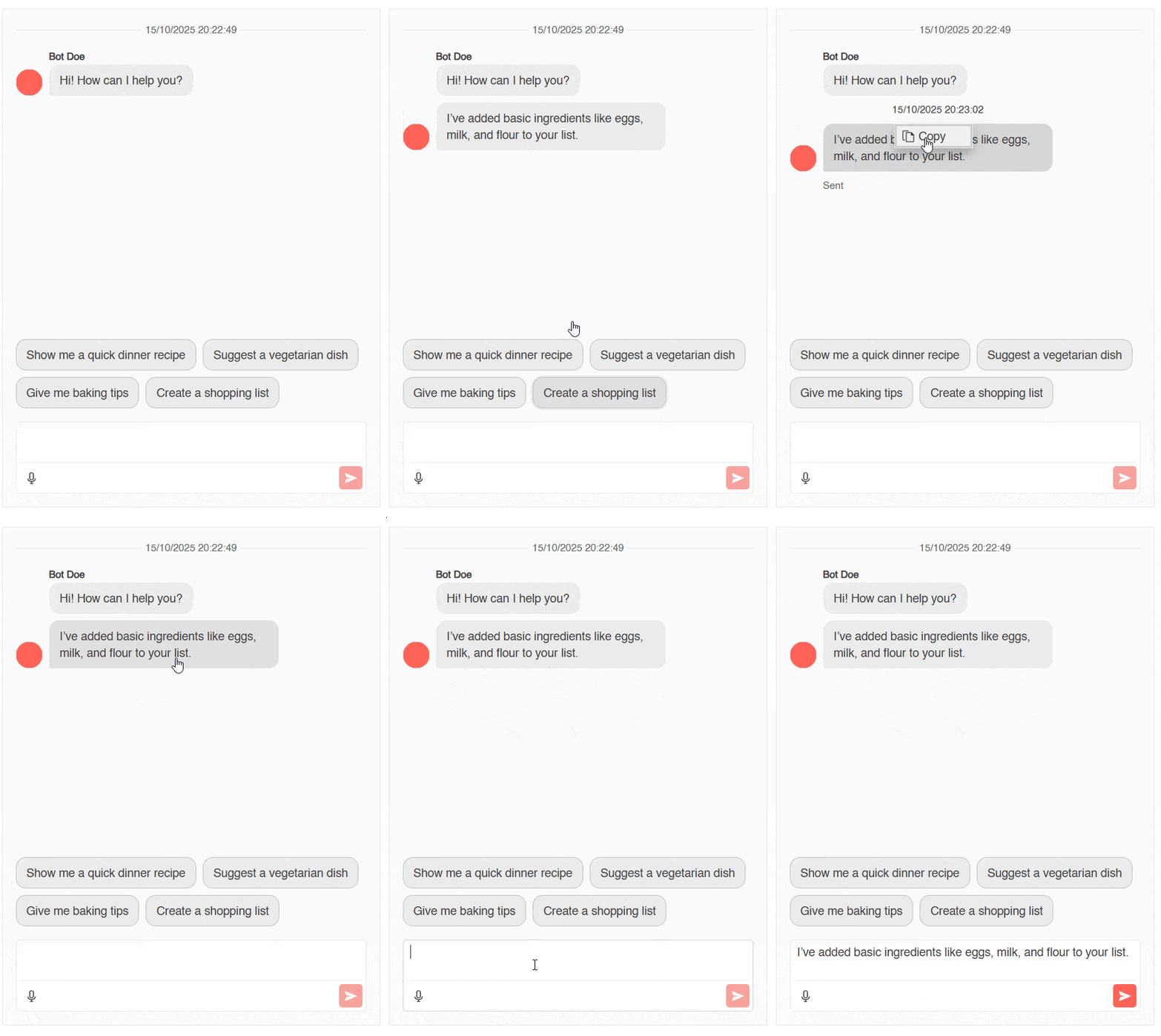
In addition to being able to add quick actions at the conversation level, it is also possible to add quick actions on chat messages that appear when a user right-clicks on one of them. For example, some common actions are replying to a message, copying the message, etc.
In these cases, we can make use of the child content ChatMessageContextMenuActions, where we must define the set of actions of type ChatMessageContextMenuAction that require a Name, Text, Icon and event OnClick. Below is an example of the above:
@page "/"
@inject IJSRuntime JS

<TelerikChat ...>
        <ChatMessageContextMenuActions>
            <ChatMessageContextMenuAction Name="Copy" Text="Copy" Icon="@SvgIcon.Copy" OnClick="@OnCopyClick" />
        </ChatMessageContextMenuActions>
</TelerikChat>

@code {

    private async Task OnCopyClick(ChatMessageActionClickEventArgs args)
    {
        var message = Msgs.FirstOrDefault(m => m.Id == args.MessageId);
        if (message != null)
        {
            await JS.InvokeVoidAsync("navigator.clipboard.writeText", message.Text);
        }
    }
    ...
}
In the above code, I have created a contextual action for a chat message that allows copying its content. The result is as follows:
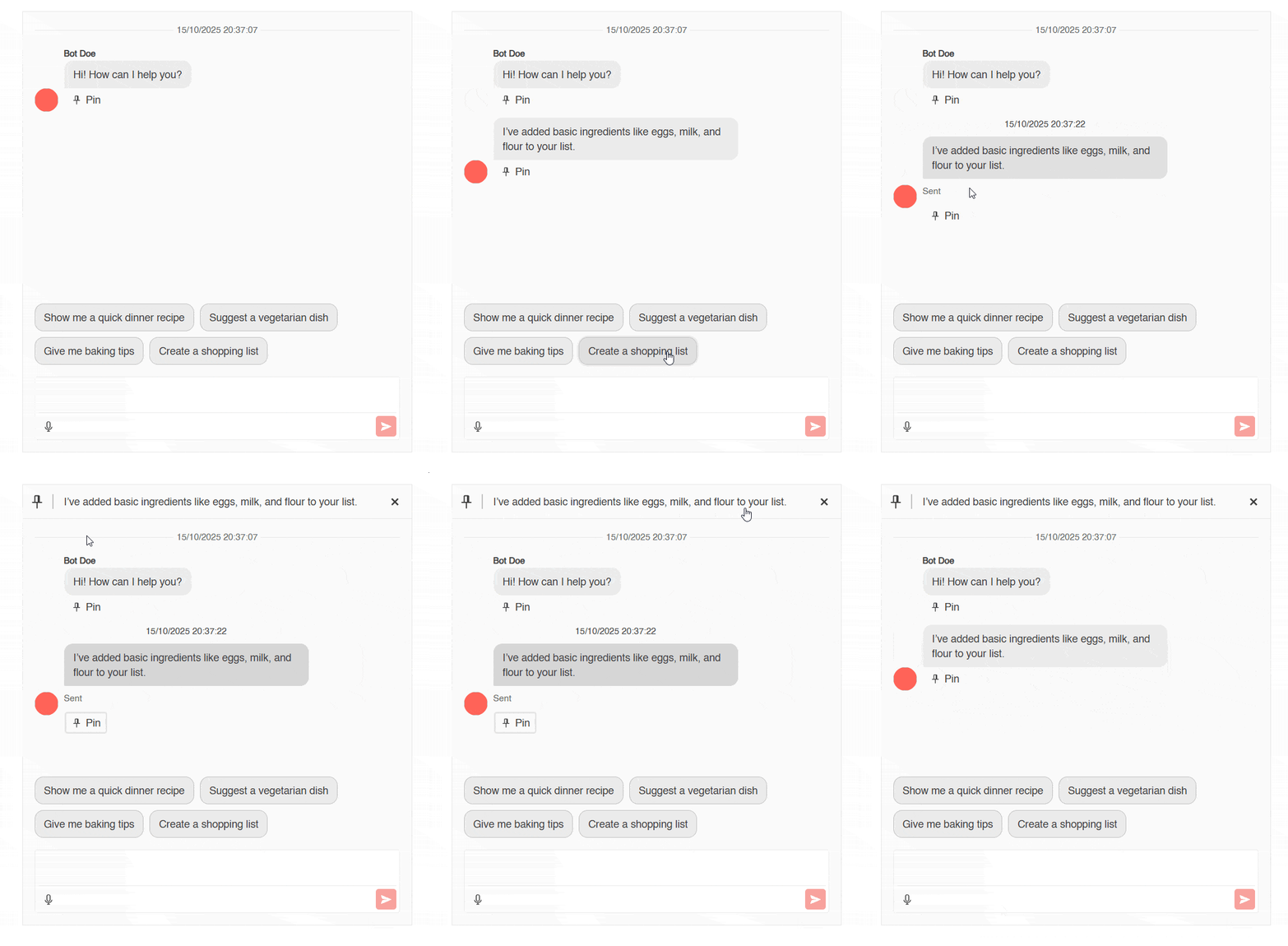
Another type of quick action that we can implement is the kind that appears when the user selects or hovers over a message. This can be achieved through the use of child content ChatMessageToolbarActions and with a set of ChatMessageToolbarAction inside, specifying the Name, Text, Icon and event OnClick.
This is an example of its use:
<TelerikChat ...>
        <ChatMessageToolbarActions>
        <ChatMessageToolbarAction Name="Pin" Text="Pin" Icon="@SvgIcon.Pin" OnClick="PinMessage" />
        </ChatMessageToolbarActions>
        ...
</TelerikChat>

@code {

    private void PinMessage(ChatMessageActionClickEventArgs args)
    {
        var message = Msgs.FirstOrDefault(m => m.Id == args.MessageId);
        if (message != null)
        {
            Msgs.ForEach(m => m.IsPinned = false);
            message.IsPinned = true;
        }
    }
}
This is how the application looks with the above code implemented:
Configuring the Chat for File Uploads
The Telerik Chat component for Blazor also allows enabling file uploads by assigning a value true to the EnableFileUpload parameter. Other configurable parameters for uploaded files are AllowedExtensions, MaxFileSize, Multiple, and OnSelect, which must be configured using the ChatSettings tag and within another tag of type ChatFileSelectSettings as follows:
<TelerikChat EnableFileUpload="true"...>
    <ChatSettings>
        <ChatFileSelectSettings AllowedExtensions="@AllowedExtensions"
                                MaxFileSize="10485760"
                                Multiple="true" />
    </ChatSettings>
    ...
</TelerikChat>

@code {

    private List<string> AllowedExtensions = new List<string> { ".jpg", ".jpeg", ".png", ".pdf", ".docx", ".txt" };
}
With this change, you will notice how a new button appears that allows attaching documents to a conversation:
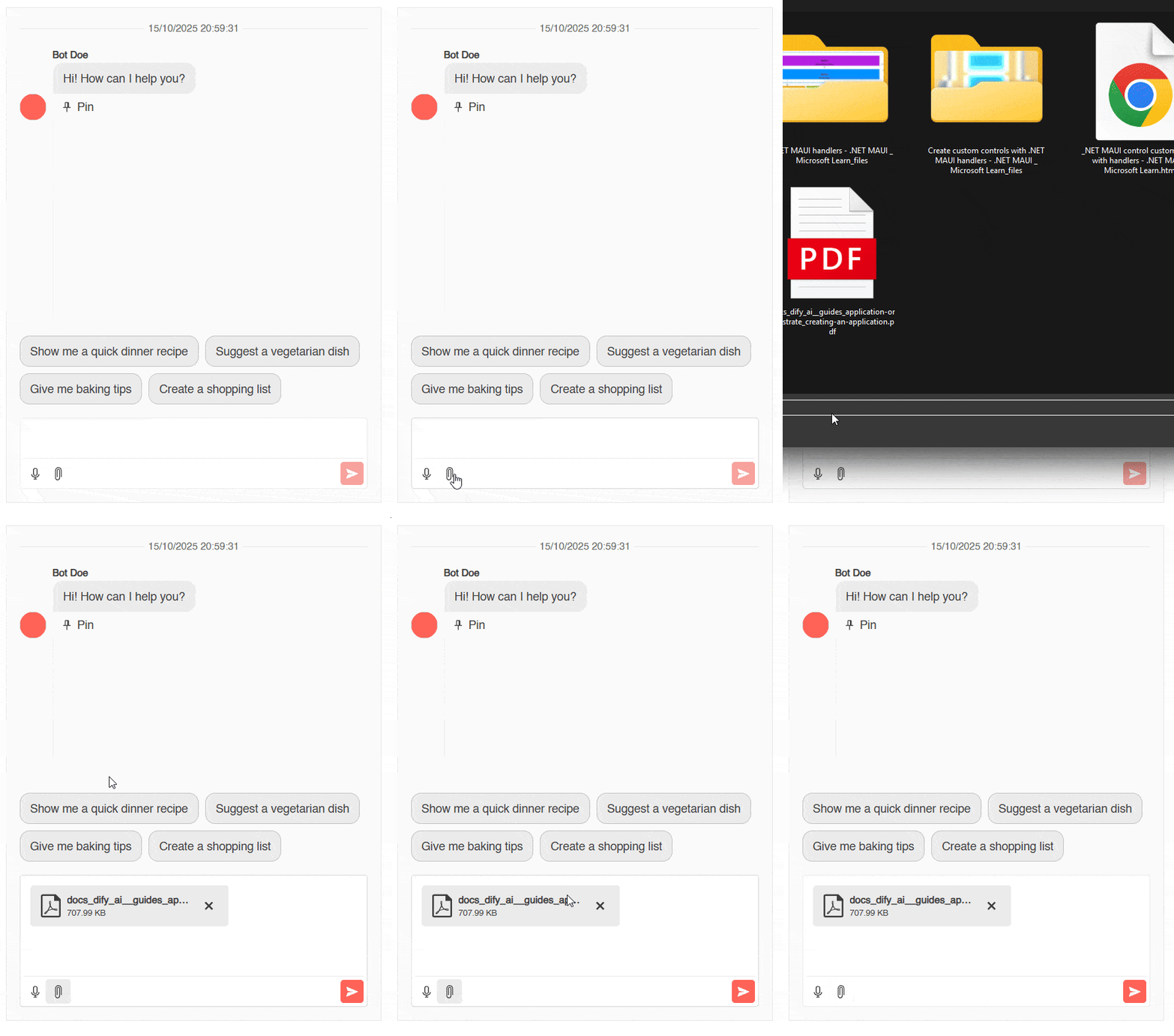
Something you should keep in mind is that the demo has worked without problems because at the beginning of this article, I showed you how to create the model ChatMessage, which contains the property Attachments that is actually a generic list of type FileSelectFileInfo, defining metadata such as name, size, extension, etc.
Similarly, if you want to retrieve the attached documents when sending messages to save their information on your server or something similar, you can do so by accessing the property Files of the Callback OnSendMessage:
private void OnSend(ChatSendMessageEventArgs e)
{
    Msgs.Add(...);
    var attached = e.Files;
}
Using LLM Models and Updating the Interface
One reason you might use the Chat component for Blazor is to integrate an AI model on your website to address common user queries about your services, inquire about products on your portal, etc. To achieve this, you first need to set up your project to interact with an LLM. In my example, I will use Microsoft.Extensions.IA to make things easier.
Next, on the page where you use the chat component, you should handle the Callback OnSendMessage by following these steps:
- Add the user’s message to the message list.
- Create a new message with an
AuthorIdrepresenting the response from the LLM and add it to the message list. - Create an
ChatMessagefrom the propertyMessage. - Stream the response to the content property (by default
Text). - Update the Chat component as new information is received.
You can see the previous steps implemented in the following code:
<TelerikChat @ref="@AIChat">
        ...
</TelerikChat>
@code {

    private TelerikChat<TelerikChatMessage>? AIChat;
    private async Task OnSend(ChatSendMessageEventArgs e)
    {
        Msgs.Add(new TelerikChatMessage
            {
                Id = Guid.NewGuid().ToString(),
                AuthorId = Me,
                Text = e.Message,
                Timestamp = DateTime.Now,
                Status = "Sent"
            });

        var response = new TelerikChatMessage()
        {
            Id = Guid.NewGuid().ToString(),
            AuthorId = "bot",
            AuthorName = "Bot Doe",
            AuthorImageUrl = "https://demos.telerik.com/blazor-ui/images/devcraft-ninja-small.svg",
            Timestamp = DateTime.Now,
            Status = "Sent"
        };

        Msgs.Add(response);

        var chatMessage = new Microsoft.Extensions.AI.ChatMessage(ChatRole.User, e.Message);

        var fullResponse = string.Empty;
        await foreach (var answer in ChatClient.GetStreamingResponseAsync(chatMessage))
        {
            fullResponse += answer.Text;
            response.Text = fullResponse;
            AIChat?.Refresh();
        }

    }
}
There are a couple of things I would like to point out in the previous code.
First, the method Microsoft.Extensions.AI.ChatMessage allows you to quickly create a chat message.
Also, you may have noticed that I added a reference to the Chat component for use from C# code. I did this because there will be times when you need to update the chat component, which you can do through the method Refresh. If I didn’t use it in this example, the interface wouldn’t update until the entire response from the AI model was received, even though we are performing a streaming response. With Refresh, we update the changes as soon as they arrive.
Conclusion
Throughout this article, you have learned about the Telerik UI for Blazor Chat component, as well as its main usage features for developers.
If you are thinking of integrating chat functionality into any Blazor-based application, this is undoubtedly the right component for you, as it comes with a wide variety of configurable parameters, ranging from common properties in chat conversations to quick action options that are easy to set up.
New to Telerik UI for Blazor? Try it free for 30 days!

Héctor Pérez
Héctor Pérez is a Microsoft MVP with more than 10 years of experience in software development. He is an independent consultant, working with business and government clients to achieve their goals. Additionally, he is an author of books and an instructor at El Camino Dev and Devs School.
Related Posts
Comments
All articles
Topics
Web MobileMobile
Desktop
Design
Productivity
People