What’s New in .NET 10 for ASP.NET Core
 by
by 
Summarize with AI:
.NET 10 brings significant changes to ASP.NET Core. In this post, we'll review some of the main changes, covering practical, everyday examples and the contexts in which they best fit.
.NET 10 has arrived, bringing important improvements to ASP.NET Core with a focus on efficiency and productivity. In this post, you will see the main new features: from single-file applications written in C#, to new extension methods for LINQ and EF Core, among other updates that promise to further improve your development experience.
1. New C# File-Based Applications
Despite support for higher-level instructions (introduced in .NET 6), before .NET 10, a traditional project with a .csproj file was still required to create a C# application.
With the arrival of .NET 10, a new file-based application model was introduced, allowing the creation of a complete application using only a single file with the .cs extension, without the need for a separate project file.
Let’s look at an example where we need to create an application that calls an external API and returns user data. In this case, we could do the following:
- Create a file with the
.csextension calledGetUserData.cs. - Open the file with your favorite code editor and insert the following code:
using System.Net.Http;
using System.Threading.Tasks;

var url = "https://jsonplaceholder.typicode.com/users/1";

using var http = new HttpClient();

var response = await http.GetAsync(url);

response.EnsureSuccessStatusCode();

var content = await response.Content.ReadAsStringAsync();

Console.WriteLine("API Response:");
Console.WriteLine(content);
This code makes a call to the JSON Placeholder API to return some sample data.
- Open a terminal where the file is located and run the following command:
dotnet run GetUserData.cs
The result of the request is then displayed in the console:
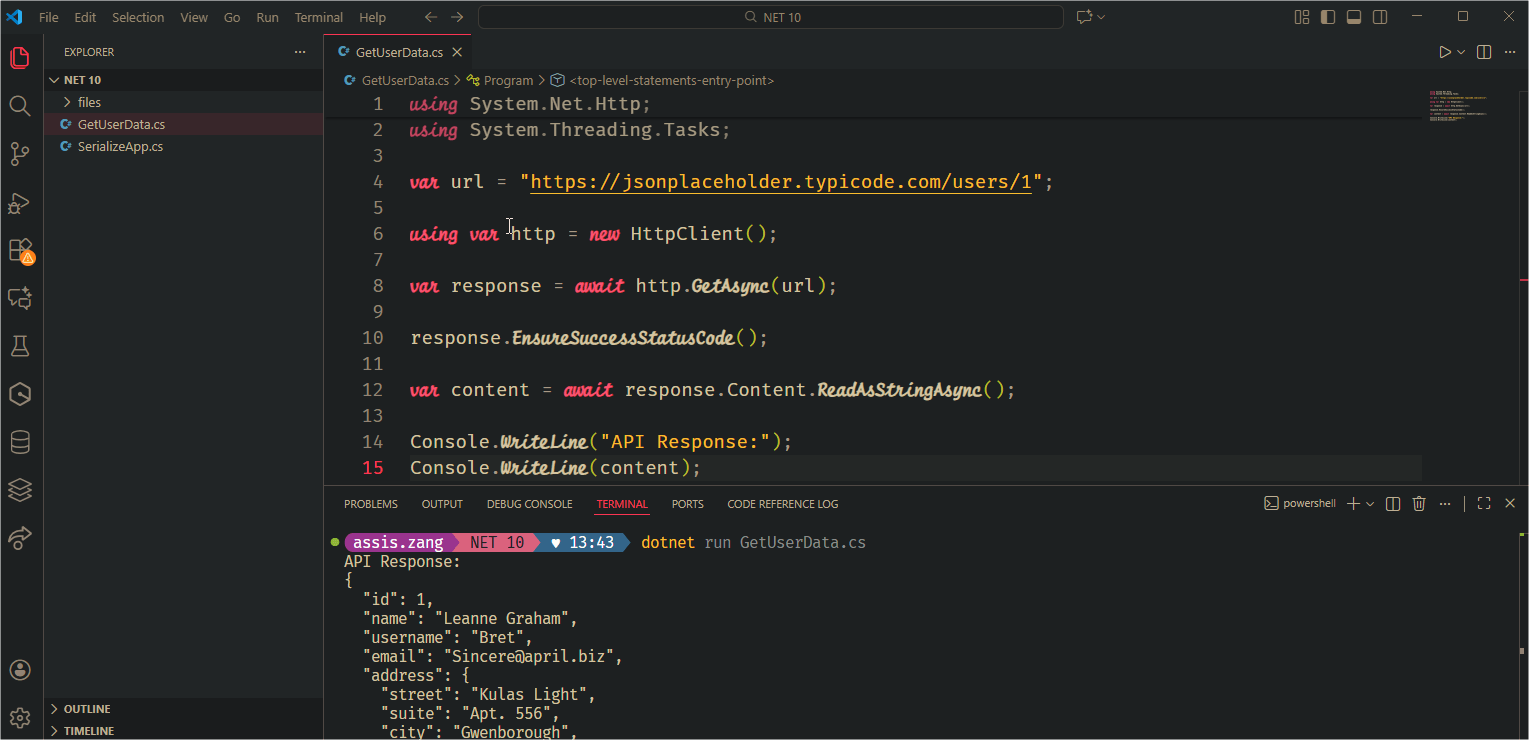
In this example, we only display the data in the console, but imagine all the possibilities! With just a single .cs file, we can quickly create proofs of concept (POCs), automate small routines or even perform simple data update tasks.
Another important point to highlight about file-based applications is that they support SDK and NuGet package references through the #sdk and #package directives. Simply add them to the beginning of the file. Consider the example below:
#:sdk Microsoft.NET.Sdk.Web
#:package Newtonsoft.Json@13.0.3

using Newtonsoft.Json;

var app = WebApplication.Create();

app.MapGet("/serialize", () =>
{
    var user = new { Id = 1, Name = "Alice" };
    return JsonConvert.SerializeObject(user, Formatting.Indented);
});

app.Run();
return;
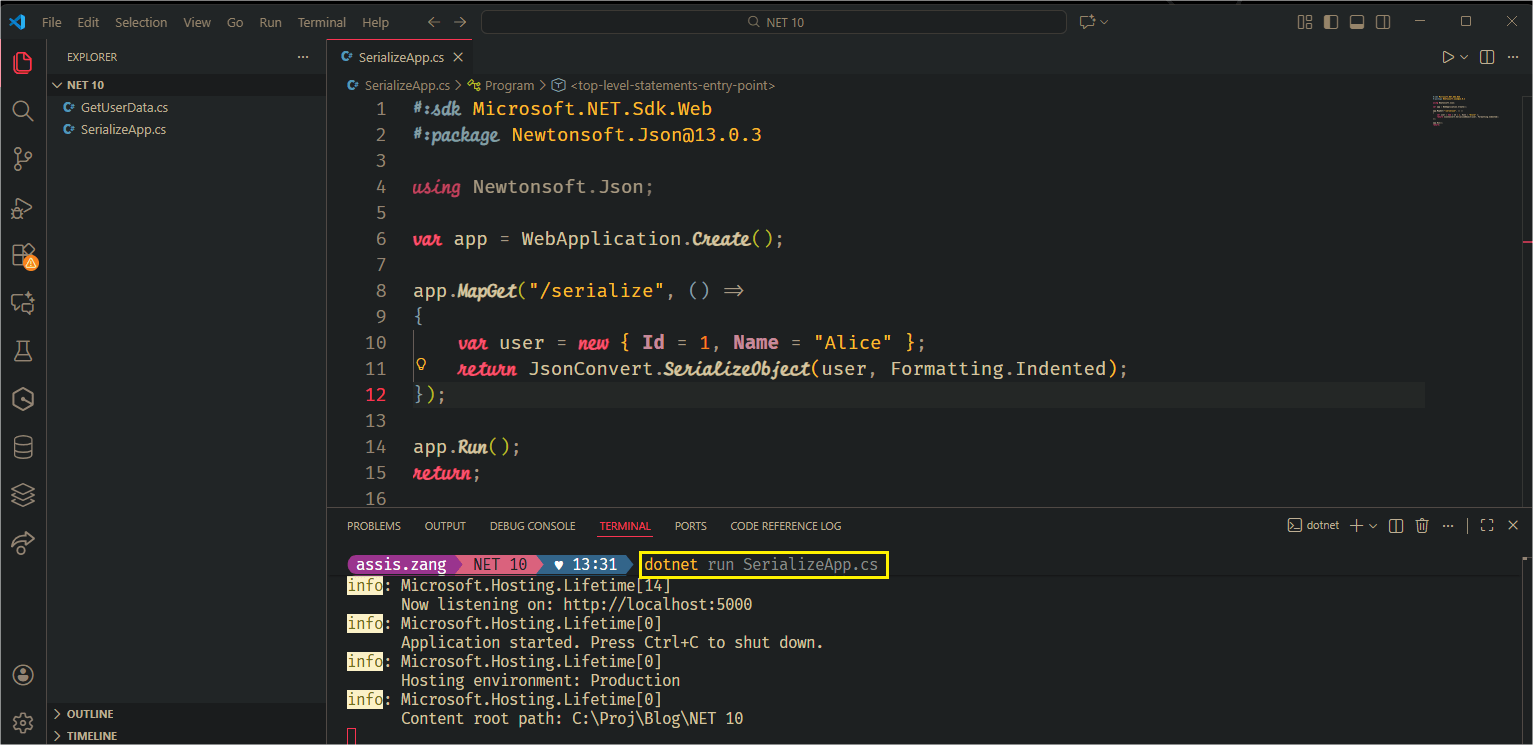
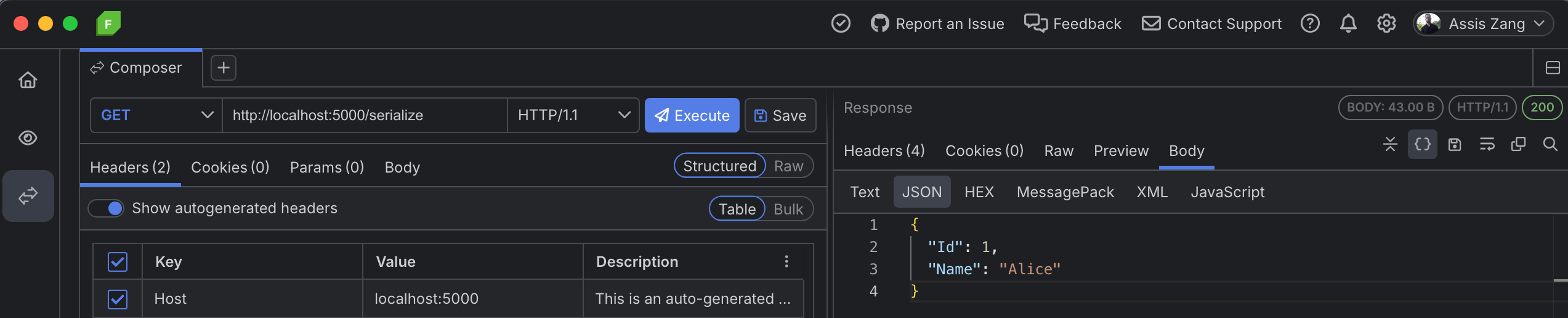
Here, we have another file called SerializeApp.cs which contains simple code to return serialized data. It uses the Microsoft.NET.Sdk.Web SDK and the Newtonsoft.Json@13.0.3 package. Note that we didn’t install anything, we only used the directives. So, we can run the application with the command dotnet run SerializeApp.cs, make a request to http://localhost:5000/serialize and see that it is 100% functional:
2. Extension Members
C# 14 is the latest version of C#, released alongside .NET 10, and it brought several improvements to the language, such as extension properties. Extension properties extend the concept of extension methods to add properties to types you don’t control, without needing to create wrappers or artificial inheritance. Consider the example below:
public static class EnumerableExtensions
{
    extension<T>(IEnumerable<T> source)
    {
        public bool IsEmpty => source.Any() == false;

        public IEnumerable<T> Where(Func<T, bool> predicate)
        {
            if (predicate is null)
                throw new ArgumentNullException(nameof(predicate));

            return Iterator();

            IEnumerable<T> Iterator()
            {
                foreach (var item in source)
                {
                    if (predicate(item))
                        yield return item;
                }
            }
        }

        public static IEnumerable<T> Identity => Enumerable.Empty<T>();

        public static IEnumerable<T> operator +(IEnumerable<T> first, IEnumerable<T> second) =>
            first.Concat(second);
    }
}
extension<T>(IEnumerable<T> source)
This block is the new extension scope. Here, source is treated as the receiving object, similar to this in classic extension examples. This means that any property or method defined within this block is perceived as part of IEnumerable<T> itself.
- Extension property:
IsEmpty
IsEmpty is declared as an instance property attached to IEnumerable<T>, where source is the collection being extended.
The property returns true when the sequence has no elements, equivalent to bool empty = !items.Any();, only now exposed as a property instead of a method.
Example of use:
var items = new[] { 1, 2, 3 };

// the property is used normally, as a member of the instance
bool empty = items.IsEmpty;
- Custom Extension Method: Where
public IEnumerable<T> Where(Func<T, bool> predicate)
{
...
}
This method conceptually overrides the traditional Enumerable Where(), demonstrating that methods can also be declared as extension members within the new block.
- Static Extension Property: Identity
public static IEnumerable<T> Identity => Enumerable.Empty<T>();
Now it’s possible to create static properties within the extension scope. The Identity property always returns an empty string of the corresponding type.
Example of use:
var empty = EnumerableExtensions.Identity;
Note that static properties still need to be accessed by the type that declares the extension; they don’t become direct members of the target type.
- Extension Operator:
operator +
public static IEnumerable<T> operator +(IEnumerable<T> first, IEnumerable<T> second) =>

first.Concat(second);
This is one of the most interesting new features: operators can be defined as extensions, even when the original type doesn’t support them. This allows you to write operations like this:
var merged = new[] { 1, 2 } + new[] { 3, 4 }; // Result: {1,2,3,4}
3. The Field Keyword
The field keyword allows you to write the code for a property without having to manually create the field that stores its value. The compiler creates this field automatically, and field serves as a reference to this internal value.
Before C# 14, when you wanted to prevent a string property from receiving null, for example, it was necessary to declare a private field and manually write the get and set methods using that field. With field, all of this becomes more straightforward.
How it was done before:
private int _quantity;

public int Quantity
{
    get => _quantity;
    set
    {
        if (value < 0)
            throw new ArgumentOutOfRangeException(nameof(value), "Quantity cannot be negative.");

        _quantity = value;
    }
}
And now, using field:
public int Quantity
{
    get;
    set => field = value >= 0
        ? value
        : throw new ArgumentOutOfRangeException(nameof(value), "Quantity cannot be negative.");
}
You use it exactly like any normal property.
Setting a valid value:
var item = new Product();

item.Quantity = 10; // OK
Setting an invalid value:
item.Quantity = -5; // throws ArgumentOutOfRangeException
4. Assignment Using Null-Conditional
Starting with C# 14, you can assign values using the null-conditional operator ?:
order?.City = Normalize(city);
Before .NET 10, to perform a null check with assignment, you needed to do this:
if (order != null)
{
    order.City = Normalize(city);
}

//or

order = order is null
    ? null
    : (order.City = Normalize(city), order);
5. Minimal API Built-in Validation
In .NET 10, Minimal APIs have built-in validation, eliminating the need for external libraries or manual if blocks to validate DTOs.
In integrated validation, the model sent by the client is automatically validated as soon as it reaches the endpoint, using validation attributes from the System.ComponentModel.DataAnnotations namespace. If there are errors in the process, .NET automatically returns 400 Bad Request with details of the problem.
To implement this, simply do the following:
Program class
using System.ComponentModel.DataAnnotations;

var builder = WebApplication.CreateBuilder(args);

builder.Services.AddValidation();

var app = builder.Build();

app.MapPost("/users",
    (CreateUserRequest user) =>
        TypedResults.Created($"/users/{user.Username}", user)
);

app.Run();
Data Transfer Object (DTO)
public class CreateUserRequest
{
    [Required]
    [MinLength(3)]
    public string Username { get; set; }

    [Required]
    [EmailAddress]
    public string Email { get; set; }

    [Range(1, 120)]
    public int Age { get; set; }
}
Note that to implement the new integrated validation, we use the extension method builder.Services.AddValidation();. So if we execute the route POST - /users with the following body:
{
    "username": "",
    "email": "wrong-email",
    "age": -1
}
We will receive the response below:
{
    "title": "One or more validation errors occurred.",
    "errors": {
        "Username": [
            "The Username field is required."
        ],
        "Email": [
            "The Email field is not a valid e-mail address."
        ],
        "Age": [
            "The field Age must be between 1 and 120."
        ]
    }
}
You can also disable built-in validation on endpoints using the .DisableValidation(); extension method:
app.MapPost("/users",
    (CreateUserRequest user) =>
        TypedResults.Created($"/users/{user.Username}", user)
).DisableValidation();
6. New Methods for Extending EF Core 10
.NET 10 brought some improvements to Entity Framework Core 10. Among them are the new extension methods, which always help to shorten the path. Let’s check out some of them.
LeftJoin()andRightJoin()
It is now possible to directly use .LeftJoin(...) and .RightJoin(...) in LINQ queries with EF, instead of having to use the old pattern with GroupJoin + DefaultIfEmpty(). EF Core provider translates LEFT JOIN / RIGHT JOIN in SQL.
The examples below demonstrate how to use both methods:
LeftJoin
var req = new CreateUserRequest
        {
            Username = "john",
            Email = "john@email.com",
            Age = 22,
        };

        var requested = new[] { req };

        var result = requested
            .LeftJoin(
                db.Users,
                req => req.Email,
                user => user.Email,
                (req, user) => new { Requested = req, ExistingUser = user }
            )
            .ToList();

        return Results.Ok(result);
Even if there is no user in the database, the item on the left (CreateUserRequest) always appears.
RightJoin
var requests = new List<CreateUserRequest>
        {
            new()
            {
                Username = "bob",
                Email = "bob@mail.com",
                Age = 22,
            },
        };

        var result = requests
            .RightJoin(
                db.Users,
                req => req.Email,
                user => user.Email,
                (req, user) => new { Request = req, User = user }
            )
            .ToList();
All database users are located on the “right” side. Even if there is no corresponding request, the user appears.
7. ExecuteUpdate and ExecuteUpdateAsync for JSON Columns
EF Core 10 offers full support for updating JSON data (when the database supports it, SQL Server 2025, Azure SQL for example). This allows you to map complex properties to JSON columns.
Thus, it’s possible to use ExecuteUpdate and ExecuteUpdateAsync to directly update properties within the JSON, without needing to load the entire entity into memory. This brings an advantage when storing semi-structured data within JSON columns. The example below demonstrates how to use this new feature:
await db
            .Users.Where(u => u.Email == request.Email)
            .ExecuteUpdateAsync(setters =>
                setters
                    .SetProperty(u => u.Username, request.Username)
                    .SetProperty(u => u.Age, request.Age)
            ); //Updating the property directly
8. Improvements to Mapping Complex Types, Structs and Owned Types
EF Core 10 expands support for complex types. Now it’s possible to map composite (complex) types that don’t have their own identity, assigning complex properties:
public class UserProfile
{
    public string Bio { get; set; }
}

public class User
{
    public int Id { get; set;}
    public string Username { get; set; }
    public string Email { get; set; }
    public int Age { get; set; }
    public UserProfile Profile { get; set; }
}

protected override void OnModelCreating(ModelBuilder modelBuilder)
{
        modelBuilder.Entity<User>().ComplexProperty(u => u.Profile);
}

var complexUser = new User
        {
            Username = user.Username,
            Email = user.Email,
            Age = user.Age,
            Profile = new UserProfile { Bio = $"Account for {user.Username}" },
        };

        db.Add(user);
        await db.SaveChangesAsync();
Note that we informed EF that the User entity has a complex property (Profile) through the extension method: .ComplexProperty(u => u.Profile);.
9. Named Query Filters
It is now possible to define multiple global filters (query filters) for an entity, each with its own name, and then enable or disable specific filters in queries. This allows you to have several different logical filters and control which one to apply to each query:
modelBuilder.Entity<User>().HasQueryFilter("MinAgeFilter", u => u.Age >= 18);

modelBuilder
            .Entity<User>()
            .HasQueryFilter("EmailDomainFilter", u => u.Email.EndsWith("@company.com"));
Ignoring filters:
// keeps the age filter, ignoring the email domain filter
var adults = db.Users.IgnoreQueryFilters(["EmailDomainFilter"]).ToList();
Conclusion
.NET 10 brought several improvements to ASP.NET Core, making features like EF Core even more versatile. In addition, one of the most anticipated new features was file-based apps, which allow you to run C# code using only a .cs file.
In this post, we covered the main points with practical examples for everyday use. I hope these new features help you implement simpler, more modern and efficient solutions in your projects.
Related Posts
Comments
All articles
Topics
Web MobileMobile
Desktop
Design
Productivity
People