Learning Vercel AI SDK—Part 1

Summarize with AI:
Learn how to set up a Vercel AI SDK project, install required dependencies and work with prompts, models and streaming.
The AI SDK is a robust TypeScript library that enables developers to easily create AI-powered applications. In this tutorial, you’ll build a simple AI chatbot with a real-time streaming interface.
To follow this tutorial, verify:
- You have the latest version of Node.js installed.
- You have an OpenAI API key.
After completing this article, you will have a solid grasp of key concepts used in the Vercel AI SDK, including:
- Models
- Text prompts
- System prompts
- Text generation
- Text streaming
Setting Up the Project
To get started, create a new Node.js application and set it up to use TypeScript.
For that, in your terminal, run the following commands:
npm install -D typescript @types/node ts-nodenpx tsc –init
Once the commands have been executed, replace the contents of your tsconfig.json file with the configuration shown below.
{
  "compilerOptions": {
    "target": "ES2022",
    "module": "ES2022",
    "moduleResolution": "node",
    "rootDir": "./src",
    "outDir": "./dist",
    "strict": true,
    "esModuleInterop": true
  },
  "include": ["src/**/*"],
  "exclude": ["node_modules"]
}
After that, install the dependencies below:
- npm install dotenv
- npm install -D @types/dotenv
- npm install ai@beta @ai-sdk/openai@beta zod
- npm install -D @types/node tsx typescript
- npm i --save-dev @types/json-schema
Next, add the .env file to the project root and paste the OpenAI key information below inside the file:
OPENAI_API_KEY= ""
Now that you’ve added your API key and installed all the dependencies, you’ll notice that your package.json file has been updated with these changes.
{
  "name": "demo1",
  "version": "1.0.0",
  "main": "index.js",
  "type": "module",
  "scripts": {
    "build": "tsc",
    "start": "tsc && node dist/index.js"
  },
  "author": "",
  "license": "ISC",
  "description": "",
  "devDependencies": {
    "@types/dotenv": "^6.1.1",
    "@types/json-schema": "^7.0.15",
    "@types/node": "^24.7.2",
    "tsx": "^4.20.6",
    "typescript": "^5.9.3"
  },
  "dependencies": {
    "@ai-sdk/openai": "^3.0.0-beta.29",
    "ai": "^6.0.0-beta.47",
    "dotenv": "^17.2.3",
    "zod": "^4.1.12"
  }
}
In your setup, the package name and version may differ. Next, create a src folder in your project and add an index.ts file inside it. In that file, log the value of your OpenAI key to verify that the project has been configured correctly.
import dotenv from 'dotenv';
dotenv.config();
const openaiApiKey: string | undefined = process.env.OPENAI_API_KEY;
console.log(`OpenAI API Key: ${openaiApiKey}`);
When you execute npm run start in your terminal, you should see your OpenAI key printed in the console.
Generating Text
Using the Vercel AI SDK, you can generate responses from an LLM in just a few lines of code. Call the generateText method, passing the model name and your desired prompt.
const model = openai("gpt-3.5-turbo");

export const chat = async(prompt: string) => {
    const { text } = await generateText({
        model,
        prompt
    })
    return text;
}

const result = await chat("what is value of pi ?");
console.log("Result: ", result);
As shown above, we have defined a model and passed it to the generateText function. The Vercel AI SDK makes it simple to integrate models from multiple providers. For instance, if you want to use a model other than OpenAI’s GPT-3.5, declare that model and pass it to the generateText function. Verify that the corresponding provider dependency is installed in your project.
const model = anthropic("claude-2");
Streaming Text
The Vercel AI SDK makes it simple to stream generated text token-by-token. To stream the response, use the streamText function.
export const chat = async(prompt: string) => {
    const { textStream } = await streamText({
        model,
        prompt
    });
    return textStream;

}
The streamText function returns a textStream that you can iterate over using an await for loop to process the response chunk by chunk. Here, we’re printing each chunk to the console, but you could also stream it to a client or save it to a file.
const result = await chat("what is value of pi ?");
for await (const chunk of result) {
     process.stdout.write(chunk);
}
Along with the text stream, the streamText function provides other useful properties like:
- content
- text
- reasoningText
- etc.
Here’s an example of how you can use the content property:
export const chat = async(prompt: string) => {
    const { content } = await streamText({
        model,
        prompt
    });
    return content;

}

const result = await chat("what is value of pi ?");
console.log("Result is : ", result);
You should get output as shown below:

Streaming Text with Image Prompt
The Vercel AI SDK provides a simple API for sending image inputs to multimodal models such as OpenAI’s GPT-4o. By setting the message type to image, you can include an image in your prompt and receive a corresponding model-generated response.
const model = openai("gpt-4o");
async function readImage() {
  const result = streamText({
    model: model,
    messages: [
      {
        role: 'user',
        content: [
          { type: 'text', text: 'Describe the image in detail.' },
          { type: 'image', image: fs.readFileSync('./m.jpg') },
        ],
      },
    ],
  });

  for await (const textPart of result.textStream) {
    process.stdout.write(textPart);
  }
}

readImage();
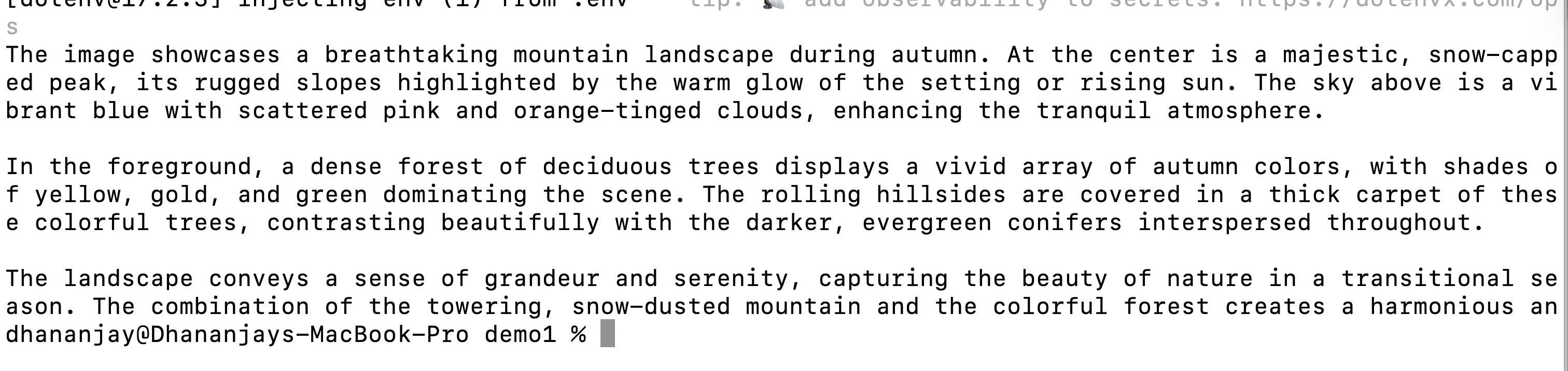
In the example above, both text and image inputs are sent to the multimodal model OpenAI’s GPT-4o. The model then streams a response that describes and explains the provided image.
For the above example, you should get a response as below:
Different Types of Prompts
Prompts are the instructions provided to an LLM that define what task it should perform. Each LLM supports different message formats for handling these instructions. The Vercel AI SDK offers a simplified abstraction over these formats, providing a unified interface for working with multiple model providers. It mainly supports three types of prompts:
- Text Prompts
- Message Prompts
- System Prompts
A text prompt is a simple string that serves as input to the model. This format is ideal for straightforward generation tasks, such as producing variations of a specific message or pattern.
In the Vercel AI SDK, you can define a text prompt using the prompt property in functions such as generateText or streamText. As shown in the example below, the string prompt is passed directly to the prompt property of the generateText function.
export const chat = async() => {
    const { text } = await generateText({
        model,
        prompt:'What is value of pi ?'
    })
    return text;
}
You can also use template literals to pass dynamic values into a text prompt. This approach allows you to create flexible and reusable prompts for your models, as shown in the example below.
const model = openai("gpt-4o");
export const chat = async(days:number, destination:string) => {
    const { text } = await generateText({
        model,
        prompt:`Give me ${days} days vacation plan in ${destination}`
    })
    return text;
}
const result = await chat(7, "Egypt");
console.log("Result is : ", result);
In this example, the number of days and the country name are dynamically passed to the text prompt to generate a context-specific response from the model.
A system prompt provides high-level guidance that shapes the chat model’s behavior during a conversation.
- It instructs the model on how to respond.
- It establishes rules and constraints for interaction.
- It sets the tone, style and personality of the responses.
You can define a system prompt using the system property. In the example below, the model is instructed to provide travel suggestions in a list format.
const model = openai("gpt-4o");

const system = `You are a travel assistant.
You help users plan their vacations by providing detailed itineraries based
on the number of days and destination they provide. Your responses should include
daily activities, places to visit, and any special tips for travelers.`

export const chat = async(days:number, destination:string) => {
    const { text } = await generateText({
        model,
        system: system,
        prompt:`Give me ${days} days vacation plan in ${destination}`
    })
    return text;
}
const result = await chat(7, "Egypt");
console.log("Result is : ", result);
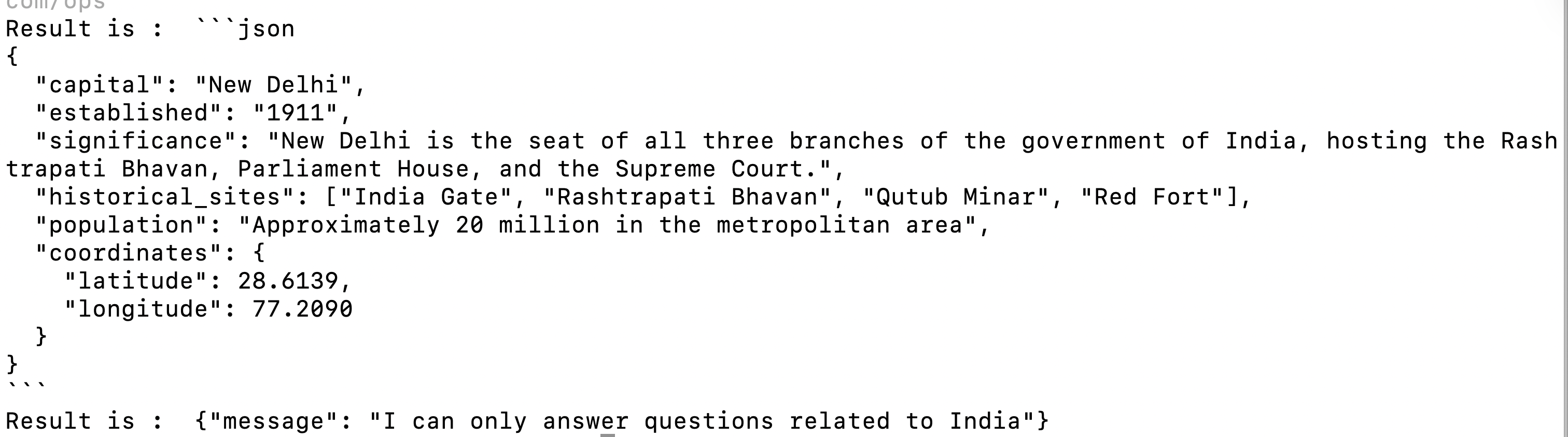
The model’s response should follow the instructions defined in the system prompt. Let’s look at another example of a system prompt. In this case, we instruct the model to:
- Respond only with information related to India.
- Provide the response in JSON format.
- For any question unrelated to India, reply that it can only answer questions about India.
const model = openai("gpt-4o");

const system = `You only answer about India in JSON Format.
Any question not related to India should be answered with
{"message": "I can only answer questions related to India"}
`

export const chat = async(question : string) => {
    const { text } = await generateText({
        model,
        system: system,
        prompt:question
    })
    return text;
}

let prompt = "Tell me about the capital of India";
const result = await chat(prompt);
console.log("Result is : ", result);
let prompt2 = "Tell me about the capital of USA";
const result1 = await chat(prompt2);
console.log("Result is : ", result1);
For above queries, model should give response as shown below:
A Chat App
Bringing everything together, you can build a chat application that uses text prompts, system prompts and other prompt types, as shown in the code example below.
import { openai } from '@ai-sdk/openai';
import { generateText } from 'ai';
import dotenv from 'dotenv';

dotenv.config();

const model = openai("gpt-4o");

const system = `You only answer about India and USA.
Any question not related to India and USA should be answered with
sorry I know only about India and USA`;

const chat = async (question: string) => {
    const { text } = await generateText({
        model,
        system: system,
        prompt: question
    });
    return text;
}

const getInput = (): Promise<string> => {
    return new Promise((resolve) => {
        process.stdout.write('Enter your question (or "q" to quit): ');
        process.stdin.once('data', (data) => {
            resolve(data.toString().trim());
        });
    });
}

async function main() {
    console.log('Welcome to AI Chat! Ask questions about India and USA.');
    console.log('Type "q" to quit.');
    console.log('-------------------');
    process.stdin.setEncoding('utf8');

    while (true) {
        try {
            const userInput = await getInput();

            if (userInput.toLowerCase() === 'q') {
                console.log('Goodbye!');
                process.exit(0);
            }

            console.log('Thinking...');
            const result = await chat(userInput);
            console.log('AI Response:', result);
            console.log('-------------------');

        } catch (error) {
            console.error('Error:', error);
            console.log('-------------------');
        }
    }
}

main().catch(console.error);
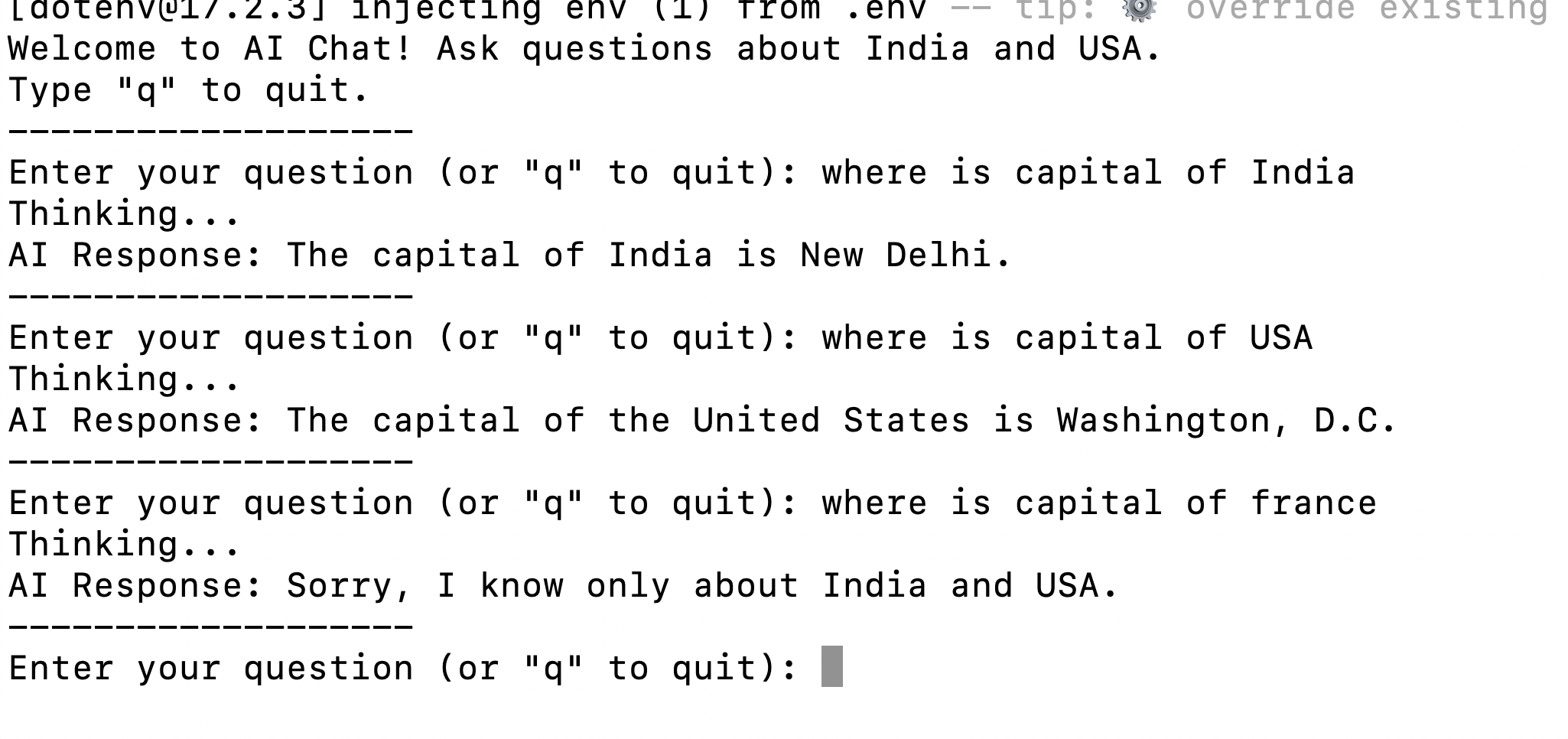
When you run the application, the model should respond only to queries related to India or the USA. For any question outside these topics, the model should refrain from answering.
As explained earlier, streaming model responses are straightforward with the Vercel AI SDK. You can use the streamText function to receive the output incrementally, as shown in the example below.
const chat = async (question: string) => {
    const { textStream } = await streamText({
        model,
        system: system,
        prompt: question
    });
    return textStream;
}
wAnd then printing the response as shown below:
console.log('Thinking...');
            const result = await chat(userInput);
            // console.log('AI Response:', result);
            for await (const chunk of result) {
                process.stdout.write(chunk);
            }
Summary
In this part of the Vercel AI SDK learning series, you learned how to set up the project, install the required dependencies and work with key concepts such as prompts, models and streaming. I hope you found this article helpful. Thank you for reading.
Next up: Learning Vercel AI SDK—Part 2: Creating Your First Agent

Dhananjay Kumar
Dhananjay Kumar is the founder of nomadcoder, an AI-driven developer community and training platform in India. Through nomadcoder, he organizes leading tech conferences such as ng-India and AI-India. He partners with startups to rapidly build MVPs and ship production-ready applications. His expertise spans Angular, modern web architecture and AI agents, and he is available for training, consulting or product acceleration from Angular to API to agents.
Related Posts
Comments
All articles
Topics
Web MobileMobile
Desktop
Design
Productivity
People