# Download the Test Studio Installation File
This document describes how to download the Test Studio installation file.
## Download a Free Trial Version
Test Studio offers a free 30-day full-featured trial with included support. The download of the installation file can be initiated after you create your Telerik account.
Proceed with the standard installation process.
## Download a Licensed Version
If you already purchased a Test Studio license, you can download the latest installation file from your Telerik account, where you can also find any previous versions available to you. Follow the steps below to download the file.
### Open Your Telerik Account
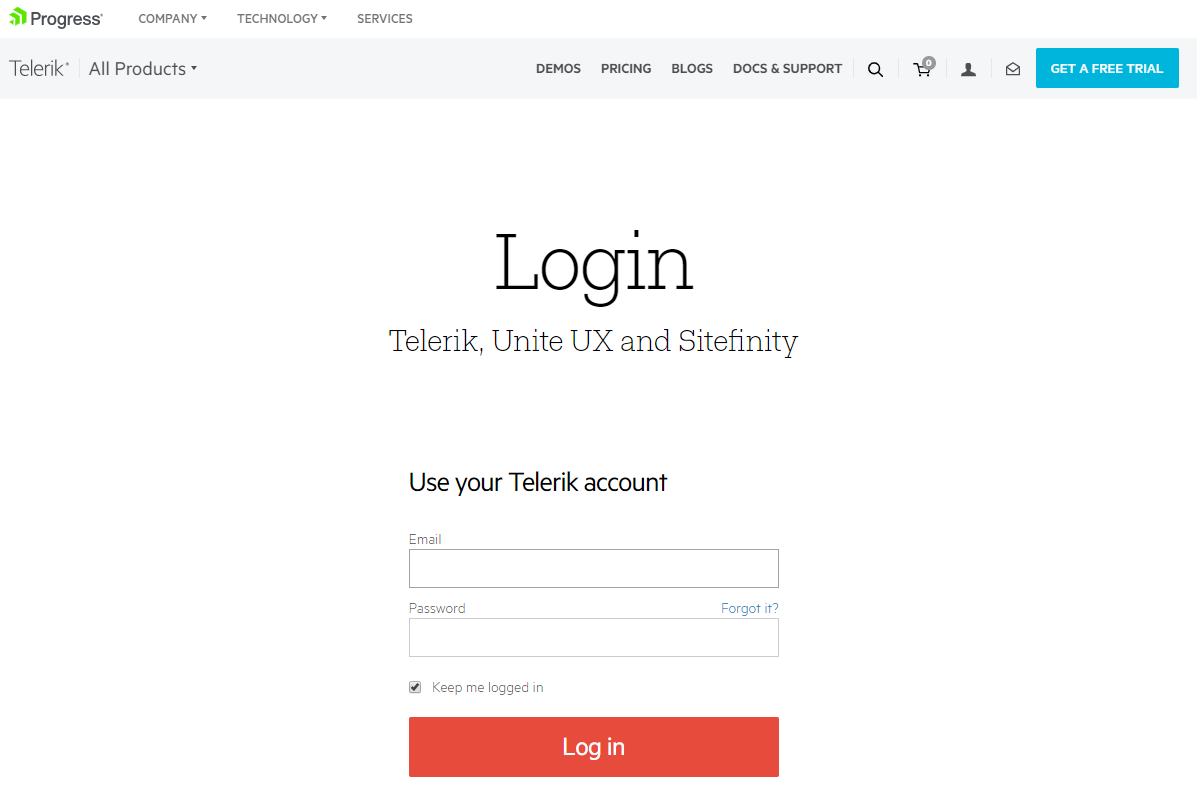
Navigate to Telerik.com and login to your Telerik account.

### Find the Available Downloads
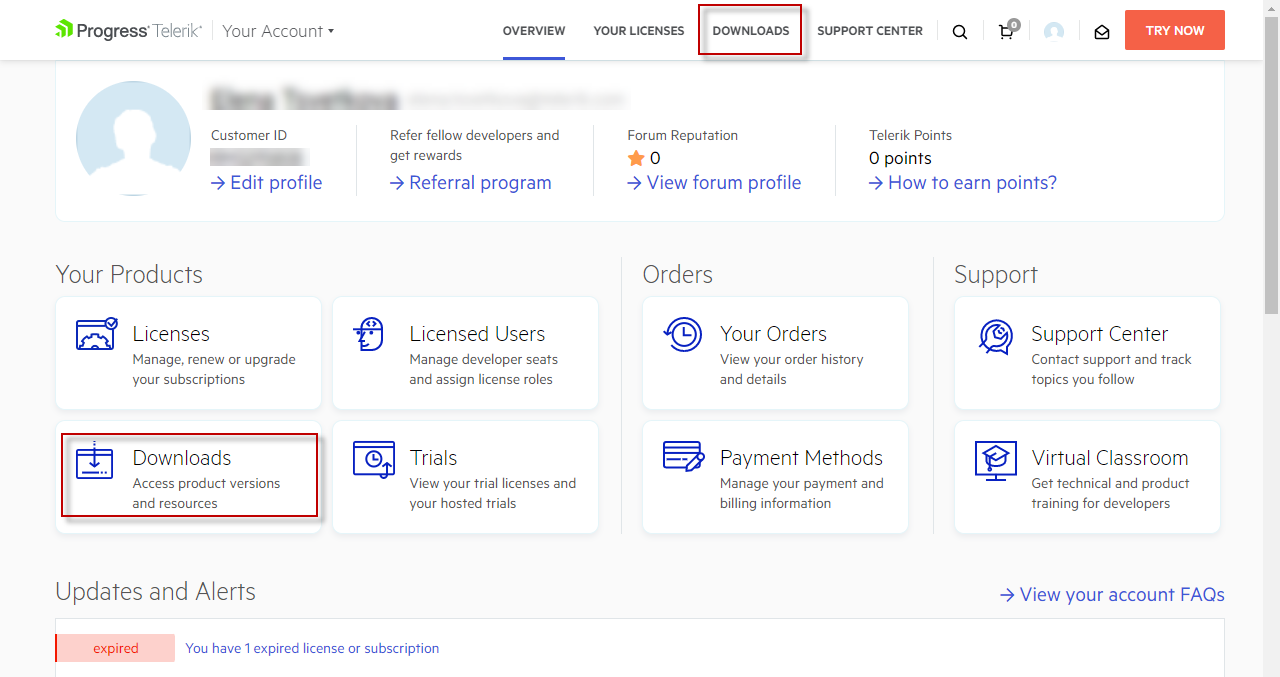
To find the latest available versions of Test Studio, including Service Packs and Latest Internal Builds, go to the **Downloads** page.
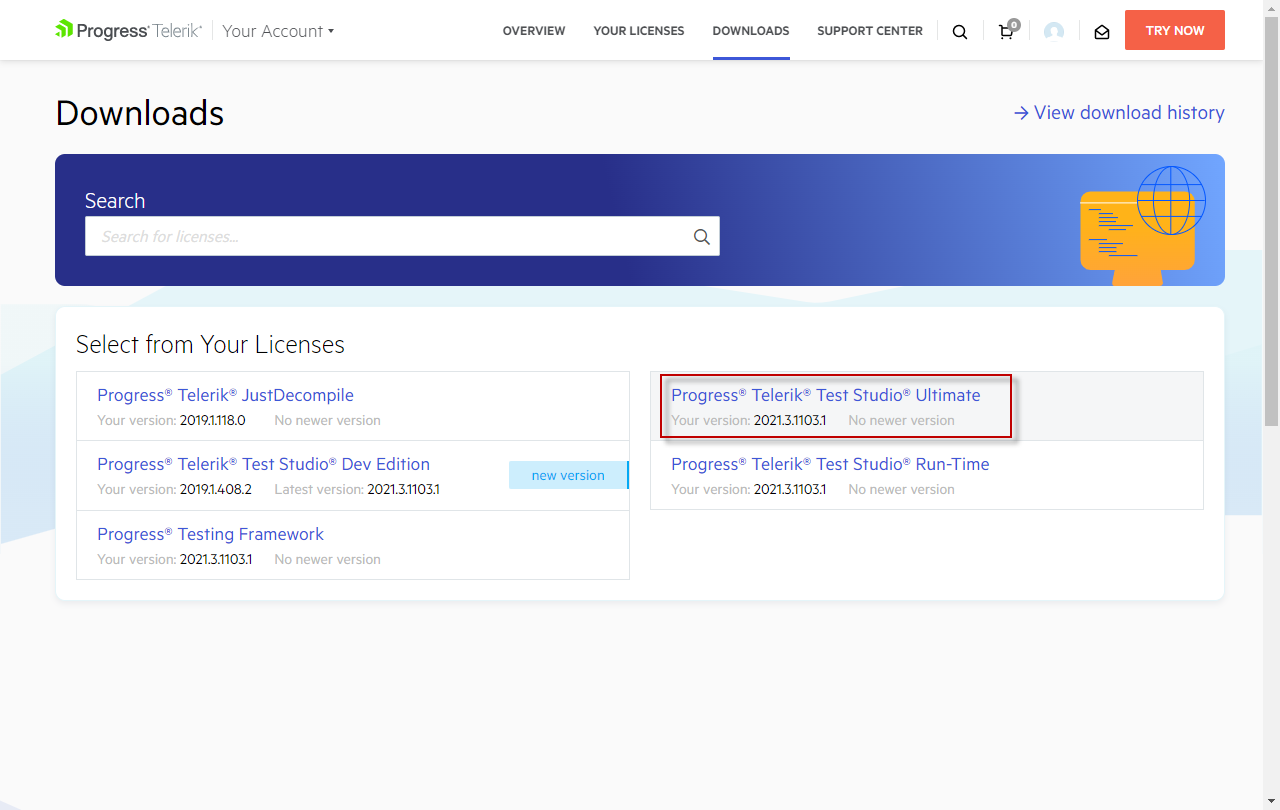
Choose the Test Studio version you have purchased.
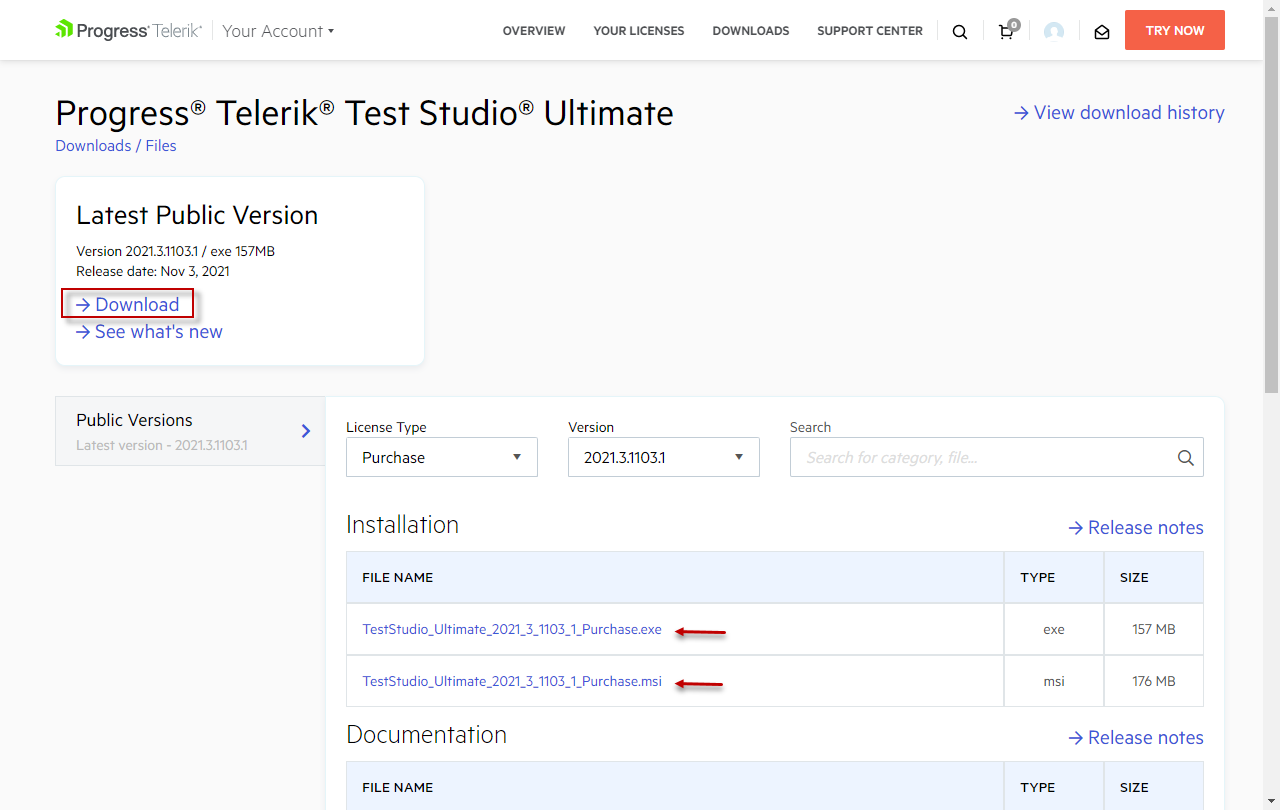
Use the *Download* link to get the \*.exe file for the latest available version of Test Studio. Use the \*.msi file link to download this type of installer. Use the *Version* dropdown to choose a previous version of the product.
Proceed with the standard installation process.