# Add Test Studio Installation Path to Environment Variables
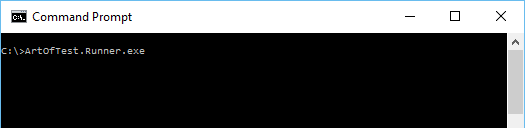
Once you have developed an automated test solution with Test Studio, you can execute the test and test lists through the command prompt using the Test Studio command line runner called ArtOfTest.Runner.exe.
Whenever you want to call the execution engine, you need to navigate to the Test Studio installation *Bin* sub-folder. This can get tedious, for example, when integrating the automated test solution into continuous integration workflow. For such occasions you can rely on the Windows operating system features, which allows you to call an executable directly from the command line. Namely, this is the system variable **PATH** that Windows operating system uses to locate needed executables from the command line or Terminal window.
If you add the **Test Studio installation *Bin* sub-folder** to the **PATH** environment variable, you will be able to call the Test Studio command line runner **ArtOfTest.Runner.exe** from any directory within the command prompt.
Below you can find the necessary steps to add the *Bin* sub-folder to the **PATH** environment variable in Windows 10 and Windows 7.
## Windows 10
1. Open **Windows Control Panel** and navigate to **System** (Control Panel->System and Security->System).
2. After the **System** screen appears, select **Advanced system settings**.
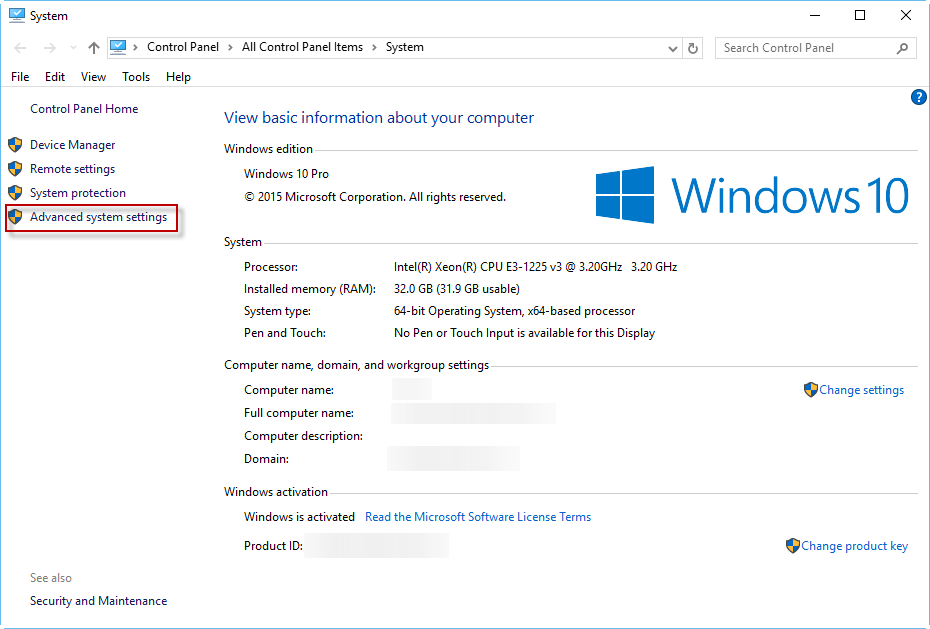
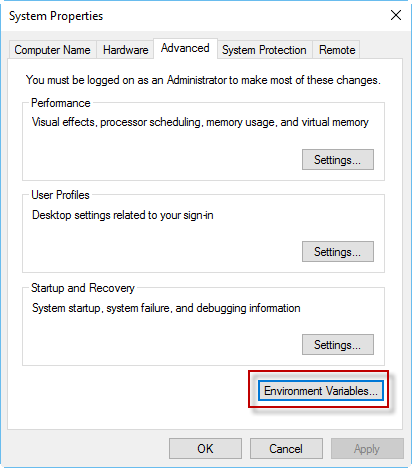
3. This will open the **System Properties** window. Select the **Advanced** tab and then the **Environment Variables** button.
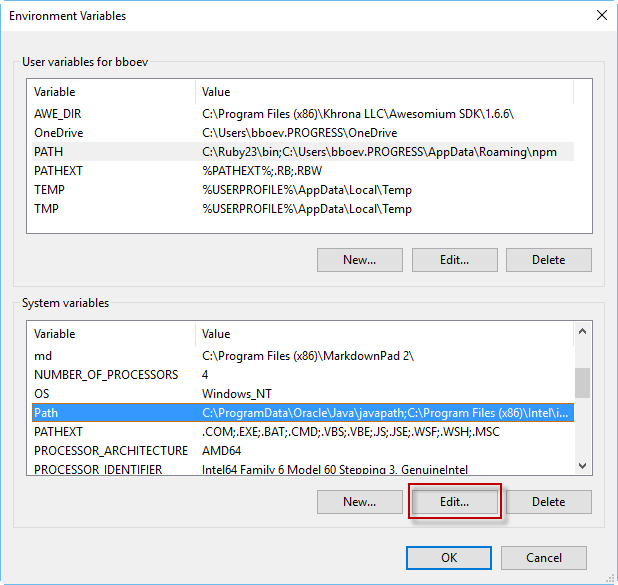
4. Under the **System variables** section, scroll down and highlight the **Path** variable. Click the **Edit** button.
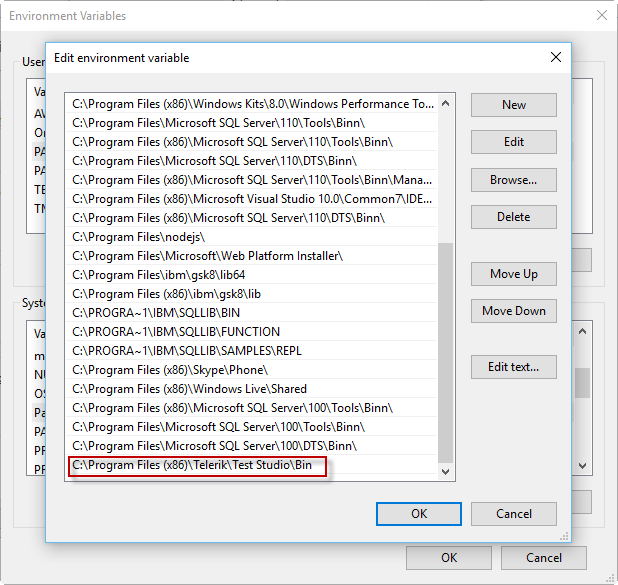
5. In the Edit screen, click **New** and add the path to the **Bin** directory of Test Studio. In this example, I added **C:\Program Files (x86)\Progress\Test Studio\Bin**.
6. Click the **OK** button. You now have access to the **ArtOfTest.Runner.exe** from any directory on your computer. Make sure you start a new instance of the command prompt to get the updated variables.
## Windows 7
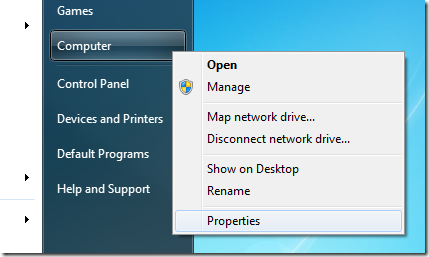
1. To do this right-click on **Computer** and select **Properties**.
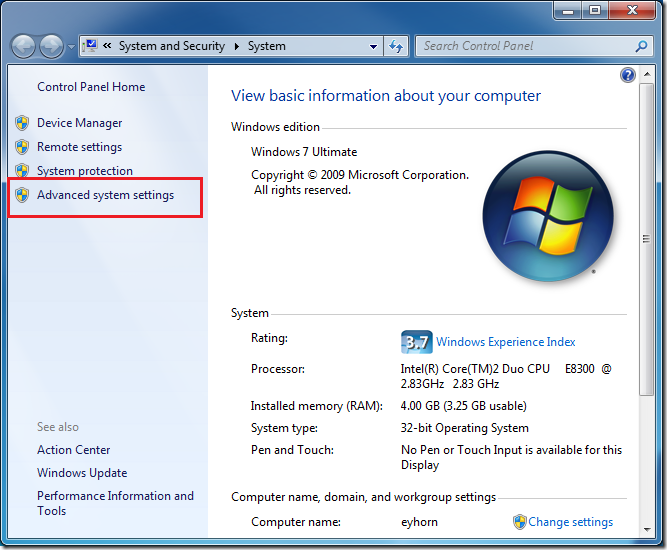
2. After the **System** screen appears, select **Advanced system settings**.
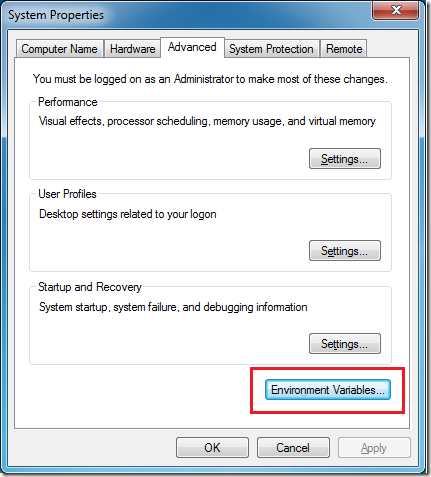
3. This will open the **System Properties** window. Select the **Advanced** tab and then the **Environment Variables** button.
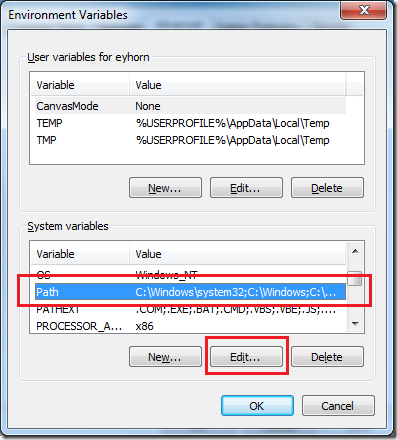
4. Under the **System variables** section, scroll down and highlight the **Path** variable. Click the **Edit** button.
5. In the Edit screen, append the path to the **Bin** directory to the end of the string that already exists in the **Variable value** text box (with a semicolon before the path). In this example, I added "**;C:\Program Files (x86)\Progress\Test Studio\Bin** - Notice that I added a semicolon to separate the previous path from the path to the *ArtOfTest.Runner.exe* directory.
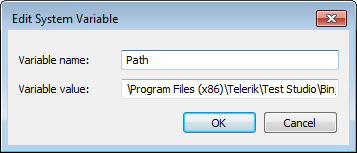
6. Click the **OK** button. You now have access to the execution engine from any directory on your computer. Make sure you start a new instance of the command prompt to get the updated variables.
