# Scheduling Configuration in Test Studio
The Test Studio Scheduling setup allows you to configure a set of machines, connected together to execute the automated tests unattended. The results generated from the scheduled test runs are stored in a way to allow anyone in the team to review these.
Test Studio test lists can be executed from your local project on any machine in the network, including virtual machines, configured in the Test Studio Scheduling setup. The test list runs allow different configurations - when to be executed, on which machines (for multiple machines setup), whether to generate an automatic email report, etc. If you have to run large amount of tests, you can spread the workload between different machines and reduce the total execution time. All the results will be stored in one centralized location for you to examine later.
You can find the following topics in this article:
* [Which Are the Scheduling Setup Components?](https://www.telerik.com/teststudio/documentation/automated-tests/scheduling/overview#which-are-the-scheduling-setup-components)
* [How Many Machines Do I Need?](https://www.telerik.com/teststudio/documentation/automated-tests/scheduling/overview#how-many-machines-do-i-need)
* [How to Configure the Scheduling Setup?](https://www.telerik.com/teststudio/documentation/automated-tests/scheduling/overview#how-to-configure-the-scheduling-setup)
> **Important!**
>
>
> The Test Studio services providing test storage, scheduled execution, and web results display - the Storage Service, the Scheduling Service, and the Executive Dashboard Service, communicate via web protocols. Considering this, we strongly **advise installing these services in a secured test environment** without access to business or environment-critical assets.
## Which Are the Scheduling Setup Components?
Test Studio Scheduling setup consists of few services on top of the default product installation, which needs to be configured properly to allow the communication between them.
The Test Studio services, which needs to be added are as follows:
* [Scheduling Service](https://www.telerik.com/teststudio/documentation/automated-tests/scheduling/overview#scheduling-service)
* [Storage Service](https://www.telerik.com/teststudio/documentation/automated-tests/scheduling/overview#storage-service)
* [Executive Dashboard Service](https://www.telerik.com/teststudio/documentation/automated-tests/scheduling/overview#executive-dashboard-service)
> **Tip**
>
>
> The Test Studio Services are **not included in the default Test Studio installation**, but **can be added in the installation** later at any time.
>
>
> The **Test Studio Run-time installation includes the Services in its default state**.
### Scheduling Service
The Scheduling Service is the central component of the overall setup - it is in the middle of all operations and can be considered it controls the process of running a test list on any remote machine. All execution clients, the Storage Service and the projects, from which tests are executed, are all connected to the same Scheduling service.
* **By default the Scheduling service uses port 8009**. It can be changed with any other free port for the specific environment in the *Scheduling config wizard*.
* Apart from the default set *localhost*, **the *Scheduling config wizard* accepts IP address or machine name** for pointing the computer, which hosts the Scheduling service.
### Storage Service
The Storage Service, which keeps the project files and results, is the help tool for the Scheduling service. The Storage service maintains a database to store the files and the database provider, which Test Studio uses is **MongoDb**. The files from the Storage database gets deployed to the execution machines upon scheduled or remote test list run.
> **Note**
>
>
> The **installation of the third party component MongoDB is automatically triggered** during the Storage service installation.
>
>
> If the Test Studio installation wizard detects an existing compatible MongoDB installation, this additional installation will be skipped.
* **By default the Storage service uses port 8492**. It can be changed with any other free port for the specific environment in the *Scheduling config wizard*.
* Apart from the default set *localhost*, **the *Scheduling config wizard* accepts IP address or machine name** for pointing the computer, which hosts the Storage service.
* The Storage Service uses the default connection string to connect to MongoDB. If you reconfigure MongoDB, you need to apply the changes in the *Scheduling config wizard* as well.
* The Scheduling server contacts the Storage Service for every scheduled job or results review. The Storage Service communicates internally to the MongoDB database to provide the queried info.
### Executive Dashboard Service
The Executive Dashboard is the tool, which provides access to all results generated from scheduled test list runs for all team members - including these, who do not have Test Studio installed. The Executive Dashboard service hosts a *localhost* page on the machine, where the service is installed. The local web page visualizes the results stored in the storage database.
* **By default it uses port 8085**. It can be changed with any other free port for the specific environment in the *Scheduling config wizard*.
* The Executive Dashboard service communicates with the configured Storage service. So, if you reconfigure the Storage Service, you need to change the details for the Executive Dashboard Service as well.
* The *localhost* page can be loaded from the *Scheduling config wizard*.
> **Important**
>
>
> Initial configuration or any follow-up changes in the **Test Studio Scheduling configuration must be applied from a Windows Administrator account**.
## How Many Machines Do I Need?
The Scheduling configuration can be enabled on a [single machine](https://www.telerik.com/teststudio/documentation/automated-tests/scheduling/overview#single-machine-scheduling-configuration), as well as it supports [multiple execution machines](https://www.telerik.com/teststudio/documentation/automated-tests/scheduling/overview#multiple-machines--scheduling-configuration).
> **Note**
>
>
> Each machine, which will act as an **Execution server, requires minimum Test Studio Run-time installation**.
### Single Machine Scheduling Configuration
The Scheduling configuration can be **completely enabled on a single machine** with the Test Studio Ultimate or Test Studio Web\&Desktop installation (modified to include the services).
### Multiple Machines Scheduling Configuration
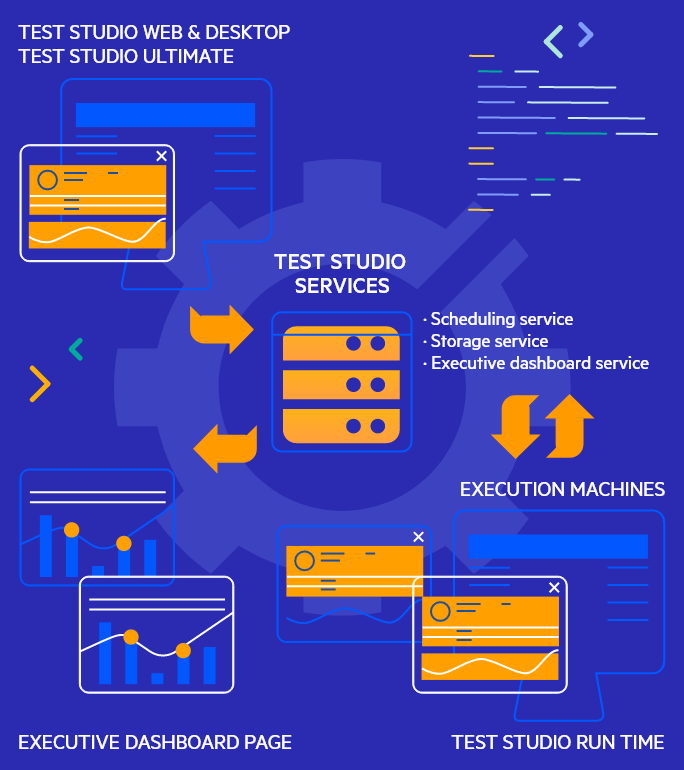
If there are **multiple machines dedicated for test execution**, you need:
* at least **one machine with the Test Studio Ultimate or Test Studio Web\&Desktop** installation (can use the default installation) - it will be used to create the tests for the automated testing project;
* **one machine, which hosts the Test Studio services** - this can be any of the machines in the setup, so it can use either full product installation, or Run-time edition instance;
* and at least **one machine to execute test lists - this one needs minimum the Run-time installation**.
> **Tip**
>
>
> Find out more about the **Test Studio Scheduling architecture** in this blog post.
## How to Configure the Scheduling Setup?
There are few steps to follow in order to setup the Scheduling configuration:
1. **Choose a machine, which will host the Test Studio Services**
In Test Studio we call this machine the **Scheduling server** - it can be any of the available machines as long as it is accessible for all other machines. It can be considered the **centralized component**, which communicates with all other components of the configuration.
2. **Add/Install the Test Studio Services**
Depending on which machine in the setup hosts the Services - either modify the installation of the Standalone Test Studio, or install the default Run-time product.
3. **Configure the Services**
The Scheduling config wizard allows you to setup all Test Studio Services. The default ports used for the Scheduling communication are registered for non-admin users with the installation of the services. Re-applying the settings, or changing the ports requires Admin user permissions.
4. **Connect the Execution Machines to the Scheduler**
The Execution machines are also called **Execution Servers** in Test Studio - these are all machines, which are dedicated to execute the tests. The **minimum installation for these is the Run-time edition** of Test Studio. If there is already a Scheduling server machine, you can disable the Test Studio services from the installed components on the Execution machines.
5. **Configure Any Project for Remote Execution**
Once the machines and components are set up, you need to connect a project to the Scheduler - that way the **scheduled test list runs will go through the configured Services**.
When these prerequisites are complete - including the case when all these components are hosted on the same machine, the **scheduled test list executions will use the Test Studio Services with all their benefits** - recurring runs, test distribution on selected machines, automatic email notification, results in the Executive Dashboard, etc.
## See Also
* The Architecture of Remote Execution With Test Studio