# .NET MAUI PDF Viewer Selection Configuration
The Telerik UI for .NET MAUI PDF Viewer exposes the `SelectionSettings ` property which you can use to configure the colors applied to the selected text and completely customize the displayed selection menu.
This article lists the `SelectionSettings` properties that allow you to customize the selection.
By default, the selection is enabled. If you want to disable the selection, set the `IsSelectionEnabled` to `False`.
## Changing the Fill and Indicator Colors
To control the fill color and the color of the drag handles, use the following properties:
* `SelectionFill`—Specifies the background color applied to the selected text.
* `SelectionIndicatorColor`—Specifies the color of both handles around the selected text, which are used to modify the selection. This is applicable on mobile.
## Customizing the Selection Menu
When the user selects some text, this opens a default selection menu (context menu) with a **Copy** action. You can customize this menu by using the following properties:
* `MenuItems` (`PdfViewerSelectionMenuItemCollection`)—Specifies a collection of menu items that are displayed in the selection menu.
* `SelectionMenuControlTemplate` (`ControlTemplate`)—Specifies the `ControlTemplate` of the selection menu. The template is used to display the items in the selection menu.
* `PdfViewerSelectionMenuItem`—Specifies the items that will be added to the `MenuItems` collection. `PdfViewerSelectionMenuItem` has the following properties:
* `Text` (`string`)—Specifies the text of the `PdfViewerSelectionMenuItem`.
* `Command` (`ICommand`)—Specifies the command associated with the `PdfViewerSelectionMenuItem`.
> The `SelectionMenuControlTemplate` property applies on iOS, MacCatalyst and Android. On WinUI the native context menu is displayed to list the selection menu items.
## Example: PDF Viewer Custom Selection Menu
The following steps demonstrate how to use the .NET MAUI PDF Viewer properties to customize the selection menu:
**1.** Add the PDF Viewer definition with the event:
```XAML
```
**2.** Define an implicit style for the `PdfViewerSelectionMenu`:
```XAML
```
**3.** Add the following view model for the `Command`:
```C#
public class ViewModel : NotifyPropertyChangedBase
{
public ViewModel()
{
this.GetSelectedTextCommand = new DisplaySelectedTextCommand();
}
public ICommand GetSelectedTextCommand { get; set; }
class DisplaySelectedTextCommand : ICommand
{
public event EventHandler CanExecuteChanged;
public bool CanExecute(object parameter)
{
PdfViewerSelectionCommandContext context = parameter as PdfViewerSelectionCommandContext;
return context != null;
}
public void Execute(object parameter)
{
PdfViewerSelectionCommandContext context = (PdfViewerSelectionCommandContext)parameter;
var selection = context.PdfViewer.Document.Selection;
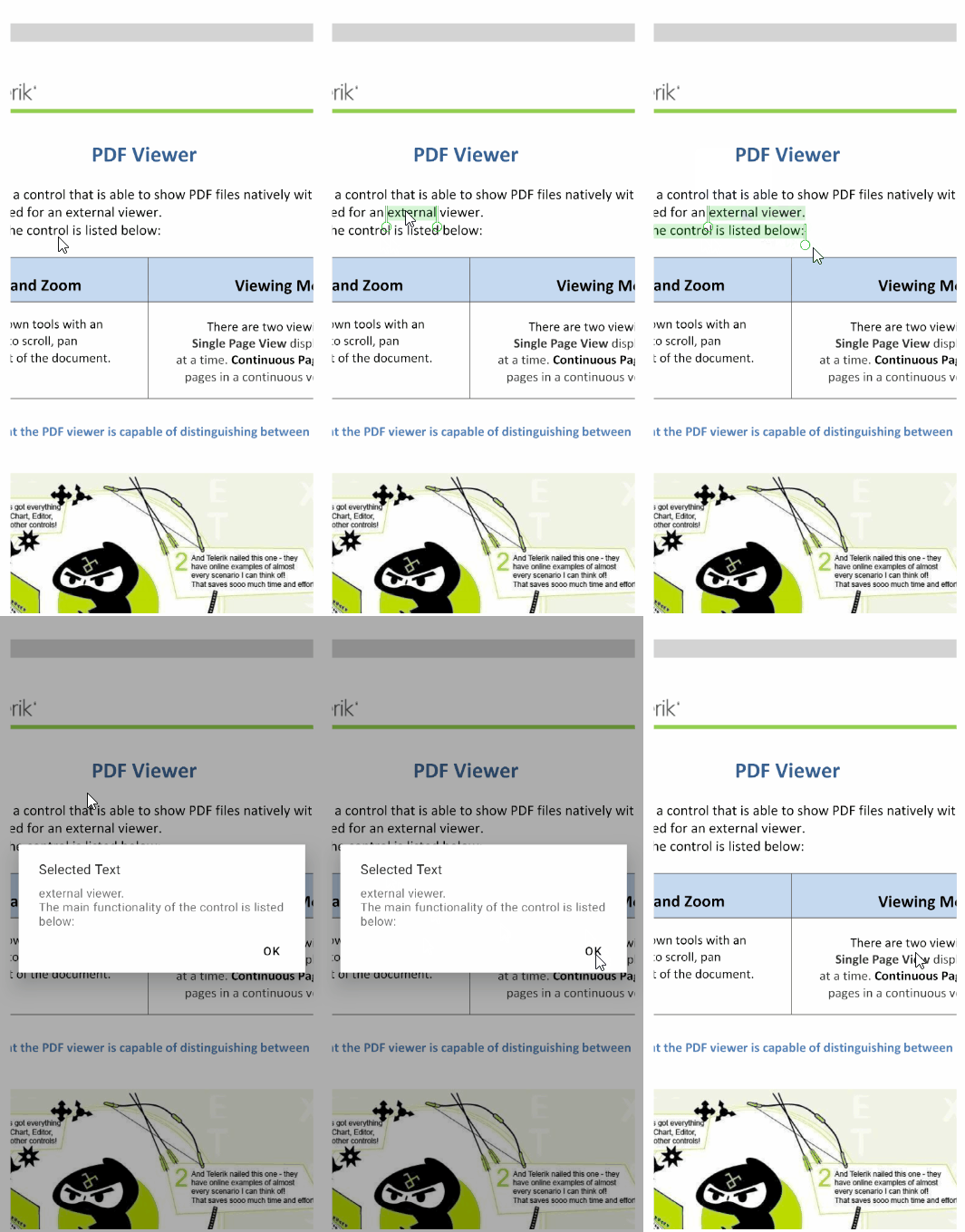
Application.Current.Windows[0].Page.DisplayAlert("Selected Text", selection.GetSelectedText(), "OK");
lock (selection)
{
selection.Clear();
}
}
}
}
```
**4.** Set PDF document to the PDF Viewer's `Source`:
```C#
Func> streamFunc = ct => Task.Run(() =>
{
Assembly assembly = typeof(GettingStartedXaml).Assembly;
string fileName = assembly.GetManifestResourceNames().FirstOrDefault(n => n.Contains("pdf-overview.pdf"));
Stream stream = assembly.GetManifestResourceStream(fileName);
return stream;
});
this.pdfViewer.Source = streamFunc;
```
This is how the selection looks after applying a customization:
> For the runnable PDF Viewer Selection example, see the [SDKBrowser Demo Application](https://www.telerik.com/maui-ui/documentation/demos-and-sample-apps/sdkbrowser-app) and go to **PdfViewer > Selection category**.
## See Also
* [.NET MAUI PDF Viewer Forum Page](https://www.telerik.com/forums/maui?tagId=2059)
* [Telerik .NET MAUI Blogs](https://www.telerik.com/blogs/mobile-net-maui)
* [Telerik .NET MAUI Roadmap](https://www.telerik.com/support/whats-new/maui-ui/roadmap)