# View Specific Properties
You can check the [Configuration](https://www.telerik.com/winui/documentation/controls/radscheduler/features/viewdefinitions/configuration) article for more information about the properties that are common for all views.
## DayView and WeekView Specific Properties
Some ViewDefinitions have specific properties. Here is a list of specific properties for DayView and WeekView:
* **EnableSmallAppointmentRendering**: Gets or sets whether appointments with duration smaller than MinorTickLength will be rounded to MinorTickLength.
> When **EnableSmallAppointmentRendering** is enabled, RadScheduler will display the appointments with zero duration inside DayViewDefinition and WeekViewDefinition.
* **ShowWeekGroupHeaders**: Gets or sets whether the WeekHeaders should be visible.
* **WeekGroupHeaderStringFormat**: Gets or sets the format that will be applied to the WeekHeaders. After setting the **ShowWeekGroupHeaders** to **True** you can customize the string format of the week numbers displayed in the Header.
**Example 1** shows how to set the **ShowWeekGroupHeaders** and **WeekGroupHeaderStringFormat** property in WeekView.
#### **Example 1: Setting the ShowWeekGroupHeaders and WeekGroupHeaderStringFormat in xaml**
```XAML
```
#### **Example 2: Setting the ShowWeekGroupHeaders and WeekGroupHeaderStringFormat in code**
```C#
weekDefinition.ShowWeekGroupHeaders = true;
weekDefinition.WeekGroupHeaderStringFormat = "Week number {0}, {1:D}";
```
#### **Figure 1: Result from Examples 1 and 2**

* **ShowAllDayArea**: Gets or sets a value indicating whether the all-day area is visible or not. This area displays appointments which have their **IsAllDayEvent** property set to **True**.
#### **Figure 2: RadScheduler AllDayArea**


## MonthView specific properties
Here is a list of the properties that are specific for MonthView:
* **AllowCustomAppointmentSize**: Sets whether the appointments with custom size can be displayed in the MonthViewDefinition. By default **AllowCustomAppointmentSize** is set to **False**.
## TimelineView specific properties
### StretchAppointments
It sets whether the appointments will be stretched to fill all available space in the TimeSlot - by default it is set to **False**.
#### **Example 3: Setting the StretchAppointments property**
```XAML
```
### ApplyStartEndTimeToEachDay
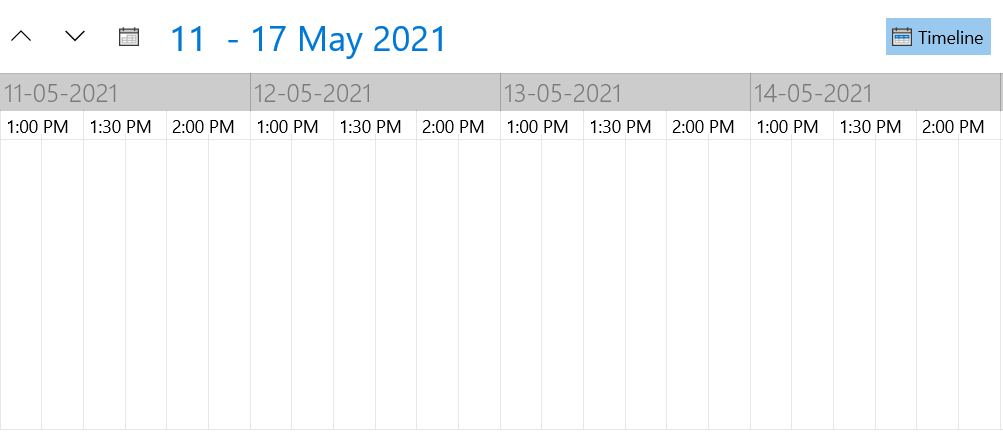
When the **DayStartTime** and **DayEndTime** properties are set to the TimelineViewDefinition, the **DayStartTime** property gets applied only for the first day of the displayed range of days, while the **DayEndTime** only for the last one. In order to apply them for each day of the VisibleDays range, the **ApplyStartEndTimeToEachDay** property needs to be set to **True**. The **ApplyStartEndTimeToEachDay** is of type bool - its default value is **False**.
The following example illustrates how to set the DayStartTime, DayEndTime and ApplyStartEndTimeToEachDay for the TimelineView:
#### **Example 4: Setting the ApplyStartEndTimeToEachDay in xaml**
```XAML
```
#### **Example 5: Setting the ApplyStartEndTimeToEachDay in code**
```C#
timelineDefinition.DayStartTime = new TimeSpan(13, 00, 0);
timelineDefinition.DayEndTime = new TimeSpan(14, 30, 0);
timelineDefinition.ApplyStartEndTimeToEachDay = true;
```
> important Please notice that the **DayStartTime** property should always be set to a time earlier than the **DayEndTime**, otherwise the start and end times won't be applied for each day.
#### **Figure 1: Result from Example 5**
### TimeRulerGroupStringFormat
It sets the format applied on the **TimeRulerGroupItem**.