# Quick Access Toolbar
Telerik **RadRibbonView** provides a simple and consistent way for building interfaces similar to the RibbonView used in Microsoft Office. The **RadRibbonView** consists of various elements, one of which is the **Quick Access Toolbar**. This topic discusses concepts fundamental to the **Quick Access Toolbar** at first and then goes into the usage of the **QuickAccessToolbar** class and its features.
> tip Before proceeding with this tutorial, it is recommended to get familiar with the [Visual Structure](https://www.telerik.com/winui/documentation/controls/radribbonview/visual-structure) of the **RadRibbonView** control.
## Fundamentals
> You can access the **QuickAccessToolBar** control through an alias pointing to the **Telerik.UI.Xaml.Controls** namespace: `xmlns:telerik="using:Telerik.UI.Xaml.Controls"`
The **Quick Access Toolbar** is used to render a set of **RadRibbonView** controls that are most commonly used in the application. It is rendered above the **ApplicationButton** to make it easily accessible to end-users.
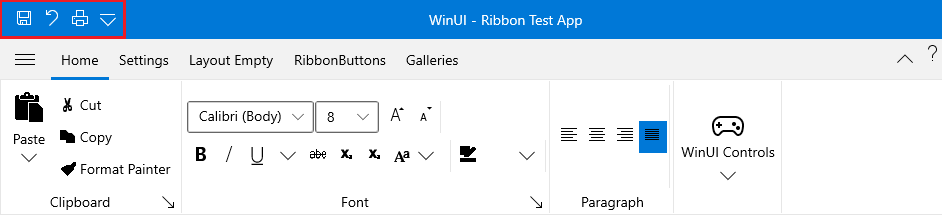
This is the **default** position of the **Quick Access Toolbar**. However, it is also possible to position the Quick Access Toolbar **below** the Ribbon control. An integral part of the Quick Access Toolbar is the **Quick Access Menu**, which is rendered right next to the Quick Access Toolbar.
The Quick Access Menu can be used by the end-user to choose the place of the Quick Access Toolbar: **Above** or **Below** the ribbon, or to **Hide** the entire ribbon control.
The **QuickAccessToolbar** control is an **Microsoft.UI.Xaml.Controls.ItemsControl**. That fact allows you to easily customize it by adding/removing commands.
Check out the rest of this topic, which is entirely dedicated to the **QuickAccessToolbar**.
## Adding QuickAccessToolbar to a RadRibbonView Control
In order to add a quick access toolbar to your **RadRibbonView** control you need to set the **RadRibbonView**'s **QuickAccessToolbar** property. The next several code-snippets show you how to do that in XAML, as well as in the code-behind.
#### **Example 1: Adding QuickAccessToolbar**
```XAML
```
## Adding QuickAccessToolbar Items
When you want to add toolbar items to your **RadRibbonView**'s Quick Access Toolbar, you need to populate the **QuickAccessToolbar**'s **Items** collection. It is handy to use the **RadRibbonButton**, **RadRibbonSplitButton**, and **RadRibbonDropDownButton** controls.
> tip For more information about the different types of **RadRibbonButtons** and their properties, take a look at the [Ribbon Buttons](https://www.telerik.com/winui/documentation/controls/radribbonview/ribbon-buttons/overview) topic.
The next example demonstrates how to add several buttons as toolbar items to your Quick Access Toolbar.
#### **Example 2: Add items to QuickAccessToolBar**
```XAML
```
## QuickAccessToolbar Properties
* **CustomizationMenuVisibility**: A property of type **Visibility** that gets or sets a value indicating whether the customization menu will be visible or not.
* **Position**: An enumeration property of type **QuickAccessToolBarPosition** that gets or sets the toolbar position. This enumeration property allows the following values:
* **NotHosted**: The Toolbar will not be displayed.
* **AboveRibbon**: The Toolbar will be displayed **above** the Ribbon.
* **BelowRibbon**: The Toolbar will be displayed **below** the Ribbon.
* **AlternativeForeground**: A property of type **Brush** that gets or sets the alternative foreground brush used for buttons when QAT is hosted below the ribbon.
## Changing the QuickAccessToolbar Position
The default position of the **QuickAccessToolbar** is right next to the Backstage Menu button. However, you can change its position either at design-time or run-time. In order to change the **QuickAccessToolbar** position at design-time, you need to set the **RadRibbonView**'s **QuickAccessToolBarPosition** property. Its values are predefined in the **QuickAccessToolBarPosition** enumeration, which exposes the following fields:
* **AboveRibbon**: The **QuickAccessToolbar** will be place abo the ribbon.
* **BelowRibbon**: The **QuickAccessToolbar** will be below the ribbon.
* **NotHosted**: The **QuickAccessToolbar** will not be hosted. Use this value, when you want to hide the **QuickAccessToolbar**.
The next example demonstrates how to set the **QuickAccessToolBarPosition** property.
> tip The default value of the **RadRibbonView**'s **QuickAccessToolBarPosition** property is **QuickAccessToolBarPosition.AboveRibbon**.
> **RadRibbonView** has a built-in feature, which allows you to change the **QuickAccessToolbar** position run-time.
## Events
The **RadRibbonView** class exposes the **ToolBarPositionChanged** event, which is fired when the **QuickAccessToolbar** position is changed.
#### **Example 3: Subscribe to ToolBarPositionChanged event**
```XAML
```
#### **Example 4: ToolBarPositionChanged event handler**
```C#
private void radRibbonView_ToolBarPositionChanged( object sender, Telerik.UI.Xaml.RadRoutedEventArgs e )
{
RadRibbonView ribbonView = sender as RadRibbonView ;
QuickAccessToolBarPosition newPosition = ribbonView.QuickAccessToolBarPosition;
// Do some logic here.
}
```
> tip You can handle the **ToolBarPositionChanged** event to get notified when the user changes the ToolBar position.
## See Also
* [Selection](https://www.telerik.com/winui/documentation/controls/radribbonview/features/selection)
* [Resizing](https://www.telerik.com/winui/documentation/controls/radribbonview/features/resizing)
* [Minimization](https://www.telerik.com/winui/documentation/controls/radribbonview/features/minimization)