# Getting Started with WinUI PdfViewer
This guide provides the information you need to start using the Telerik UI for WinUI PdfViewer by adding the component to your project.
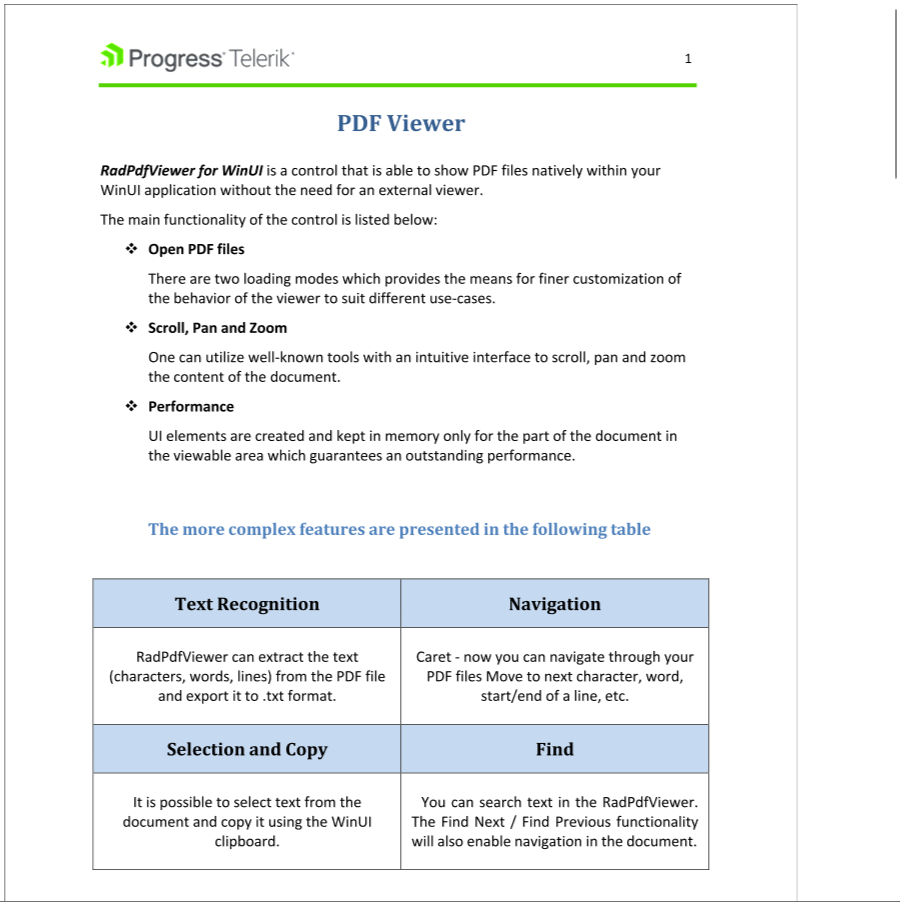
At the end, you will be able to achieve the following result.

## Prerequisites
Before adding the PdfViewer, you need to:
1. [Set up your WinUI project](https://www.telerik.com/winui/documentation/installation-and-deployment/systemrequirements).
2. Create your Telerik UI for WinUI application and install the Telerik UI for WinUI components depending on the required installation approach:
* [Getting Started with NuGet](https://www.telerik.com/winui/documentation/getting-started/first-steps-nuget#step-2-create-the-winui-application)
* [Getting Started with the MSI file](https://www.telerik.com/winui/documentation/getting-started/first-steps-msi#step-2-create-the-winui-application)
* [Getting Started with the ZIP file](https://www.telerik.com/winui/documentation/getting-started/first-steps-zip#step-2-create-the-winui-application)
* [Getting Started with the Telerik UI Visual Studio Extension](https://www.telerik.com/winui/documentation/getting-started/first-steps-vsextension#step-2-create-the-winui-application)
## Add the Assembly References
To use the `RadPdfViewer` component, add references to the following assemblies:
* `Telerik.WinUI.Controls.dll`
* `Telerik.Licensing.Runtime.dll`
* `Telerik.WinUI.Controls.PdfViewer.dll`
* `Telerik.Documents.Fixed.dll`
* `Telerik.Documents.Core`
* [Microsoft.Graphics.Win2D](https://www.nuget.org/packages/Microsoft.Graphics.Win2D) NuGet package (version 1.0.1 and later)
## Define the Component
To render a PDF file using the `RadPdfViewer` control, define it and set its `DocumentSource` property. You can access the PdfViewer through the `xmlns:telerik="using:Telerik.UI.Xaml.Controls"` alias that points to the `Telerik.UI.Xaml.Controls` namespace.
#### **Setting up the Pdf**
```XAML
```
## Define the Toolbar
The PdfViewer comes with a built-in toolbar component which has a set of predefined options. To use it, add the `RadPdfViewerToolBar` control in the view and set its `RadPdfViewer` property.
#### **Setting up the toolbar**
```XAML
```

## Telerik UI for WinUI Learning Resources
* [Telerik UI for WinUI PdfViewer Component](https://www.telerik.com/winui/pdfviewer)
* [Getting Started with Telerik UI for WinUI Components](https://www.telerik.com/winui/documentation/getting-started/first-steps-nuget)
* [Telerik UI for WinUI Installation](https://www.telerik.com/winui/documentation/installation-and-deployment/installing-which-file-do-i-need)
* [Telerik UI for WinUI Examples](https://www.telerik.com/winui/documentation/examples/demos-app)
* [Telerik UI for WinUI Accessibility](https://www.telerik.com/winui/documentation/common/accessibility)
* [Telerik UI for WinUI License Agreement](https://www.telerik.com/purchase/license-agreement/winui)
## See Also
* [Document Model](https://www.telerik.com/winui/documentation/controls/radpdfviewer/document-model)
* [Keyboard Support](https://www.telerik.com/winui/documentation/controls/radpdfviewer/keyboard-support)
* [ToolBar](https://www.telerik.com/winui/documentation/controls/radpdfviewer/toolbar)