# Overview
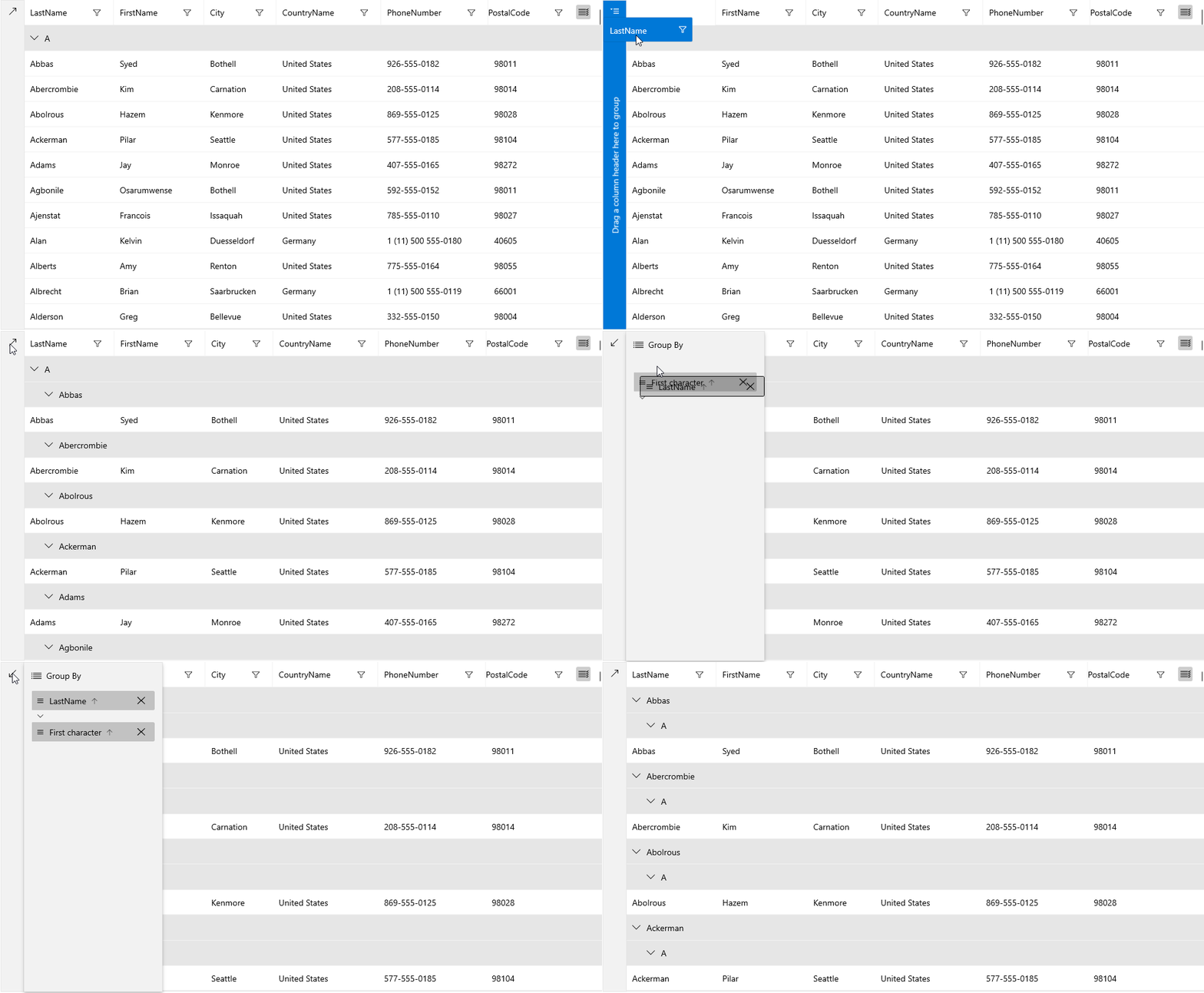
The **RadDataGrid** control has a built-in **Grouping UI** and also provides support for programmatic grouping.
## Grouping Actions
The Grouping UI supports the following actions:
* **Reorder**—You can reorder the elements in the Grouping UI and thus change the priority of the corresponding group descriptors.
* **Sort**—You can sort the group headers in an ascending or descending order by the group key.
* **Remove**—You can remove groups.
You can also expand and collapse groups by a click/tap on the group header.
> Dragging a column header to the Grouping UI adds a **PropertyGroupDescriptor** to the **GroupDescriptors** collection of the RadDataGrid.
## UserGroupMode
The grouping UI is enabled by design. You can control its visibility through the **UserGroupMode** property.
#### **Example 1: Disable grouping UI**
```XAML
```
## GroupPanelPosition
You can also control the position of the grouping UI with the **GroupPanelPosition** property that supports the following options
* **Left**—Displays the grouping UI on the left side of the control. This is the default value for an UWP application.
* **Bottom**—Displays the grouping UI on the bottom side of the control.
* **Top**—Displays the grouping UI on the top side of the control.
* **TopInline**—Displays the grouping UI on the top side of the control with the group items displayed inline. This is the default value for a Windows application.
#### **Example 2: Display grouping UI at the bottom**
```XAML
```
## GroupHeaderDisplayMode
You can choose whether the group headers will be frozen at the top or are scrollable together with the content through the **GroupHeaderDisplayMode** property.
#### **Example 3: Scroll group headers together with the content**
```XAML
```
## Programmatic Grouping
Programmatic grouping can be done by adding group descriptors to the **GroupDescriptors** collection. There are two types of descriptors:
* **[PropertyGroupDescriptor](https://www.telerik.com/winui/documentation/controls/raddatagrid/grouping/raddagagrid-propertygroupdescriptor)**—Uses a property from the model as a group key.
* **[DelegateGroupDescriptor](https://www.telerik.com/winui/documentation/controls/raddatagrid/grouping/datagrid-delegategroupdescriptor)**—Creates a custom group key.
> Each GroupDescriptor adds a new level of grouping.