# Modifying Exported Data
The exporting process can be customized at runtime using the `ElementExporting` event of `RadDataGrid` and the `DataGridExportOptions` class. The events are raised for each element that is exported, and can be used to change the value or the corresponding cell style.
## Export Options
The options are represented by the `DataGridExportOptions` which contains basic information about the export settings. The `DataGridExportOptions` is provided to the `Export` method of `RadDataGrid`. The class provides the following settings:
* `Items`—Collection that contains the items that will be exported.
* `Culture`—The culture info used during the export.
* `ShowColumnHeaders`—Determines if the column headers of the data grid will be exported.
* `ShowColumnFooters`—Determines if the column footers of the data grid will be exported.
* `ShowGroupFooters`—Determines if the group footers of the data grid will be exported.
* `AutoFitColumnsWidth`—Determines if the width of the columns in the exported document will be calculated automatically based on their content.
* `IgnoreCollapsedGroups`—Determines if groups that are collapsed will be exported.
* `ShowGroupRows`—Determines if group rows (the group headers) will be exported.
#### **Using the DataGridExportOptions**
```C#
string projectRootFolderPath = System.IO.Path.GetFullPath("../../../../../../", AppDomain.CurrentDomain.BaseDirectory);
using (var stream = File.Open(projectRootFolderPath + "\\" + "SampleDocument.xlsx", FileMode.OpenOrCreate))
{
this.dataGrid.Export(stream, ExportFormat.Xlsx, new DataGridExportOptions()
{
AutoFitColumnsWidth = true,
ShowColumnFooters = true,
ShowColumnHeaders = false,
IgnoreCollapsedGroups = true
});
}
```
## Cancelling Element Exporting
The export process or parts of it can be cancelled using the `ElementExporting` event of `RadDataGrid`.
To cancel the entire export, check the `Element` property of the event arguments and if it is `Table` set the `Cancel` property to `true`.
#### **Cancel the document export**
```C#
private void RadDataGrid_ElementExporting(object sender, DataGridElementExportingEventArgs e)
{
if(e.Element == ExportElement.Table)
{
e.Cancel = true;
}
}
```
To cancel the export of a single cell, check the `Element` property of the event arguments and based on its type (`Row`, `Cell`, `HeaderCell`, etc.) and `Value`, set the `Cancel` property to `true`.
#### **Cancel exporting of a cell**
```C#
private void RadDataGrid_ElementExporting(object sender, DataGridElementExportingEventArgs e)
{
if(e.Element == ExportElement.Cell)
{
var concreteArgs = (DataGridCellExportingEventArgs)e;
var column = (DataGridColumn)concreteArgs.Column;
if (column.Header.Equals("Name") && e.Value != null && e.Value.Equals("Item 1"))
{
e.Cancel = true;
}
}
}
```
## Replacing the Exported Value
To replace the value of an exported element you can use the `ElementExporting` event of `RadDataGrid`.
#### **Replace the exported value**
```C#
private void RadDataGrid_ElementExporting(object sender, DataGridElementExportingEventArgs e)
{
if(e.Element == ExportElement.Cell)
{
var concreteArgs = (DataGridCellExportingEventArgs)e;
var column = (DataGridColumn)concreteArgs.Column;
if (column.Header.Equals("Name") && e.Value == null)
{
e.Value = "Empty";
}
}
}
```
## Customizing the Exported Element Style
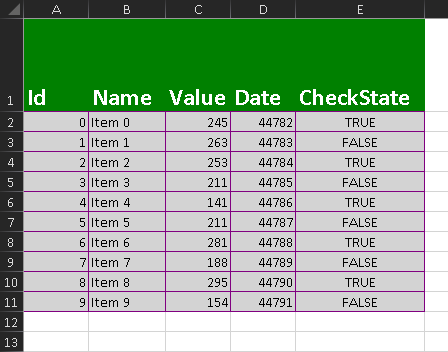
To change the default styles used in the exported document, use the `ElementExporting` event of `RadDataGrid`. The `VisualParameters` property of the event arguments allows you to define options like foreground, background, font settings, text decorations, alignments and more.
#### **Changing the styles of the exported rows and cells**
```C#
private void RadDataGrid_ElementExporting(object sender, DataGridElementExportingEventArgs e)
{
var visualParameters = (DataGridVisualExportParameters)e.VisualParameters;
if(e.Element == ExportElement.HeaderRow)
{
visualParameters.Style = new CellSelectionStyle()
{
IsBold = true,
Fill = new PatternFill(PatternType.Solid, Telerik.Documents.Media.Colors.Green, Telerik.Documents.Media.Colors.Green),
ForeColor = new ThemableColor(Telerik.Documents.Media.Colors.White),
FontSize = 24,
IsWrapped = true,
};
}
if (e.Element == ExportElement.Cell)
{
var border = new CellBorder(CellBorderStyle.Thin, new ThemableColor(Telerik.Documents.Media.Colors.Purple));
visualParameters.Style = new CellSelectionStyle()
{
CellBorders = new CellBorders(border, border, border, border, null, null, null, null),
Fill = new PatternFill(PatternType.Solid, Telerik.Documents.Media.Colors.LightGray, Telerik.Documents.Media.Colors.LightGray)
};
}
}
```
## Changing the Exported Value Format
To change the default cell formats provided by the DataGrid to the exported document, use the `ElementExporting` event of `RadDataGrid`.
A common scenario where this is useful is when the `CellContentFormat` property of the column is set. This will format the numeric value as a string and this is how it will be exported to the document. To change this, use the `ElementExporting` event and the `VisualParameters` property of the arguments.
#### **Setting the CellContentFormat to a column**
```XAML
```
#### **Changing the exported value format**
```C#
private void RadDataGrid_ElementExporting(object sender, DataGridElementExportingEventArgs e)
{
if(e.Element == ExportElement.Cell)
{
if (e?.Value == null)
return;
var visualParameters = (DataGridVisualExportParameters)e.VisualParameters;
var tryDouble = double.TryParse(e.Value.ToString(), out var d);
if (tryDouble)
{
visualParameters.Style = new CellSelectionStyle()
{
Format = new CellValueFormat("0.00")
};
e.Value = d;
return;
}
var tryInt = int.TryParse(e.Value.ToString(), out var i);
if (tryInt)
{
visualParameters.Style = new CellSelectionStyle()
{
Format = new CellValueFormat("0")
};
e.Value = i;
return;
}
}
}
```
## Accessing and Modifying the Document Model
The export feature uses the [Telerik Document Processing Libraries](https://docs.telerik.com/devtools/document-processing/introduction) internally. The export event arguments (`DataGridElementExportedEventArgs` and `DataGridElementExportingEventArgs`) provide access to the [Workbook](https://docs.telerik.com/devtools/document-processing/libraries/radspreadprocessing/working-with-workbooks/working-with-workbooks-what-is-workbook) object that stores the document model. The `Workbook` element can be accessed only when the `Element` property of the `ElementExporting` and `ElementExported` events' arguments is set to `Table`.
The `ElementExported` event is raised with `Element` set to `Table` at the end of the export process. This is a good moment to get the `Workbook` and modify it if needed.
See how to customize the workbook object in the [RadStreamProcessing](https://docs.telerik.com/devtools/document-processing/libraries/radspreadprocessing/overview) help documentation.
#### **Getting the Workbook and modifying it after the export has finished**
```C#
private void RadDataGrid_ElementExported(object sender, DataGridElementExportedEventArgs e)
{
if (e.Element == ExportElement.Table)
{
Workbook workbook = (Workbook)e.Workbook;
CellStyle wbStyle = workbook.Styles["Normal"];
wbStyle.ForeColor = new ThemableColor(Telerik.Documents.Media.Colors.Green);
wbStyle.FontFamily = new ThemableFontFamily(ThemeFontType.Major);
wbStyle.FontSize = 24;
wbStyle.VerticalAlignment = RadVerticalAlignment.Top;
}
}
```
## Setting the Exporting Data Items List
By default all data from the DataGrid will be exported when you call the corresponding export method. To change this and export a specific set of data items, use the `Items` property of the `DataGridExportOptions` object.
#### **Exporting half the items**
```C#
string projectRootFolderPath = System.IO.Path.GetFullPath("../../../../../../", AppDomain.CurrentDomain.BaseDirectory);
using (var stream = File.Open(projectRootFolderPath + "\\" + "SampleDocument.xlsx", FileMode.OpenOrCreate))
{
var items = ((IList)this.dataGrid.ItemsSource).OfType