# Data Fields
The data fields of the DataForm are the rows representing the properties of the underlying data object.
A data field is auto-generated for each property in the current data item and contains a label showing the property name and an editor that allows the changing of the value. Based on the property data type, the proper data field type is created.

The DataForm supports the following types of data field implementations, which provide different editors.
* `DataFormDataField`—Used for editing `string` properties. The editor is a `TextBox`. Any data type that doesn't have a dedicated editor will use this data field type.
* `DataFormCheckBoxData`—Used for editing `bool` properties. The editor is a `CheckBox` control.
* `DataFormComboBoxField`—Used for editing `enum` values. The editor is a `ComboBox` populated with a collection containing all values from the `enum`.
* `DataFormDateField`—Used for editing properties of type `DateTime`. The editor is a `RadDateTimePicker`.
## Modifying Auto-Generated Data Fields
To access the auto-generated fields, you can use the `AutoGeneratingField` event. The event arguments provide access to the currently generated data field object, which can be adjusted accordingly to your needs.
#### **Use the AutoGeneratingField Event**
```C#
private void dataForm_AutoGeneratingField(object sender, Telerik.UI.Xaml.Controls.Data.DataForm.AutoGeneratingFieldEventArgs e)
{
if (e.PropertyName == "FirstName")
{
e.DataField.Label = "First Name";
}
}
```
To avoid the creation of a specific data field, use the `Cancel` property of the event arguments.
#### **Cancel Data Field Creation**
```C#
private void dataForm_AutoGeneratingField(object sender, Telerik.UI.Xaml.Controls.Data.DataForm.AutoGeneratingFieldEventArgs e)
{
if (e.PropertyName == "FirstName")
{
e.Cancel = true;
}
}
```
## Defining Data Fields Manually
To gain more control over the created data fields, disable the auto-generation by setting the `AutoGenerateFields` property of the DataForm to `false` and define the data fields manually by using the `ReadOnlyTemplate` and `EditTemplate` properties to add the custom data field elements.
#### **Manual Data Fields Definition**
```XAML
```
**Manually Defined Data Fields**

The binding to the model property behind each field is created with the `DataMemberBinding` property of the data field.
To mark a data field as read-only, set its `IsReadOnly` property.
## Setting Label Position
By default, the data field labels are positioned above the editor. To change their location , set the `LabelPosition` property of the `DataFormDataField` element to `Beside`.
#### **Set the LabelPosition**
```XAML
```
**DataForm with Defined LabelPosition**

## Showing Data-Field Description
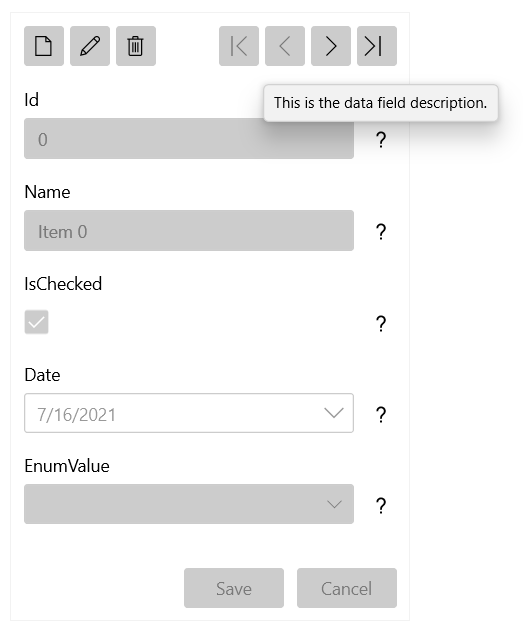
Each data field object exposes a `Description` property that is used to provide additional information about the property. The information is shown in a tooltip that appears on hovering over the question mark icon next to the data field editor.
#### **Show the Description of a Data Field**
```XAML
```
**DataForm Displaying Its Data-Field Description**
## See Also
* [Customizing the Appearance of the Data Fields](https://www.telerik.com/winui/documentation/controls/raddataform/appearance/customizing-data-fields)