# Customizing Buttons
The DataForm provides flexible API for customizing [some of the buttons in its UI](https://www.telerik.com/winui/documentation/controls/raddataform/visual-structure).
By default, the DataForm displays a set of buttons on top and allow you to modify or change the current data item. To change the visibility of the buttons, use the `CommandButtonsVisibility` property of type `DataFormCommandButtonsVisibility`. `DataFormCommandButtonsVisibility` is a flag enum, which means that you can use multiple values with the `CommandButtonsVisibility` property.
`DataFormCommandButtonsVisibility` accepts the following values:
* `None`—No buttons are displayed.
* `Add`—The **Add new item** button is displayed.
* `Delete`—The **Delete item** button is displayed.
* `Edit`—The **Edit item** button is displayed.
* `Navigation`—The **Move next**, **Move previous**, **Move to first**, and **Move to last** buttons are displayed.
* `Commit`—The **Save changes** button is displayed.
* `Cancel`—The **Cancel** button is displayed.
* `All`—All buttons are displayed.
> Regardless of the defined button styles, when the DataForm is in edit mode, the **Commit** and **Save** buttons will be inactive. Any changes in the colors of these buttons will be applied when the DataForm enters its edit mode.
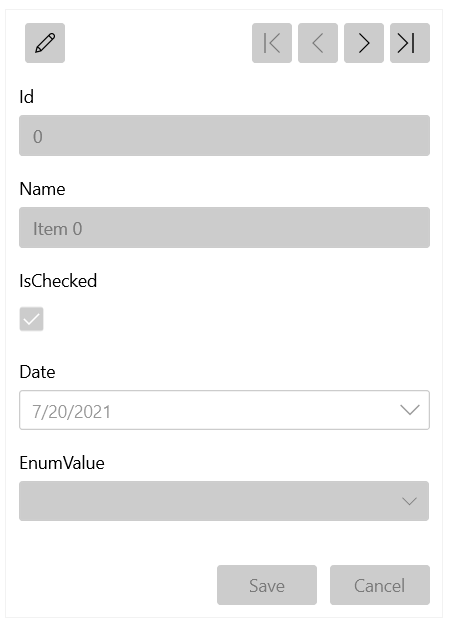
The following example shows how to display the navigation, **Edit**, **Commit**, and **Cancel** buttons and hide the **Add** and **Delete** buttons.
#### **Set the Command Buttons Visibility**
```XAML
```
**DataForm with Visible Command Buttons**
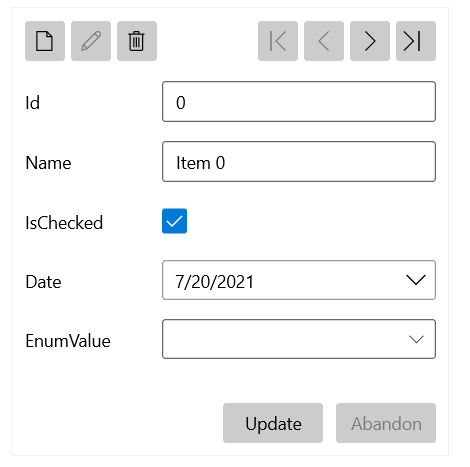
The DataForm also allows you to customize the **Commit** and **Cancel** buttons. To change the content in the **Commit** button (**Save** by default), set the `CommitButtonContent` property. To change the content of the **Cancel** button (**Cancel** by default), set the `CancelButtonContent` property.
#### **Set the Commit and Cancel Buttons Content**
```XAML
```
**DataForm with Custom Commit and Cancel Buttons Content**
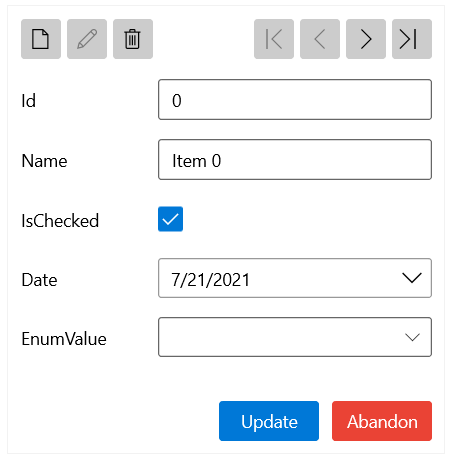
To change the style of the **Commit** button, set the `CommitButtonStyle` property. To change the style of the **Cancel** button, set the `CancelButtonStyle` property.
#### **Set the Commit and Cancel Buttons Style**
```XAML
```
**DataForm with Custom Commit and Cancel Buttons Style**
## See Also
* [Getting Started with the Telerik UI for WinUI DataForm](https://www.telerik.com/winui/documentation/controls/raddataform/getting-started)
* [Visual Structure](https://www.telerik.com/winui/documentation/controls/raddataform/visual-structure)
* [Customizing Data Fields](https://www.telerik.com/winui/documentation/controls/raddataform/appearance/customizing-data-fields)