# Logging Into the ThemeBuilder Plugin for Figma
This article lists the steps required to log into the ThemeBuilder plugin for Figma.
## Prerequisites
To log into ThemeBuilder, you need a Telerik account.
## Login
1. Open Figma, and then open an existing design file.
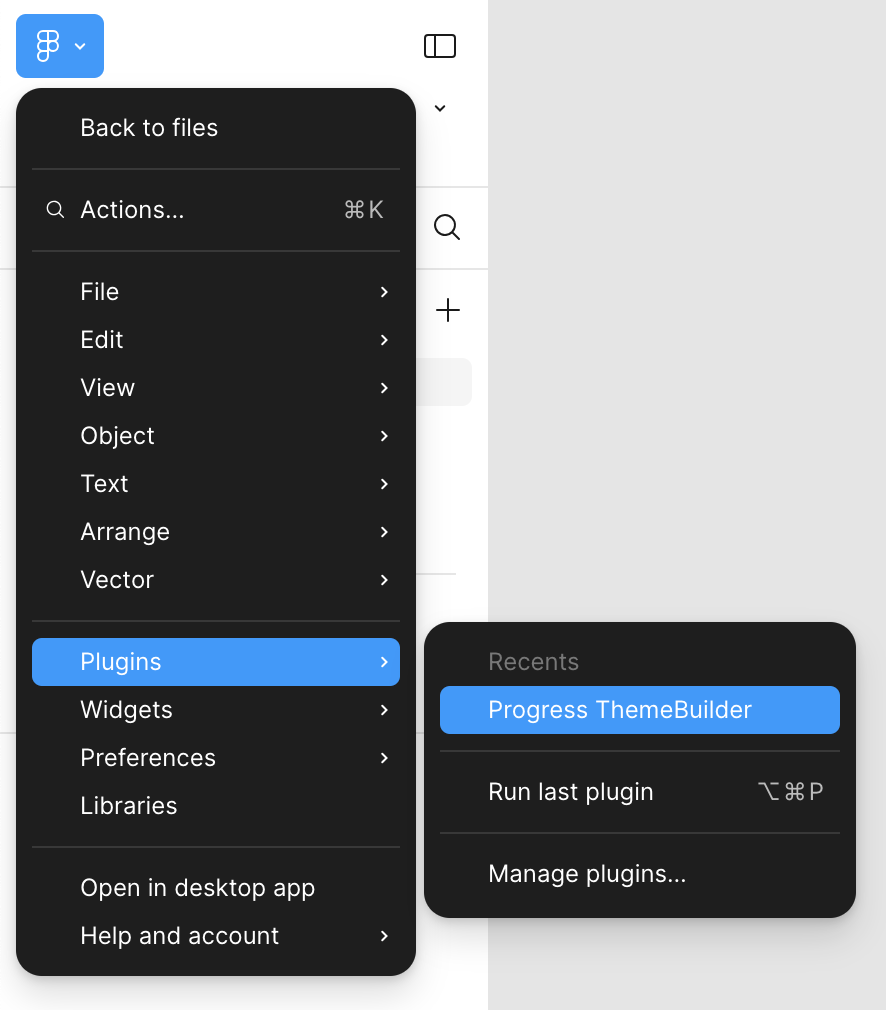
2. Hover over **Plugins**, then select **Progress ThemeBuilder**.
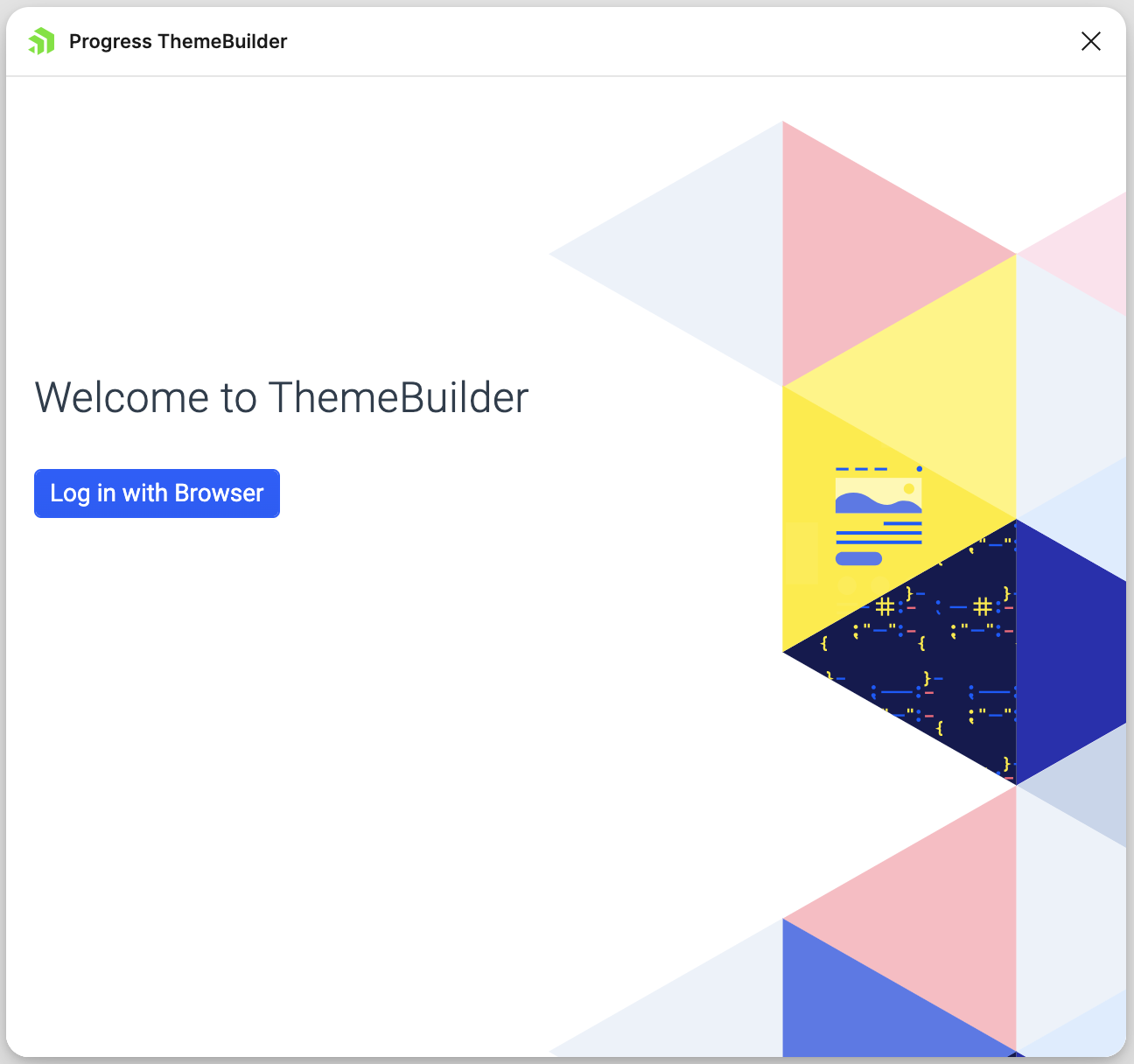
 3. Click the **Log with Browser** button to log in with your default browser.
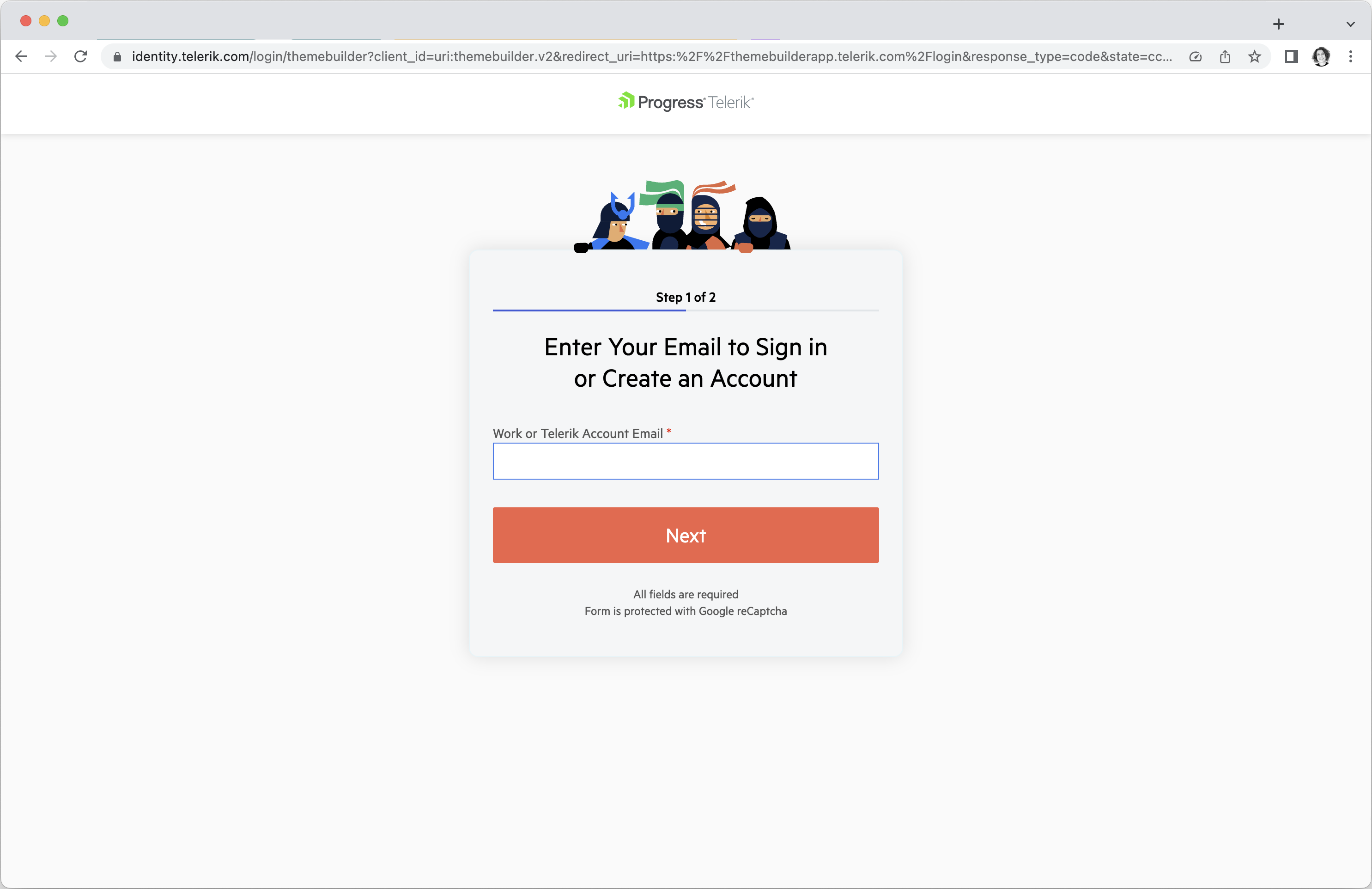
 4. In the new browser window, enter the email and password for your Telerik account.
 When you return to the ThemeBuilder plugin for Figma, you will be logged in.
## Related Articles
* [Exporting Styles](https://www.telerik.com/themebuilder/documentation/plugin/exporting-styles)
* [Exporting Font Icons](https://www.telerik.com/themebuilder/documentation/plugin/exporting-font-icons)
* [Meet the ThemeBuilder Figma Import (Blog Post)](https://www.telerik.com/blogs/meet-themebuilder-figma-import)