# Exporting Styles
The [ThemeBuilder plugin for Figma](https://www.telerik.com/themebuilder/documentation/plugin/overview) allows you to export color, typography, and effect tokens to any ThemeBuilder project. Once exported, these tokens will be available for use within ThemeBuilder, enabling you to customize both Telerik and Kendo UI components, as well as any [custom components](https://www.telerik.com/themebuilder/documentation/building-visual-styles/custom-components) you create.
> Starting with version 2024 Q4, the ThemeBuilder plugin for Figma is also available in **Dev Mode**.
To export the desired styles:
1. [Launch the Export Styles Wizard.](https://www.telerik.com/themebuilder/documentation/plugin/exporting-styles#step-1-launch-the-export-styles-wizard)
2. [Select a ThemeBuilder project.](https://www.telerik.com/themebuilder/documentation/plugin/exporting-styles#step-2-select-a-themebuilder-project)
3. [Select the tokens for the export.](https://www.telerik.com/themebuilder/documentation/plugin/exporting-styles#step-3-select-the-tokens-for-the-export)
4. [Generate names for the ThemeBuilder variables.](https://www.telerik.com/themebuilder/documentation/plugin/exporting-styles#step-4-generate-names-for-the-themebuilder-variables)
## Step 1: Launch the Export Styles Wizard
1. Open your design in Figma.
2. Go to the **Main menu**.
3. Hover over **Plugins**, then select **Progress ThemeBuilder**.
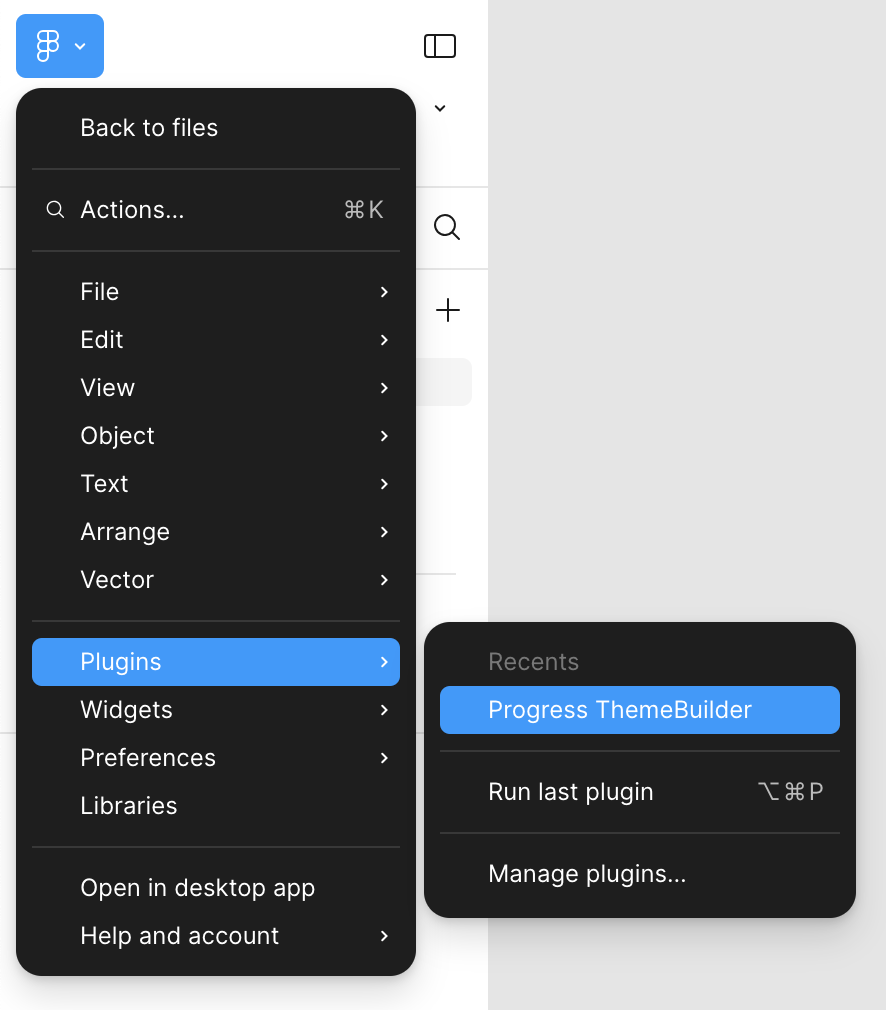 4. [Log in](https://www.telerik.com/themebuilder/documentation/plugin/login) with your Telerik account.
5. Select the **Styles** option from the plugin screen.
 ## Step 2: Select a ThemeBuilder Project
To begin using the **Export Styles Wizard**, you first need to select a ThemeBuilder project where you want to export the styles. If you haven't created any ThemeBuilder projects yet, you can do so following the instructions in [Creating a New ThemeBuilder Project](https://www.telerik.com/themebuilder/documentation/basic-project-operations/creating-new-projects). If you already have existing projects, choose one from the **ThemeBuilder Projects** screen and then click **Select**.
 ## Step 3: Select the Tokens for the Export
Once you select a project, the plugin shows a tree structure of the design styles available in your current Figma document. To export the styles you want, check them and then click **Next**.
 > If you export to a project with existing styles, the plugin will list only the new or the updated ones.
> caution Currently, the Figma API does not allow plugins to access libraries in Figma projects. As a result, the ThemeBuilder plugin is unable to export styles from files that are used as libraries in another project. However, you can export these styles by using the plugin's export functionality directly within the relevant files.
## Step 4: Generate Names for the ThemeBuilder Variables
Design styles in Figma can have complex paths because they may belong to nested groups. For example, a design style might be categorized as `Colors/Components/Input/Default/Validation/info`. When exporting these design styles, you can choose the names under which they will be imported into ThemeBuilder as variables.
To generate names for the ThemeBuilder variables, select the chips corresponding to the collection and groups you want to include. They will be appended as prefixes to the name of the style.
 ### Resolving Name Conflicts
If the chosen naming scheme leads to conflicts due to some design styles sharing the same name, you will see a warning icon next to the affected design style group. To resolve the issue, use either of the following approaches:
* Add more elements to the names of the affected design styles by selecting the chips of additional groups in the path.
* Use the **Auto Resolve** button.
Finally, click **Export**.
> note Currently, ThemeBuilder supports color tokens with solid or linear-gradient values.
## Using the Exported Styles
You can use the Figma variables imported in ThemeBuilder to customize the components by using one of these two approaches:
* Map the imported variables to your existing ThemeBuilder variables that are already used by the components.
* Apply the variables directly to specific properties of the components.
This is a one-time effort—afterward, every time you export styles from Figma to ThemeBuilder, the changes will take effect immediately if you have previously followed either of the approaches.
The imported tokens are set as read-only in ThemeBuilder to ensure consistent exporting as designers continue working on the source Figma file. This prevents issues that could arise if such modifications were allowed. For example, if a developer changes an imported token in ThemeBuilder and a designer later exports the same token with a different value from Figma, the developer's modifications would be overwritten and lost.
## Related Articles
* [Exporting Color and Number Variables from Figma](https://www.telerik.com/themebuilder/documentation/plugin/exporting-variables)
* [Exporting Icons from Figma](https://www.telerik.com/themebuilder/documentation/plugin/exporting-font-icons)
* [Applying Advanced Customizations](https://www.telerik.com/themebuilder/documentation/building-visual-styles/apply-advanced-customizations)
* [Meet the ThemeBuilder Figma Import (Blog Post)](https://www.telerik.com/blogs/meet-themebuilder-figma-import)
* [Variable Types in ThemeBuilder](https://www.telerik.com/themebuilder/documentation/building-visual-styles/variable-types)