# Reversing the Button Icon
## Environment
| Product Version |
09/14/2022 |
| Product |
ThemeBuilder |
## Description
How can I change the position of the Button icon?
## Solution
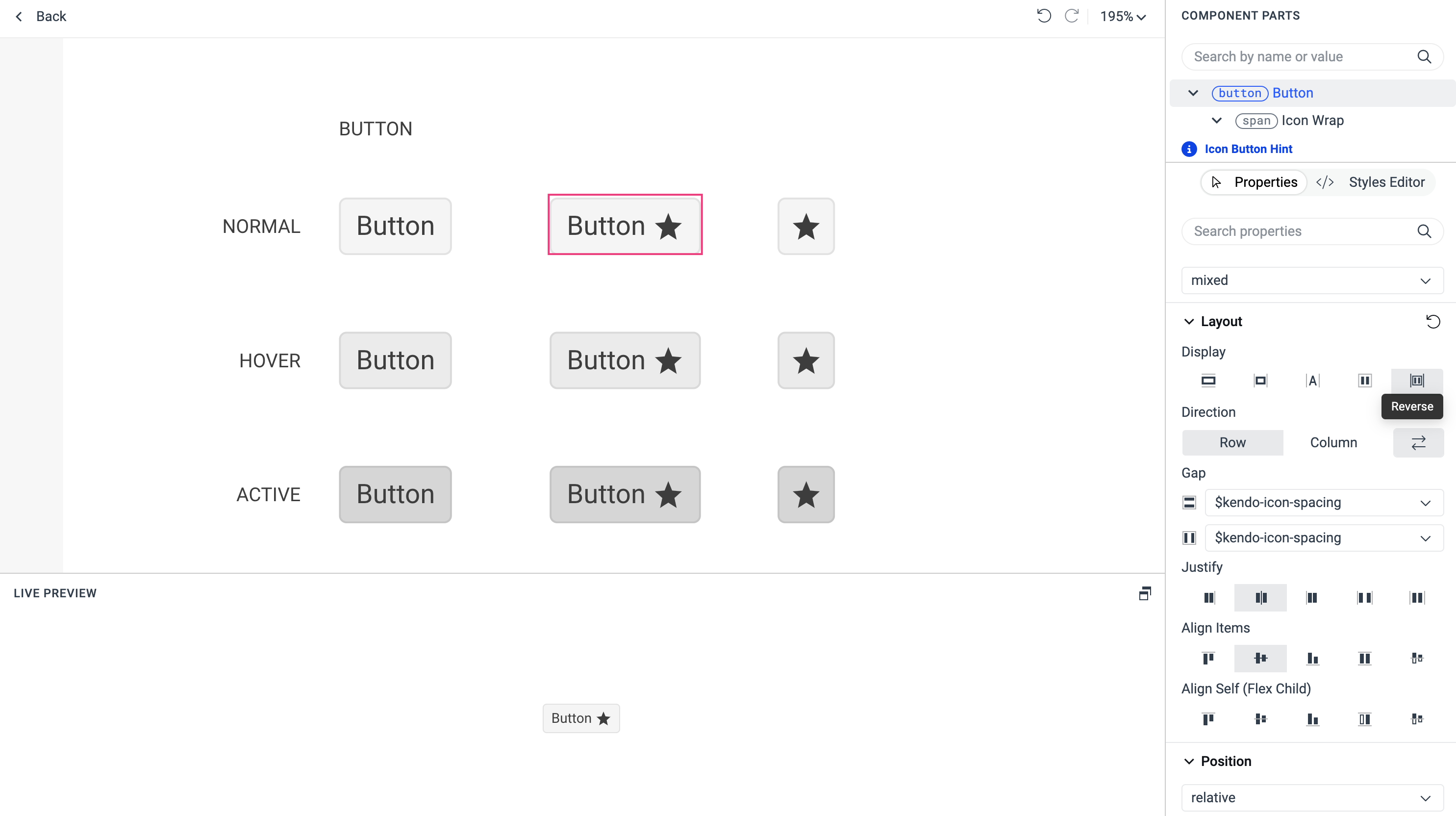
The Telerik and Kendo UI Buttons provide various button styles. One of the available options is a Button with an icon. By default, the icon is positioned to the left of the Button text, but you can swap the positions of the text and the icon.
To swap the positions of the icon and the text:
1. Open the project in ThemeBuilder.
2. Select **Advanced Edit** and then the **SOLID/SECONDARY** Button in its **NORMAL** state.
3. In the **COMPONENT PARTS** pane, select the **button**, not the **icon**.
4. In the **PROPERTIES** pane, expand the **Layout** node.
5. Select **Reverse**.
 ## Related Articles
* [Setting the color of a flat Button in its hover and focus states](https://www.telerik.com/themebuilder/documentation/knowledge-base/setting-button-background)