# Using Variables
Creating and using [variables](https://www.telerik.com/themebuilder/documentation/get-started/first-steps-kendo#creating-custom-theme-variables) in your ThemeBuilder project enables you to reuse values to easily style the UI components as required by the application design.
> note As each Kendo theme requires a different type, Sass or CSS, and a number of predefined variables, the default variables in the **STYLES** pane vary depending on the selected base theme.
## Using Color Swatches
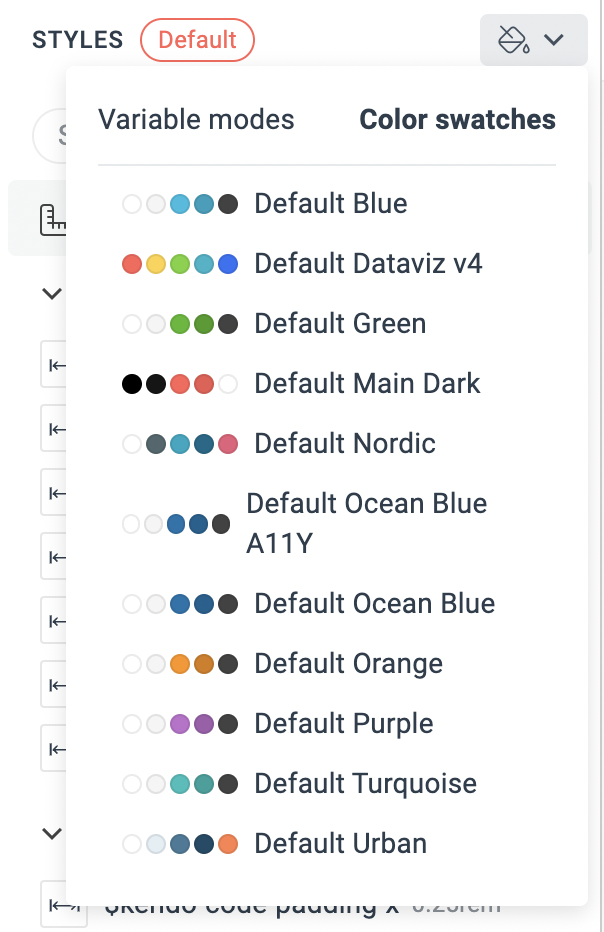
For Telerik and Kendo UI-based projects, the **STYLES** pane contains predefined variables for the selected Kendo theme. In addition, you can select a number of color variations that alter the Kendo theme. These color variations are called *swatches* and they are unique for each Kendo theme.
To select a color swatch, use the dedicated drop-down button in the **STYLES** pane.
 ## Creating Variables
To create a new variable, follow these steps:
1. Go to the **STYLES** pane and click on the **+** button right next to the category.
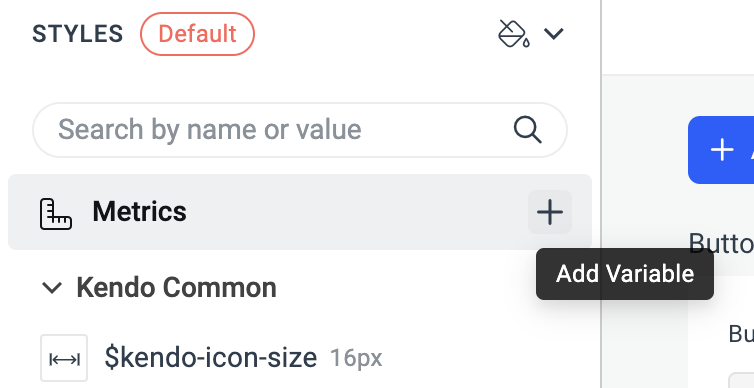 1. In the dialog, enter the desired values and click **Create**.
## Editing Variables
To edit an existing variable:
1. Locate the variable in the **STYLES** pane and click on it.
2. Enter the updated values in the inputs and close the dialog.
## Deleting Variables
To delete an existing variable:
1. Locate the variable in the **STYLES** pane.
2. Click on the menu button right next to the variable.
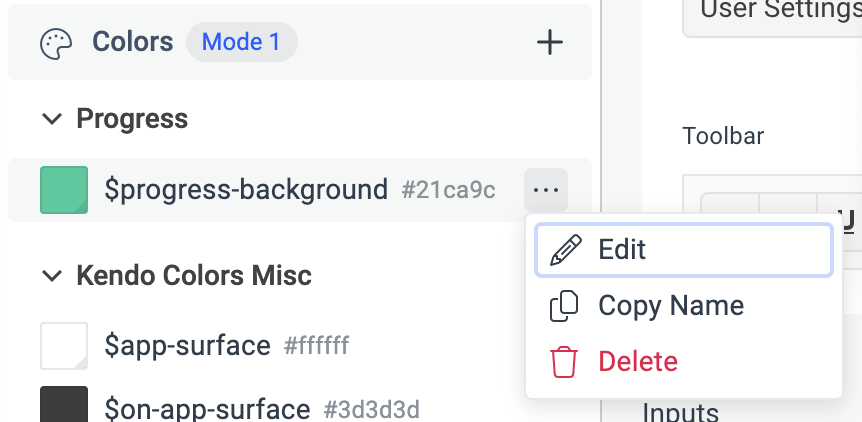 1. Click on **Delete**.
> You can only delete custom-defined variables. Deleting variables that come by default from the Kendo themes is considered manipulating the theme instead of customizing it and is not encouraged.
## Mapping Variables
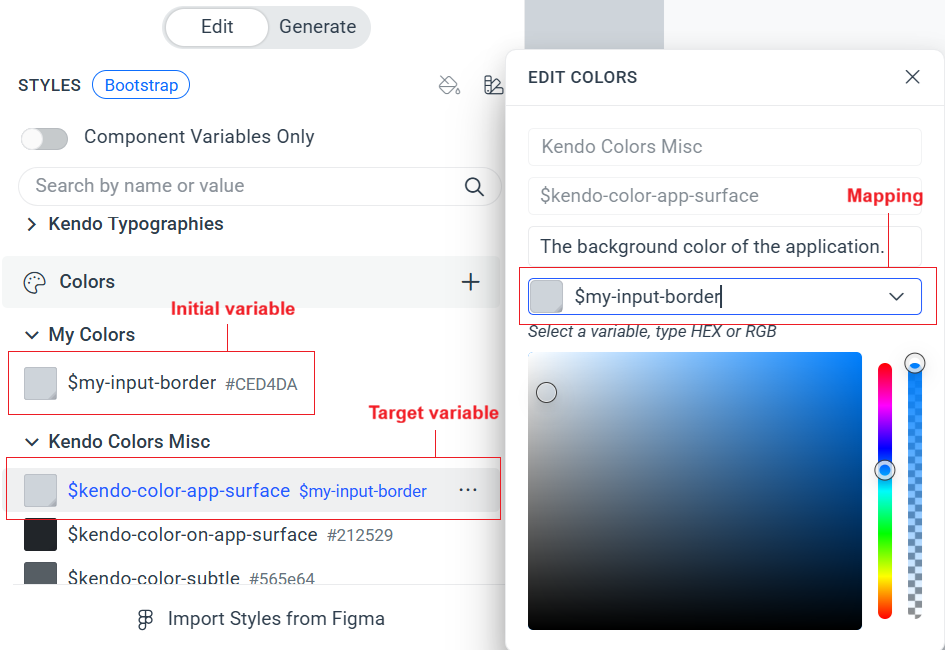
You can map one variable as a reference to another pre-existing variable while using the [edit](https://www.telerik.com/themebuilder/documentation/building-visual-styles/variables#editing-variables) option.
1. Create or import your initial variable.
2. Locate the target variable in the **STYLES** pane and click on it.
3. Enter the initial variable as a value in the inputs and close the dialog.
## Accessing Kendo Variables
When working with a project based on a Kendo Theme, you can access a large set of the core Kendo variables that define the initial theme styles.
To access a Kendo variable:
1. Locate the variable from a selected category in the **STYLES** pane and click on it.
OR
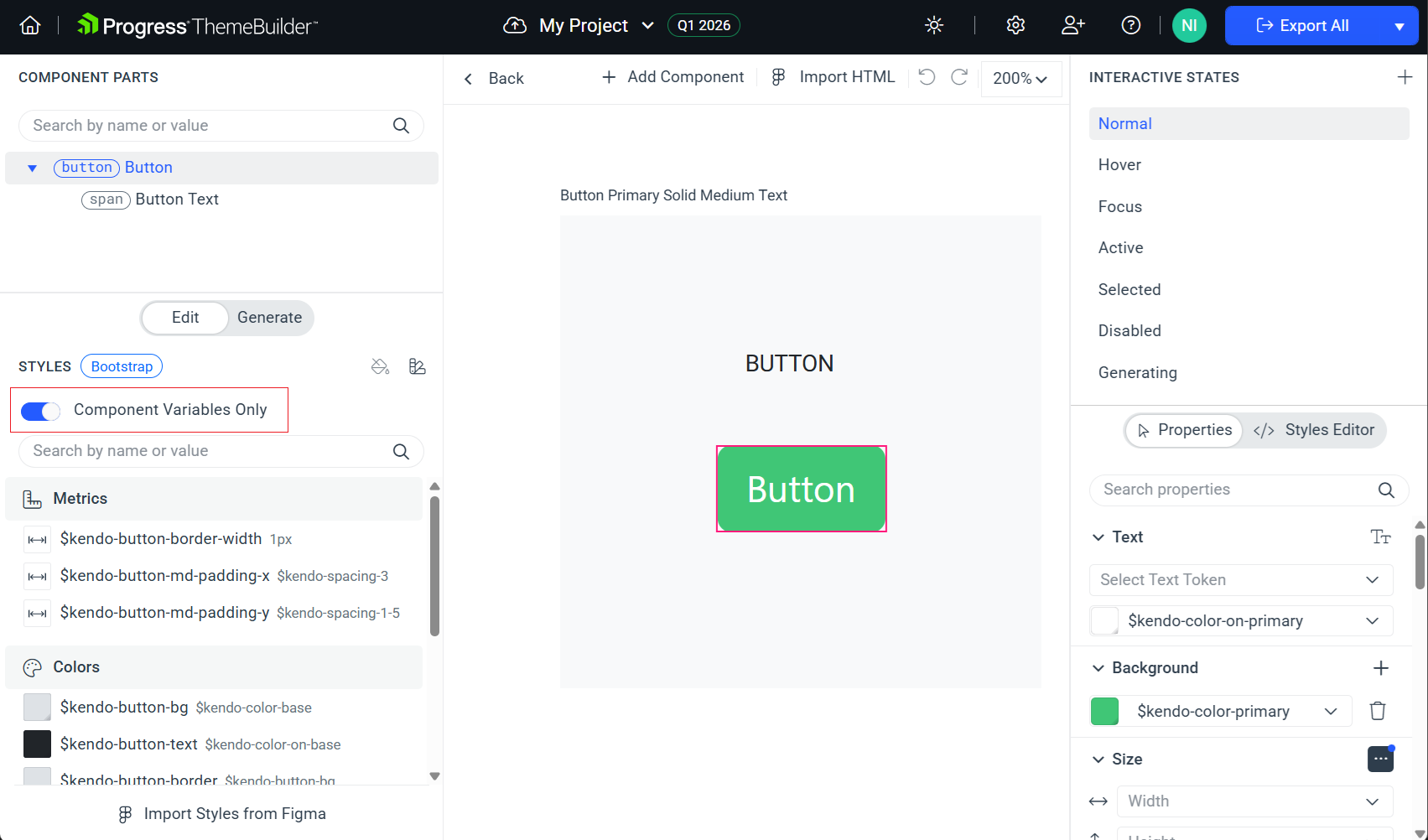
1. Open a component template (in **Advanced Edit** mode).
2. Toggle on the **Component Variables Only** switch in the **STYLES** pane. With that option active, you will immediately see more specific component variables from the Kendo theme.
## Related Articles
* [Using Variable Modes](https://www.telerik.com/themebuilder/documentation/building-visual-styles/variable-modes)
* [How to Manage Color Palettes](https://www.telerik.com/themebuilder/documentation/building-visual-styles/tutorials/manage-color-palettes)
* [Reusing ThemeBuilder Exported Variables Using CSS](https://www.telerik.com/themebuilder/documentation/knowledge-base/reusing-variables-css)
* [Reusing ThemeBuilder Exported Variables Using SCSS](https://www.telerik.com/themebuilder/documentation/knowledge-base/reusing-variables-scss)
* [Applying Advanced Customizations](https://www.telerik.com/themebuilder/documentation/building-visual-styles/apply-advanced-customizations)