# Managing Version History
By using version history, you can save the current progress of your project and restore that particular state later. The version history contains the versions (restore points) saved by everyone with access to that project.
## Version History Panel
To open the **VERSION HISTORY** panel for a ThemeBuilder project:
1. Navigate to the ThemeBuilder dashboard.
2. Open the project.
3. From the [toolbar](https://www.telerik.com/themebuilder/documentation/get-started/quick-tour#themebuilder-toolbar), select the project menu drop-down.
4. Select **Version History**.
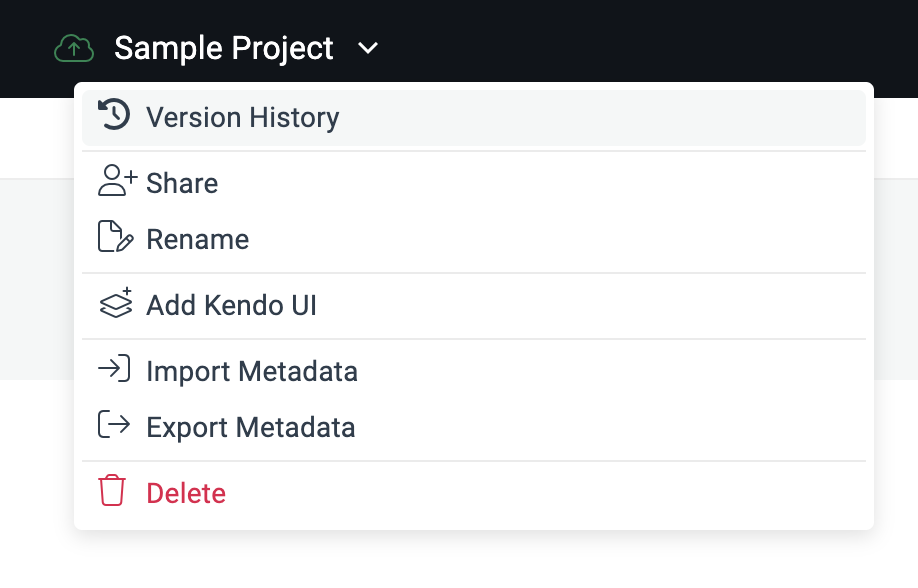 The **VERSION HISTORY** panel allows you to:
* Add the current state of the project to the version history by using the **+** button.
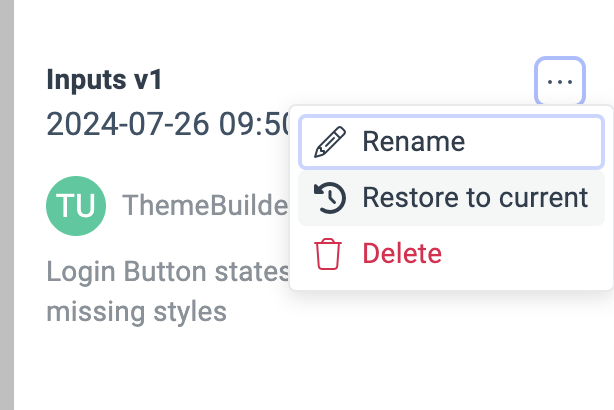
* Delete a version or edit its name and description by selecting the corresponding action in the context menu of the target version.
* Restore the project to a previous version.
 ## Related Articles
* [Creating a project](https://www.telerik.com/themebuilder/documentation/basic-project-operations/creating-new-projects)
* [Sharing a project](https://www.telerik.com/themebuilder/documentation/basic-project-operations/sharing-a-project)
* [Renaming, duplicating and deleting a project](https://www.telerik.com/themebuilder/documentation/basic-project-operations/renaming-duplicating-deleting-project)
* [Importing and exporting project metadata](https://www.telerik.com/themebuilder/documentation/basic-project-operations/import-export-metadata)