# Update Test Studio
Test Studio updates provide new features, improved functionality against evolving controls, interoperability with new software, and bug fixes. The Check for Updates feature allows automatic detection of new versions and provides the option to download and install this new version.
In this article, you can find details for the following topics:
* [Instant Check for Updates](https://www.telerik.com/teststudio/documentation/prerequisites/installation/check-for-updates#instant-check-for-updates)
* [New Version Available](https://www.telerik.com/teststudio/documentation/prerequisites/installation/check-for-updates#new-version-availabele)
* [Enable Check for Updates on Test Studio Startup](https://www.telerik.com/teststudio/documentation/prerequisites/installation/check-for-updates#enable-check-for-updates-on-test-studio-startup)
## Instant Check for Updates
#### Test Studio Standalone
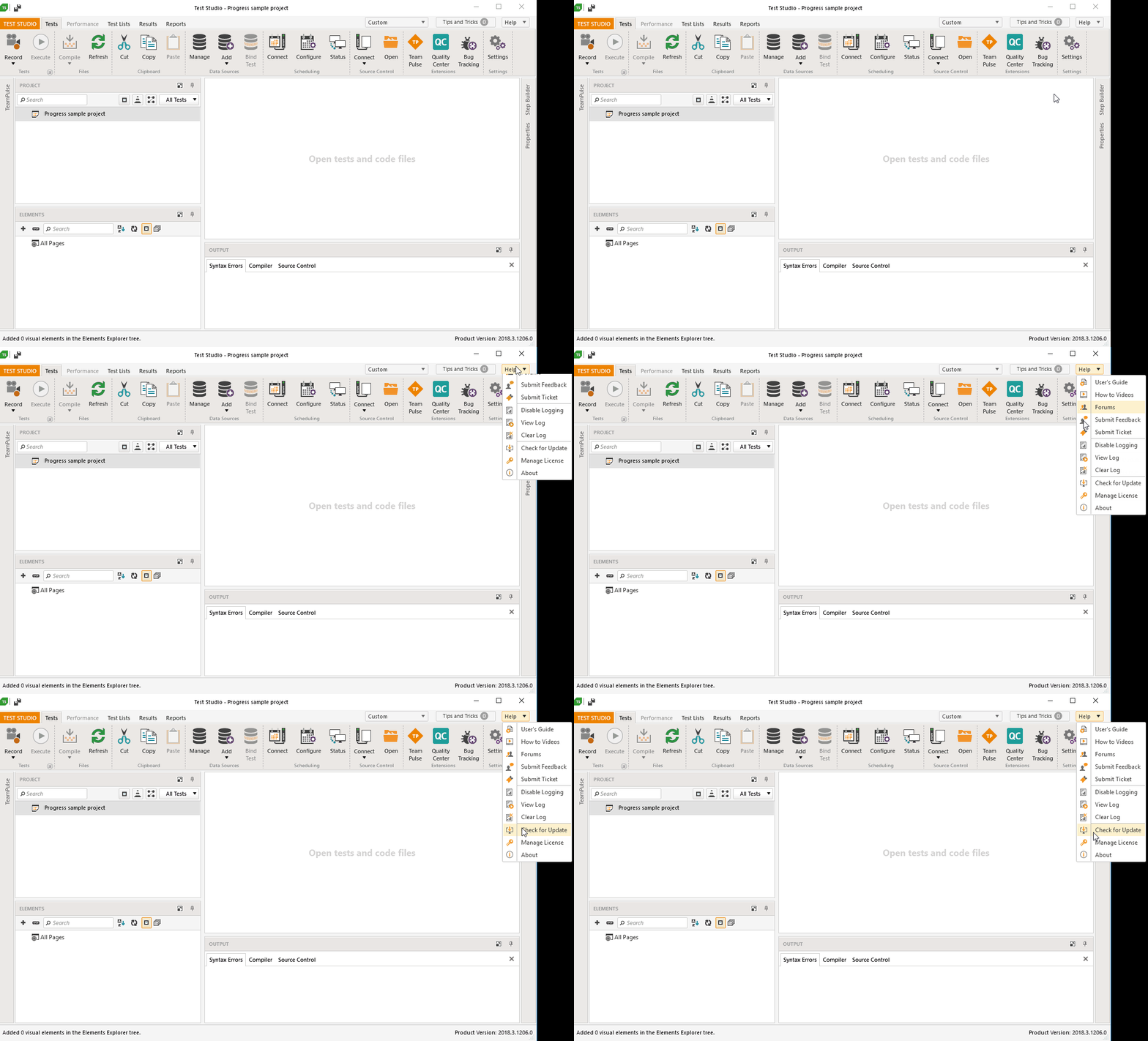
In the **Help** drop-down in the upper right corner, choose the option to **Check for Updates**.
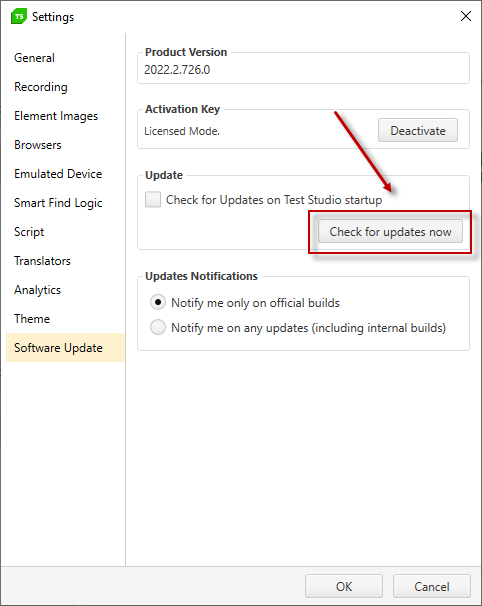
Alternatively, you can use the **Check for Updates** button in the **Software Update** section in the Project settings.
#### Test Studio Plugin in Visual Studio
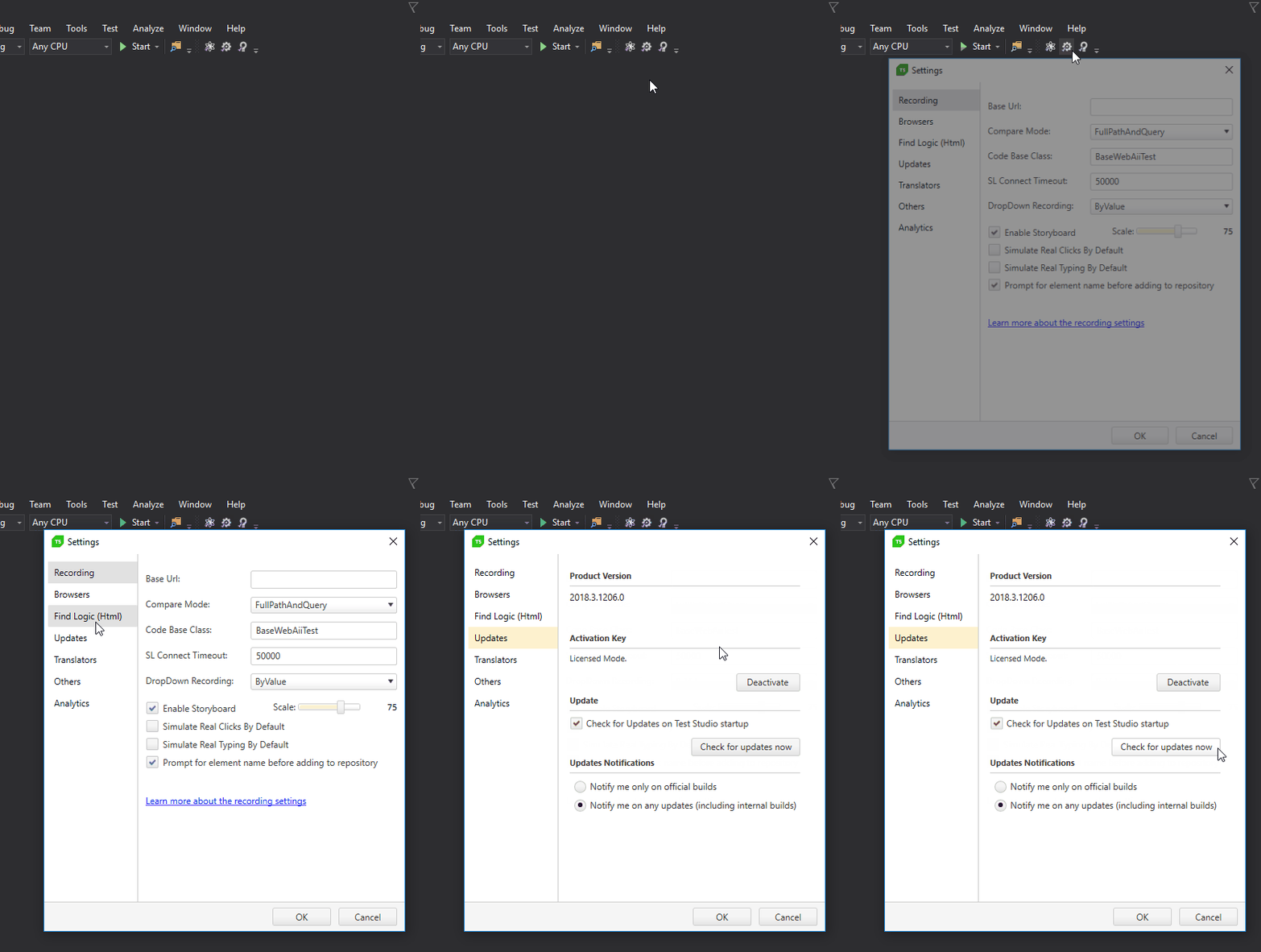
If working in Visual Studio with the Test Studio plugin, you can access the update section under the Project Settings.
## New Version Available
If Test Studio detects a new release, the new version number appears. To read release notes for this new version, click **What's New?**
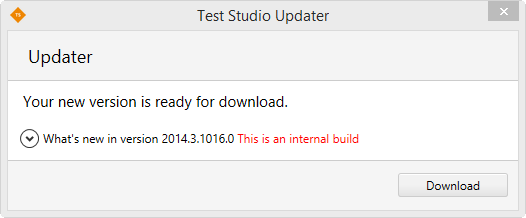
Use the **Download** button to get the latest available build.
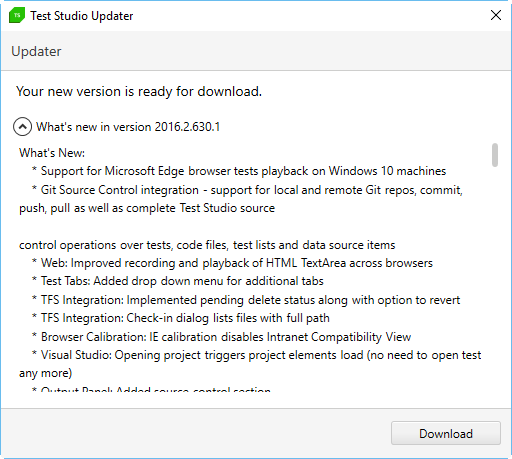
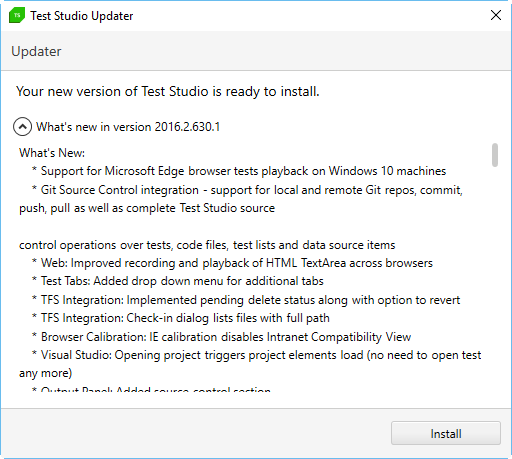
After the download completes, click the **Install** button to trigger the Installation Wizard.
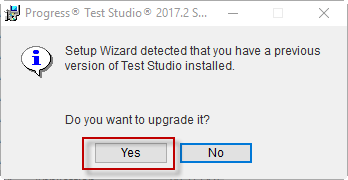
The Test Studio Installation Wizard will prepare the installation. The previously installed Test Studio version is automatically detected, and the Wizard prompts with a message to confirm if you wish to upgrade to the newer version. Click **Yes** to continue with the upgrade.
> **Note!**
>
>
> Any running instances of Test Studio, including the Execution Client and Visual Studio loaded with the Test Studio plugin, must be closed during the installation process.
>
>
> The upgrade procedure of Test Studio is not affecting the automation projects you work on.
## Enable Check for Updates on Test Studio Startup
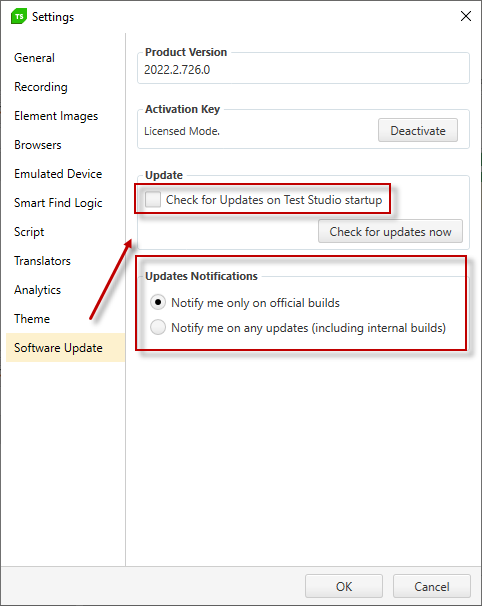
Test Studio provides the option to enable automatic check for newer product versions on startup. When ***'Check for Updates on Test Studio Startup'*** option is enabled, a *'Checking for updates...'* status message will appear at Test Studio startup.
#### Test Studio Standalone
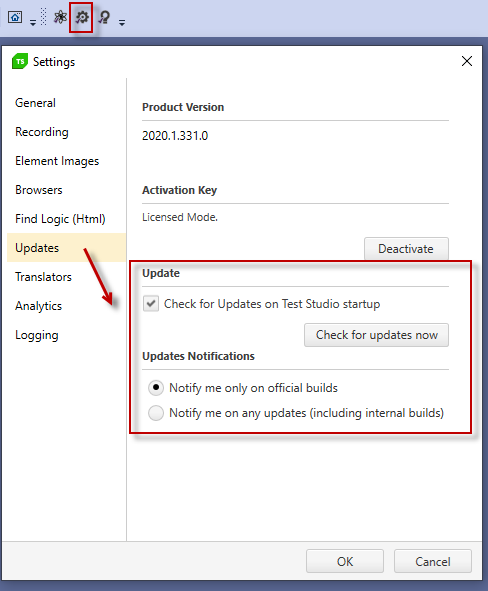
Start a Test Studio project and choose the **Software Update** section in the Project Settings. Enable the checkbox for automatic check for updates and choose whether to be notified for official releases only, or include also internal builds.
#### Test Studio Plugin in Visual Studio
If working in Visual Studio with the Test Studio plugin, you can access the update section under the Project Settings. The automatic check for updates options are listed in the **Update** section. Enable the checkbox for automatic check for updates and choose whether to be notified for official releases only, or include also internal builds.