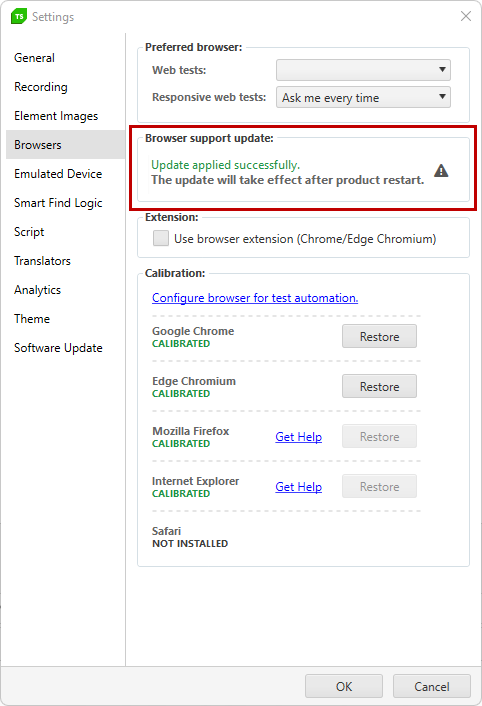
# Browser Support Update
The **Browser support update** allows Test Studio to stay compatible with the latest browser versions. Whenever a supported browser introduces any breaking changes in its functionalities, Test Studio needs to be updated.
When available, the **Browser support update** notification appears next to the **Calibrate browsers** button in the **Tests** ribbon and indicates that you must update Test Studio.
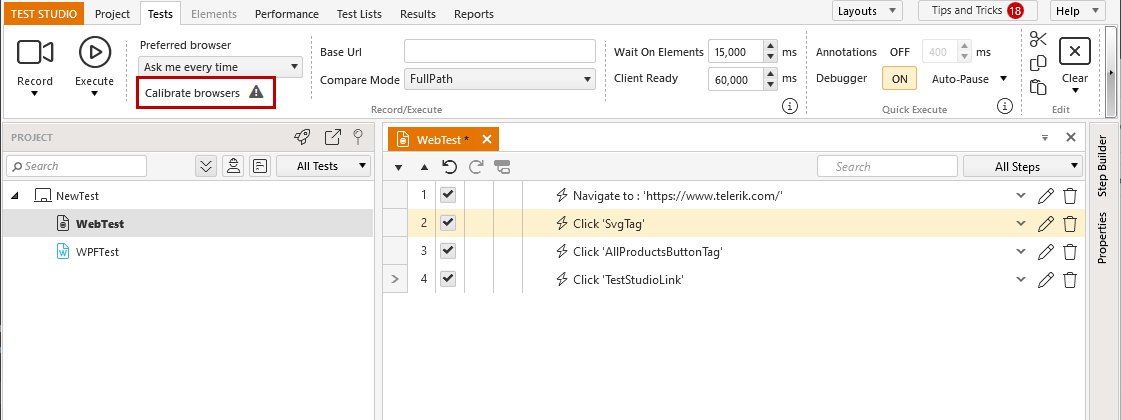
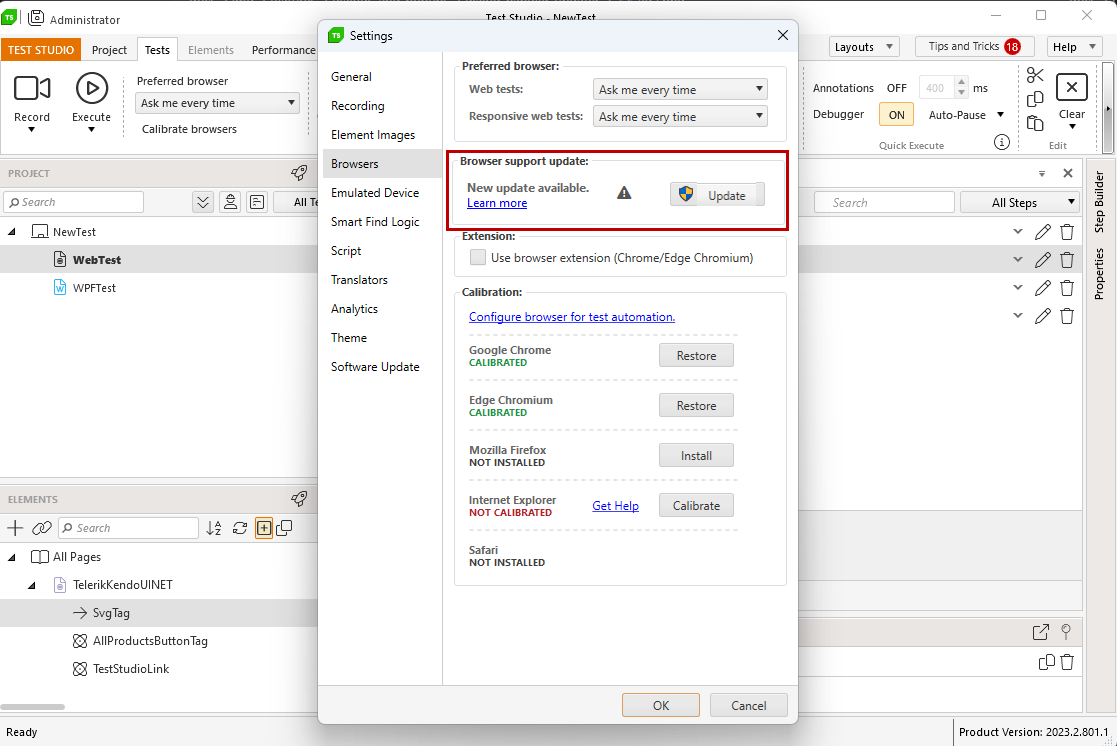
1. Click the **Calibrate browsers** button to access the **Project Settings** > **Browsers**.
2. Click the **Update** button next to the **New update available** notification.
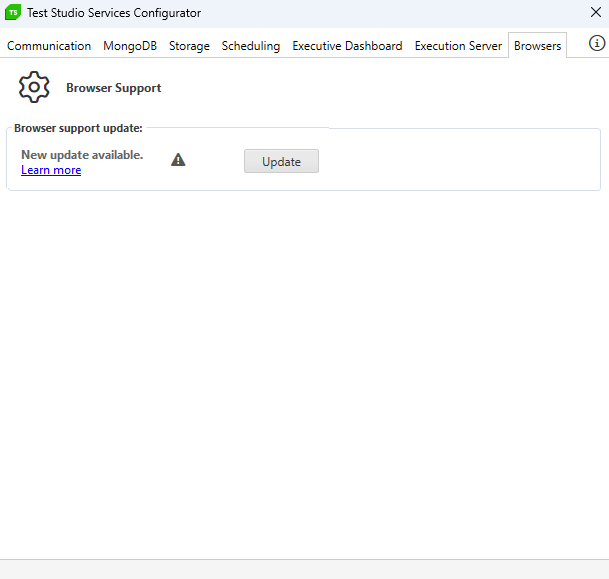
3. Hitting the **Update** button triggers the Test Studio Services Cofigurator application where you need to switch to its **Browsers** tab.
> **Note!**
>
> Running the Browser support update through the Test Studio Services Config Wizard requires admin rights.
After the update, restart Test Studio for the changes to take effect.