# Execute Selenium Test
## Execute Selenium Test with Test Studio
If you have written your selenium tests using C# then you can easily execute them using Test Studio. Steps to follow:
1. In Test Studio create a new test.
2. Add a coded step in the test.
3. Download selenium dlls from here and add the assembly references.
4. Make sure you add the using statements:
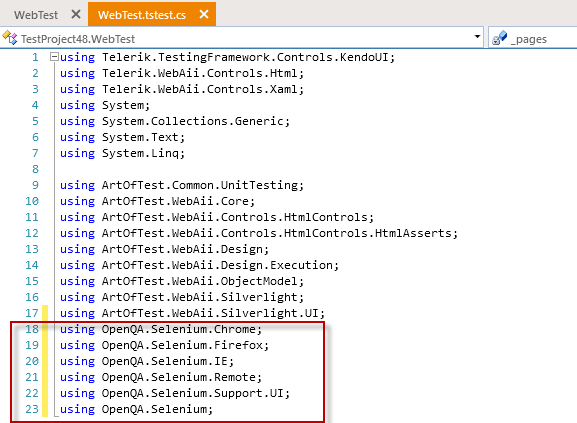
5. Paste/write the selenium test in the coded step:
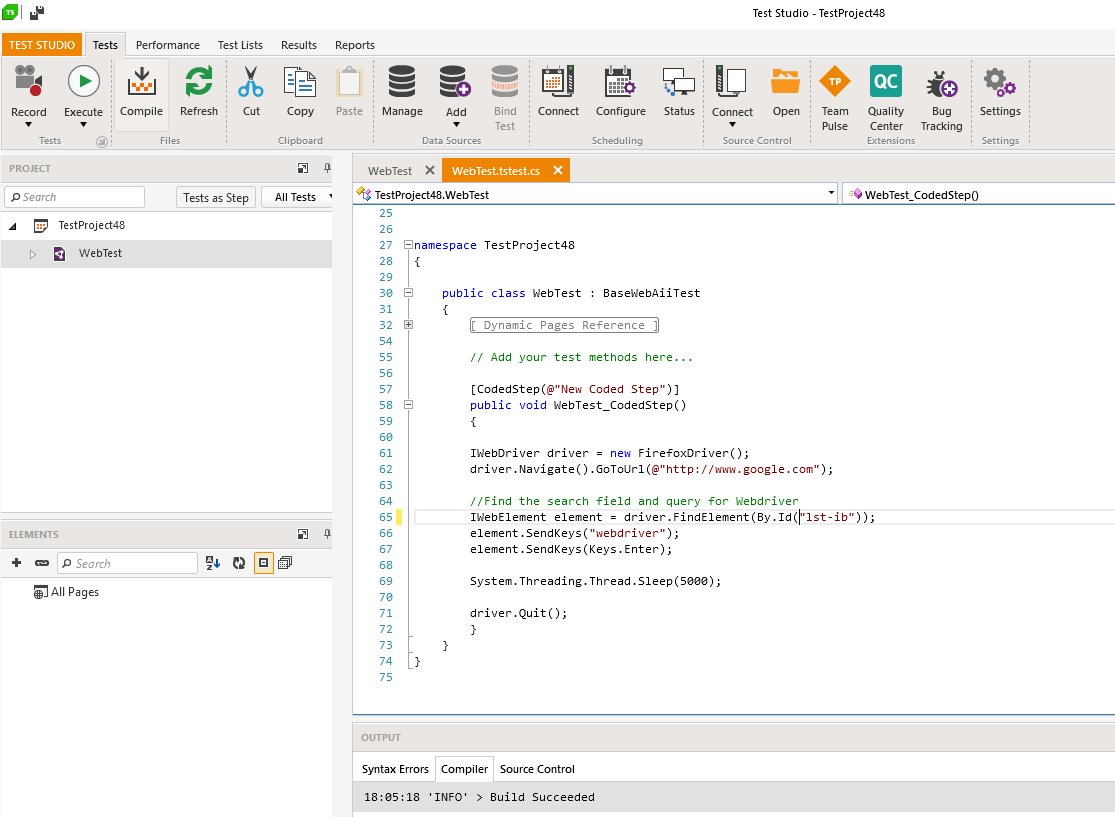
The provided code sample above opens Firefox browser and navigates to Google.com. In the search field it types "webdriver" and hit the search button.
6. Click the **Execute** button to run the test.
7. You can also execute the test as a part of a test list.
8. As soon as the test is executed you can review the test result using the execution log or using the calendar if executed as a part of a test list. The test can fail if an Assert statement fails.
> **Note!**
>
> Test Studio web test always launches the selected browser upon execution. However, this shouldn't be the same browser in which the Selenium test runs as this might cause any inconsistency.