# Submit Support Ticket

## Submit Support Ticket

You can submit your support query in your your Telerik account <a href="https://www.telerik.com/account/support-tickets" target="_blank">here</a>.

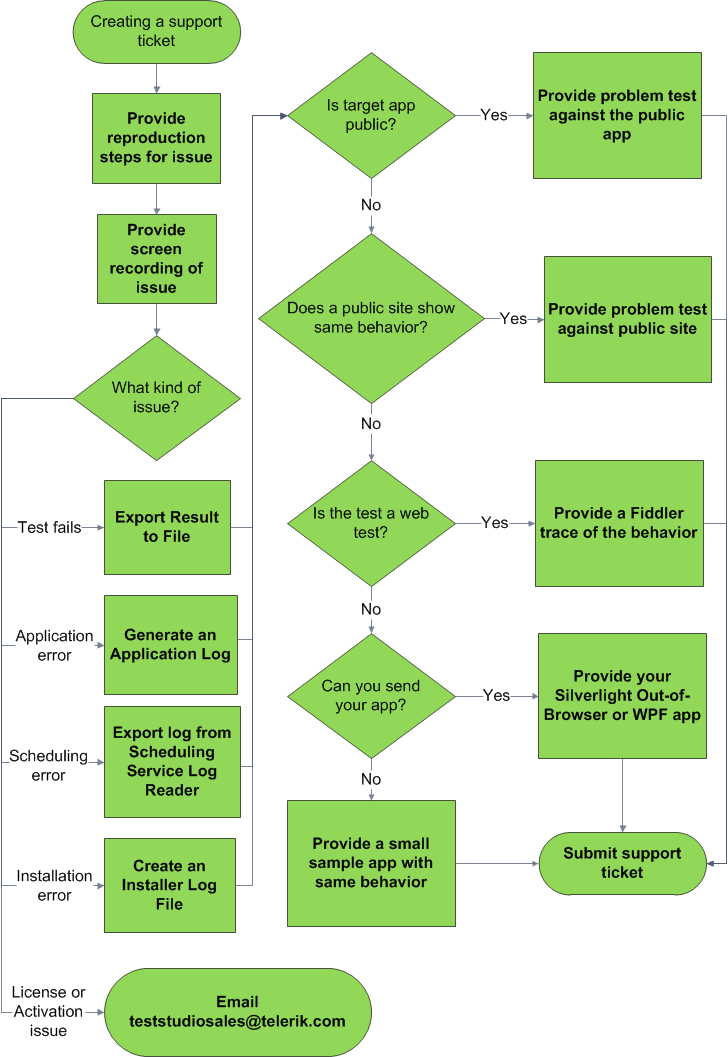
For timely issue resolution, provide as much information as possible in your initial message. The below guidelines will help you determine what details may be required.

## Steps to Reproduce Any Misbehavior in the Tool

Provide precise steps to reproduce the issue. Please include:

* Clearly ordered steps to follow.

* Screen shots and explanations of the expected and actual state of the application.

* A short screen recording of the issue.

## Error Message

Copy and paste the entire message and/or provide a screen shot of it.

* For test step failures, use the Export Result to File feature from the <a href="/getting-started/test-results/step-failure-details" target="_blank">Step Failure Details</a>.

  *Example: The test failed on an action or verification step.*

* For test list failures, use the <a href="/automated-tests/test-list-results/analyze-test-list-results#failed-test-list-result" target="_blank">Step Failure Details</a> to get an export to send with your message.

* For Test Studio application errors, <a href="/knowledge-base/best-practices-kb/generate-application-log" target="_blank">Generate an Application Log</a> while reproducing the misbehavior.

  *Example: The Test Studio program itself, or the automated application with the recording toolbar attached, displays an error.*

* For Scheduling errors, export the log from the <a href="/features/scheduling-test-runs/view-execution-status" target="_blank">remote and Scheduling machines</a>. Logging can be accessed in the separate <a href="/automated-tests/scheduling/view-execution-status#execution-servers-details" target="_blank">machine details section</a>

  *Example: The scheduled test run does not execute at the specified time on the Execution Server.*

* For installation errors, create an <a href="/troubleshooting-guide/installation-problems-tg/create-installer-log-file" target="_blank">Installer Log File</a>.

  *Example: An error displays while installing Test Studio and prevents a successful installation.*

* For issues with licensing, product activation, or accessing virtual users, email <mailto:teststudiosales@telerik.com>.

## Application Under Test Details

Is your application publicly accessible?

* If so, grant access to the support team by providing a basic test or project that logs in and immediately demonstrates the problematic behavior. If you log in via a Test as Step, include that test.

* If not, does a public site exhibit the same behavior? Provide a test against that instead.

* If the issue is specific to your web application and it's private, send a Fiddler trace of the behavior. To generate a <a href="http://www.telerik.com/fiddler" target="_blank">Fiddler trace</a>, download <a href="http://www.telerik.com/fiddler/fiddlercap" target="_blank">FiddlerCap</a>, a simplified Fiddler trace capturing tool.

* If the issue is specific to your WPF application, send the entire app. If this is not possible, create a small sample app that demonstrates the issue.

## New Tickets

* To ask multiple, unrelated questions, please submit a separate ticket for each question. This allows us to more efficiently address your issues.

* After you open a ticket, please update that ticket with related questions, or create new tickets for unrelated questions.

> **Note**
> <br>
> <br> Support tickets allow the following extensions: zip, rar, ace, jpg, gif, css, png. Typically you'll need to place files within a .zip file before attaching.
> <br>
> <br>
> There is a 20 MB size limit for file attachments. If your project exceeds this, make a copy of it and remove tests not related to the issue. Also remove one or more of the following potentially unnecessary components:

<table class="docs">
<tr>
	<th>Project Item</th><th>Description</th><th>Action</th>
</tr>
<tr>
	<td><b>Results folder</b></td>
	<td>Contains test list result files.</td>
	<td>Remove if issue is not related to test list results.</td>
</tr>
<tr>
	<td><b>Backup folder</b></td>
	<td>Contains archived versions of the project before upgrading.</td>
	<td>Remove if issue is not related to upgrading.</td>
</tr>
<tr>
	<td><b>.resx files </b></td>
	<td>Each .tstest (or .aii) test file contains a corresponding .resx file that contains the Storyboard images.</td>
	<td>Remove if issue is not Storyboard-related.</td>
</tr>
<tr>
	<td><b>Bin folder</b></td>
	<td>Contains .dll and .pdb files for the project.</td>
	<td>Remove. These files will be regenerated.</td>
</tr>
<tr>
	<td><b>Data folder</b></td>
	<td>Contains a copy of external data sources added to the project.</td>
	<td>Remove if issue is not dependent on external data.</td>
</tr>
<tr>
	<td><b>Profiler Configurations folder</b></td>
	<td>When you create a new test, a corresponding .tsprofconfig file is created for it. This "skeleton" configuration file will hold custom settings if you choose to execute Performance runs for that test.</td>
	<td>Remove if issue is not Performance-related.</td>
</tr>
</table>

![Submit support ticket](https://www.telerik.com/teststudio/documentation/assets/e9fdd56447a3f5325ade1b450edce696/fig1.png)