# Test Lists in Test Studio
The test lists in Test Studio are a set of tests to be executed in a sequence. You can combine autonomous tests in dynamically generated list and each will be executed in a new browser instance. Or you can pack tests to run in predefined sequence - self-reliant or dependent on the previous tests in the list.
Test Studio provides two options for a test list - a static one, which contains a fixed, predetermined list of tests; and dynamic, which contains a list of tests that is dynamically generated upon execution, based on the properties set for the tests in project. This article describes in details the two kind of test lists:
* Static Test List
- Dynamic Test List
> **Tip**
>
>
> Both *Static* and *Dynamic* test lists can execute **web, responsive web, WPF and load tests**.
>
> **Performance** and **Manual** tests can be executed in a *Static* test list only by changing the type of the test list.
## How to Create a Static Test List?
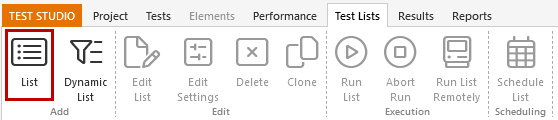
Choose the **Test Lists** tab in the Test Studio project and hit the **List** button in the *Add* section of the tools ribbon.
### Choose Name and Type of the Test List
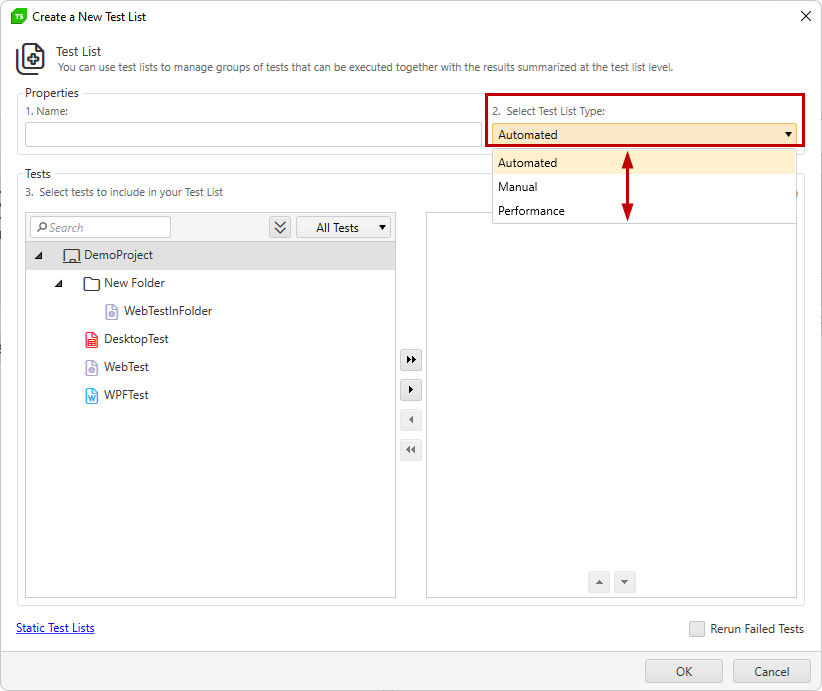
The **'Create a New Test List'** dialog pops up and lets you choose the *Name* of the list, the *Type* and *Tests* to include. Changing the *Type* of the test list determines what tests can be included in it - **Automated** for web, responsive web, WPF and load tests, **Performance** for running web tests in performance mode, and **Manual** for executing manual tests.
### Add Tests to the Test List
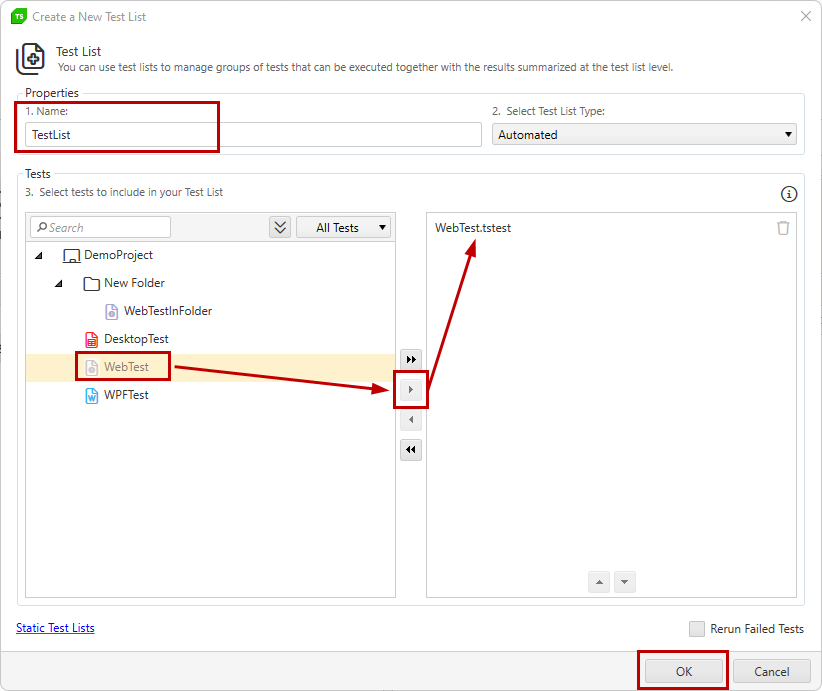
To add a test in the test list, select it on the left side of the dialog, and move it to the right pane by *using the arrow buttons*, or by *double clicking* on the test name. Once all tests are added, you can click the **OK** button to save the new test list.
> **Tip**
>
>
> Select multiple tests using the *Shift* key or *Ctrl*+ Mouse click.
### Options to Filter the Listed Tests from Project
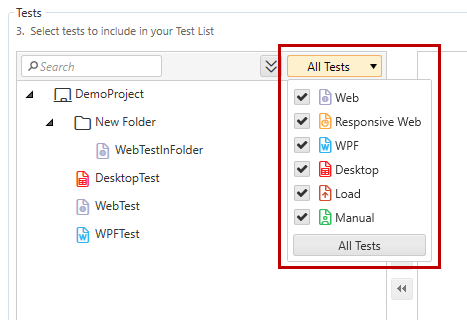
* **Filter Tests by Type**
* **Filter Tests by Name**
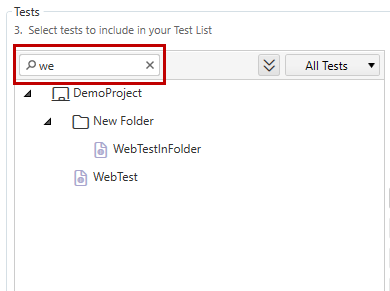
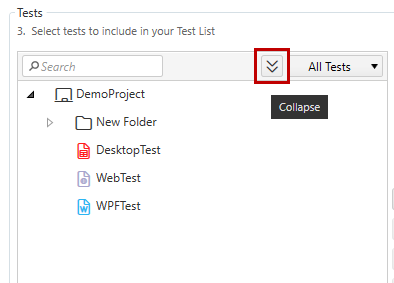
* **Use the *Collapse* Button** to collapse any expanded folders in the listed tests from project. By default when the *'Create a New Test List'* dialog appears, all folders are expanded to see the tests these include.
## How to Create a Dynamic Test List?
There are few test properties you can use to create rules for tests to include in a dynamic test list.
### Test Properties to Filter Tests in Dynamic List
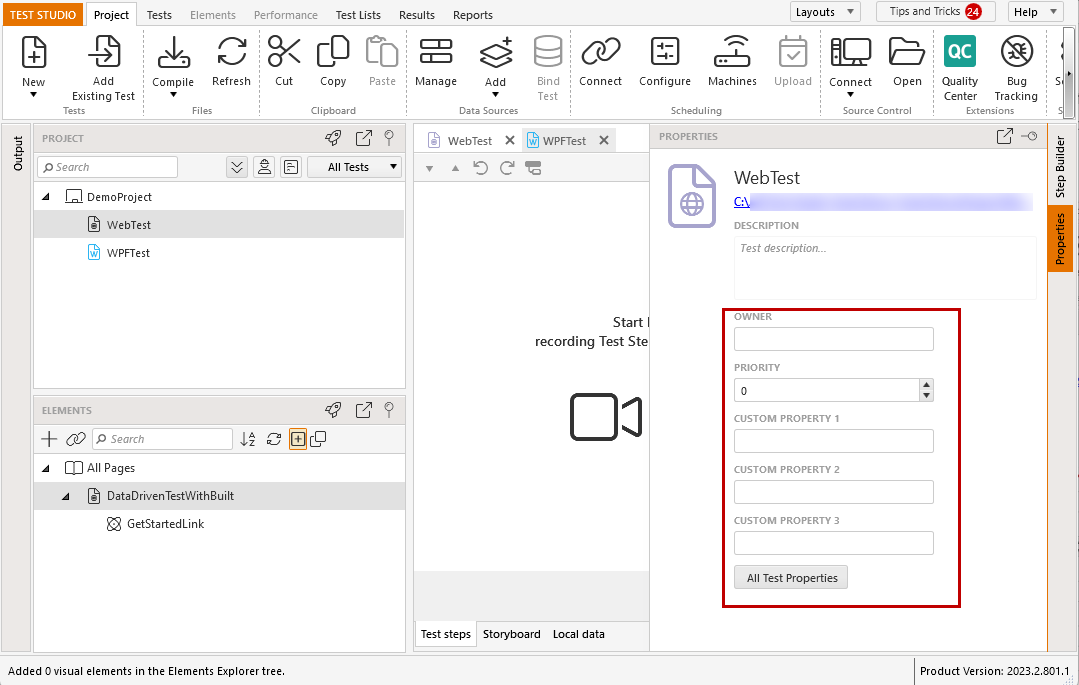
There are **few criteria you can define to filter tests** upon execution, when creating a dynamic test lists - **test name**, **test path** and the rest are the **user defined test properties** (*Owner, Priority, Custom Property 1, 2, 3*). For the purpose of this example, two of the user-defined properties were modified - *Owner* was set to Telerik and *Priority* to 1.
> **Note**
>
>
> The test's ***Priority* property does not affect the order** of tests to be executed in a test list. It is a property to be used for filtering rules in the dynamic test lists.
### Create Dynamic Test List
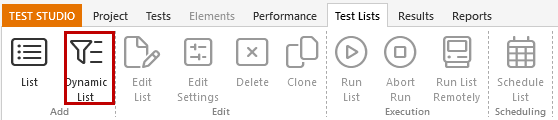
To be able to use these properties, you need to choose the **Dynamic List** button in the *Add* section under the **Test Lists** Tab
### Define Rules to Filter the Tests
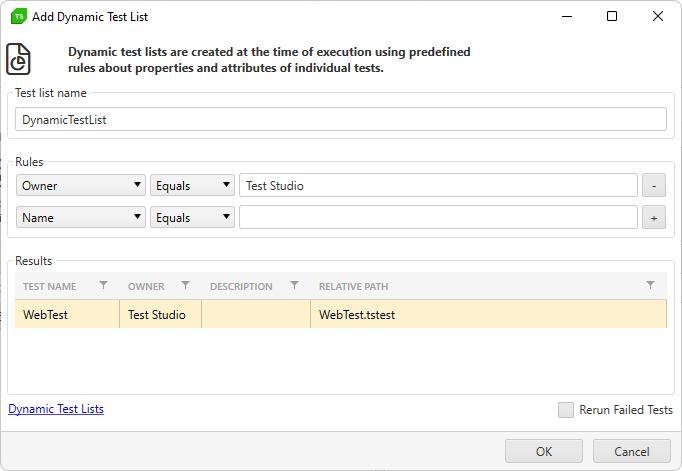
The **'Add Dynamic Test List'** dialog pops up and lets you choose the *name* of the list and *create rules* which tests to include upon execution. **Craft one or more *Rules*** to filter on specific criteria, clicking plus button after each one. The current results are displayed real-time. Once done, click the **OK** button to save the new test list.
> **Note**
>
>
> Each time you click the *Run List* button, Test Studio dynamically queries the project and executes the tests that meet the criteria of the **Rules**. So, if there are new tests added, which meet the criteria of the rules, these will be included in the test list upon execution.
## How to Execute a Test List?
Once you have created a test list, you can execute it immediately using the **Run List** button from the *Execution* section of the ribbon. If you need to schedule the test list run for a future time, or execute it on another machine, you will need to configure the Test Studio Scheduling configuration and then use the **Run List Remotely** or **Schedule Test List** buttons.