# Script Project Settings
Script Options dictate how Test Studio treats the code behind file. Note: This section is applicable to the Standalone version only.
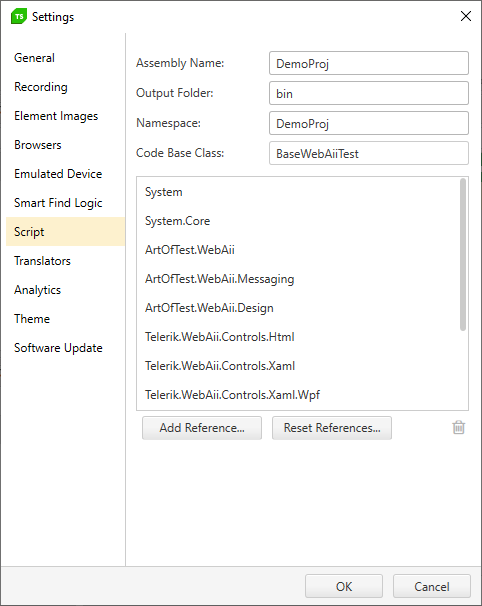
> Check here how to open the **Project Settings** window.
## Assembly Name
Defaults to the name of the project.
## Output Folder
Alter the name of the folder within your project folder that holds the project's DLL and PDB files. The default is "bin".
## Namespace
Defaults to the name of the project.
## Code Base Class
This option allows you to create and use a specialized test class. For example, you could create a class that knows how to log to your corporation's database. The code-behind for a Test Studio test uses "BaseWebAiiTest" by default. BaseWebAiiTest is an object that knows how to execute test steps, find elements on a page, perform actions against all browser types (i.e. click, scroll, etc) and log test results. BaseWebAiiTest also keeps track of the active browser and the test data.
## Project References
Here you can see a list of existing project references, add a new reference, or delete an existing one. Please see our user's guide on How to Add an Assembly Reference for more information.
## Reset References
Click this button to restore the default references.